Shoplive V1 Mobile SDK Integration Guide
Overview & Requirements
The Shoplive V1 mobile SDK integrates live commerce viewing (Player) to your app.
The SDK handles streaming, chat, and overlays; your app only has to open the broadcast and then just wire up users, products, and coupons.
It covers opening a fullscreen live stream with one tap, entry via deep link, keeping playback in a small window when the user navigates away (PIP), product and coupon integration, and purchase conversion tracking. You don't have to wire up all of it: just pick the
missions you actually need and apply those.
| Platform | Minimum | Recommended | Latest version |
|---|---|---|---|
| iOS | iOS 15 · Swift 5 · CocoaPods 1.9 or later | — | 1.9.0 |
| Android | Android 4.4(API 19). shoplive-media3 requires Android 6.0 (API 23) | Playback engine built in (no separate ExoPlayer install · declare just one engine module from Install) | 1.9.0 |
| Flutter | Dart SDK >=2.17.1 <4.0.0 · Flutter >=2.5.0 · iOS 15.0 · Android minSdk 19 · JDK 17 | — | 1.9.01 |
- Flutter
shoplive_player1.9.0 bundles iOS · Android SDK 1.9.0 (ExoPlayer 2.19.1.20). The plugin builds withcompileSdk 36·jvmToolchain 17, so Android builds need JDK 17.
The Android SDK builds with compileSdk · targetSdk 36. The minimum your app needs is
unconfirmed (needs verification).
- If you install iOS via SPM, pin the version to 1.9.0. V1 and V3 share the same distribution repository, so V3 (3.x) gets installed if you leave the version open. See Install.
- If you use Flutter, you also have to meet the iOS and Android requirements in the table above. The Flutter plugin is a thin wrapper around the native SDKs, so their requirements carry straight through.
- Upgrading from Flutter 1.8.x? Check your shortform code.
shoplive_player1.9.0 drops the shortform API and the shortform SDK dependency. Remove any code that used the shortform API in 1.8.x before you upgrade. - If your Xcode is older than 26, installing or building the official release may fail. Backward-compatible builds for that case are listed in the Platform appendix.
Module composition
The SDK is split by what each part does. Decide which roles you need first, then find the actual names you install at the bottom of each card. On Flutter a single package wraps all of them, so there is nothing to choose.
ShopliveSDKCommon · Android shoplive-common · shoplive-network
PlayerWatching
Plays the broadcast and renders PIP and overlays.
iOS ShopLiveSDK · Android shoplive-sdk-core
Playback engineAndroid only
Actually decodes the video. Add only one of the two.
Android shoplive-exoplayer or shoplive-media3
PIP permissionAndroid only
Requests permission to draw a small window over other apps. Used in Mission 8.
Android shoplive-permission
Flutter packageFlutter
A single package that wraps all the native modules above.
Flutter shoplive_player
Mission map
Find what you want to build below and jump straight to that mission. You don't have to read them in order, but every mission assumes you have finished Install and Mission 1.
| What you want to build | Mission |
|---|---|
| Tapping a button opens the live stream in full screen | Mission 1 · Launch the player |
| Tapping a push/SMS link opens the live stream directly | Mission 2 · Launch via deep link |
| Let signed-in members watch (guest · simple · JWT) | Mission 3 · Connect user information |
| Let viewers chat | Mission 4 · Chat |
| Issue coupons during the broadcast | Mission 5 · Coupons |
| Send users to your product detail page when they tap a product | Mission 6 · Product clicks |
| Let viewers share the broadcast link | Mission 7 · Share the broadcast link |
| Keep the player visible in a small window when the user leaves the screen | Mission 8 · PIP |
| Show a preview before or during the broadcast | Mission 9 · Broadcast preview |
| Measure purchase conversion | Mission 10 · Purchase conversion tracking |
| Match colors and behavior to your app | Mission 11 · UI and behavior customization |
Next → Install
Install
Read only the section for the platform you use. On iOS, pick CocoaPods and Swift Package Manager — choose
only one, then follow the matching tab below.
iOS installation (latest: 1.9.0)
The Shoplive iOS SDK isn't distributed through the official CocoaPods CDN, but through a private spec repository.
In your Podfile, you must write source — both lines.
# Podfile
source 'https://github.com/shoplive/pod-specs.git'   # Shoplive spec repo
source 'https://cdn.cocoapods.org/'                  # official CocoaPods CDN

platform :ios, '15.0'
use_frameworks!

target 'YourApp' do
  pod 'ShopLive', '1.9.0'
  pod 'ShopliveSDKCommon', '1.9.0'
end
pod install --repo-updatesource even once in your Podfile, the default CDN is no longer applied automatically.
If you forget the official CDN line, installation of every other pod besides the Shoplive SDK will fail.pod 'ShopliveSDK', but that name doesn't actually
exist in the spec. Only ShopLive·ShopliveSDKCommon·ShopliveShortformSDK exist, so
write it as ShopLive as in the example above.As of 1.9.0, the SPM distribution repository is unified into shoplive-sdk-ios as of 1.9.0. Up to 1.8.x you had to pull ios-sdk and common-ios from two separate repositories, but for a new integration the unified repository is all you need.
- In Xcode, open File → Add Package Dependencies… and enter
https://github.com/shoplive/shoplive-sdk-ios. - Set the dependency rule to Up to Next Major Version, with base version 1.9.0.
ShopLiveSDK·ShopliveSDKCommon: add both to your app target.
dependencies: [
    .package(url: "https://github.com/shoplive/shoplive-sdk-ios", .upToNextMajor(from: "1.9.0"))
],
targets: [
    .target(
        name: "YourApp",
        dependencies: [
            .product(name: "ShopLiveSDK", package: "shoplive-sdk-ios"),
            .product(name: "ShopliveSDKCommon", package: "shoplive-sdk-ios")
        ]
    )
]main branch holds the 3.x (V3) manifest, and 1.x is only on the release/1.9.0 branches/tags.
.upToNextMajor(from: "1.9.0") is an example of how you must pin the major version, so it doesn't accidentally jump to 3.x.
When adding it through the Xcode UI too, set the rule to "Up to Next Major Version" + 1.9.0.Android Install
Shoplive libraries are not on Maven Central; they live in a repository Shoplive runs itself. So before you declare the dependencies, register the repository first. Skip this step and Gradle cannot find the libraries, so the sync fails.
// settings.gradle (dependencyResolutionManagement) or the project build.gradle
repositories {
    maven { url 'https://sdk.shoplive.cloud/maven-repo' }
    google()
    mavenCentral()
}
Next, add the libraries to your app module. For the playback engine, add shoplive-exoplayer and
shoplive-media3 — choose only one of them. Adding both duplicates classes and breaks the build.
shoplive-sdk-core does not ship shoplive-common · shoplive-network · or the playback engine
as transitive dependencies, so you must declare them all. If any is missing, the build may pass but classes go missing at runtime.// app/build.gradle
dependencies {
def shoplive_sdk_version = "1.9.0"
implementation "cloud.shoplive:shoplive-sdk-core:$shoplive_sdk_version"
implementation "cloud.shoplive:shoplive-common:$shoplive_sdk_version"
implementation "cloud.shoplive:shoplive-network:$shoplive_sdk_version"
implementation "cloud.shoplive:shoplive-exoplayer:2.19.1.20"
// To use Media3 instead of ExoPlayer:
// implementation "cloud.shoplive:shoplive-media3:1.10.1.3"
}cloud.shoplive:shoplive-sdk needs to be replaced if you still use it
The name shoplive-sdk that appears in older docs no longer exists in the repository (404). Leave it in and Gradle cannot resolve the dependency, so the build fails. As in the example above, use
shoplive-sdk-core · shoplive-common · shoplive-network, plus shoplive-exoplayer or shoplive-media3 as the playback engine.Finally, register the event handler. Everything a viewer taps inside the player (products, coupons, the share button and so on) reaches your app through this handler.
ShopLive.setHandler(object : ShopLiveHandler() {
    override fun handleNavigation(context: Context, url: String) {
        // Handle link navigation
    }
})Flutter Install
flutter pub add 'shoplive_player:^1.9.0'# pubspec.yaml
dependencies:
shoplive_player: ^1.9.0ShopLivePlayer · ShopLiveCommon,
so the examples in this document do not compile.iOS — the plugin depends on the ShopLive 1.9.0 pod. That pod exists only in the Shoplive spec repo
(shoplive/pod-specs); the latest on the official CocoaPods trunk is 1.8.13.
So add the three lines below at the top of ios/Podfile and run pod install --repo-update.
# ios/Podfile (top)
source 'https://github.com/shoplive/pod-specs.git'
source 'https://cdn.cocoapods.org/'
platform :ios, '15.0'
cd ios && pod install --repo-updateAndroid — the plugin adds the Shoplive maven repository, but if settings.gradle is in
FAIL_ON_PROJECT_REPOS mode, that setting is ignored. We recommend adding it to your app's repository list as well.
// android/build.gradle(.kts)
allprojects {
    repositories {
        google()
        mavenCentral()
        maven { url = uri("https://sdk.shoplive.cloud/maven-repo") }
    }
}
After installing, add the import statement to the Dart file you'll use.
import 'package:shoplive_player/shoplive_player.dart';
import 'package:shoplive_player/shoplive_common.dart';
Verify completion
- iOS CocoaPods builds through
.xcworkspace, and SPM builds normally through package resolution - iOS SPM In Xcode's Package Dependencies list, the resolved version is 1.9.0 (not 3.x)
- The Shoplive maven repository is added to the Android project and
ShopLiveHandleris registered - Flutter
pubspec.yaml'sdependencieshasshoplive_player: ^1.9.0added (not 3.x)
Previous ← Overview & RequirementsNext → Quickstart
Quickstart
import ShopliveSDKCommon
import ShopLiveSDK

// 1) Once, at app launch
ShopLiveCommon.setAccessKey(accessKey: "YOUR_ACCESS_KEY")

// 2) Enter viewing
ShopLive.play(data: .init(campaignKey: "YOUR_CAMPAIGN_KEY"))
// 1) Once, at app launch
ShopLive.setAccessKey("YOUR_ACCESS_KEY")
ShopLive.setHandler(myHandler)
// 2) Enter viewing
ShopLive.play(this, ShopLivePlayerData("YOUR_CAMPAIGN_KEY"))final common = ShopLiveCommon();
final player = ShopLivePlayer();
// 1) Once, at app launch
common.setAccessKey(accessKey: 'YOUR_ACCESS_KEY');
// 2) Enter viewing
player.play(data: ShopLivePlayerData(campaignKey: 'YOUR_CAMPAIGN_KEY'));Previous ← InstallNext → Screen terminology guide
Screen terminology guide
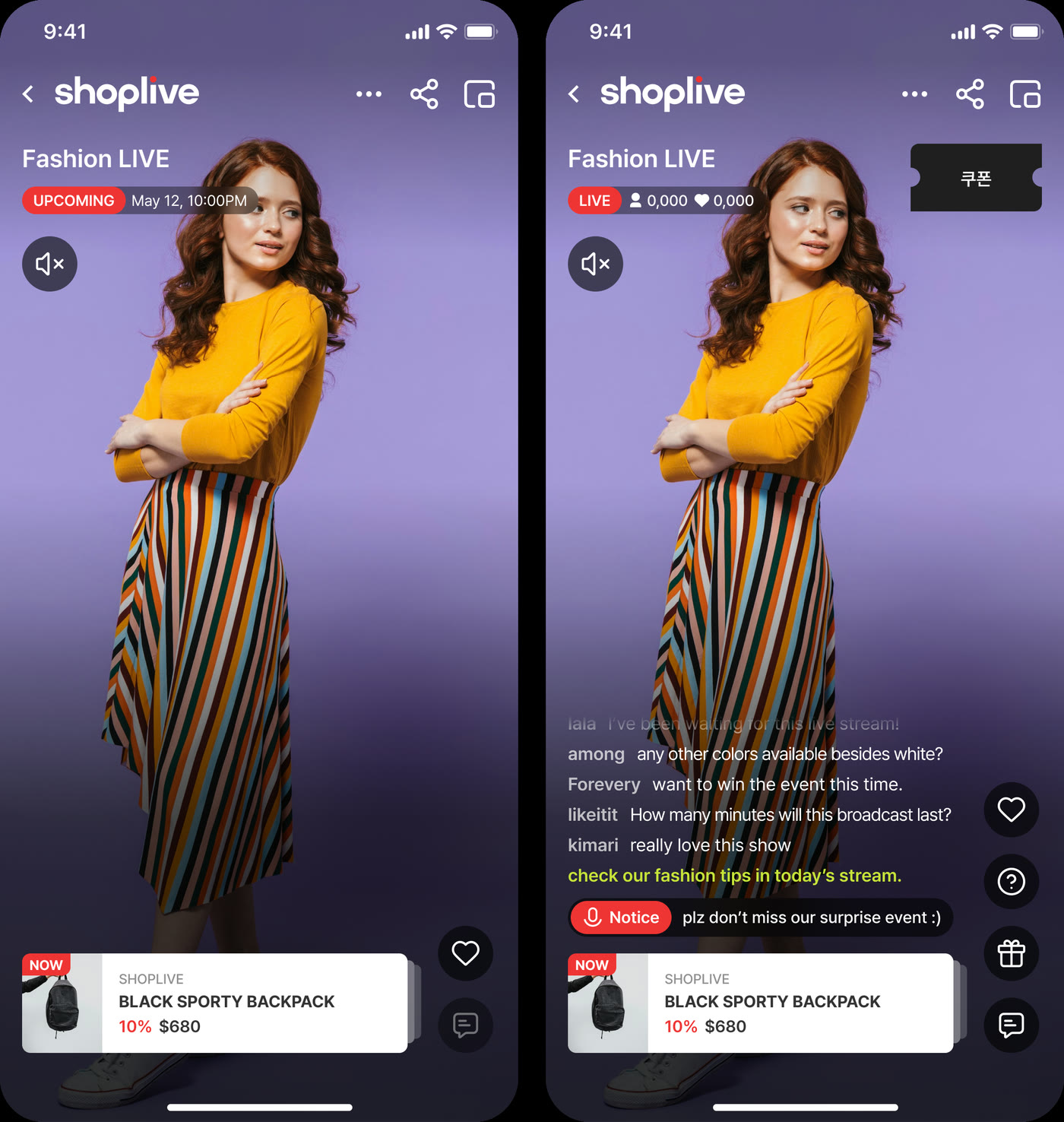
The player fills the whole screen with video and layers elements such as badges, buttons and chat on top. The Shoplive logo in the top left is always visible. This guide uses the same name for each element throughout, so agreeing on the names here makes the later missions much easier to follow.
Below are the before the broadcast with During broadcast screens of the same campaign. The numbers are on the right-hand (live) screen, where every element is visible, and the table right below maps each number to the mission that covers it. How to open the player itself is in Mission 1.
 1
2
3
4
5
6
7
8
1
2
3
4
5
6
7
8
| No. | Element | Where it's covered |
|---|---|---|
| 1 | LIVE badge | The SDK shows this automatically based on broadcast status (no integration needed) |
| 2 | Viewer count · like count | The SDK updates these automatically (no integration needed). The brand like (follow) button in Mission 11 is a different element. This number is display-only, while that button needs its own campaign setting. |
| 3 | Mute button | Mission 11 |
| 4 | More · Share · Close(top-right icon column) | Sharing is covered in Mission 7, and dropping into a small window when the user navigates away is covered in Mission 8 |
| 5 | Coupon bubble | Mission 5 |
| 6 | Chat text overlay | Mission 4 |
| 7 | Open chat · like button(bottom-right icon column) | Opening chat is covered in Mission 4. Whether the like button is the same feature as the is the same feature as the brand like (follow) in Mission 11 is not confirmed yet (Needs verification) |
| 8 | Product card | Mission 6 |
Previous ← QuickstartNext → Check with the demo app
Check with the demo app
The Shoplive org has several demo repositories, but most of them are for V3. Opening a V3 demo while integrating V1 is confusing because the APIs are completely different. Use the table below to tell them apart first.
| Repository | Platform | SDK | Usable as-is? |
|---|---|---|---|
shoplive-sdk-flutter |
Flutter | V1(1.9.0 tag) | ✅ Run after switching to the tag (below) |
ios-sdk-sample |
iOS | V1 | ⚠️ Builds only after fixing the Podfile (below) |
mobile-sdk-demo |
iOS · Android | V3 | ❌ Different API from V1, not even usable as a reference |
android-sdk-sample | Android | — | ❌ Not a demo — an AAR/POM distribution repository |
Flutter clone and run
shoplive_player package's (published on pub.dev) example app is in
shoplive_flutter_sample/example/.
git clone https://github.com/shoplive/shoplive-sdk-flutter.git
cd shoplive-sdk-flutter && git checkout 1.9.0
cd shoplive_flutter_sample/example && flutter pub get && flutter runiOS fix the Podfile first
The Xcode project (swift/ShopLiveSwiftSample) has several menus, including PIP settings, option settings, and user info.
The Podfile committed to the repository, however, cannot be used as-is.
platform :ios, '11.0' while the Shoplive spec repository source is missing as well. Install's Podfile example (including both source lines) instead, pin the version to 1.9.0,
and run pod install --repo-update.Previous ← Screen terminology guideNext → Mission 1 · Launch the player
Mission 1 · Launch the player
- Initialize the SDK once, at app startup, with the Access Key.
- Call playback with the Campaign Key when the user starts watching.
- (Optional) You can draw viewers in with a low-resolution, muted preview.
import ShopliveSDKCommon
import ShopLiveSDK

ShopLiveCommon.setAccessKey(accessKey: "{ACCESS_KEY}")
ShopLive.play(data: .init(campaignKey: "{CAMPAIGN_KEY}"))
ShopLive.setAccessKey(accessKey)
ShopLive.play(this, ShopLivePlayerData(campaignKey).apply {
keepWindowStateOnPlayExecuted = false
referrer = "referrer"
})final common = ShopLiveCommon();
final player = ShopLivePlayer();
common.setAccessKey(accessKey: "{ACCESS_KEY}");
player.play(data: ShopLivePlayerData(campaignKey: "{CAMPAIGN_KEY}"));ShopLivePlayerData has an Objective-C version: ShopLivePlayerDataObjc. The constructor is
initWithCampaignKey:keepWindowStateonPlayExecuted:referrer:. The
on in the label is lowercase. Keep it as is.Drawing viewers in with a Preview
You can first show an ongoing broadcast as a low-resolution, muted preview, and encourage the user to tap it to switch to full playback. All three platforms provide it, but the call style differs. iOS takes a data object, while on Flutter setting the options and showing the preview are split into two calls.
let previewData = ShopLivePreviewData(
    campaignKey: "{CAMPAIGN_KEY}",
    isMuted: true,
    resolution: .PREVIEW
)

ShopLive.preview(data: previewData) {
    // Call play here if you want the tap on the preview to switch to full playback
    ShopLive.play(data: .init(campaignKey: "{CAMPAIGN_KEY}"))
}
ShopLive.showPreviewPopup(this@YourActivity, ShopLivePreviewData(campaignKey))// 1) Set the options first
player.setPreviewOption(
data: ShopLivePlayerPreviewData(
campaignKey: "{CAMPAIGN_KEY}",
useCloseButton: true,
enableSwipeOut: true,
position: "BOTTOM_RIGHT",
),
);
// 2) Then show it (use hidePreview to hide)
player.showPreview(campaignKey: "{CAMPAIGN_KEY}");ShopLive.preview(data:completion:) completion fires when the preview is tapped. Whether to switch to full playback is up to your app. The older preview(with campaignKey:) is deprecated.
On Flutter, setPreviewOption (options) and showPreview (show) are separate, so you must
set the options first; to close it, use hidePreview().
On Android, API · Options's setPreviewOptions sets the preview window shape separately.Verify completion
- Access Key initialization has run exactly once, right after app launch
- Tapping the button → the broadcast plays within 2–3 seconds
- On playback failure, the error callback (iOS
handleError/ AndroidonError) logs a code and message
Previous ← Check with the demo appNext → Mission 2 · Launch via deep link
Mission 2 · Launch via deep link
Links in ads, push notifications and text messages usually carry both which broadcast to open and where the user came from as query parameters. When your app opens from such a link, pull the queries out one by one, hand them to the SDK, then start the player.
This mission assumes a link shaped like https://xxxx/yyyy?ak=…&ck=…&utm_source=…. Each kind of query is passed differently, so check the table below first to see what goes where.
| Query | Value | How to pass to the SDK |
|---|---|---|
ak | Access Key | setAccessKey |
ck | Campaign Key | Used as campaignKey when launching the player |
utm_source · utm_mediumutm_campaign · utm_content | Ad inflow channel | setUtmSource, and other dedicated setters |
| Any other query | A value your app defines | addParameter(key, value) |
Android Manifest setup
First declare the Activity that will receive the deep link in the Manifest. intent-filter's
data This Activity opens when a link arrives at the address written in the data element.
<!-- AndroidManifest.xml -->
<activity
    android:name=".SchemeActivity"
    android:exported="true"
    android:noHistory="true"
    android:screenOrientation="portrait">
    <intent-filter android:autoVerify="true">
        <action android:name="android.intent.action.VIEW" />

        <category android:name="android.intent.category.DEFAULT" />
        <category android:name="android.intent.category.BROWSABLE" />

        <data
            android:scheme="https"
            android:host="xxxx"
            android:path="/yyyy" />
    </intent-filter>
</activity>app_links·uni_links or native configuration. The SDK only gets involved from Passing query parameters onwards, and from there all three platforms are the same.https:// links, want to receive shoplive://live?ak=…&ck=… on your own scheme instead, add one more
<intent-filter> like the one below. Leave android:autoVerify out: it is an attribute specific to https links for verifying domain ownership, and it does nothing for a custom scheme.
<intent-filter>
    <action android:name="android.intent.action.VIEW" />

    <category android:name="android.intent.category.DEFAULT" />
    <category android:name="android.intent.category.BROWSABLE" />

    <data
        android:scheme="shoplive"
        android:host="live" />
</intent-filter>
Passing query parameters
From here all three platforms are the same. Pull the queries out of the URL one at a time and pass each to the right place.
ak goes to the Access Key, the four that start with utm each go to their own setter, and everything else goes to addParameter. Once everything is passed, start the player with the ck value.
// SceneDelegate
func scene(_ scene: UIScene, openURLContexts URLContexts: Set<UIOpenURLContext>) {
    guard let url = URLContexts.first?.url,
          let components = URLComponents(url: url, resolvingAgainstBaseURL: false),
          let queryItems = components.queryItems else { return }

    var campaignKey: String? = nil

    for item in queryItems {
        let value = item.value ?? ""
        switch item.name {
        case "ak":           ShopLiveCommon.setAccessKey(accessKey: value)
        case "ck":           campaignKey = value
        case "utm_source":   ShopLiveCommon.setUtmSource(utmSource: value)
        case "utm_medium":   ShopLiveCommon.setUtmMedium(utmMedium: value)
        case "utm_campaign": ShopLiveCommon.setUtmCampaign(utmCampaign: value)
        case "utm_content":  ShopLiveCommon.setUtmContent(utmContent: value)
        default:             ShopLive.addParameter(key: item.name, value: value)
        }
    }

    guard let campaignKey = campaignKey else { return }
    ShopLive.play(data: .init(campaignKey: campaignKey))
}
class SchemeActivity : AppCompatActivity() {
override fun onCreate(savedInstanceState: Bundle?) {
super.onCreate(savedInstanceState)
handle(intent)
}
override fun onNewIntent(intent: Intent?) {
super.onNewIntent(intent)
handle(intent)
}
private fun handle(intent: Intent?) {
val uri = intent?.data
if (uri == null) {
finish()
return
}
var campaignKey: String? = null
for (name in uri.queryParameterNames) {
val value = uri.getQueryParameter(name) ?: continue
when (name) {
"ak" -> ShopLiveCommon.setAccessKey(value)
"ck" -> campaignKey = value
"utm_source" -> ShopLive.setUtmSource(value)
"utm_medium" -> ShopLive.setUtmMedium(value)
"utm_campaign" -> ShopLive.setUtmCampaign(value)
"utm_content" -> ShopLive.setUtmContent(value)
else -> ShopLive.addParameter(name, value)
}
}
// Leave player launch to the Activity started with NEW_TASK (see the note below)
startActivity(Intent(this, MainActivity::class.java).apply {
flags = Intent.FLAG_ACTIVITY_NEW_TASK or Intent.FLAG_ACTIVITY_CLEAR_TASK
putExtra("campaignKey", campaignKey)
})
finish()
}
}final common = ShopLiveCommon();
final player = ShopLivePlayer();
void handleDeepLink(Uri uri) {
uri.queryParameters.forEach((key, value) {
switch (key) {
case 'ak':
common.setAccessKey(accessKey: value);
break;
case 'ck':
break; // Used right below
case 'utm_source':
common.setUtmSource(utmSource: value);
break;
case 'utm_medium':
common.setUtmMedium(utmMedium: value);
break;
case 'utm_campaign':
common.setUtmCampaign(utmCampaign: value);
break;
case 'utm_content':
common.setUtmContent(utmContent: value);
break;
default:
player.addParameter(key: key, value: value);
}
});
final campaignKey = uri.queryParameters['ck'];
if (campaignKey != null) {
player.play(data: ShopLivePlayerData(campaignKey: campaignKey));
}
}ShopLive.play()
Older docs tell you to set the parameters and finish with ShopLive.play(), but written that way it
does not compile. The only call available today is play(data:). Pass the campaignKey you pulled from the link into play(data:) as shown above.addParameter keeps them out of your analytics
setUtmSource Only values passed through the dedicated setters such as this one are counted as acquisition sources in the Shoplive admin analytics.
addParameter just attaches them as one more custom query. Always use the dedicated setters for the four utm values.SchemeActivity and launches the next screen with FLAG_ACTIVITY_NEW_TASK. The reason and the symptoms are written up in
FAQ · Troubleshooting.Verify completion
- Opening the app via a deep link immediately plays the link's
ckbroadcast - Entering via a link with utm parameters records the inflow channel in Shoplive Admin analytics
- (Android) After entering via deep link, tapping a product to drop into PIP still brings the app screen back to the front correctly
Previous ← Mission 1Next → Mission 3 · Connect user information
Mission 3 · Connect user information
Telling the player who the viewer is makes their name show up in chat and files product-click and purchase logs under that person. Without it the broadcast still plays, but you cannot tell viewers apart.
setUser·setAuthToken only tell Shoplive who the current viewer is so that chat, viewing and statistics are attributed to that member. Shoplive does not check the user's credentials. With secure auth (the JWT you pass via setAuthToken), Shoplive can verify that the information was issued by your server and not altered (signature check); with simple auth (setUser), the information is passed as is, without that check.Choose by sign-in state — recommended setup
| User | Recommended | Reason |
|---|---|---|
| Signed out | Guest | No member data needs to be passed. If you want a display name, you can set one separately |
| Signed in (recommended) | Secure auth — a JWT signed by your backend | It can't be forged, so you can use it for grade-based entry limits, purchase integration, and accurate viewer stats |
| Signed in (when backend work is hard) | Simple auth — pass ID, name and so on directly from the app | It's unsigned, so the values can be swapped out in the app. It's enough for identification and stats, but don't use it for authorization |
| Log out · reset user info | Reset the user info, then relaunch the player | Clear the signed-out member's user info (JWT and profile) so none of it stays. Changes apply from the next playback, so relaunch the player |
setAuthToken → on sign-out, reset the user info.
User changes apply from the next playback. If the player is already playing, relaunch it as in Switching from guest to a signed-in account.isLoggedIn() — do not use it to check login
iOS ShopLiveCommon.isLoggedIn() always returns true in 1.9.0, logged in or not.
Decide login from your app's own member state.Using a guest account
import ShopLiveSDK
import ShopliveSDKCommon

let user = ShopLiveCommonUser(userId: "{USER_ID}", userName: "{USER_NAME}")
ShopLiveCommon.setUser(user: user)

ShopLive.play(data: .init(campaignKey: "{CAMPAIGN_KEY}"))
val user = ShopLiveCommonUser(userId = "{USER_ID}").apply {
userName = "{USER_NAME}"
}
ShopLive.setUser(user)
ShopLive.play(this, ShopLivePlayerData(campaignKey))// common and player reuse the instances created in Mission 1
final user = ShopLiveCommonUser(userId: "{USER_ID}", userName: "{USER_NAME}");
common.setUser(accessKey: "{ACCESS_KEY}", user: user);
player.play(data: ShopLivePlayerData(campaignKey: "{CAMPAIGN_KEY}"));Connecting a simple-auth user account
Values such as ID and name are passed straight from the app. No server work, but no protection against forgery. userId can take a hashed value instead of the raw member ID — see ID hashing.
let user = ShopLiveCommonUser(
    userId: "{USER_ID}",
    userName: "{USER_NAME}",
    age: 25,
    gender: .male,
    userScore: 80,
    custom: ["grade": "vip"])

ShopLiveCommon.setUser(user: user)
ShopLive.play(data: .init(campaignKey: "{CAMPAIGN_KEY}"))
val user = ShopLiveCommonUser(userId = "{USER_ID}").apply {
userName = "{USER_NAME}"
gender = ShopLiveCommonUserGender.MALE
age = 25
userScore = 20
}
ShopLive.setUser(user)final user = ShopLiveCommonUser(
userId: "{USER_ID}",
userName: "{USER_NAME}",
gender: ShopLiveCommonUserGender.MALE,
userScore: 100,
age: 25,
custom: {"key": "value"},
);
common.setUser(accessKey: "{ACCESS_KEY}", user: user);ShopLiveCommonUser has an Objective-C version: ShopLiveCommonUserObjc. The constructor is
initWithUserId:userName:age:gender:userScore:custom:; age · userScore are
NSNumber, gender is a string (m · f · n).ID hashing — don't expose raw member IDs
When you'd rather not pass your internal member ID as is, use a value that your app and backend hash the same way as the userId.
The key is using a consistent salt and algorithm so the same user always produces the same value (for statistics and return-visitor identification).
View hashing code samples (Swift · Kotlin · Dart)
import CryptoKit

func hashUserId(_ raw: String) -> String {
    let salted = raw + "APP_SALT"
    let digest = SHA256.hash(data: Data(salted.utf8))
    return digest.map { String(format: "%02x", $0) }.joined()
}
import java.security.MessageDigest
fun hashUserId(raw: String): String {
val salted = raw + "APP_SALT"
return MessageDigest.getInstance("SHA-256")
.digest(salted.toByteArray())
.joinToString("") { "%02x".format(it) }
}// pubspec.yaml — dependencies: crypto
import 'dart:convert';
import 'package:crypto/crypto.dart';
String hashUserId(String raw) {
final salted = raw + "APP_SALT";
return sha256.convert(utf8.encode(salted)).toString();
}Create the JWT for secure auth (your backend)
For secure auth, use the Secret Key issued by your Shoplive contact: your backend signs the JWT with it. The app only fetches the JWT from your backend after sign-in and passes it to setAuthToken. The app-side code is in Connecting a secure-auth user account.
- Get the Secret Key from your Shoplive contact. It's a base64-encoded string
- From the signed-in user's info, build the payload below and sign it using HS256 as the algorithm
- Issue a new JWT every time the app asks (right before each playback) and return it. Don't store a JWT in the app and reuse it
exp. Have the app request a new JWT from your backend whenever it calls setAuthToken.| claim | Required | Description | Example |
|---|---|---|---|
exp | Required | Expiration time (Unix seconds) | 1516239022 |
userId | Required | Unique value for the signed-in user (up to 255 bytes). A hashed value works too (ID hashing) | sample_user_id |
iat | Issued-at time (Unix seconds) | 1516195822 | |
name | Name shown in chat. Banned words are masked with asterisks (*) | {USER_NAME} | |
gender | Gender — m · f · empty (unspecified) | f | |
age | Age. Stats group it in 5-year bands | 27 | |
userScore | User grade (-100 to 100; a server rule, not checked by the SDK). The basis for grade-based entry and prize-draw limits | 10 | |
userType | User type. Lets only certain types into broadcasts with an entry restriction (Entry Type) | VIP | |
profile | Chat profile image URL (64×64px recommended) | https://…/profile.png | |
custom | Arbitrary data (up to 1 KB; a server rule, not checked by the SDK) | {"grade":"vip"} |
Signing examples. Both produce the same token — just note that the Secret Key is a base64 string.
// Node.js — npm i jsonwebtoken
const jwt = require("jsonwebtoken");

const secret = Buffer.from(process.env.SHOPLIVE_SECRET_KEY, "base64");  // base64-decode it into bytes
const token = jwt.sign(
  { userId: hashedUserId, name: "{USER_NAME}", gender: "f", age: 27, userScore: 10 },
  secret,
  { algorithm: "HS256", expiresIn: "12h" }   // fills in exp and iat automatically
);
// Java — io.jsonwebtoken (jjwt)
String jwt = Jwts.builder()
.signWith(SignatureAlgorithm.HS256, base64EncodedSecretKey) // pass the base64 string as is
.setExpiration(new Date(System.currentTimeMillis() + 12 * 60 * 60 * 1000L))
.setIssuedAt(new Date())
.claim("userId", hashedUserId)
.claim("name", "{USER_NAME}")
.claim("gender", "f")
.claim("age", 27)
.claim("userScore", 10)
.compact();Connecting a secure-auth user account
Take the JWT your backend signed above and pass it to the SDK right before playback.
ShopLiveCommon.setAuthToken(authToken: "{USER_JWT}")
ShopLive.play(data: .init(campaignKey: "{CAMPAIGN_KEY}"))
ShopLiveCommon.setAuthToken("{USER_JWT}")
ShopLive.play(this, ShopLivePlayerData(campaignKey))common.setAuthToken(userJWT: "{USER_JWT}");
player.play(data: ShopLivePlayerData(campaignKey: "{CAMPAIGN_KEY}"));ShopLiveCommon.setUserJWT, but no such API actually exists. Be sure to use ShopLiveCommon.setAuthToken(authToken:).ShopLive.getAuthToken() only returns the value set via setAuthToken(). To read a JWT issued via setUser(), use ShopLiveCommon.getAuthToken().ShopLiveCommon().setUser(accessKey:user:) requires both arguments — accessKey can't be omitted.Detecting username changes
When a user changes their display name directly inside Shoplive Player, the SDK notifies your app of the change.
func onSetUserName(_ payload: [String: Any]) {
    payload.forEach { key, value in
        print("onSetUserName key: \(key) value: \(value)")
    }
}
override fun onSetUserName(jsonObject: JSONObject) {
super.onSetUserName(jsonObject)
Log.d(TAG, "userId=${jsonObject.get("userId")}, userName=${jsonObject.get("userName")}")
}player.userInfo.listen((data) {
print("userInfo: ${data.userInfo}");
});userInfo stream delivers the same native event as iOS/Android's
onSetUserName.Switching from guest to a signed-in account
If guest chat has been blocked with OFF in Admin and the user tries to chat, a LOGIN_REQUIRED command is delivered.
Send them to your login screen, then on a successful login, set the user info again via simple/secure auth above and relaunch the player.
func handleReceivedCommand(_ command: String, data: [String: Any]?) {
    switch command {
    case "LOGIN_REQUIRED":
        // Navigate to the login screen → on success, reset the user info and relaunch the player
        break
    default:
        break
    }
}
override fun onReceivedCommand(context: Context, command: String, data: JSONObject) {
when (command) {
"LOGIN_REQUIRED" -> {
// Navigate to the login screen → on success, reset the user info and relaunch the player
}
}
}player.receivedCommand.listen((data) {
switch (data.command) {
case "LOGIN_REQUIRED":
// Navigate to the login screen → on success, reset the user info and relaunch the player
break;
default:
break;
}
});Log out — reset the user info
When the user logs out, clear the user info you set (JWT and profile). The API is named setAuthToken, but the value you pass is user info (a JWT). Changes apply from the next playback, so relaunch the player if it was playing.
// Log out — reset the user info (clears the JWT and profile)
ShopLiveCommon.setAuthToken(authToken: nil)
ShopLiveCommon.setUser(user: nil)

// Clear at once — clears the JWT · user · accessKey
ShopLiveCommon.clearAuth()
ShopLiveCommon.setAccessKey(accessKey: "{ACCESS_KEY}")   // set it again before the next playback
// Log out — reset the user info (clears the JWT and profile)
ShopLiveCommon.setAuthToken(null)
ShopLiveCommon.setUser(null)
// ShopLive.resetUser() is the same as setUser(null)
// Clear at once — clears only the user · JWT (accessKey is kept)
ShopLiveCommon.clearAuth()// Log out — reset the user info
common.setAuthToken(userJWT: null);
common.clearAuth(); // Flutter's setUser does not accept nullclearAuth() clears different things on each platform
- iOS
ShopLiveCommon.clearAuth()clears the JWT · user · accessKey — all of them. CallsetAccessKeyagain before the next playback. - Android
ShopLiveCommon.clearAuth()clears only the user · JWT and keeps the accessKey (unlike iOS).ShopLiveCommon.isLoggedIn()returnstruewhen a JWT exists.
clearAuth() calls the native ShopLiveCommon.clearAuth() as is. On iOS that also resets the accessKey, so on the next login pass the accessKey again with setUser(accessKey:user:). Flutter's setUser requires accessKey as an argument anyway.Verify completion
- After signing in, the chat nickname shows the member's name
- The user ID (hash) can be looked up in Shoplive Admin statistics
- As a guest, the chat display name shows correctly, and after sign-out, resetting the user info and relaunching the player makes viewing continue as a guest
- Each playback passes a JWT newly issued by your backend, and the Secret Key is not in the app code or bundle
- On Android, you didn't confuse
ShopLiveCommon.getAuthToken()withShopLive.getAuthToken()
Previous ← Mission 2Next → Mission 4 · Chat
Mission 4 · Chat
- In the Shoplive admin, go to Broadcast details → Chat permissions and check whether guest chat is allowed.
- If guest chat is blocked, Mission 3's login-prompt flow applies as-is.
- (Optional) Change the chat/send-button font to match your app's font.
let inputFont = UIFont.systemFont(ofSize: 14, weight: .regular)
let sendButtonFont = UIFont.systemFont(ofSize: 14, weight: .medium)

ShopLive.setChatViewFont(inputBoxFont: inputFont, sendButtonFont: sendButtonFont)
val nanumGothic = ResourcesCompat.getFont(requireContext(), R.font.nanumgothic)
ShopLiveCommon.setTextTypeface(nanumGothic)Verify completion
- Admin's chat permission setting matches the app's actual behavior (whether guests are allowed)
- (If you changed the font) the specified font is applied to the chat input field and send button
Previous ← Mission 3Next → Mission 5 · Coupons
Mission 5 · Coupons
LINK / LINK (new window)
This is the case where the coupon click event is set to LINK or LINK (New window).
func handleNavigation(with url: URL) {
    let safari = SFSafariViewController(url: url)
    present(safari, animated: true)
}
override fun handleNavigation(context: Context, url: String) {
val intent = Intent(this@YourActivity, WebViewActivity::class.java)
intent.putExtra("url", url)
startActivity(intent)
}player.handleNavigation.listen((data) {
launchUrl(Uri.parse(data.url), mode: LaunchMode.externalApplication);
});Download coupon
This is the case where the coupon click event is set to Download coupon. You receive the coupon ID, process the issuance, and return the result to the SDK.
func handleDownloadCoupon(with couponId: String, result: @escaping (ShopLiveCouponResult) -> Void) {
    let couponResult = ShopLiveCouponResult(
        couponId: couponId, success: true,
        message: "Coupon download success!",
        status: .SHOW, alertType: .ALERT)
    result(couponResult)
}
override fun handleDownloadCoupon(
context: Context,
couponId: String,
callback: ShopLiveHandlerCallback
) {
callback.couponResult(
isDownloadSuccess = true,
message = "Coupon download success!",
couponStatus = ShopLive.CouponPopupStatus.HIDE,
alertType = ShopLive.CouponPopupResultAlertType.ALERT
)
}player.handleDownloadCoupon.listen((data) async {
await player.sendDownloadCouponResult(
couponId: data.couponId,
success: true,
message: "Coupon download success!",
popupStatus: "KEEP",
alertType: "ALERT",
);
});callback is an object the SDK creates and hands to you. callback.couponResult(...), and you don't need to build a new ShopLiveHandlerCallback yourself.User define
This is the case where the coupon click event is set to User define. You receive your own defined payload as-is.
func handleCustomAction(with id: String, type: String, payload: Any?, result: @escaping (ShopLiveCustomActionResult) -> Void) {
    let actionResult = ShopLiveCustomActionResult(
        id: id, success: true, message: "success!",
        status: .SHOW, alertType: .ALERT)
    result(actionResult)
}
override fun handleCustomAction(
context: Context,
id: String,
type: String,
payload: JSONObject,
callback: ShopLiveHandlerCallback
) {
callback.customActionResult(
isSuccess = true,
message = "success!",
couponStatus = ShopLive.CouponPopupStatus.HIDE,
alertType = ShopLive.CouponPopupResultAlertType.ALERT
)
}player.handleCustomAction.listen((data) async {
await player.sendCustomActionResult(
id: data.id,
success: true,
message: "success!",
popupStatus: "SHOW",
alertType: "ALERT",
);
});customActionResult's 3rd argument is named couponStatus. Even though this is a custom action, the name matches the coupon family. The SDK source defines it that way, so use it as is. The equivalent argument on Flutter is named popupStatus instead — watch for this when copying code across platforms..png)
Verify completion
- Clicking a LINK coupon navigates using the configured method (Safari · web view · external browser)
- Clicking Download coupon shows the issuance result popup (SHOW/HIDE/KEEP) as intended
- Clicking User define logs the payload's id/type correctly
Previous ← Mission 4Next → Mission 6 · Product clicks
Mission 6 · Product clicks
- When a viewer taps a product or the cart button in the product list, the SDK delivers a
CLICK_PRODUCT_DETAIL·CLICK_PRODUCT_CARTcommand to your app. - If a product or banner has a detail URL set, the same click is also delivered as
handleNavigation. - On iOS,
hookNavigationis also available, which intercepts only link navigation through a single closure.
Product/cart click commands
The command names are the same across all three platforms. Since the command-receiving callback also carries other commands like coupons and login requests, branch on the command name to handle it.
// ShopLiveSDKDelegate
func handleReceivedCommand(_ command: String, data: [String: Any]?) {
    switch command {
    case "CLICK_PRODUCT_DETAIL":
        // data: info about the selected product
        break
    case "CLICK_PRODUCT_CART":
        // data: info about the product added to the cart
        break
    default:
        break
    }
}
// ShopLiveHandler
override fun onReceivedCommand(context: Context, command: String, data: JSONObject) {
when (command) {
"CLICK_PRODUCT_DETAIL" -> {
// data: info about the selected product
}
"CLICK_PRODUCT_CART" -> {
// data: info about the product added to the cart
}
}
}final player = ShopLivePlayer();
player.receivedCommand.listen((event) {
switch (event.command) {
case 'CLICK_PRODUCT_DETAIL':
// event.data: info about the selected product
break;
case 'CLICK_PRODUCT_CART':
// event.data: info about the product added to the cart
break;
}
});handleReceivedCommand(_:with:) is deprecated
The version whose argument is with payload: Any? is the old one; the current one is data: [String: Any]? from the example above.
Both are @objc optional, so implementing the wrong one still builds — if the value doesn't come through, check this signature first.Handling link navigation (handleNavigation)
If a product or banner has a detail URL registered, that tap also arrives at handleNavigation.
Mission 5's LINK coupon. It is the same callback, so coupon, product and banner taps all land here. You decide where to send the user from the URL alone, so agreeing on a link format up front makes branching easier.
func handleNavigation(with url: URL) {
    // url: the detail URL set on the selected product or banner
    print("handleNavigation \(url)")
}
override fun handleNavigation(context: Context, url: String) {
Log.d(TAG, "handleNavigation url=$url")
}final player = ShopLivePlayer();
player.handleNavigation.listen((event) {
debugPrint("handleNavigation : ${event.url}");
});Tapping a product that has a detail URL registered calls CLICK_PRODUCT_DETAIL and
handleNavigation can return both. The web player sends one tap as two separate messages. (A product with no detail URL only sends the command, without handleNavigation.)
So if you implement navigation on both sides, the detail screen opens twice.
Handle navigation on one side only. If every product has a detail URL, put it all in handleNavigation; if some products have no URL, it is simpler to handle everything in the command callback.
iOS only hookNavigation
Use this when you want to receive only link navigation as a closure, bypassing the delegate.
ShopLive.hookNavigation { url in
    // url: the detail URL set on the selected product or banner
    print("hookNavigation \(url)")
}handleNavigation delegate, but also the behaviour that drops the player into PIP or closes it after a link tap (setNextActionOnHandleNavigation) is skipped. Use one or the other, not both.Verify completion
- Tapping a product in the product list logs
CLICK_PRODUCT_DETAIL - Tapping the cart button logs
CLICK_PRODUCT_CART - Tapping a product with a detail URL set delivers the URL via
handleNavigation - (iOS, when using hookNavigation) only the hook closure is called, instead of
handleNavigation
Previous ← Mission 5Next → Mission 7 · Share the broadcast link
Mission 7 · Share the broadcast link
- Set the link format the share button exports (URI scheme or web URL) via
setShareScheme. - If you don't handle it separately, the SDK shows the OS default share sheet.
- To use a share UI that matches your app design, receive the share data and present your own screen.
Specifying the share link format
If you include ak(Access Key)·ck (the Campaign Key) in the share link, whoever receives the link
can enter the same broadcast using that value.
// URI Scheme
let scheme = "{your_scheme}://{your_host}?ak=xxx&ck=yyy"
ShopLive.setShareScheme(scheme, shareDelegate: nil)

// Or a web URL
ShopLive.setShareScheme("https://www.share_link.com/?ak=xxx&ck=yyy", shareDelegate: nil)
// URI Scheme
val scheme = "{your_scheme}://{your_host}?ak=xxx&ck=yyy"
ShopLive.setShareScheme(scheme)
// Or a web URL
ShopLive.setShareScheme("https://www.share_link.com/?ak=xxx&ck=yyy")final player = ShopLivePlayer();
player.setShareScheme(
shareSchemeUrl: "{your_scheme}://{your_host}?ak=xxx&ck=yyy",
);custom: parameter doesn't exist
The real signature is setShareScheme(_ scheme: String?, shareDelegate: ShopLivePlayerShareDelegate?).
The custom: label for passing a closure isn't in the SDK — using it as-is won't compile.
To use the default share sheet, pass shareDelegate: nil.Default system share UI
If you pass shareDelegate: nil on iOS and don't override handleShare on Android, the SDK shows
the OS default share sheet. No extra code needed.
(On iOS, shareDelegate has no default value, so it can't be omitted — you must specify nil explicitly.)
Custom share UI
To use a share screen that matches your app design, receive the share data (url · campaign info) and present it yourself.
// 1) Assign a delegate to receive the shared data
ShopLive.setShareScheme(scheme, shareDelegate: self)

// 2) Have the delegate present the app's share UI
extension MainViewController: ShopLivePlayerShareDelegate {
    func handleShare(data: ShopLivePlayerShareData) {
        guard let urlString = data.url, let url = URL(string: urlString) else { return }

        let activityVC = UIActivityViewController(activityItems: [url],
                                                  applicationActivities: nil)
        ShopLive.viewController?.present(activityVC, animated: true, completion: nil)
    }
}
// ShopLiveHandler — if you do not override it, the SDK shows its default share sheet
override fun handleShare(context: Context, data: ShopLivePlayerShareData) {
val inflater = getSystemService(LAYOUT_INFLATER_SERVICE) as LayoutInflater
val view = inflater.inflate(R.layout.custom_share_dialog, null)
AlertDialog.Builder(context)
.setView(view)
.create()
.show()
}handleShare's second argument isn't a String
The original is written as handleShare(context: Context, shareUrl: String), but no such signature exists.
The real one is handleShare(context: Context, data: ShopLivePlayerShareData),
and besides data.url, data.campaign(campaignKey·title·description·thumbnail) also comes along.setShareScheme, and
the share UI uses each native platform's default share sheet as-is.Verify completion
- Tapping the player's share button shows a share sheet containing the configured scheme/URL
- The shared link contains the
ak·ckquery as-is - (when using a custom UI) your app's share screen appears instead of the default share sheet
Previous ← Mission 6Next → Mission 8 · PIP
Mission 8 · PIP
There are two kinds of PIP. in-app PIP is a small window that floats only inside your own app, while OS PIP is a system window that rises above the home screen and other apps. Different things create them, so you configure them separately. What each platform supports also differs.
| Platform | In-app PIP | OS PIP |
|---|---|---|
| iOS | Supported | Supported (requires enabling Background Modes in the project) |
| Android | Deprecated. Calling it does nothing | Supported (Android 8.0+) |
| Flutter | No dedicated options. Only the transition API exists; actual behaviour follows each native platform | |
showPreviewPopup alone.In-app PIP
Tapping the player's PIP icon or swiping down drops the broadcast into a small window inside the app. Unlike a preview, audio keeps playing. In practice only iOS and Flutter (iOS builds) can use it. On Android it is deprecated, as noted below.
// Whether PIP is allowed at all (shared precondition for in-app PIP and OS PIP)
ShopLive.setEnabledPictureInPictureMode(isEnabled: true)

// Set size, position, corners, and the close button all at once
let config = ShopLiveInAppPipConfiguration(
    useCloseButton: true,
    pipPosition: .bottomRight,
    enableSwipeOut: true,
    pipSize: ShopLiveInAppPipSize(pipMaxSize: 200),
    pipRadius: 10,
    pipPinPositions: [.topLeft, .topRight, .bottomLeft, .bottomRight],
    closeButtonConfig: ShopLiveCloseButtonConfig(position: .topRight, width: 30, height: 30, offsetX: 3, offsetY: 3, color: .white)
)
ShopLive.setInAppPipConfiguration(config: config)
final player = ShopLivePlayer();
// In-app PIP and the preview window are the same window, so one call configures both
player.setPreviewOption(
data: ShopLivePlayerPreviewData(
campaignKey: 'YOUR_CAMPAIGN_KEY',
useCloseButton: true,
enableSwipeOut: true,
pipRadius: 10,
pipMaxSize: 400,
position: 'BOTTOM_RIGHT',
),
);Window size is set with pipSize. pipMaxSize (based on the long edge; the other edge follows the video ratio),
pipFixedWidth·pipFixedHeight — choose only one of them each have their own initialiser, so pick the one basis you want.
iOS Set the close button look with closeButtonConfig(ShopLiveCloseButtonConfig).
All fields are optional, and the shadow fields have no default.
| Field | Type | Default | Description |
|---|---|---|---|
position | .topLeft · .topRight | .topLeft | Close button position |
width · height | CGFloat | 30 | Button size |
offsetX · offsetY | CGFloat | 3 | Distance from the corner |
color | UIColor | .white | Button color |
shadowOffsetX · shadowOffsetY | CGFloat | none | Shadow offset |
shadowBlur | CGFloat | none | Shadow blur radius |
shadowBlurStyle | .normal · .solid · .inner · .outer | none | Shadow blur style |
shadowColor | UIColor | none | Shadow color |
imageStr | String | none | Button image URL |
setEnabledPictureInPictureMode defaults to true. Set it to false and, when a PIP transition is requested, the player shuts down
instead of shrinking. This is not "disable PIP but keep fullscreen", so be careful.showInAppPip()·hideInAppPip() do nothing when called, and
isInAppPipMode() always returns false. The second argument of
setEnabledPictureInPictureMode(isEnabled, useInAppPip) is ignored too. If you need a small window on Android, use OS PIP instead.setPreviewOption(ShopLivePlayerPreviewData) maps to setInAppPipConfiguration and setPictureInPicturePadding on iOS and to ShopLivePreviewData on Android. It is the same call as the preview settings in
Mission 9, so you only need to set it once.
There are also things Flutter simply does not have. The OS PIP toggle (setEnabledPictureInPictureMode family) and
the Android overlay-permission API (ShopLivePermissionManager) are missing from the Flutter SDK, so you have to call native code directly if you need them.
If you integrated from the old docs: three APIs that are gone
pipScale·setEnabledPipSwipeOut·ShopLive.useCloseButton(_:) are deprecated. All three were folded into the single setInAppPipConfiguration(config:) call shown above. Size moves to pipSize, swipe-to-dismiss to enableSwipeOut, and the close button via the
useCloseButton property property. The settings themselves did not disappear; only the old style of calling them one by one as global functions did.
OS PIP
Playback keeps going in a system window even if the user goes to the home screen or switches to another app.
iOS In your Xcode project, turn on Signing & Capabilities → Background Modes's Audio, AirPlay, and Picture in Picture for this to work. Miss it and the player will not drop into OS PIP, no matter how correct your code is.
.png)
ShopLive.setEnabledOSPictureInPictureMode(isEnabled: true)setEnabledPictureInPictureMode to be on
The two flags are an AND condition. If setEnabledPictureInPictureMode(isEnabled: false),
even calling setEnabledOSPictureInPictureMode(isEnabled: true) won't create the OS PIP controller.
You can't set up "only in-app PIP off, but OS PIP on."Android OS PIP is on by default. You only need to set the aspect ratio to suit your service.
// Allow entering OS PIP (default true)
ShopLive.setEnabledPictureInPictureMode(true)

// PIP window ratio — defaults to 9:16 if not set
// RATIO_1X1 / RATIO_1X2 / RATIO_2X3 / RATIO_3X4 / RATIO_9X16
ShopLive.setPIPRatio(ShopLivePIPRatio.RATIO_9X16)android:supportsPictureInPicture="true" and
SYSTEM_ALERT_WINDOW permission are already declared in the SDK module's Manifest, so they're merged into your app via Manifest merging.ShopLivePermissionManager.request(this, ShopLivePermissionType.DRAW_OVERLAY) { hasPermission ->
// hasPermission == true means overlay permission is already granted
}This helper is a separate module, so you need to add a dependency to use it.
// app/build.gradle
implementation "cloud.shoplive:shoplive-permission:$shoplive_sdk_version"UNSUPPORTED_OS_PIP_MODE (9500) error is delivered via onError. Even on 8.0 and above, if PIP is switched off for your app in the system settings the SDK shows a dialog asking whether to open the settings screen. Users see this flow, so check it in advance.PIP switching API
Besides user interaction (PIP button · swipe), your app code can switch to PIP or back to full screen directly. Use it to briefly set the player aside, e.g. right before navigating to a login screen.
// Switch to in-app PIP
ShopLive.startPictureInPicture()

// Return to full screen
ShopLive.stopPictureInPicture()
// Switch to OS PIP — set true if you need to wait for the overlay permission screen to close
ShopLive.startPictureInPicture(shouldDelayForOverlayPermissionFlow = false)
// Return to full screen
ShopLive.stopPictureInPicture()final player = ShopLivePlayer();
player.startPictureInPicture();
player.stopPictureInPicture();startPictureInPicture() is deprecated
startPictureInPicture(shouldDelayForOverlayPermissionFlow: Boolean) should be used instead.
Passing true leaves a brief moment for a permission dialog to clear before dropping into PIP.iOS only PIP movement area and padding
To keep in-app PIP from covering the bottom tab bar or an essential button, you can restrict both the area it can move within and PIP's own margin.
offset, and the padding of the PIP window itself (grey dashed) with padding.// Area near the screen edges where PIP should not be allowed to enter
let offsetApplied = ShopLive.setPictureInPictureFloatingOffset(
offset: UIEdgeInsets(top: 60, left: 0, bottom: 90, right: 0))
// Margin around the PIP itself
let paddingApplied = ShopLive.setPictureInPicturePadding(
padding: UIEdgeInsets(top: 8, left: 8, bottom: 8, right: 8))Bool. Always check the return value
If the combined offset and padding area exceeds the screen's width or height, the value isn't applied and it returns false.
If you ignore this, it just runs with the setting silently dropped.Verify completion
- (iOS) Swiping down on the player shrinks it into a small window inside the app, and audio doesn't drop
- (iOS) After enabling Background Modes, going to the home screen continues playback in the system PIP window
- (Android) Going to the home screen switches to an OS PIP window of the configured aspect ratio
startPictureInPicture·stopPictureInPicturecorrectly switches to and back from PIP- (iOS, when offsets are configured) both functions return
trueand PIP never goes outside the configured area
Previous ← Mission 7Next → Mission 9 · Broadcast preview
Mission 9 · Broadcast preview
The preview is muted by default, and tapping the window switches it to the full-screen player.
On Android, floating it over Activity with Popup Preview is the recommended approach.
showPreviewPopup alone.Starting a preview
let previewData = ShopLivePreviewData(
    campaignKey: "YOUR_CAMPAIGN_KEY",
    keepWindowStateOnPlayExecuted: true,
    referrer: nil,
    isMuted: true,
    isEnabledVolumeKey: false,
    resolution: .PREVIEW
)

ShopLive.preview(data: previewData) {
    // To go full screen when the preview window is tapped
    ShopLive.play(data: .init(campaignKey: "YOUR_CAMPAIGN_KEY"))
}
ShopLive.showPreviewPopup(this, ShopLivePreviewData("YOUR_CAMPAIGN_KEY").apply {
useCloseButton = true
enabledSwipeOut = true
resolutionType = ShopLivePreviewResolutionType.LIVE
onClickListener = View.OnClickListener { view ->
// Preview → player transition animation
ShopLive.setPreviewTransitionAnimation(this@MainActivity, view)
ShopLive.play(this@MainActivity, ShopLivePlayerData("YOUR_CAMPAIGN_KEY"))
}
})final player = ShopLivePlayer();
// 1) Set the options first
player.setPreviewOption(
data: ShopLivePlayerPreviewData(
campaignKey: 'YOUR_CAMPAIGN_KEY',
useCloseButton: true,
enableSwipeOut: true,
pipRadius: 10,
pipMaxSize: 400,
position: 'BOTTOM_RIGHT',
),
);
// 2) Start the preview
player.showPreview(campaignKey: 'YOUR_CAMPAIGN_KEY');Call the following when you need to close the preview from code. Call it at the moment it should close, such as when navigating to another screen; not right after showing it.
player.hidePreview();iOS preview(data:) The completion attached to it fires when playback starts not when the user taps the preview window, but when the viewer taps the preview window. And the moment you pass a completion, the SDK's default "tap to go fullscreen" behaviour disappears. If you want the fullscreen transition, call play(data:) yourself inside the completion, as in the example above; to keep the default behaviour, pass nil to completion.
Flutter Set the options first, show the preview second.
showPreview takes only a campaignKey (showPreview({required String campaignKey})), and options are passed separately through setPreviewOption. Reverse the order and the options are ignored. The showPreview(data:) that appears in older docs does not exist.
Android ShopLivePreviewData(campaignKey) Use the single-argument form.
ShopLivePreviewData(activity, accessKey, campaignKey) has all three of its arguments deprecated. Set the accessKey ahead of time with Mission 1 is an example of how you must ShopLiveCommon.setAccessKey, as in that mission.
showPreviewPopup can return null
If the player is already up or the target Activity is finishing, it skips showing the preview and returns null.
If your code uses the return value, don't skip handling null processing.See the full option list and defaults in the Android ShopLivePreviewData properties ·
Flutter ShopLivePlayerPreviewData tables.
Android showing it with saved options
If you save the preview options once at app startup, you can later launch it by just passing campaignKey.
// Save the options once — campaignKey gets overwritten by the value passed to showPreviewPopup
ShopLive.setPreviewOptions(ShopLivePreviewData("YOUR_CAMPAIGN_KEY").apply {
    useCloseButton = true
    enabledSwipeOut = true
})

// Only campaignKey is needed to present it
ShopLive.showPreviewPopup(this, "YOUR_CAMPAIGN_KEY")ShopLivePreviewData("") like this — don't pass an empty campaignKey
The initializer validates campaignKey, and if it's empty, it throws an NOT_INITIALIZED_CAMPAIGN_KEY error via
onError. Use a real campaignKey even when you're only pre-saving options.Banner preview view — embed it in your layout
The Popup Preview shown so far is a window floating window. If instead you want to
embed it directly it into your layout, for example to attach a preview to every cell in a list, use a preview view.
On iOS it is ShopLivePlayerPreview, on Android cloud.shoplive.sdk.ShopLivePreview.
Flutter has no such embeddable view.
iOS Create the view, call addSubview, add constraints, then call
.initialize → .start(accessKey:campaignKey:referrer:) in that order.
Events arrive through the resultHandler closure. The full list of cases is in
Preview components. When a cell is reused, clean up with .stop or .close.
Android Place the view in your layout XML, then start and release it in code.
<cloud.shoplive.sdk.ShopLivePreview
    android:id="@+id/preview"
    android:layout_width="120dp"
    android:layout_height="180dp" />
import ShopLiveSDK
import ShopliveSDKCommon
final class PreviewCell: UITableViewCell {
private var preview: ShopLivePlayerPreview?
func configure(campaignKey: String) {
let preview = ShopLivePlayerPreview()
preview.translatesAutoresizingMaskIntoConstraints = false
contentView.addSubview(preview)
NSLayoutConstraint.activate([
preview.topAnchor.constraint(equalTo: contentView.topAnchor),
preview.leadingAnchor.constraint(equalTo: contentView.leadingAnchor),
preview.widthAnchor.constraint(equalToConstant: 120),
preview.heightAnchor.constraint(equalToConstant: 180)
])
self.preview = preview
preview.action(.initialize)
preview.resultHandler = { result in
switch result {
case .didChangeCampaignStatus(let status):
print(status)
case .onError(let code, let message):
print(code, message)
case .handleReceivedCommand(let command, let payload):
print(command, payload ?? [:])
default:
break // for other cases, see the Preview components reference
}
}
// replaces the global accessKey with this value
preview.action(.start(accessKey: "{ACCESS_KEY}", campaignKey: campaignKey, referrer: nil))
}
override func prepareForReuse() {
super.prepareForReuse()
preview?.action(.close) // clean up on cell reuse — removes it from the parent view
preview = nil
}
}// owner is the LifecycleOwner (host Activity/Fragment) received in the adapter constructor
class PreviewAdapter(
private val owner: LifecycleOwner,
private val campaignKeys: List<String>,
) : RecyclerView.Adapter<PreviewAdapter.ViewHolder>() {
override fun getItemCount() = campaignKeys.size
override fun onCreateViewHolder(parent: ViewGroup, viewType: Int): ViewHolder {
val view = LayoutInflater.from(parent.context)
.inflate(R.layout.item_preview, parent, false)
return ViewHolder(view)
}
override fun onBindViewHolder(holder: ViewHolder, position: Int) {
holder.onBind(campaignKeys[position])
}
// Starts/releases playback as RecyclerView attaches and detaches the cell
override fun onViewAttachedToWindow(holder: ViewHolder) {
super.onViewAttachedToWindow(holder)
holder.onViewAttachedToWindow()
}
override fun onViewDetachedFromWindow(holder: ViewHolder) {
holder.onViewDetachedFromWindow()
super.onViewDetachedFromWindow(holder)
}
inner class ViewHolder(view: View) : RecyclerView.ViewHolder(view) {
private val preview: ShopLivePreview = view.findViewById(R.id.preview)
fun onBind(campaignKey: String) {
preview.initializePlayer()
preview.setLifecycleObserver(owner)
preview.campaignKey = campaignKey
preview.setMuted(true)
}
fun onViewAttachedToWindow() {
preview.start() // Uses the accessKey already set via ShopLiveCommon.setAccessKey in Mission 1
}
fun onViewDetachedFromWindow() {
preview.release()
}
}
}ShopLivePreview view's start() and prepare() can throw
accessKey and campaignKey not being set — calling the
parameterless start() or prepare() raises
ShopLiveCommonError.RecyclerView: when using it
When the ViewHolder attaches, call preview.start(); and when it detaches, call
preview.release(). Since cells are recycled, if you don't also call release() on the previous instance,
a preview scrolled off screen keeps playing.ShopLivePreview class. The popup is just a wrapper that inflates this same view. When it receives an aspect ratio (an internal callback that runs identically for both banner and popup), it writes that size back into the ShopLive.setPreviewOptions width/height stored via that call. It is a one-directional side effect that only happens when a stored value exists. The popup itself goes down the same path while playing, but that just rewrites its own values so it goes unnoticed;
a banner-style instance that stays up without popup UI, the saved value can change without the user noticing.Verify completion
- The preview window opens muted and plays the broadcast video
- Tapping the window switches to the full-screen player
- The preview closes via the close button or by swiping it off screen
- (Android) Requesting a preview while the player is already running doesn't create a duplicate
- The banner preview view (iOS
ShopLivePlayerPreview· AndroidShopLivePreview) starts and releases correctly as you scroll, even inside a list
Previous ← Mission 8Next → Mission 10 · Purchase conversion tracking
Mission 10 · Purchase conversion tracking
Shoplive records a purchase conversion when a user watches a live (or replay) or shortform video for at least 3 seconds and then buys a product registered on that video within 28 days of watching. A conversion is attributed to the last video watched, and live (replay) and shortform are counted separately, so a single purchase can be recorded as a conversion on both sides.
Sending the conversion event at purchase completion
On the screen where the purchase is confirmed (e.g. order complete page), call sendConversionEvent once.
When the product identifiers you pass map to the watch record, the link between viewing and purchase is recorded.
import ShopliveSDKCommon

let products = [
    ShopLiveConversionProductData(
        productId: "productId",
        customerProductId: "customerProductId",
        sku: "sku",
        url: "url",
        purchaseQuantity: 1,
        purchaseUnitPrice: 1000.0)
]

ShopLiveEvent.sendConversionEvent(data: .init(
    type: "purchase",
    products: products,
    orderId: "orderId",
    referrer: "referrer",
    custom: ["campaignKey": "campaignKey"]))
ShopLiveEvent.sendConversionEvent(
ShopLiveConversionData(
"purchase",
products = listOf(
ShopLiveConversionProductData(
productId = "productId",
customerProductId = "customerProductId",
sku = "sku",
url = "url",
purchaseQuantity = 1,
purchaseUnitPrice = 1000.0,
)
),
orderId = "orderId",
referrer = "referrer",
custom = mapOf("campaignKey" to "campaignKey"),
)
)| ShopLiveConversionData | Type | Description |
|---|---|---|
type | String? | Purchase conversion is "purchase" · required on Android |
products | List<ShopLiveConversionProductData>? | List of purchased products · required on Android |
orderId | String? | Order number |
referrer | String? | Inflow channel |
custom | Map<String, Any?>? | A value to attach alongside it (e.g. campaignKey) |
| ShopLiveConversionProductData | Type | Description |
|---|---|---|
productId | String? | Shoplive's own product ID |
customerProductId | String? | Client's own product ID |
sku | String? | Product SKU |
url | String? | Product URL |
purchaseQuantity | Int? | Quantity purchased |
purchaseUnitPrice | Double? | Unit price |
type and products can't be omitted
Only these two arguments have no default value, so you must specify null explicitly to compile, even if you have nothing to pass.
All arguments in the rest (orderId·referrer·custom) and ShopLiveConversionProductData have default values, so you can omit them. On iOS, all of them have default values, so pass only what you need.orderId is a string, not a number
The original table writes it as Int?, but the real definition on both iOS and Android is String?. Even if the order number consists only of digits, pass it as a string.purchaseUnitPrice won't compile if you use an integer literal
The type is Double?, but Kotlin doesn't automatically convert 1000 to Double. Write
1000.0.shoplive_player 1.9.0 does not include sendConversionEvent · setAnonId.
The Dart example in older docs (ShopLiveEvent.sendConversionEvent) does not compile.
If you need them, call the examples above from native iOS · Android code (platform channel).onEvent), the iOS/Android demo apps call
sendConversionEvent right away, to verify conversions accumulate correctly. In a real service, call it only once, after the purchase is confirmed. Sending it on every click records products that were never bought as conversions.Tying the viewer and the buyer together as the same person
A conversion is only recorded if "this person watched, and this person bought" is a continuous chain. The conversion event reads and sends the user identifier at the moment it's called, so the same value used while watching must also be set at purchase time.
| Situation | What to set |
|---|---|
| Signed-in user | Mission 3 the same way: setUser or setAuthToken |
| Not signed in, but the app manages its own device identifier | setAnonId lets you pass that value |
| Not signed in, and no identifier of its own either | Nothing to set. The SDK links them using an identifier it has stored |
// Logged-in user — same as when watching
ShopLiveCommon.setUser(user: ShopLiveCommonUser(userId: "{USER_ID}"))
// Or a JWT signed by your backend
ShopLiveCommon.setAuthToken(authToken: "{USER_JWT}")

// Not logged in — only if the app manages a device identifier
ShopLiveCommon.setAnonId(anonId: "{DEVICE_ID}")
// Logged-in user — same as when watching
ShopLive.setUser(ShopLiveCommonUser(userId = "{USER_ID}"))
// Or a JWT signed by your backend
ShopLiveCommon.setAuthToken("{USER_JWT}")
// Not logged in — only if the app manages a device identifier
ShopLiveCommon.setAnonId("{DEVICE_ID}")setAnonId is not available
Flutter shoplive_player 1.9.0 does not include sendConversionEvent · setAnonId.
The Dart example in older docs (ShopLiveEvent.sendConversionEvent) does not compile.
If you need them, call the examples above from native iOS · Android code (platform channel).Verify completion
- On the purchase-complete screen,
sendConversionEventis called exactly once - At call time, the same user identifier used while watching (
userId·JWT·anonId) is set orderIdas a string, andpurchaseUnitPriceas a float, and the build still passes
Previous ← Mission 9Next → Mission 11 · UI and behavior customization
Mission 11 · UI and behavior customization
Keeping the mute state
If a user turns on mute, leaves the player, and comes back, it resets to the default (sound on). Capture the mute state via the event callback and restore it on the next playback.
// ShopLiveSDKDelegate
private var isMuted = false

func onEvent(name: String, feature: ShopLiveLog.Feature, campaign: String, payload: [String: Any]) {
    switch name {
    case "video_muted":
        isMuted = true
    case "video_unmuted":
        isMuted = false
    default:
        break
    }
}
// ShopLiveHandler
private var isMuted = false
override fun onEvent(context: Context, data: ShopLiveLog.Data) {
when (data.name) {
"video_muted" -> isMuted = true
"video_unmuted" -> isMuted = false
}
}final player = ShopLivePlayer();
bool isMuted = false;
player.log.listen((data) {
switch (data.name) {
case "video_muted":
isMuted = true;
break;
case "video_unmuted":
isMuted = false;
break;
}
});Pass the saved value before the next playback.
ShopLive.setMuteWhenPlayStart(isMuted)
ShopLive.play(data: .init(campaignKey: "{CAMPAIGN_KEY}"))
ShopLive.setMuteWhenPlayStart(isMuted)
ShopLive.play(this, ShopLivePlayerData("{CAMPAIGN_KEY}"))final player = ShopLivePlayer();
player.setMuteWhenPlayStart(isMute: isMuted);
player.play(data: ShopLivePlayerData(campaignKey: "{CAMPAIGN_KEY}"));onEvent
The log callback the old guide points to (iOS log(name:feature:campaign:payload:) ·
Android log(data:)) is deprecated in both SDKs. For a new integration, use onEvent should be used instead.
Passing Flutter is the exception. The Flutter SDK has no onEvent stream — log is the right stream.
Player behavior after a link click
Choose what happens to the player left behind when the app switches to another screen after the user taps a product/notice/banner link.
| Value | Behavior |
|---|---|
PIP (default) | Shrinks into a small window and the broadcast keeps playing |
KEEP | Stays in full screen as-is |
CLOSE | Player closes |
// Pass one of the values from the table above (.PIP · .KEEP · .CLOSE)
ShopLive.setNextActionOnHandleNavigation(actionType: .PIP)
// Pass one of the values from the table above (PIP · KEEP · CLOSE)
ShopLive.setNextActionOnHandleNavigation(ActionType.PIP)actionType:
The original example's ShopLive.setNextActionOnHandleNavigation(.PIP) won't compile.
The real signature is setNextActionOnHandleNavigation(actionType: ActionType).ShopLivePlayer has setNextActionOnHandleNavigation on it, so it even shows up in autocomplete, but
the value you pass never reaches the native side. Dart sends a 'show'·'hide'·'keep'
string (since ShopLiveActionType.parseValue()'s return type is String),
but the native side reads this value as an integer. So in practice,
Android always behaves as PIP no matter what you pass, and iOS does nothing at all (keeps the default PIP).
The Dart enum being named show·hide·keep — different from the table's
PIP·KEEP·CLOSE above even in name — is a sign of the same underlying problem.
If you need this behavior in Flutter, contact your Shoplive representative.hookNavigation ignores this setting
Mission 6's hookNavigation means the SDK only calls that closure
and skips the post-link-click behavior entirely. Don't expect both mechanisms at once.Brand like (follow)
Show a brand image and a like (follow) button inside the player, and keep its state in sync with the user data your app holds.
1) Sync the follow state on first entry. Send the follow state your app already knows through the
SET_BRAND_FAVORITE command, and the player's button display updates to that value.
The 2) below also uses the same command.
ShopLive.sendCommandMessage(
    command: "SET_BRAND_FAVORITE",
    payload: ["identifier": "brand-identifier", "favorite": true])
ShopLive.sendCommandMessage(
"SET_BRAND_FAVORITE",
mapOf("identifier" to "brand-identifier", "favorite" to true)
)custom doesn't change the follow state
The original Android guide shows an example that passes the initial state into custom by putting a brand key there, but
the current web player doesn't read the key inside custom.
custom is a value carried in user info to your backend — it doesn't change the player UI
(Mission 3's field, mentioned above). Send the initial state via the SET_BRAND_FAVORITE above too.
Also, that original example's ShopLiveUser and addCustomParameter are deprecated. Pass user information as Mission 3's ShopLiveCommonUser as usual.2) Receive and handle the button tap. Mission 6 has the same command callback.
Follow and unfollow are the same event. There is no separate command name; a single
favorite just carries a single boolean.
Your app's job is to handle your own follow logic, then
send back the resulting confirmed state via
SET_BRAND_FAVORITE.
ON_CLICK_BRAND_FAVORITE_BUTTON payload | Type | When it arrives |
|---|---|---|
identifier | String | Always |
favorite | Bool | Always present. That said, whether it's the pre-click or post-click state depends on the campaign theme (see the note below) |
brand | String (brand name) | Only for some campaign themes. It may be absent, so don't rely on it |
name | String | brand: same condition, same value |
func handleReceivedCommand(_ command: String, data: [String: Any]?) {
    switch command {
    case "ON_CLICK_BRAND_FAVORITE_BUTTON":
        guard let identifier = data?["identifier"] as? String else {
            return
        }
        // Handle follow in your app/backend, then send back the confirmed final state as-is
        updateFavorite(identifier: identifier) { isFavorite in
            ShopLive.sendCommandMessage(
                command: "SET_BRAND_FAVORITE",
                payload: ["identifier": identifier, "favorite": isFavorite])
        }
    case "ON_CHANGED_BRAND_FAVORITE":
        // Reports the result once the follow state has changed
        break
    default:
        break
    }
}
override fun onReceivedCommand(context: Context, command: String, data: JSONObject) {
when (command) {
"ON_CLICK_BRAND_FAVORITE_BUTTON" -> {
val identifier = data.getString("identifier")
// Handle follow in your app/backend, then send back the confirmed final state as-is
updateFavorite(identifier) { isFavorite ->
ShopLive.sendCommandMessage(
"SET_BRAND_FAVORITE",
mapOf("identifier" to identifier, "favorite" to isFavorite)
)
}
}
"ON_CHANGED_BRAND_FAVORITE" -> {
// Reports the result once the follow state has changed
val identifier = data.getString("identifier")
}
}
}favorite
Whether this value is the pre-click state or the desired post-click state depends on the campaign theme.
So sending back the inverted value (!favorite) does the exact opposite once the theme changes. On a theme where the player has already updated the heart, it overwrites that update with the old state and the heart flips back.
SET_BRAND_FAVORITE sets "the state to display" as an absolute value, so the app should
just send exactly the state its own backend has confirmed, and it will be correct regardless of theme. Base what you display on the follow state your app holds, too.SET_BRAND_FAVORITE.
Only send it when needed — e.g. to roll back after a failed backend call — and still send it as an absolute value.sendCommandMessage("SET_BRAND_FAVORITE", "{...}") is marked deprecated.
Map — use the version that takes it. The one the deprecation message points to,
ShopLiveCommon.sendCommandMessage does not actually exist. ShopLive is the correct one.payload — passing nil to it sends nothing at all
sendCommandMessage(command:payload:) simply returns as-is if the payload is nil.
Even if you have nothing to send, pass an empty dictionary.When embedding Shoplive in your app's own web view
This setting is needed when your app builds its own web view to embed the Shoplive web player, instead of using the SDK.
iOS WKWebViewConfiguration's allowsInlineMediaPlayback must be
true so the video doesn't jump to full screen and instead plays inline in the page.
Shoplive serves based on WKWebView, and doesn't support UIWebView, which Apple has ended support for.
Android shouldOverrideUrlLoading: don't call webView.loadUrl(url). Only branch like below when you need to handle a custom scheme separately.
let configuration = WKWebViewConfiguration()
configuration.allowsInlineMediaPlayback = true
let webView = WKWebView(frame: view.bounds, configuration: configuration)
webView.webViewClient = object : WebViewClient() {
override fun shouldOverrideUrlLoading(
view: WebView?,
request: WebResourceRequest?
): Boolean {
// Handle it here only if you have a separate scheme
val url = request?.url ?: return super.shouldOverrideUrlLoading(view, request)
if (url.toString().startsWith("market")) {
val intent = Intent(Intent.ACTION_VIEW).apply {
data = url
}
startActivity(intent)
return true
}
return super.shouldOverrideUrlLoading(view, request)
}
}When a user taps a product, the new-window behavior is received via WebChromeClient.onCreateWindow. Below is an example that continues opening it in the same web view you're currently viewing.
webView.webChromeClient = object : WebChromeClient() {
    override fun onCreateWindow(
        view: WebView?,
        isDialog: Boolean,
        isUserGesture: Boolean,
        resultMsg: Message?
    ): Boolean {
        view ?: return true
        resultMsg ?: return true
        val subWebView = WebView(view.context)
        subWebView.webViewClient = object : WebViewClient() {
            // If you support devices on API 23 or lower, also implement the String overload
            override fun shouldOverrideUrlLoading(view: WebView?, url: String?): Boolean {
                url ?: return false
                if (url.startsWith("http")) {
                    webView.loadUrl(url)
                }
                return true
            }
            override fun shouldOverrideUrlLoading(
                view: WebView?,
                request: WebResourceRequest?
            ): Boolean {
                val url = request?.url?.toString() ?: return false
                if (url.startsWith("http")) {
                    webView.loadUrl(url)
                }
                return true
            }
        }
        val viewTransport = (resultMsg.obj as? WebView.WebViewTransport) ?: return true
        viewTransport.webView = subWebView
        resultMsg.sendToTarget()
        return true
    }
}
If you want to open it in an external browser or a new window, inside the two shouldOverrideUrlLoading blocks, swap out the webView.loadUrl(url) spot with the one below.
val intent = Intent(Intent.ACTION_VIEW).apply {
    data = Uri.parse(url)
}
startActivity(intent)
Changing the loading indicator
The indicator shown before the video appears after entering a broadcast. The default is white.
Just changing the color
ShopLive.indicatorColor = UIColor.purpleShopLive.setLoadingProgressColor(Color.RED)
Switching to an image animation
var images: [UIImage] = []

for i in 1...11 {
    images.append(.init(named: "loading\(i)")!)
}

ShopLive.setLoadingAnimation(images: images)ShopLive.setLoadingAnimation(R.drawable.progress_animation)Android first defines the frames as a animation-list drawable first.
res/drawable/progress_animation.xml:
<?xml version="1.0" encoding="utf-8"?>
<animation-list xmlns:android="http://schemas.android.com/apk/res/android"
    android:oneshot="false">

    <item android:drawable="@drawable/loading1" android:duration="100" />
    <item android:drawable="@drawable/loading2" android:duration="100" />
    <item android:drawable="@drawable/loading3" android:duration="100" />
    <item android:drawable="@drawable/loading4" android:duration="100" />
</animation-list>Behavior after a call/earphone interruption
If a call comes in or the earphones are unplugged during playback, the video stops. Choose what happens once the interruption ends.
// Keep playing even if headphones are unplugged (default false — stop)
ShopLive.setKeepPlayVideoOnHeadphoneUnplugged(true)
// Keep playing, but muted
ShopLive.setKeepPlayVideoOnHeadphoneUnplugged(true, isMute: true)
print(ShopLive.isKeepPlayVideoOnHeadPhoneUnplugged())

// Automatically resume playback when the call ends (iOS default false — stays stopped)
ShopLive.setAutoResumeVideoOnCallEnded(true)
print(ShopLive.isAutoResumeVideoOnCallEnded())
// Keep playing even if headphones are unplugged (default false — stop)
ShopLive.setKeepPlayVideoOnHeadphoneUnplugged(true, false)
// Keep playing, but muted
ShopLive.setKeepPlayVideoOnHeadphoneUnplugged(true, true)
// Automatically resume playback when the call ends (Android default true)
ShopLive.setAutoResumeVideoOnCallEnded(false)false (stays paused), and on Android it's true (auto-resume).
To make both platforms behave the same, set it explicitly on both.setKeepPlayVideoOnHeadphoneUnplugged needs both arguments
The original example's single-argument call (setKeepPlayVideoOnHeadphoneUnplugged(true)) won't compile.
The second argument is "whether to keep playing, but muted." On iOS, the second argument has a default value, so you can omit it.android.permission.READ_PHONE_STATE permission
Without the permission, the SDK can't detect a call-triggered interruption, so the auto-resume setting doesn't work either.ACTION_AUDIO_BECOMING_NOISY and pauses or mutes playback.
This broadcast needs no permission, so you do not need to request the BLUETOOTH_CONNECT runtime permission.
Whether Bluetooth-disconnect muting still works on Android 12+ devices needs verification.Verify completion
- Turning on mute and leaving/re-entering the player keeps mute on
- (iOS/Android) Tapping a product link behaves as configured — PIP, stay full screen, or close
- (if using brand like) Tapping the button delivers
ON_CLICK_BRAND_FAVORITE_BUTTON, and the state you send back is reflected in the button - The loading indicator shows the configured color or image animation (you didn't set both at once)
- Unplugging earphones or answering/ending a call plays or pauses playback as configured
Previous ← Mission 10
Data field dictionary
A complete listing of the fields in the data types actually exchanged with the play and preview APIs. Even for the same concept, field layouts differ between platforms in places, and the tables show that as it is. A blank cell does not mean "not written up yet"; it means that field doesn't exist on that platform.
PlayerData: what you pass when starting playback
iOS ShopLivePlayerData
| Field | Type | nullable | Meaning |
|---|---|---|---|
campaignKey | String | No | Broadcast identifier key. Required constructor argument |
keepWindowStateOnPlayExecuted | Bool | No (default true) | Whether to keep the existing window state when play runs |
referrer | String? | Yes | Inflow channel |
campaignHandler | ((ShopLivePlayerCampaign) -> ())? | Yes | Campaign info callback (shared by play/preview) |
brandHandler | ((ShopLivePlayerBrand) -> ())? | Yes | Brand info callback (shared by play/preview) |
isEnabledVolumeKey | Bool | No (default false) | Whether volume-key control is allowed |
Android ShopLivePlayerData
| Field | Type | nullable | Meaning |
|---|---|---|---|
campaignKey | String | No | Required constructor argument |
keepWindowStateOnPlayExecuted | Boolean | No (default true) | Same concept as iOS, with a separate setter |
referrer | String? | Yes | Has a separate setter |
resizeMode | ShopLiveResizeMode? | Yes | Field not present on iOS PlayerData. Values: AUTO / CENTER_CROP / FIT |
Flutter ShopLivePlayerData
| Field | Type | nullable | Meaning |
|---|---|---|---|
campaignKey | String | No | Required constructor argument |
keepWindowStateOnPlayExecuted | bool | No (default false) | Whether to keep the existing window state when play runs |
referrer | String? | Yes | Inflow channel |
keepWindowStateOnPlayExecuted defaults to the opposite of native
In Flutter the default is false, so if you pass nothing it opens in fullscreen every time, the opposite of the native default (true).
To match native, set true explicitly.campaignHandler·brandHandler closure, so the main (fullscreen) player also receives typed Campaign and Brand callbacks. Android is different: the typed Brand callback is
Preview only(ShopLivePreviewData's onCampaignListener), and the main player's campaign info comes
not from PlayerData but from the global ShopLiveHandler.onCampaignInfo(JSONObject) (raw JSON),
and brand info has no equivalent at all on the main player path. Saying "brand info can also be received as a structured
callback on the main player" would be incorrect for Android.Campaign (ShopLivePlayerCampaign)
iOS
| Field | Type | nullable | Meaning |
|---|---|---|---|
title | String? | Yes | Campaign title |
campaignStatus | ShopLivePlayerCampaignStatus | No (default READY) | Only 3 values arrive (READY · ONAIR · CLOSED). Any string that does not match falls back to READY |
Android
| Field | Type | nullable | Meaning |
|---|---|---|---|
title | String? | Yes | Same concept |
campaignStatus | ShopLivePlayerCampaignStatus? | Yes | 4 values: READY / ONAIR / CLOSING / CLOSED |
CLOSING. iOS drops every non-matching string into
READY, so if the server sends "CLOSING", the iOS client mistakes it for
READY (broadcast pending) — confirmed to behave this way in the code. Whether the server actually sends CLOSING to iOS
too is a server-contract question, so it's needs verification.Brand (ShopLivePlayerBrand)
Brand information delivered by a callback during playback. The iOS and Android field layouts are identical. As noted under PlayerData above, Android can't receive this type via the main player callback, and it's Preview-only.
| Field | Type | nullable | Meaning |
|---|---|---|---|
name | String? | Yes | Brand name |
identifier | String? | Yes | Brand identifier |
imageUrl | String? | Yes | Brand image URL |
BrandData/SLBrandModel, with a different field layout). This table covers specific to ShopLivePlayerBrand for Live playback, and Shortform Brand is out of scope.CommonUser (ShopLiveCommonUser)
Both iOS and Android use the same name (ShopLiveCommonUser). All 6 fields map 1:1 with the same values, but
the enum type names and case spellings differ between platforms. Copy the spellings below exactly when writing code. For the full integration steps see Mission 3.
| Field | Type | nullable | Meaning |
|---|---|---|---|
userId | String | No | Required |
userName | String? | Yes | |
age | Int? | Yes | |
gender | iOS ShopliveCommonUserGender? / Android ShopLiveCommonUserGender? / Flutter ShopLiveCommonUserGender?(MALE · FEMALE · NEUTRAL) | Yes | Same values (m/f/n). See the callout below |
userScore | Int? / Flutter int? | Yes | -100 to 100 is a server rule (not checked by the SDK) |
custom | iOS [String: Any]? / Android Map<String, Any?>?(default empty map) / Flutter Map<String, dynamic>? | Yes | Up to 1 KB is a server rule (not checked by the SDK) |
gender empty, Android sends NEUTRAL. iOS sends nothing.ShopliveCommonUserGender (lowercase live), and the case is .male("m") ·
.female("f") · .netural("n"). netural is
a typo for neutral, but that's really the case name in the source code. If you write the example with the "corrected" spelling, it won't compile.
On Android, it's ShopLiveCommonUserGender (capital-L Live), and .MALE("m") ·
.FEMALE("f") · .NEUTRAL("n") — the spelling is correct there.The custom field
Mission 10's ShopLiveEvent.sendConversionEvent sends a request body to the server that has
one more field called custom. It's easy to confuse this with the app code's ShopLiveConversionData.custom
shares its name and is easy to confuse, but what actually goes into this slot differs by platform. Verified directly against the SDK source.
| Platform | What actually ends up in the server request's custom field | file:line |
|---|---|---|
| iOS | Only the ShopLiveConversionData.custom field only — exactly what the caller passed passed in by the caller (data.custom?.toJSONString_SL()) | ShopLiveEvent.swift:24 |
| Android | ShopLiveConversionData object, in its entirety (type, products, orderId, referrer and custom, all of it) serialised to a JSON string (Gson().toJson(data)) | ShopLiveEvent.kt:22 |
custom map goes into the server custom field, but on Android, the entire
ShopLiveConversionData used in the call (including the product list, order number, etc.) is packed whole as a JSON string.
When you analyze this field in server logs or data insights, you need to write your parsing logic differently per platform.Event handlers
Everything that happens inside the player reaches your app as an event. How you receive them differs by platform: on iOS you implement ShopLiveSDKDelegate, on Android you extend ShopLiveHandler, and on Flutter you subscribe to a Stream.
For each event this section states when it fires, what arrives with it, what your app should do, followed by the per-platform signature. Registration and working code live in the missions.
Events that exist on only one platform say so. That is not an omission; it means we checked and it really is absent.
handleNavigation
Everything else is optional. On iOS only handleNavigation is required and the rest are
@objc optional; on Android only handleNavigation is abstract and the rest are open.
If you leave it as The older iOS docs present several methods as required, but they disagree with the SDK source in six or more places. This document follows the SDK source.
Product or banner link tapped
| Field | Type | Description |
|---|---|---|
url | iOS URL · Android·Flutter String | The detail page address registered on that product, banner or coupon |
You have to tell product, banner and coupon apart from the URL. Agreeing on a link format up front makes branching easier.
abstract). Example: Mission 6.handleNavigation(with url: URL)handleNavigation(context, url: String)handleNavigation → {url}Coupon download requested
| Field | Type | Description |
|---|---|---|
couponId | String | The coupon identifier you set in the admin |
| Result callback | iOS ShopLiveCouponResultAndroid ShopLiveHandlerCallback | The object you report the result back through. What to pass is listed under Replying with the result |
iOS Two older overloads with different argument shapes are deprecated. The signature below is the current one.
handleDownloadCoupon(with couponId: String, result: (ShopLiveCouponResult) -> Void)handleDownloadCoupon(context, couponId: String, callback: ShopLiveHandlerCallback)handleDownloadCoupon → {couponId}Custom action popup tapped
| Field | Type | Description |
|---|---|---|
id | String | Popup identifier. Pass it back unchanged when you reply |
type | String | The popup kind as a string. The SDK passes on the value the player web sent, as is. Per older docs: COUPON · BANNER · NOTICE (Needs verification — web player contract). This is usually what you branch on |
payload | iOS Any? · Android JSONObjectFlutter String | The value you entered in the admin |
| Result callback | iOS ShopLiveCustomActionResultAndroid ShopLiveHandlerCallback | The object you report the result back through. See Replying with the result |
payload passes your admin input through unchanged, so it has no fixed schema. Print it once before you parse it.
type: branch on it, handle the action, then report the result. The reply works exactly like the coupon case. Example: User define in Mission 5.iOS Two older overloads, and on Android payload: String the version taking a String payload, are deprecated.
handleCustomAction(with id: String, type: String, payload: Any?, result: (ShopLiveCustomActionResult) -> Void)handleCustomAction(context, id: String, type: String, payload: JSONObject, callback: ShopLiveHandlerCallback)handleCustomAction → {id, type, payload: String}Broadcast status change
| Field | Type | Description |
|---|---|---|
campaignStatus | String | READY (before the broadcast), ONAIR (live), CLOSED (ended) |
The values are explained in more detail under Campaign in the Data field dictionary.
handleChangeCampaignStatus(status: String)onChangeCampaignStatus(context, campaignStatus: String)changeCampaignStatus → {campaignStatus}Broadcast info
| Field | Type | Description |
|---|---|---|
campaignInfo | iOS [String: Any] · Android JSONObjectFlutter Map | The campaign metadata bundle the server sent |
These are not fields the SDK defines; the server response is passed through as is, so the shape varies with your campaign settings.
handleCampaignInfo(campaignInfo: [String: Any])onCampaignInfo(campaignInfo: JSONObject)campaignInfo → {campaignInfo: Map}Player screen created and destroyed
| Field | Type | Description |
|---|---|---|
status (iOS·Flutter)playerLifecycle (Android) | iOS·Flutter StringAndroid PlayerLifecycle | See the value table below |
isPipMode | Boolean (Android only) | true when in PIP, false |
| Value | Meaning | iOS | Android |
|---|---|---|---|
CREATED | The player screen was created | Yes | Yes |
CLOSING | Closing | Never | Yes |
DESTROYED | Fully closed | Yes | Yes |
ShopLiveChangedPlayerStatus.fromJson drops any string that isn't 'CREATED' turns
everything that is not destroyed into destroyed. So the CLOSING that Android sends reads as "already closed" on Flutter. If you need to handle closing and closed separately, do not rely on this value.
iOS never sends CLOSING at all. We checked the SDK source directly: this callback is only invoked in two places, with
"CREATED" and "DESTROYED" and nothing else.
Android has three stages; iOS and Flutter have two.
handleChangedPlayerStatus(status: String)onChangedPlayerStatus(isPipMode: Boolean, playerLifecycle: PlayerLifecycle)changedPlayerStatusViewer changed their display name
| Field | Type | Description |
|---|---|---|
userId | String | Viewer identifier, exactly as you passed it in |
userName | String | The display name the viewer just set |
On both iOS and Android the two values arrive inside a single bundle (Map · JSONObject).
onSetUserName(_ payload: [String: Any])onSetUserName(jsonObject: JSONObject)userInfo → {userInfo: Map}Error
| Field | Type | Description |
|---|---|---|
code | String | Error code. The full list is in Error codes |
message | String | Error message. Use it for logging rather than showing it to viewers as is |
Android the current API wraps both values in a ShopLiveCommonError object. Read them with error.code · error.message.
-412 (session expired) recovers without losing the screen: issue a fresh token and call play again. The same number can mean different things on different platforms, so check the table. Codes in the 9100s are status notices, so do not close the player.Android onError(context, code, message) is deprecated. Use the one below that takes ShopLiveCommonError.
handleError(code: String, message: String)onError(context, error: ShopLiveCommonError)error → {code, message}Something tapped inside the player (command)
| Field | Type | Description |
|---|---|---|
command | String | What was tapped. For example CLICK_PRODUCT_DETAIL · CLICK_PRODUCT_CART |
data | iOS [String: Any]? · Android JSONObjectFlutter Map | Information about what was tapped |
data passes through the product data you registered on the campaign, so the fields differ per service. Don't assume a fixed schema.
command Branch on the command name. Other commands such as coupon and login requests come through the same callback, so branching is mandatory. Example: Mission 6; for likes see Mission 11.iOS handleReceivedCommand(_:with:) is deprecated. Both are @objc optional, so implementing the wrong one still compiles. If nothing arrives, check the signature first.
handleReceivedCommand(_ command: String, data: [String: Any]?)onReceivedCommand(context, command: String, data: JSONObject)receivedCommand → {command, data: Map}iOS only Screen transition tracking
| Field | Type | Description |
|---|---|---|
command | String | Transition name, one of the 6 current or 4 legacy names below |
payload | Any? | lastStyle · currentStyle · isPreview. viewDidDisAppear alone also carries viewHiddenActionType (String; the value is a reason from Screen closed). For the legacy willShopLiveOff · didShopLiveOff, the payload is style (Int rawValue) |
Current 6(ShopLiveViewTrackEvent): viewWillDisAppear · viewDidDisAppear · pipWillAppear · pipDidAppear · fullScreenWillAppear · fullScreenDidAppear.
Legacy 4: willShopLiveOn · didShopLiveOn · willShopLiveOff · didShopLiveOff. ShopLiveViewTrackEvent no longer lists these old names, but they still arrive in 1.9.0. Use the current 6 in new code.
Android Flutter have no matching event. On Android, onChangedPlayerStatus's isPipMode tells you something similar, but without the before/after distinction.
handleCommand(_ command: String, with payload: Any?)iOS only Dragging the PIP window
| Field | Type | Description |
|---|---|---|
state | UIGestureRecognizer.State | began · changed · ended and so on: how far the gesture has progressed |
position | CGPoint | Screen coordinates of the PIP window's centre |
Android Flutter have no matching event. This one deals with screen coordinates and is specific to iOS.
playerPanGesture(state: UIGestureRecognizer.State, position: CGPoint)iOS only Preview window tapped
preview(data:completion:) overlaps with this in purpose. The fullscreen transition is usually handled in that completion, so keep this event for things like extra logging.This event did not appear in the older docs. Android Flutter have no equivalent.
handlePreviewTouchGesture()Activity log
| Field | Type | Description |
|---|---|---|
name | String | What happened |
feature | String | click · show · action, one of three |
campaignKey | String? · Flutter String (never null; empty string when missing) | Which broadcast it happened in |
payload | Map · Flutter Map<String, dynamic> (never null; empty map when missing) | Extra information. The shape differs per name |
name values you actually need. The demo app, for example, skips player_active_seconds.log Use onEvent instead.
On both iOS and Android the older log family (two on iOS, one on Android) is deprecated.
Flutter is the exception: its stream is named log and nothing else.
The Flutter log stream receives the native legacy path (iOS log(name:feature:campaign:payload:), Android onReceivedCommand's EVENT_LOG).
The current onEvent is not wired up.
onEvent(name: String, feature: ShopLiveLog.Feature, campaign: String, payload: [String: Any])onEvent(context, data: ShopLiveLog.Data)log → {name, feature, campaignKey, payload: Map}Share button tapped
| Field | Type | Description |
|---|---|---|
url | String? | The link to share. You set its format in advance with setShareScheme |
campaign | ShopLivePlayerShareCampaign? | campaignKey · title · description · thumbnail |
Where you receive it differs by platform.
iOS is ShopLiveSDKDelegate it is not on
ShopLivePlayerShareDelegate but on a separate protocol,
Android is ShopLiveHandler it sits inside
Flutter has no matching stream, so only the default share sheet is available.
ShopLivePlayerShareDelegate.handleShare(data: ShopLivePlayerShareData)handleShare(context, data: ShopLivePlayerShareData)Android only Viewer closed the player
| Field | Type | Description |
|---|---|---|
isPipMode | Boolean | true if it was in PIP when closed, false |
onClose) below only covers PIP windows closing and excludes the fullscreen exit.This event did not appear in the older docs. iOS is setCloseHandler already covers the fullscreen exit, so there is no separate callback. Flutter has no equivalent.
onUserCloseAction(isPipMode: Boolean)Screen closed (with reason)
| Field | Type | Description |
|---|---|---|
type | ShopLivePresentType | Whether the closed screen was in-app PIP or OS PIP. The iOS closure receives only reason; read the screen kind from reason.presentType |
reason | ShopLiveViewHiddenActionType | Why it closed. The values are in the table below |
iOS This is the only event that lives outside ShopLiveSDKDelegate.
You receive it through a separate API, ShopLive.setCloseHandler, the same way as handleShare.
To receive only preview closes, use ShopLive.setPreviewCloseHandler(_:). When a preview closes, it is called together with setCloseHandler.
They look like the same event, but each catches a different screen. This is an easy thing to miss when you are trying to catch a fullscreen exit.
| Platform | What it reports | What it misses |
|---|---|---|
iOS setCloseHandler | Every screen close, including fullscreen exit | none |
Android onClose | When an in-app PIP or OS PIP window closes | Fullscreen player exit. Use onUserCloseAction for that |
Flutter previewClose | When the preview window closes | Every other kind of close |
Reason values: 8 names are shared by both platforms, only spelled differently
(iOS onBtnTapped ↔ Android ON_BTN_TAPPED). Android has 1 more (ON_UNKNOWN).
| Reason for closing | iOS | Android | Does Android actually send it? |
|---|---|---|---|
| Swiped out of the screen | onSwipeOut | ON_SWIPE_OUT | Yes |
| Close button tapped | onBtnTapped | ON_BTN_TAPPED | Yes |
| Ordinary close | onClose | ON_CLOSE | Yes |
| Replaced by another screen | onReplace (during preview, calling play() · preview() again) | ON_REPLACE | Yes |
| Closed for an unknown reason | none | ON_UNKNOWN | Yes |
| Closed due to an error | onError | ON_ERROR | Not yet |
| Restoring from PIP | onRestoringPip | ON_RESTORING_PIP | Not yet |
| Closed by link navigation handling | onNavigationHandleClose | ON_NAVIGATION_HANDLE_CLOSE | Not yet |
| Broadcast ended | onBroadcastEnded | ON_BROADCAST_ENDED | Yes — only for preview popups shown with showPreviewPopup. A ShopLivePreview placed in a layout does not close; it restarts after 30 seconds |
"Not yet" means the value is reserved. Per the comments in the Android source it is not emitted from any screen yet; the cases exist only to mirror the iOS value set. Branching on them today will never match.
Flutter previewClose stream sends ShopLivePreviewClose{campaignKey, reason}. reason maps to the native reasons as follows.
Flutter reason | Native reason (iOS / Android) |
|---|---|
closeButton | onBtnTapped / ON_BTN_TAPPED |
swipeOut | onSwipeOut / ON_SWIPE_OUT |
broadcastEnded | onBroadcastEnded / ON_BROADCAST_ENDED |
programmatic | The app calls hidePreview() |
unknown | Any other reason |
Android attaching a handler to a preview instance stops the global onClose from firing
ShopLivePreview.setHandler or ShopLivePreviewData.setHandler, only that handler is called and the global onClose is not.
This rule applies only to popups shown with ShopLive.showPreviewPopup.
The inline form, where you place ShopLivePreview directly in your layout XML, is not covered by this callback at all. It uses
OnCloseActionListener from the section above instead.
ShopLive.setCloseHandler(_ handler: (ShopLiveViewHiddenActionType) -> Void)
ShopLive.setPreviewCloseHandler(_ handler: (ShopLiveViewHiddenActionType) -> Void)
onClose(type: ShopLivePresentType, reason: ShopLiveViewHiddenActionType)previewClose → ShopLivePreviewClose {campaignKey, reason}Preview playback state
| Field | Type | Description |
|---|---|---|
| Playback state | iOS enum · Android data class | ready (ready), playing (playing), paused (paused), buffering (buffering) and failed (failed) |
failed. Related: Mission 9.iOS and Android are effectively identical in name and payload. The only difference is language convention: lowercase enum cases on iOS, PascalCase data classes on Android. iOS receives them through a separate protocol. Flutter has no equivalent. Searching the whole SDK turns up no stream that does the same job.
setOnPlaybackStateChanged is a different thing
Preview components The listener in that list only watches ExoPlayer's playback state and is something else entirely. The names are similar and easy to swap by mistake, so be careful.ShopLivePlayerPreviewDelegate.handlePlaybackEvent(_ event: ShopLivePreviewPlaybackEvent)ShopLivePreview.setOnPlaybackEventListener(OnPlaybackEventListener)Replying with the coupon or custom action result
| Item | Name | Description |
|---|---|---|
| Success flag | iOS success: BoolAndroid isDownloadSuccess/isSuccessFlutter success | Whether your handling succeeded |
| Identifier | couponId or id | Which coupon or popup this result is for. On Android the SDK fills it in, so you omit it |
| Message | message | The text to show the viewer |
| Popup handling | iOS status · Android·Flutter popupStatus/couponStatus | SHOW · HIDE · KEEP |
| Notice style | alertType | ALERT · TOAST |
How you call it differs by platform. iOS Android fill in a result object the SDK handed you along with the event. Flutter alone calls a separate method to send the result. The Flutter side is not a Stream, so do not subscribe to it. This is a confirmed design difference, not an open question.
// Coupon result. Pass this to the result parameter of handleDownloadCoupon
ShopLiveCouponResult(couponId: String,
                     success: Bool,
                     message: String?,
                     status: ShopLiveResultStatus,      // SHOW / HIDE / KEEP
                     alertType: ShopLiveResultAlertType) // ALERT / TOAST

// Custom action result. Pass this to the result parameter of handleCustomAction
ShopLiveCustomActionResult(id: String,
                           success: Bool,
                           message: String?,
                           status: ShopLiveResultStatus,
                           alertType: ShopLiveResultAlertType)
// Both go into the callback object the SDK handed you
callback.couponResult(
isDownloadSuccess = true,
message = successMessage,
couponStatus = ShopLive.CouponPopupStatus.HIDE, // SHOW / HIDE / KEEP
alertType = ShopLive.CouponPopupResultAlertType.TOAST // ALERT / TOAST
)
callback.customActionResult(
isSuccess = true,
message = successMessage,
couponStatus = ShopLive.CouponPopupStatus.HIDE,
alertType = ShopLive.CouponPopupResultAlertType.ALERT
)// Flutter alone sends the result through a separate method, not a stream
await ShopLivePlayer().sendDownloadCouponResult(
couponId: couponId,
success: true,
message: successMessage,
popupStatus: "HIDE", // SHOW / HIDE / KEEP
alertType: "TOAST", // ALERT / TOAST
);
await ShopLivePlayer().sendCustomActionResult(
id: id,
success: true,
message: successMessage,
popupStatus: "HIDE",
alertType: "ALERT",
);| Popup handling value | What the player does |
|---|---|
SHOW | Keeps the popup open |
HIDE | Closes the popup. This is the usual choice on a successful download |
KEEP | Leaves the current state as it is |
| Notice style value | What the player does |
|---|---|
ALERT | Shows the message in an alert dialog with a confirm button |
TOAST | Shows the message as a toast that fades away |
API · Options
Every option that fine-tunes player behaviour, grouped by what it does. How to use them is covered in the missions; here you see what exists. Entries whose comments carry a mission number have a usage example in that mission.
The three platforms do not offer the same coverage. In particular, Flutter is missing a good number of the options iOS and Android have. Each group states up front what is missing on which platform, so check that first.
ShopLive.configure · ShopLive.authToken · ShopLive.user ·
ShopLive.setUser(ShopLiveUser) are legacy. They are kept in the lists below so you can read older code; when writing new code, always use the ShopLiveCommon.* path.Users and authentication
Tell the SDK who the viewer is and, for logged-in members, hand over their authentication. For the actual integration steps see Mission 3.
Flutter is ShopLiveCommon() does the same job through its instance. See Mission 3 for an example.
// Legacy — user info. Replacement: ShopLiveCommon.setUser(user:accessKey:). The constructor parameter label is userName: (the original name: doesn't compile) · Mission 3
ShopLive.user: ShopLiveCommonUser?

// Legacy — user info JWT (secure auth). Replacement: ShopLiveCommon.setAuthToken(authToken:) · Mission 3
ShopLive.authToken: String?

// Legacy (scheduled for removal in v2) — sets the AccessKey with a single with accessKey: String. Replacement: ShopLiveCommon.setAccessKey(accessKey:)
ShopLive.configure

// Gets the JWT set with setAuthToken. If none, the JWT generated by setUser · Mission 3
ShopLiveCommon.getAuthToken() -> String?
// Set user info (accessKey keeps whatever value is already set). To specify accessKey together, see ShopLiveCommon.setUser(accessKey, user) · Mission 3
ShopLive.setUser(user: ShopLiveCommonUser?)
// Legacy — ShopLiveUser type is no longer used. Replacement: the ShopLiveCommonUser version above
ShopLive.setUser(user: ShopLiveUser)
// Set the user info JWT (secure auth) · Mission 3
ShopLive.setAuthToken(authToken: String)
// Read the setting above · Mission 3
ShopLive.getAuthToken(): String?
// Legacy — set the AccessKey. Replacement: ShopLive.setAccessKey(accessKey:)
ShopLive.configure(accessKey: String)PIP
Move between fullscreen and a small window, and decide that window's size, position and shape. The behaviour is explained in Mission 8.
// Whether to allow entering in-app PIP/OS PIP at all (turning it off also disables auto-PIP when leaving the player) · Default true · Mission 8
setEnabledPictureInPictureMode(isEnabled: Bool)

// Fine-tunes in-app PIP size, position, and close button (show the close button with the config.useCloseButton property, which replaces the legacy useCloseButton(_:); close button look = closeButtonConfig). Takes priority over the older individual setters · Mission 8
setInAppPipConfiguration(config: ShopLiveInAppPipConfiguration)

// Calculate the actual render size given a PIP setting and aspect ratio
getPreviewSize(inAppPipConfiguration: ShopLiveInAppPipConfiguration, videoRatio: CGSize) -> CGSize

// Attach a custom view over the Preview screen (you must turn off the close button separately)
addSubViewToPreview(subView: UIView)

// Switch from full screen to in-app PIP · Default scale 0.4 · Mission 8
startPictureInPicture(with position: ShopLive.PipPosition, scale: CGFloat) / startPictureInPicture()

// Switch from PIP to full screen · Mission 8
stopPictureInPicture()

// Whether to keep the last playback state (PIP/full screen) when returning to the app after leaving via OS PIP, or always switch back to full screen · Default false (always full screen) · Mission 8
setKeepWindowStyleOnReturnFromOsPip(_ keep: Bool)

// Read the setting above · Mission 8
isKeepWindowStyleOnReturnFromOsPip() -> Bool

// Whether to separately allow only OS PIP (unrelated to the in-app PIP setting) · Default true · Mission 8
setEnabledOSPictureInPictureMode(isEnabled: Bool)

// Top/bottom/left/right padding for the area in-app PIP can move within. Returns false and applies the default if the value is invalid · Default top/left/right/bottom 20 · Mission 8
setPictureInPicturePadding(padding: UIEdgeInsets) -> Bool

// Restrict the area in-app PIP can move within itself, as an offset. Returns false if the value is invalid · Mission 8
setPictureInPictureFloatingOffset(offset: UIEdgeInsets) -> Bool

// Legacy — whether to show the close button in Preview/PIP mode. Replacement: setInAppPipConfiguration(config:)'s useCloseButton property
useCloseButton(_ use: Bool)
// Whether to automatically switch to PIP when leaving the player · Mission 8
ShopLive.setEnabledPictureInPictureMode(isEnabled: Boolean)
// The default aspect ratio when the PIP screen starts (RATIO_1X1 / 1X2 / 2X3 / 3X4 / 9X16) · Mission 8
ShopLive.setPIPRatio(pipRatio: ShopLivePIPRatio)
// Whether to switch to PIP instead of closing when leaving the screen via the back button · Mission 8
ShopLive.setEnterPipModeOnBackPressed(isEnterPipMode: Boolean)
// Switch from full screen to PIP. Legacy: the parameterless startPictureInPicture() is deprecated (this signature calls shouldDelayForOverlayPermissionFlow = false) · Mission 8
ShopLive.startPictureInPicture(shouldDelayForOverlayPermissionFlow: Boolean)
// Switch from PIP to full screen · Mission 8
ShopLive.stopPictureInPicture()// Whether to switch to PIP instead of closing when leaving the screen via the back button · Mission 8
ShopLivePlayer().setEnterPipModeOnBackPressed(isEnterPipMode: bool)
// Switch full screen ↔ PIP · Mission 8
ShopLivePlayer().startPictureInPicture() / stopPictureInPicture()
// Whether to show the close button in Preview/PIP mode
ShopLivePlayer().useCloseButton(canUse: bool)Link navigation and sharing
Decide what happens to the player when a product or banner link is tapped, and what format share links take. Mission 6·Mission 7.
// Set the scheme/URL to pass to the share popup. Passing shareDelegate implements your own custom share UI instead of the system share sheet · Mission 7
setShareScheme(_ scheme: String?, shareDelegate: ShopLivePlayerShareDelegate?)

// Intercept only the URL as a closure when a product/banner is selected — registering it means the handleNavigation delegate isn't called (iOS only) · Mission 6
hookNavigation(navigation: @escaping (URL) -> Void)

// Set the player's next action after selecting a product/banner link (PIP/KEEP/CLOSE) · Default PIP · Mission 11
setNextActionOnHandleNavigation(actionType: ActionType)

// Read the setting above · Mission 11
getNextActionTypeOnHandleNavigation() -> ActionType
// Set the scheme/URL to pass to the share popup · Mission 7
ShopLive.setShareScheme(shareSchemeUrl: String?)
// Set the player's next action after selecting a product/banner link (PIP/KEEP/CLOSE) · Mission 11
ShopLive.setNextActionOnHandleNavigation(type: ActionType)// Set the scheme/URL to pass when sharing · Mission 7
ShopLivePlayer().setShareScheme(shareSchemeUrl: String)
// Set the next action after selecting a product/banner link (show/hide/keep) — passed to native as a string, but the Android receiver reads it as an integer, so it's actually ignored (see Mission 11) · Mission 11
ShopLivePlayer().setNextActionOnHandleNavigation(type: ShopLiveActionType)Screen and UI
Match the player's look to your app: loading indicator, chat font, status bar, video aspect ratio and so on. Mission 11.
Flutter can only adjust the video aspect ratio. There is no matching API for the other UI options.
iOS ShopLiveCommon.setFontFamily does not apply to the live player (it is for shortform · editor), so it is left out of the list below.
// Set the chat input field/send button font · Default System font · Mission 4
setChatViewFont(inputBoxFont: UIFont?, sendButtonFont: UIFont?)

// Show video loading progress as an image-sequence animation
setLoadingAnimation(images: [UIImage])

// Force-attach a view that ShopLive's policy otherwise wouldn't allow adding via ordinary addSubview
playerWindow?.forceAddSubView(_:)

// Hide/show the status bar during full-screen playback (always shown automatically in InAppPip) · Default true (shown)
setVisibleStatusBar(isVisible: Bool)

// Set the loading indicator color · Mission 11
indicatorColor: UIColor

// Set how to maintain the video aspect ratio
setResizeMode(mode: ShopLiveResizeMode)
// Set the loading progress bar color · Mission 11
ShopLive.setLoadingProgressColor(@ColorInt colorInt: Int)
// Set the loading progress bar as an image animation (pass 0 to clear it) · Mission 11
ShopLive.setLoadingAnimation(@DrawableRes drawableRes: Int)
// Set the chat input field/send button font, shared · Mission 4
ShopLive.setChatViewTypeface(typeface: Typeface?)
// Hide/show the screen's status bar · Default false (hidden)
ShopLive.setVisibleStatusBar(isVisible: Boolean)
// Changes the status bar and navigation bar colors. Call before play. ShopLivePlayerSystemBarColorData(statusBarColor · navigationBarColor default black DEFAULT_COLOR, isTaskBarOpened default false)
ShopLive.setSystemBarColor(data: ShopLivePlayerSystemBarColorData)
// Resets the color setting above to the default. Call before play
ShopLive.clearSystemBarColor()
// Show/dismiss a custom DialogFragment over the player screen
ShopLive.showDialogFragment(dialogFragment: DialogFragment?) / closeDialogFragment()
// Whether to allow screenshots of the broadcast screen
ShopLive.setPlayerScreenCaptureEnabled(isEnabled: Boolean)
// Set how to maintain the video aspect ratio · Default CENTER_CROP
ShopLive.setResizeMode(resizeMode: ShopLiveResizeMode)// Set how to maintain the video aspect ratio
ShopLivePlayer().setResizeMode(mode: ShopLiveResizeMode)Sound and interruptions
Set the mute state and decide how playback continues when a call comes in or headphones are unplugged. Mission 11.
Flutter can only adjust muting and coexistence with other apps' audio. There are no call or headphone interruption options.
// Set whether to auto-resume once the video returns after a call ends · Default false (no auto-resume) · Mission 11
setAutoResumeVideoOnCallEnded(_ autoResume: Bool)

// Read the setting above · Mission 11
isAutoResumeVideoOnCallEnded() -> Bool

// Whether to keep playing when the earphones (headset) disconnect (keepPlay, required argument), and if so, whether to mute (isMute). If not called, the SDK's default behavior is to stop · Default isMute defaults to false · Mission 11
setKeepPlayVideoOnHeadphoneUnplugged(_ keepPlay: Bool, isMute: Bool = false)

// Read the setting above · Mission 11
isKeepPlayVideoOnHeadPhoneUnplugged() -> Bool

// Whether to mute when the player starts · Default false (sound on) · Mission 11
setMuteWhenPlayStart(_ mute: Bool)

// Whether to play alongside other apps' audio, or pause when other audio plays · Default true (play alongside)
setMixWithOthers(isMixAudio: Bool)

// Directly specify AVAudioSession.Category (iOS-only audio session control)
setAudioSessionCategory(category: AVAudioSession.Category)
// Whether to keep playing when the earphones (headset) disconnect (isKeep), and if so, whether to mute (isMute). Both arguments are required; there is no one-argument form. The disconnect is detected via ACTION_AUDIO_BECOMING_NOISY, so no permission is needed (Android 12+ devices: needs verification) · Mission 11
ShopLive.setKeepPlayVideoOnHeadphoneUnplugged(isKeep: Boolean, isMute: Boolean)
// Whether to auto-resume the video after a call ends. Requires the READ_PHONE_STATE permission · Mission 11
ShopLive.setAutoResumeVideoOnCallEnded(isAutoResume: Boolean)
// Whether to mute when the player starts · Default false (sound on) · Mission 11
ShopLive.setMuteWhenPlayStart(isMuted: Boolean)
// Receive and handle the event yourself when another app takes audio focus (a call, etc.). OnAudioFocusListener has two methods: onGain() · onLoss()
ShopLive.setSoundFocusHandling(listener: OnAudioFocusListener?)
// Whether to play alongside other apps' audio, or pause when other audio plays · Default true (play alongside)
ShopLive.setMixWithOthers(isMixAudio: Boolean)// Whether to mute when the player starts · Mission 11
ShopLivePlayer().setMuteWhenPlayStart(isMute: bool)
// Whether to play alongside other apps' audio, or pause when other audio plays
ShopLivePlayer().setMixWithOthers(isMixAudio: bool)Passing data
Send values along to the player, or record the acquisition source in your analytics. Mission 2·Mission 10.
// Send a predefined command/payload to the server (e.g. showing a toast over the player)
// For a toast: command "SHOW_LAYER_TOAST", payload keys message (required) · duration (ms) · position (TOP/BOTTOM/CENTER) — based on older docs · needs verification
sendCommandMessage(command: String, payload: [String:Any]?)

// Whether to use local storage
setUsingLocalStorage(_ use: Bool)

// Send the app version (the SDK reads and sends this to the server automatically even without calling it)
setAppVersion(_ appVersion: String)

// Add/remove custom data (key-value) before launching the player
addParameter(key: String, value: String) / removeParameter(key: String)

// Pass UTM parameters along to data insights
setUtmSource(utmSource: String?) / setUtmMedium(utmMedium: String?) / setUtmCampaign(utmCampaign: String?) / setUtmContent(utmContent: String?)
// Send a predefined command/payload to the server
// For a toast: command "SHOW_LAYER_TOAST", payload keys message (required) · duration (ms) · position (TOP/BOTTOM/CENTER) — based on older docs · needs verification
ShopLive.sendCommandMessage(command: String?, payload: Map<String, Any?>)
// Send the app version (the SDK reads and sends this to the server automatically even without calling it)
ShopLive.setAppVersion(appVersion: String)
// Pass UTM parameters along to data insights
ShopLive.setUtmSource / setUtmMedium / setUtmCampaign / setUtmContent(String?)
// Add/remove custom data (key-value) before launching the player
ShopLive.addParameter(key: String, value: String?) / removeParameter(key: String)
// Use a specified URL instead of Shoplive's default Web Landing page (requires prior coordination)
ShopLive.setEndpoint(endpoint: String?)// Use the specified URL as the Web Landing page (requires prior coordination)
ShopLivePlayer().setEndpoint(endpoint: String?)
// Add/remove custom data (key-value) before launching the player
ShopLivePlayer().addParameter(key: String, value: String?) / removeParameter(key: String)
// Send a predefined command/payload to the server
ShopLivePlayer().sendCommandMessage(command: String, payload: Map<String, dynamic>)
// Pass UTM parameters along to data insights
ShopLiveCommon().setUtmSource / setUtmMedium / setUtmCampaign / setUtmContent(String?)State queries and closing
Ask what state the player is in right now, and close it if you need to.
Flutter can only close the player; it has no API for querying state.
// Read the current player style (fullScreen / pip / unknown)
style: ShopLive.PresentationStyle

// Read the current player mode (play / preview / none)
playerMode: ShopLive.PlayerMode

// Read the aspect ratio of the currently playing broadcast (portrait / landscape / unknown)
orientationMode: ShopLive.VideoOrientation

// The UIWindow instance the player is displayed in
playerWindow: ShopliveWindow?

// The UIViewController instance the player is displayed in (used when presenting an Alert, etc.)
viewController: ShopLiveViewController?

// Checks whether joining the campaign succeeded. true once ON_SUCCESS_CAMPAIGN_JOIN has arrived through handleReceivedCommand
isSuccessCampaignJoin() -> Bool
// End the currently-watched broadcast
ShopLive.close()
// Whether to also end the broadcast when the root Activity finishes. If false, you must call close() yourself when the app exits · Default true (end together)
ShopLive.setAutoCloseWhenAppDestroyed(isAutoClosed: Boolean)
// Read the current screen state (None / InAppPIP / PIP / Full)
ShopLive.getStatus(): Status
// Whether the preview popup is currently shown
ShopLive.isShowingPreviewPopup(): Boolean
// Checks whether joining the campaign succeeded. true once the player has sent the ON_SUCCESS_CAMPAIGN_JOIN command
ShopLive.isSuccessCampaignJoin(): Boolean
// (Optional) Get the size of · delete the SDK cache. Both are @WorkerThread, so call them in the background. The SDK cleans up automatically when the last Activity is destroyed, so you usually do not need them
ShopLiveCommon.getCacheDirectoryBytes(context: Context): Long
ShopLiveCommon.deleteCacheFiles(ShopLiveCommon.getCacheDirectory(context)): Boolean// End the currently-watched broadcast
ShopLivePlayer().close()Campaign list lookup
Gets the list of campaigns created with your Access Key and the status of each. It draws no UI; your app decides how to show the list.
Before calling, setAccessKey must already be done.
Flutter does not have this API in the 1.9.0 plugin.
import ShopLiveSDK
import ShopliveSDKCommon   // needed when you use the request and response types directly

let request = ShopLiveCampaignListRequest(page: 1, size: 20, statuses: [.onair, .ready], order: .descending)

// The callback arrives exactly once on the main thread
let task = ShopLive.API.getCampaigns(request) { result in
    switch result {
    case .success(let response):
        for campaign in response.campaigns {
            if case .onair = campaign.lifecycle.status {
                print(campaign.campaignKey, campaign.title ?? "")
            }
            // If showUserCount is false, do not show the viewer count
            if let metrics = campaign.metrics, metrics.showUserCount {
                print(metrics.userCount ?? 0)
            }
        }
        print(response.hasMore)   // if true, request again with page + 1
    case .failure(let error):
        print(error.codes)        // 9000 · server code · 9900 · 9901
    }
}
// Call task.cancel() when you leave the screen

// async version for iOS 13+. Cancelling the Task also cancels the request and throws CancellationError
let response = try await ShopLive.API.getCampaigns(ShopLiveCampaignListRequest(statuses: [.onair]))
val request = ShopLiveCampaignListRequest(
page = 1,
size = 20,
statuses = listOf(ShopLiveCampaignFilterStatus.ONAIR, ShopLiveCampaignFilterStatus.READY),
order = ShopLiveCampaignOrder.DESCENDING,
)
// The callback arrives exactly once on the main thread
val handle = ShopLiveCampaigns.getCampaigns(request, object : ShopLiveCampaignListListener {
override fun onData(response: ShopLiveCampaignListResponse) {
response.campaigns.forEach { campaign ->
if (campaign.lifecycle.status == ShopLiveCampaignStatus.OnAir) {
Log.d("Shoplive", campaign.campaignKey)
}
// If showUserCount is false, do not show the viewer count
val metrics = campaign.metrics
if (metrics != null && metrics.showUserCount) {
Log.d("Shoplive", "${metrics.userCount}")
}
}
// If hasMore is true, request again with page + 1
}
override fun onError(error: ShopLiveCommonError) {
Log.e("Shoplive", "${error.code}") // 9000 · server code · 9900 · 9901 · 10000
}
})
// Call handle.cancel() when you leave the screen. After cancelling, no callback arrives| Item | iOS | Android |
|---|---|---|
| Call | ShopLive.API.getCampaigns(_:completion:) → ShopLiveCancellable. The async version needs iOS 13+ | ShopLiveCampaigns.getCampaigns(request, listener) → ShopLiveCancellable. To omit the request, name the argument, as in getCampaigns(listener = ...) |
| Request | page (starts at 1) · size (1–20; the SDK clamps out-of-range values) · statuses(READY · ONAIR · CLOSED; empty means all) · order (ascending · descending). Values you omit use the server defaults (1 · 10 · newest first) | |
| Response | campaigns (zero items is normal) · hasMore (whether there is a next page) | |
| Campaign status | campaign.lifecycle.status — .reserved · .ready · .onair · .closed · .unknown(String) | campaign.lifecycle.status — Reserved · Ready · OnAir · Closed · Unknown(raw) |
| Rehearsal | During a rehearsal the status comes as Ready. Tell them apart with lifecycle.rehearsal | |
| Metrics | metrics only arrives for onair · closed. If showUserCount is false, do not show the numbers | |
| Callback | Exactly once on the main thread, success or failure. After cancel(), it does not arrive | |
| Error codes | 9000 (accessKey not set) · server code · 9900 (network) · 9901 (parsing). Read the code from error.codes | 9000 (accessKey not set) · server code · 9900 (network, 15-second limit) · 9901 (parsing) · 10000 (other). Read the code from error.code |
API · Play / Mute / Preview
The APIs that open and close a broadcast. If API · Options is about "how to dress up a player that is already open", this section is about "when to open it and when to close it". Entries whose comments carry a mission number have a usage example in that mission.
Starting and stopping playback
The basic APIs for playing and closing a broadcast. If this is your first integration, start from Mission 1.
// Start playing the broadcast video via campaignKey. Fine-tune behavior via ShopLivePlayerData's keepWindowStateOnPlayExecuted (default true, keeps the running mode), referrer, campaignHandler, brandHandler, and isEnabledVolumeKey · Mission 1
play(data: ShopLivePlayerData)

// Play a preview via campaignKey. campaignKey, referrer, campaignHandler, brandHandler, and isEnabledVolumeKey always apply, but isMuted/resolution (.LIVE/.PREVIEW, default .PREVIEW) only apply when the data argument is actually of type ShopLivePreviewData (ShopLivePlayerData passed as-is is ignored). keepWindowStateOnPlayExecuted isn't read on this path (it's play-only) · Mission 9
preview(data: ShopLivePlayerData, completion: (() -> Void)?)

// End the currently-watched broadcast
close()
// Set the AccessKey to use the Android SDK · Mission 1
ShopLive.setAccessKey(accessKey: String)
// Play the broadcast video via campaignKey. Fine-tune behavior via keepWindowStateOnPlayExecuted (default true) and referrer. intentPlay only builds and returns the Intent object (for when you want to call startActivity yourself) · Mission 1
ShopLive.play(context: Context, data: ShopLivePlayerData) / ShopLive.intentPlay(...): Intent
// Show a popup-style preview via campaignKey. Fine-tune size, margin, mute, close button, swipe-to-close, etc. via ShopLivePreviewData · Mission 9
ShopLive.showPreviewPopup(activity: Activity, data: ShopLivePreviewData)
// When using ShopLivePreviewData.useCustomAction, apply transitionAnimation to the screen transition triggered by tapping the preview
ShopLive.setPreviewTransitionAnimation(activity: Activity, view: View?)
// Hide the currently playing popup-style preview
ShopLive.hidePreviewPopup()// Start playing the broadcast video via campaignKey · Mission 1
ShopLivePlayer().play(data: ShopLivePlayerData)
// Show a preview via campaignKey · Mission 9
ShopLivePlayer().showPreview(campaignKey: String)
// Set preview display options · Mission 9
ShopLivePlayer().setPreviewOption(data: ShopLivePlayerPreviewData)
// Hide the currently shown preview
ShopLivePlayer().hidePreview()Muting during playback
Turn the sound of an already-playing broadcast off and on.
Flutter has no mute API for use during playback. API · Options's
setMuteWhenPlayStart only whether it starts muted can be set through it.
// Mute the currently playing video
mute()

// Unmute the currently playing video
unmute()
// Mute the player
ShopLive.mute()
// Unmute the player
ShopLive.unmute()Preview components
A component that shows a broadcast in a small window without entering fullscreen. On iOS it is ShopLivePlayerPreview, on Android ShopLivePreview. How to attach it and what it looks like are in Mission 9; this section just collects the available members.
Flutter does not have this component. Use Starting and stopping playback's
showPreview·setPreviewOption·hidePreview from the section above instead.
The two components differ enough in what they offer that they are listed separately per platform.
iOS ShopLivePlayerPreview
// Initialize ShopLivePlayerPreview state (campaignKey, campaignId, resizeMode, useCloseButton, etc.) · Mission 9
preview.action(.initialize)

// Inject accessKey and campaignKey, then load the player. Replaces the global accessKey with this value · Mission 9
preview.action(.start(accessKey:campaignKey:referrer:))

// Set the mute state · Mission 9
preview.action(.setMuted(Bool))

// Inject a tracking identifier · Mission 9
preview.action(.setReferrer(String?))

// Play / stop / stop and reset · Mission 9
preview.action(.play) / .pause / .stop

// Remove from the parent view and start releasing memory · Mission 9
preview.action(.close)

// Relaunch the broadcast · Mission 9
preview.action(.retry)

// Set the corner radius · Mission 9
preview.action(.setCornerRadius(CGFloat))

// Whether to use the close button. Does nothing in 1.9.0 (close button not supported)
preview.action(.useCloseButton(Bool))

// Whether to allow unmuting via the device volume buttons · Mission 9
preview.action(.setEnabledVolumeKey(isEnabledVolumeKey: Bool))

// How to maintain the video aspect ratio · Default CENTER_CROP · Mission 9
preview.action(.setResizeMode(ShopLiveResizeMode))

// Preview resolution (.LIVE/.PREVIEW) · Default .PREVIEW · Mission 9
preview.action(.setResolutionType(ShopLivePlayerPreviewResolution))

// Closure that subscribes to events, (Result) -> (). Cases: log · handleReceivedCommand · avPlayerTimeControlStatus · avPlayerItemStatus · requestShowAlertController · didChangeCampaignStatus · onError · handleCommand · onSetUserName · handleShare · didChangeCampaignInfo · didChangeVideoDimension · handleShopLivePlayerCampaign · handleShopLivePlayerBrand · Mission 9
preview.resultHandler

// Delegate that receives playback state events (ready · playing · paused · buffering · failed) (ShopLivePlayerPreviewDelegate, weak)
preview.delegate

// Whether it is playing / whether it is muted / AVPlayerItem status / campaignKey, playback state, mute, playback time, campaign, and brand info
preview.isPlaying() / preview.isMuted() / preview.getPlayerItemStatus() / preview.getPlaybackInfo()
Android ShopLivePreview
// A preview component placed directly in a layout XML · Mission 9
<cloud.shoplive.sdk.ShopLivePreview>

// Pre-set the broadcast key/referrer · Mission 9
setCampaignKey(campaignKey: String?) / setReferrer(referrer: String?)

// Initial preview player setup · Mission 9
initializePlayer()

// Start preview playback (internally runs initializePlayer → prepare → play, in that order) · Mission 9
start() / start(accessKey:campaignKey:referrer:)

// Prepare / play / pause / stop the preview video · Mission 9
prepare() / play() / pause() / stop()

// Release preview resources · Mission 9
release()

// Relaunch the preview · Mission 9
retry()

// Toggle mute state · Mission 9
setMuted(isMuted: Boolean)

// How to maintain the video aspect ratio · Default CENTER_CROP · Mission 9
setResizeMode(resizeMode: ShopLiveResizeMode)

// Auto play/pause following the lifecycle when a LifecycleOwner is registered · Mission 9
setLifecycleObserver(owner: LifecycleOwner)

// Register listeners for preview-start, first-frame-render, click, close, aspect-ratio-change, and playback-state-change events
setOnInitializeListener / setOnRenderedFirstFrameListener / setOnClickListener / setOnCloseListener / setOnDimensionRatioListener / setOnPlaybackStateChanged

// Whether to use a close button · Mission 9
useCloseButton(use: Boolean)

// Whether to allow unmuting via the device volume buttons · Mission 9
setEnabledVolumeKey(isEnabledVolumeKey: Boolean)

// Preview resolution (LIVE/PREVIEW) · Default PREVIEW · Mission 9
setResolutionType(resolutionType: ShopLivePreviewResolutionType)

// Whether to show an image after the preview ends · Default true
setPostCampaignImageVisible(isPostCampaignImageVisible: Boolean)

// Release preview memory · Mission 9
destroy()

// Retrieve campaignKey, playback state, mute, playback time, campaign, and brand info all at once
getPlaybackInfo(): ShopLivePreviewPlaybackInfo
Android ShopLivePreviewData properties
showPreviewPopup · setPreviewOptions take these options (Mission 9).
For size, margins, and radius, 0 · -1 means "not set"; it turns into the default on the right when read.
There are no maxWidth · maxHeight properties.
| Property | Type | Default | Description |
|---|---|---|---|
height | Int(px) | 0 → 180dp | Window height |
width | Int(px) | 0 → 180dp×9/16 (about 101dp) | Window width |
marginTop · marginBottom · marginLeft · marginRight | Int(px) | -1 → 16dp | Distance from the screen edge |
canTransition | Boolean | true | Allow the preview → player transition |
canVibrated | Boolean | true | Allow vibration |
useCloseButton | Boolean | false | Show the close button |
position | ShopLivePreviewPositionConfig | BOTTOM_RIGHT | Window position |
radius | Float(px) | -1 → 10dp | Corner radius |
referrer | String? | null | Inflow channel |
enabledSwipeOut | Boolean | true | Swipe off screen to close |
isMuted | Boolean | true | Start muted |
isEnabledVolumeKey | Boolean | false | Allow unmuting with the volume buttons |
resolutionType | ShopLivePreviewResolutionType | PREVIEW | Resolution (LIVE · PREVIEW) |
isPostCampaignImageVisible | Boolean | true | Show an image after the campaign ends |
useCustomAction | Boolean | false | Your app handles a tap on the preview instead of the SDK's default transition |
onClickListener · onInitializeListener · onRenderedFirstFrameListener · onCloseListener · onCloseActionListener · onCloseButtonClickListener · onCampaignListener · onBrandListener · onPlaybackEventListener | Listener | null | Click · start · first frame · close · close (with reason) · close button · campaign · brand · playback state |
handler | ShopLiveHandler? | null | A handler only for this preview (see Screen closed) |
backgroundColor | Int?(ColorInt) | null | Background color |
closeButtonConfig | CloseButtonConfig? | null | Close button look (position · size · offset · color · shadow · image) |
Flutter ShopLivePlayerPreviewData
setPreviewOption takes these options. If you leave a value empty, native fills in a default that differs by platform.
| Field | Type | Default | Description |
|---|---|---|---|
campaignKey | String | (required) | Campaign key |
useCloseButton | bool | false | Show the close button |
enableSwipeOut | bool | true | Swipe off screen to close |
referrer | String? | null | Inflow channel |
pipRadius | double? | null → 0 | Corner radius |
pipMaxSize | double? | null → iOS 300, Android 0 | Long-side size of the window. Android puts the same value (dp) into both width and height; 0 seems to mean the SDK default size (Needs verification) |
marginTop · marginBottom · marginLeft · marginRight | double? | null → 0 | Distance from the edges. Android converts dp to px |
position | String? | iOS TOP_LEFT, Android BOTTOM_RIGHT | TOP_LEFT · TOP_RIGHT · BOTTOM_LEFT · BOTTOM_RIGHT. On both platforms, any other string falls back to BOTTOM_RIGHT |
closeButtonConfig | ShopLiveCloseButtonConfig? | null | Close button look. If you leave position empty: iOS TOP_LEFT, Android TOP_RIGHT |
position — always set it
If you leave it empty, the window appears top-left on iOS and bottom-right on Android. Set it explicitly to match both platforms.Error codes
This keeps the original document's 4-way classification (connection / entering broadcast / during broadcast / other) as-is. The same code number can mean different things on different platforms. Don't infer the platform from the number alone; read the callouts below.
iOS ShopLiveErrorCases
Server-issued codes (negative) and internal SDK codes (9000+) are mixed into a single enum.
| Category | Code | Constant | Meaning |
|---|---|---|---|
| Connection | -102 | AuthenticationFailed | Authentication failed |
| Connection | -115 | GuestLoginNotAllowed | Guest login not allowed |
| Connection | -200 | CustomAccountNotFound | Service doesn't exist (accessKey error) |
| Connection | -201 | CustomAccountExpired | Client's contract has expired |
| Connection | -204 | InvalidSignature | JWT signature error |
| Connection | -412 | ExpiredSession | Session expired |
| Connection / entering broadcast | -500 | ServerError | Server error (shared by both) |
| Entering broadcast | -710 | CampaignNotFound | No broadcast |
| Entering broadcast | -711 | CampaignNotOnAir | Not currently broadcasting |
| During broadcast | -411 | DuplicateSession | Duplicate session |
| Other (internal) | 9000 | NotInitializedAccessKey | accessKey not set |
| Other (internal) | 9001 | NotInitializedShareURL | No share URL |
| Other (internal) | 9002 | NotInitializedShortformConfig | Raised when a server setting (shortform · host) is missing. Also occurs in shortform · editor |
| Other (internal) | 9003 | InValidURL | Invalid URL. means something different from the same code on Android (see the callout below) |
| Other (internal) | 9300 | FailedEncoding | Encoding failed |
| Other (internal) | 9310 | RemovedVideo | Video deleted |
| Status notice (not an error) | 9100 | NoVideoForPip | No video was playing when switching to PIP |
| Status notice (not an error) | 9101 | NoPlayableStreamUrl | Ready · rehearsal · live state, but no playback URL received yet |
| Status notice (not an error) | 9102 | LiveNotBroadcasting | Live state, but the stream has not started yet |
| Other (internal) | 9501 | UnsupportedMedia | Unsupported codec |
| Other (internal) | 9500 | UnsupportedOSpipMode | OS PIP not supported (below iOS 14) |
| Other (internal) | 9900 | FailedNetwork | Network failure |
| Other (internal) | 9901 | FailedJSONParsing | JSON parsing failed |
| Other (internal) | 10000 | UnexpectedError | Unknown error |
Android split across two systems
ShopLiveCommonErrorCode(SDK-internal, the 9xxx range) and ShopLiveCampaignErrorCode (server-response-only, and the source comment explicitly states "separate from the SDK-internal 9xxx system") exist separately.
| Category | Code | Constant | Meaning |
|---|---|---|---|
| Connection (server response · ShopLiveCampaignErrorCode) | -200 | SERVICE_NOT_EXIST | Access key doesn't exist |
| Connection (server response · ShopLiveCampaignErrorCode) | -201 | ACCESS_KEY_EXPIRED | Expired access key. needs verification: the source itself has a TODO comment saying "couldn't obtain an expired key to confirm whether this code is actually returned" |
| Other (server response · ShopLiveCampaignErrorCode) | -510 | INVALID_PARAMETER | Invalid request argument (this code doesn't even exist in the iOS list) |
| Other (internal · ShopLiveCommonErrorCode) | 9000 | NOT_INITIALIZED_ACCESS_KEY | accessKey not set |
| Other (internal) | 9001 | NOT_INITIALIZED_SHARE_URL | No share URL |
| Other (internal) | 9002 | NOT_INITIALIZED_CONFIG | Raised when a server setting (shortform · host) is missing. Also occurs in shortform · editor |
| Other (internal) | 9003 | NOT_INITIALIZED_CAMPAIGN_KEY | Campaign key not set. means something different from the same code on iOS (see the callout below) |
| Other (internal) | 9050 | REQUIRED_COMPONENT_ACTIVITY | Requires ComponentActivity (no iOS counterpart) |
| Status notice (not an error) | 9101 | NO_PLAYABLE_STREAM_URL | No playback URL. onError delivers it, only while the campaign status is ONAIR |
| Status notice (not an error) | 9102 | LIVE_NOT_BROADCASTING | Stream not started yet (no segments). onError delivers it, only while the campaign status is ONAIR |
| Other (internal) | 9300 | FAILED_ENCODING | Encoding failed |
| Other (internal) | 9301 | FAILED_VIDEO_ENCODING | Video encoding failed (no iOS counterpart — iOS lumps this under a single 9300) |
| Other (internal) | 9302 | FAILED_COVER_ENCODING | Cover image encoding failed (no iOS counterpart) |
| Other (internal) | 9310 | REMOVED_VIDEO | Video deleted |
| Other (internal) | 9320 | WITHOUT_THUMBNAIL | No thumbnail (no iOS counterpart) |
| Other (internal) | 9500 | UNSUPPORTED_OS_PIP_MODE | OS PIP not supported (below Android 8 · API 26) |
| Other (internal) | 9501 | UNSUPPORTED_MEDIA | Unsupported codec |
| Other (internal) | 9800 | FAILED_PLAYER | Player error (no iOS counterpart — iOS has no 9800 range at all) |
| Other (internal) | 9900 | FAILED_NETWORK | Network failure |
| Other (internal) | 9901 | FAILED_JSON_PARSING | JSON parsing failed |
| Other (internal) | 9902 | FAILED_FETCH_DATA | Data lookup failed (no iOS counterpart) |
| Other (internal) | 10000 | UNEXPECTED_ERROR | Unknown error |
NoVideoForPip). It starts at 9101. Many of the connection, entry and in-broadcast codes (-102 · -115 · -204 · -412 · -500 · -710 · -711 · -411) are not defined as constants anywhere in the Android source. When the server sends these values, they are passed straight through, without a constant, in the ShopLiveCommonError's code
field. Like on iOS, this is meant for "documenting the server contract," so the two platforms don't conflict.Flutter
The Flutter SDK/sample has no error code constants or enum of its own. There's just a general-purpose pass-through class
ShopLivePlayerError{code: String, message: String}
is all there is. Treat the code values in the iOS and Android tables above as arriving verbatim as strings. Related:
Reference's event section, the "Error" row.
Platform appendix
iOS supporting older Xcode versions
The official distribution (1.9.0) is based on iOS 15.0 and Swift 5, per the requirements table. If you can't use this officially distributed SDK, or your build fails, on an environment below Xcode 26, you can use a separately distributed SDK for backward compatibility.
| Xcode version | SDK version | Swift version |
|---|---|---|
| 16.0 | 1.8.1 | 6.0 |
| 16.4 | 1.8.2 · 1.8.4 | 6.1.2 |
The Swift version column in the table is taken from the original document and could not be re-verified against a podspec (needs verification). These versions ship as separate archives and are not registered in the CocoaPods spec repository. If you actually need to download one, ask your Shoplive contact.
iOS legacy SPM paths (1.8.x and below)
As of 1.9.0, the SPM distribution repository is unified into shoplive-sdk-ios as of 1.9.0. The earlier paths, ios-sdk·common-ios, remain 1.8.x-and-below only, remain for 1.8.x and below only. Don't use them for a new integration (see the SPM tab in Install).
Android ProGuard
There is nothing to configure. Each library ships its obfuscation rules inside itself as
consumer-rules.pro. Add the dependency and they merge into your app's rules automatically at build time, so you never need to open your app's proguard-rules.pro.
If you want to check which module carries which rules
All nine modules in the domestic line declare build.gradle has
consumerProguardFiles "consumer-rules.pro" in their own build.gradle, and all nine files really exist (nine declarations, nine files, verified directly against the SDK source).
shoplive-common · shoplive-exoplayer · shoplive-filter ·
shoplive-media3 · shoplive-network · shoplive-permission ·
shoplive-player · shoplive-short-form · shoplive-video-editor
There is more in them than commonly assumed. shoplive-network carries Gson keep rules,
shoplive-player carries dontwarn entries for Coil, OkHttp and coroutines, and
shoplive-short-form and shoplive-video-editor carry a number of Glide-related rules. They merge automatically anyway, so there is no need to look at them from your app.
FAQ · Troubleshooting
Frequently asked questions. Anything already covered in a mission isn't repeated here — it just links to that mission instead.
General
| Question | Answer |
|---|---|
| Can this be applied to a Hybrid app (WebView-based)? | Yes, it can. It works by integrating the native SDK into the hybrid app's native layer. |
| Can this be applied to a Flutter/React Native app? | Flutter is supported by the shoplive_player package that this document covers (see Install). A React Native sample is also offered separately, but whether its download URL is actually reachable has not been verified. needs verification. |
| Do I need to install a separate library for video playback? | No. Playback libraries like ExoPlayer/media3 are already bundled inside the SDK, so no separate installation is needed. |
| If I customize the UI, do I also need to modify the app code? | No. UI customization is handled at the skin level through the option APIs (API · Options) the SDK provides, so no app-side code changes are needed. |
iOS PIP
| Question | Answer |
|---|---|
| Is there anything extra I need to do on the app side to implement PIP? | Yes, if you use OS PIP. You have to turn on the Background Modes capability in your Xcode project, and state the purpose and a way to reproduce it when you submit for App Store review. The steps are in Mission 8 (OS PIP) for the procedure. State management for entering/switching PIP itself (window size, position, etc.) is handled by the SDK. |
| Does tapping a product automatically switch to PIP? | Yes. When a link is tapped, the SDK switches to PIP right before it calls handleNavigation (setNextActionOnHandleNavigation defaults to .PIP). .KEEP · .CLOSE are also available. If you register hookNavigation, this does not happen (Mission 11). |
Android the PIP transition misbehaves when opened via a deep link
Symptom. You enter the app through a deep link, watch a broadcast, tap a product and drop into PIP, and instead of your app coming to the front some other app appears. Launching from the app icon works fine.
Cause. When dropping into PIP, the player looks through ActivityManager.appTasks for your app's Task and brings it to the front. The marker it looks for is CATEGORY_LAUNCHER, and that marker is only attached to Tasks launched from the app icon. A Task created by a deep link does not have it, so depending on the back-stack shape the app cannot be found. The back-stack shape depends on whether whoever opened the link attached FLAG_ACTIVITY_NEW_TASK, and that is not something you control.
Fix. Put the deep link entry point in a separate activity such as SchemeActivity, and launch the real screen from there with
FLAG_ACTIVITY_NEW_TASK. The Android example in Mission 2 is exactly this shape. Done this way the back stack looks the same no matter who opened the link. The full rules are in the
Android deep link documentation.
Questions about playback state
If player or preview state values seem to behave differently on each platform, it may be that the values themselves differ. Reference's event section (player screen created/destroyed, screen closed) and the Data field dictionary (the Campaign entry)'s platform-difference callouts first.
Questions about error codes
The same code number can mean different things on different platforms. Don't infer the platform from the code value alone; check Reference's error codes as well.