Shoplive Shortform Web SDK Integration Guide
This guide is organized by where your viewers meet shortform. The missions are a list, not a sequence — pick only the ones you need.
Overview & Requirements
The Shoplive Shortform Web SDK adds shortform to a web page with a single script tag. There is no package to install and no build tooling to configure. The SDK renders five kinds of surface.
| Surface | What it is | Where it goes |
|---|---|---|
| Feed (collection) | A grid of shortform cards. Tapping a card opens the player | Home · shortform tab · campaign pages |
| Player | A full-screen vertical video with products, comments, likes and sharing. The destination of every path below | Created automatically as a modal (or inline in your own element) |
| Preview | A small player that floats in a corner of the screen and autoplays muted | Product detail |
| Showcase | A shortform card that takes the place of the product image gallery | Product detail · product list tiles |
| Story | One circle per brand, tag or group, laid out in a row like Instagram stories | Home · shortform tab |
What you need
| Item | How to check |
|---|---|
| Access Key | Find it in Shoplive Admin. It is the same key the live SDK uses |
| A published shortform | At least one shortform must be registered and published in Shoplive Admin, or nothing appears on screen |
| Product URL (if you link products) | Products attached to a shortform need a destination URL, or clicking them goes nowhere |
Entry-point map — which page are you on?
Pick the page your viewer is standing on and you know what to add. The first five are independent of each other and have no order — use one, or use several together. The four below them are what you commonly need afterwards, no matter how you surfaced the shortform. If you already know the feature name, jump straight to it from the left sidebar.
| Where the viewer is | What you add | Guide |
|---|---|---|
| Home · shortform tab · campaign page | Feed (collection) | Mission 1 · Collection — show a feed |
| Product detail — a small corner presence | Preview | Mission 3 · Preview — float in a corner |
| Product detail — large, in the gallery · product list tiles | Showcase | Mission 4 · Showcase — in the product gallery |
| Home · shortform tab — letting people browse by brand or tag | Story | Mission 2 · Story — group them by brand or tag |
| Banners · buttons · campaign landing pages | Open the player from code | Mission 5 · Player — open it from your code |
| (afterwards) Shared links · ad URLs | Deep link | Mission 6 · Deep link — open from a shared URL |
| (afterwards) Comments · likes · bookmarks | User information | Mission 7 · Connect user information |
| (afterwards) Product clicks · sharing · analytics | Event handling | Mission 8 · Events · product clicks · analytics |
| (afterwards) Order-complete page — did watching lead to a purchase? | Conversion reporting | Mission 9 · Purchase conversion tracking |
| Player inside your own element instead of a modal · Shopify · SPA and more | — | Appendix |
shoplive.js) and shortform (shoplive-shortform.js) are separate scripts, but both add their functions to the same window.cloud.shoplive object, so you can load them on the same page. Initialize each one (initPlugin / initShortform), and call the user functions (setUserObject · setUserJWT · logout) only once — both SDKs share them.Quickstart
Here is the shortest path to a shortform feed on the page: one script tag, one initialization call, one display call.
<script src="https://static.shoplive.cloud/shoplive-shortform.js"></script>
<script>
  cloud.shoplive.initShortform({ accessKey: 'YOUR_ACCESS_KEY' });
</script>

<div id="shoplive-shortform-area"></div>
<script>
  cloud.shoplive.setShortformCollection('shoplive-shortform-area');
</script>
Call-order rules
- Call
initShortform()only once per page. A second call is ignored. - The display functions (
setShortformCollection·showShortformPreview·setShortformShowcase·showShortformPlayerModal) may be called beforeinitShortform(): they queue internally and run automatically once initialization finishes. Your scripts can be split between<head>and<body>. - The SDK script tag itself, however, must come before any code that calls
cloud.shoplive.
Next stepScreen glossary →
Screen glossary
The shortform SDK shows the same videos in several different shapes. Every mission uses the name of its shape, so when you lose track of how a showcase differs from a preview, come back here. Click a shape to jump to its mission.
The shapes
These are drawings of the shapes, not real screenshots. Where each one goes is in the entry-point map.
The real screens
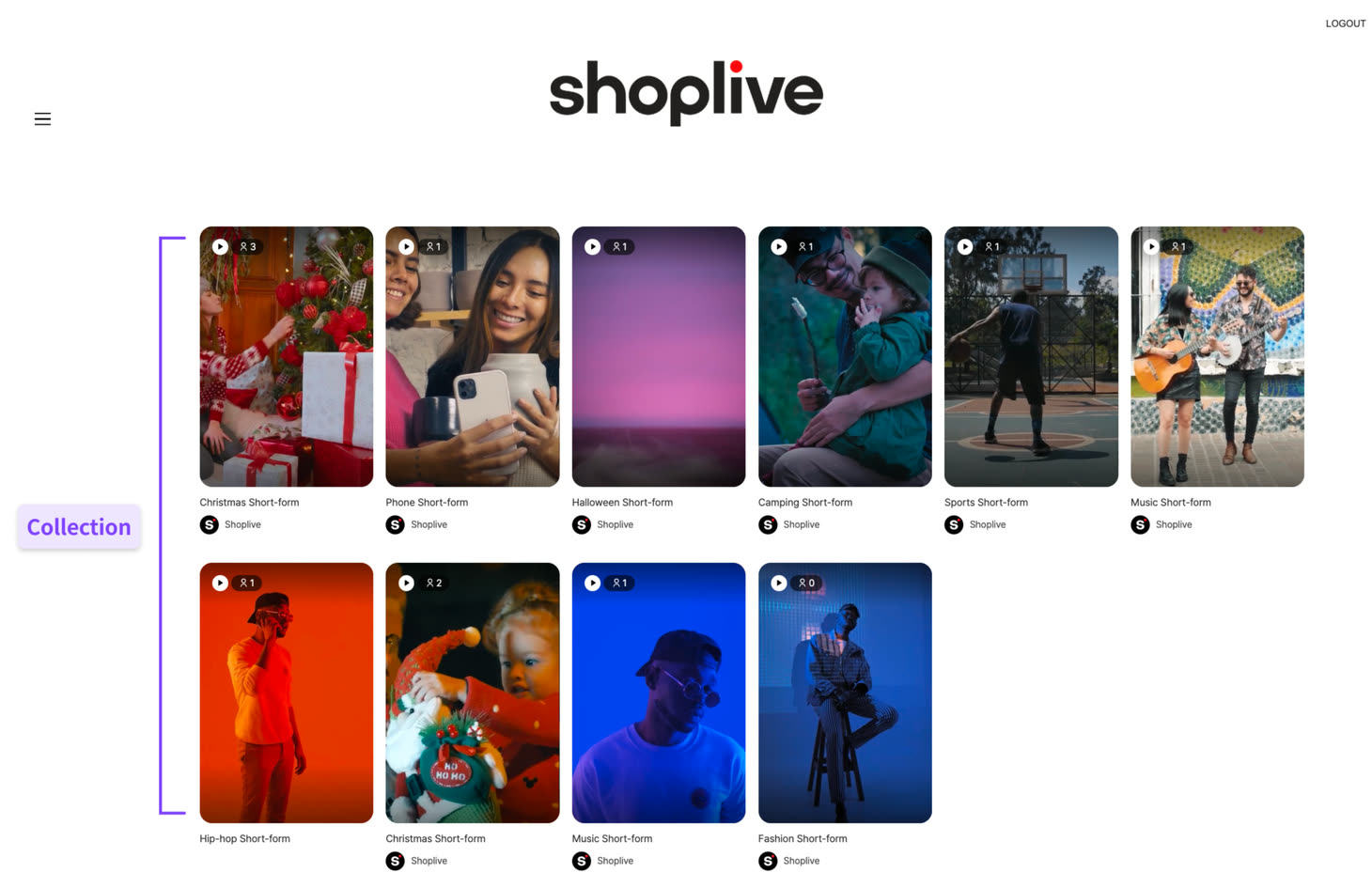
div you provide, the SDK draws the whole card list and handles load-more, filter tabs and opening the player on click. The rest of the page — header and so on — is untouched.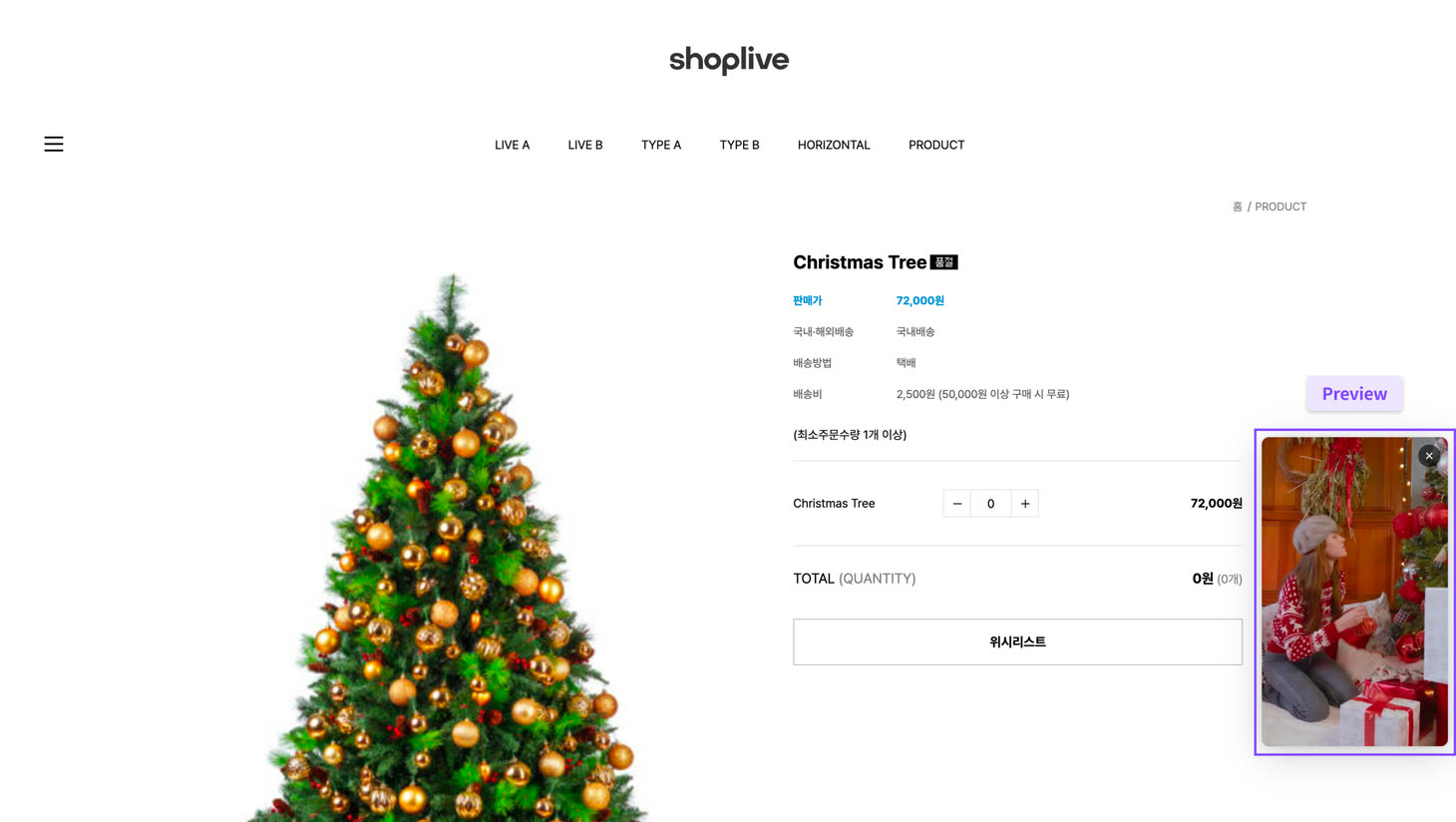
Easy to mix up
| Term | Gets confused with | How to tell them apart |
|---|---|---|
| Collection | a “group” in Admin · a single card | On screen, a collection is the whole feed area. In code, shortformCollectionId points at a bundle an operator curated in Admin — and Admin calls that bundle a “group” (Mission 2) |
| Preview | Showcase | A preview floats over the page and leaves your layout alone; a showcase takes over the gallery slot and sits inside the layout. Both rely on product-URL linking, and you can use them on the same page |
| Player | Collection · Preview · Showcase | The player is where all of those paths end up. By default it opens as a modal over the page; you can also embed it inline in your own element (Appendix A) |
Previous ← QuickstartNext → Mission 1 · Collection — show a feed
Mission 1 · Collection — show a shortform feed on your page
A collection renders into an empty div that has an id. When a viewer clicks a card, the SDK opens the player (a modal) and starts playback from that shortform, so laying out the feed is enough to get playback working. For how far a collection reaches on screen, see Screen glossary · The real screens.
Step 1 · Choose a layout
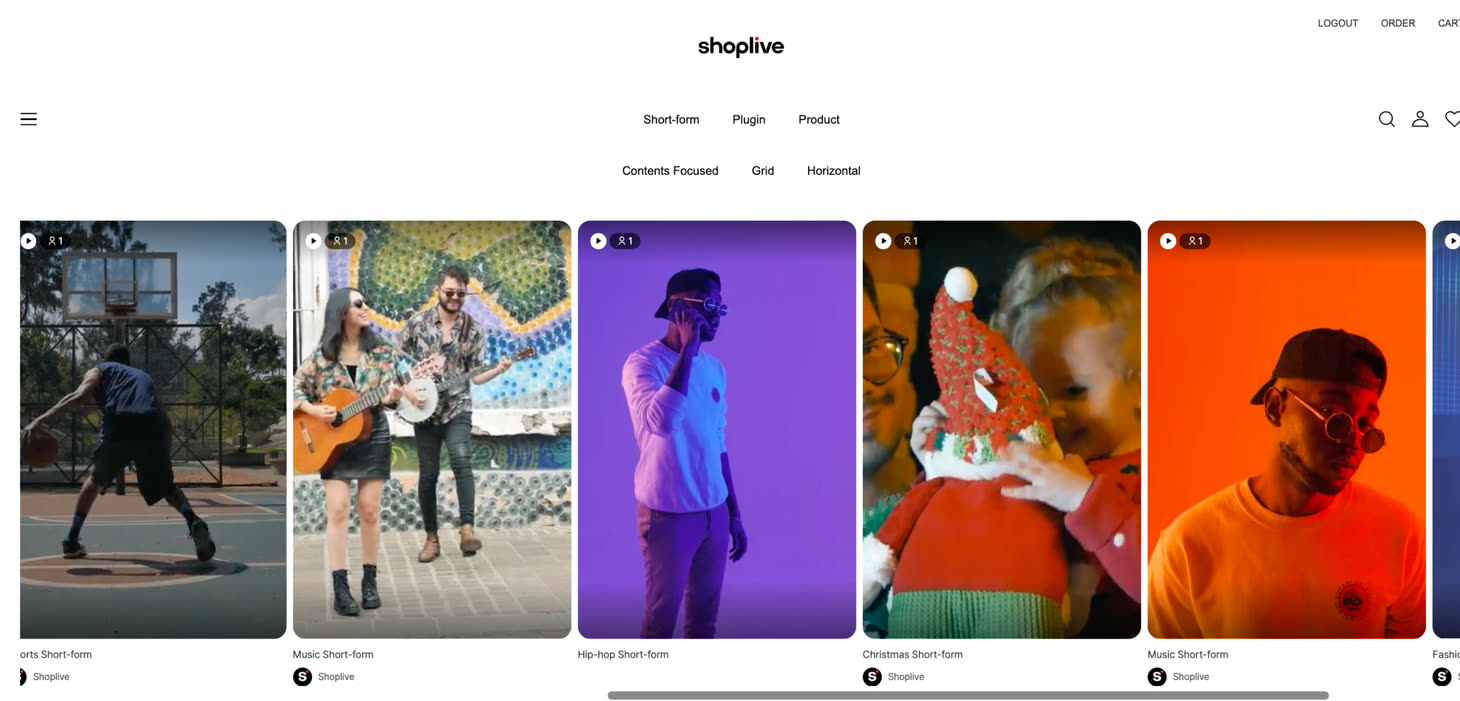
GRID1 defaultlarge cardsGRID2small cardsHORIZONTALone row, scrolls sideways| Template | Look | Good for |
|---|---|---|
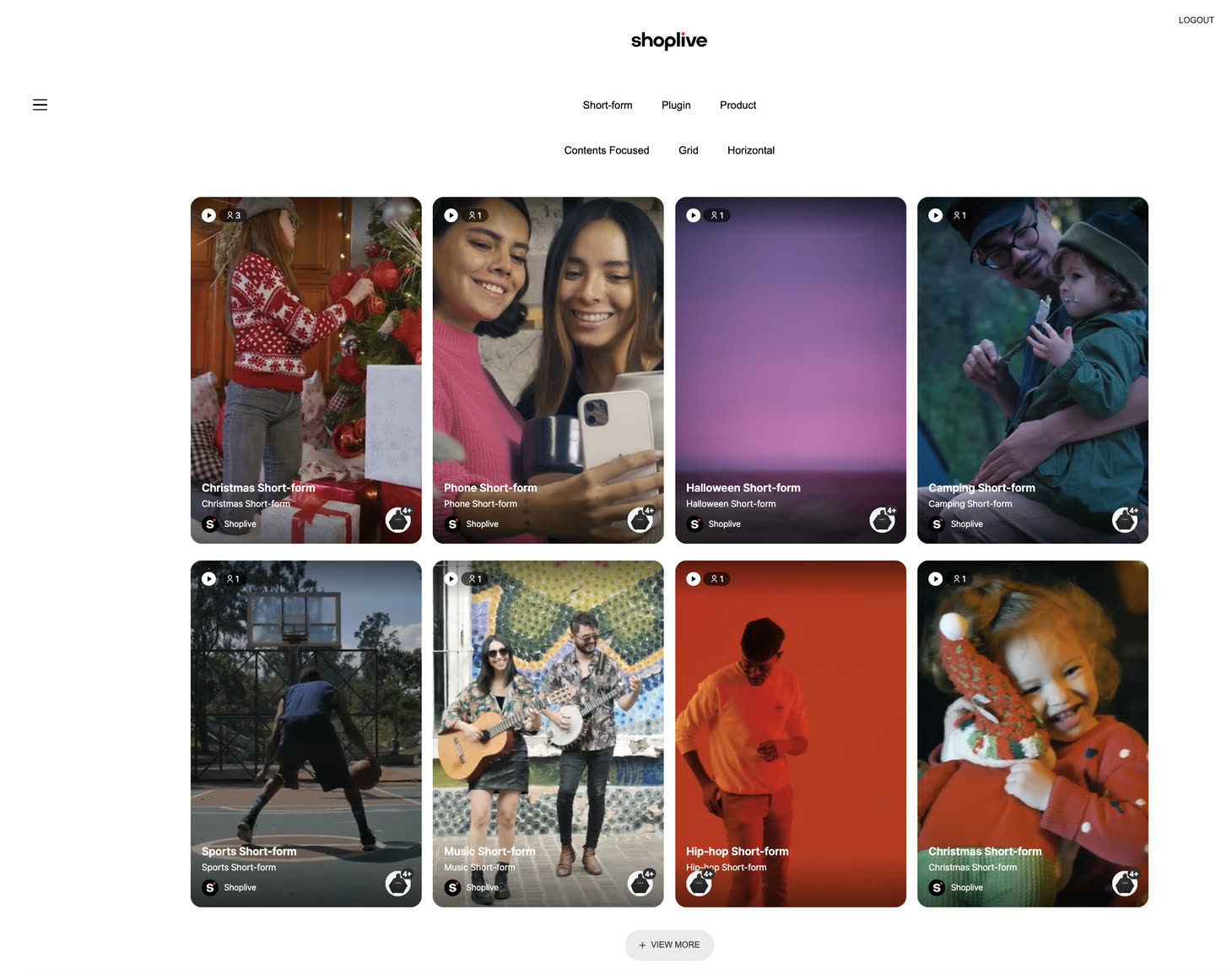
GRID1 | Large cards, with the title and brand overlaid on the card. Default value | Campaigns and dedicated tabs where shortform is the main event |
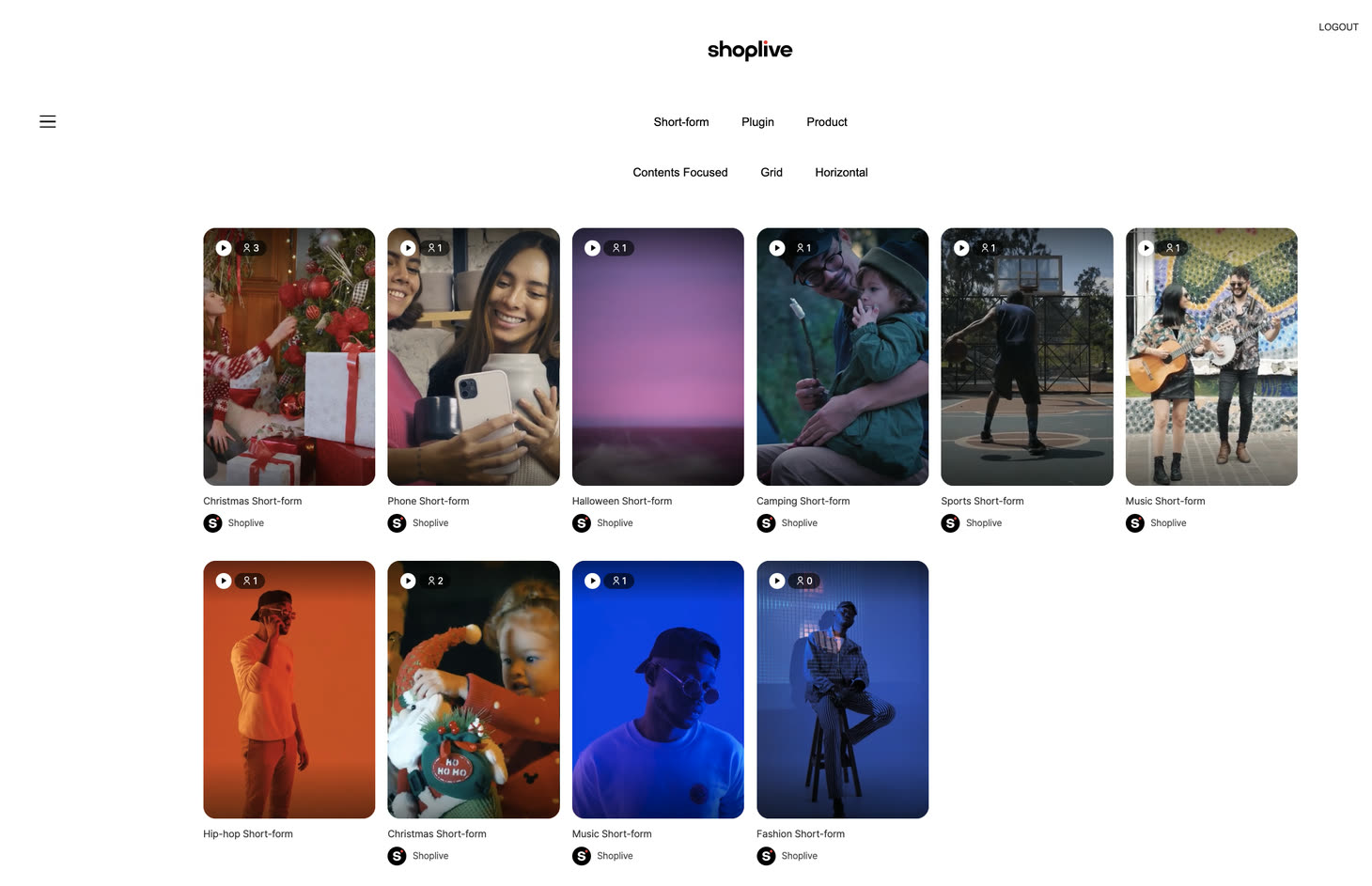
GRID2 | Small cards, with the title and brand below the card. More shortforms fit on the same screen than with GRID1 | Feed areas that sit alongside other content |
HORIZONTAL | Laid out in a single row without wrapping, scrolling sideways. Arrow buttons and auto-flow are available | A strip in the middle of the home page, or "related shortform" at the bottom of a product page |
Step 2 · Which shortforms to show — filters optional
You can skip this step. With no filters at all, every shortform published in Admin appears in its default order, so the single setShortformCollection('containerId') line from step 1 already gives you a working feed. Add only the options below that you actually need to narrow the feed to specific shortforms.
<div id="shoplive-shortform-area"></div>
<script >
  cloud.shoplive.setShortformCollection('shoplive-shortform-area', {
    template: 'HORIZONTAL',
    tags: ['sale', 'new'],          // Filter by tag. Pass an array, not a string
    tagSearchOperator: 'OR',        // 'OR' any match · 'AND' all must match
    displayTags: ['sale', 'new', 'best'],   // Shown as filter tabs above the feed
    horizontalOption: { hasDirectionWhenHorizontal: true, lineItemCount: 4 }
  });
</script>| Option | Description |
|---|---|
tags: string[] | Filter by the tags you attached to shortforms in Admin. Choose OR/AND with tagSearchOperator |
brands: string[] | Filter by brand identifier |
skus: string[] | Filter by the SKU of a linked product — a good fit for "shortforms featuring this product" at the bottom of a product page |
shortformCollectionId | Show one group built in Admin exactly as configured |
shuffle: true | Random order |
sortProperty / sortDirection | Sort key and direction. sortProperty is one of 'createdAt' (created) · 'updatedAt' (updated) · 'viewCount' (views) · 'likeCount' (likes) · 'commentCount' (comments) · 'shareCount' (shares) · 'bookmarkCount' (bookmarks); sortDirection is 'asc' | 'desc'. If you do not set them, the order configured in Admin is used as is |
displayTags: string[] | Tags exposed as filter tabs above the feed. Viewers can tap a tab to narrow the list |
brands and tags must be arrays
Passing a string such as tags: 'sale' logs "tags" property must be array to the console and stops rendering. Wrap even a single value: ['sale'].The tags and brands values you pass here must match exactly what you set on the shortform in Admin. Here is where those values come from.
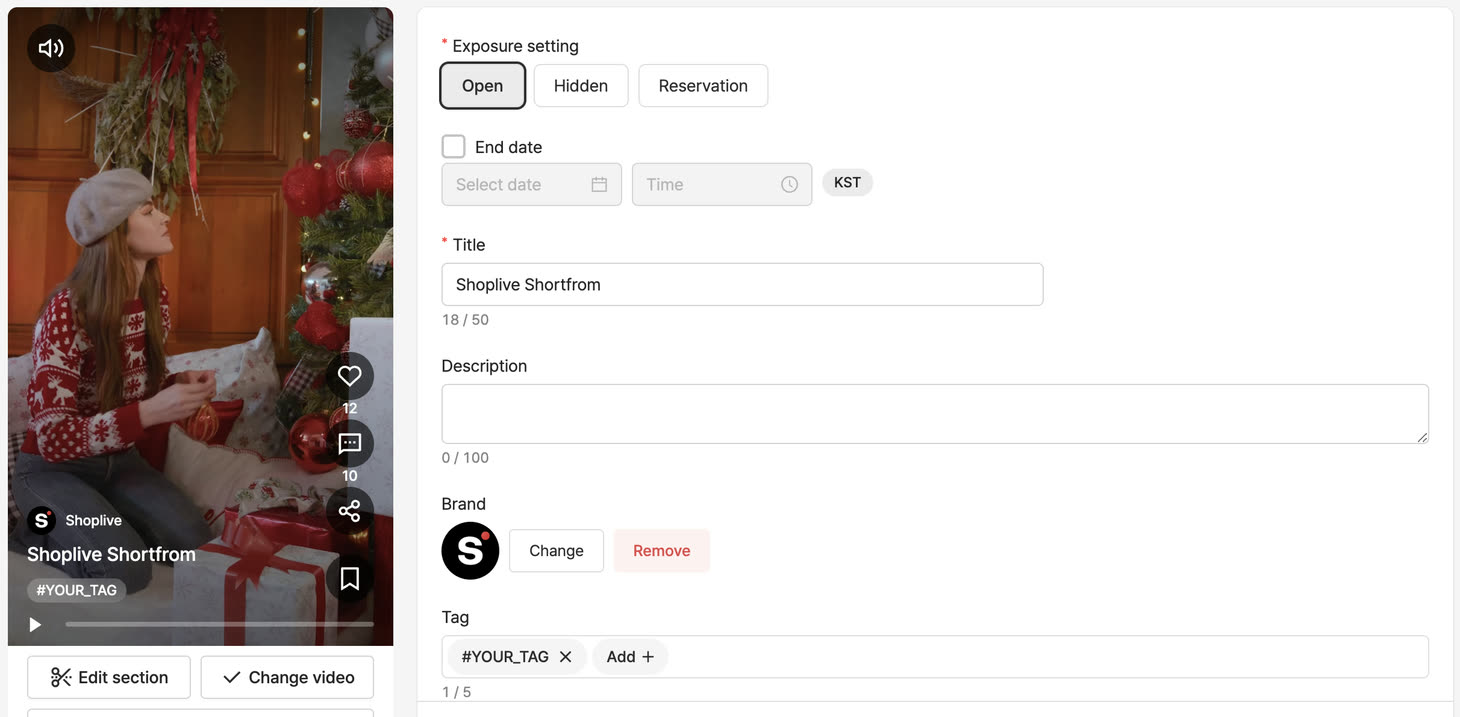
tags and displayTags filter on, and the brand linked under Brand is what brands filters on. A shortform can carry up to five tags.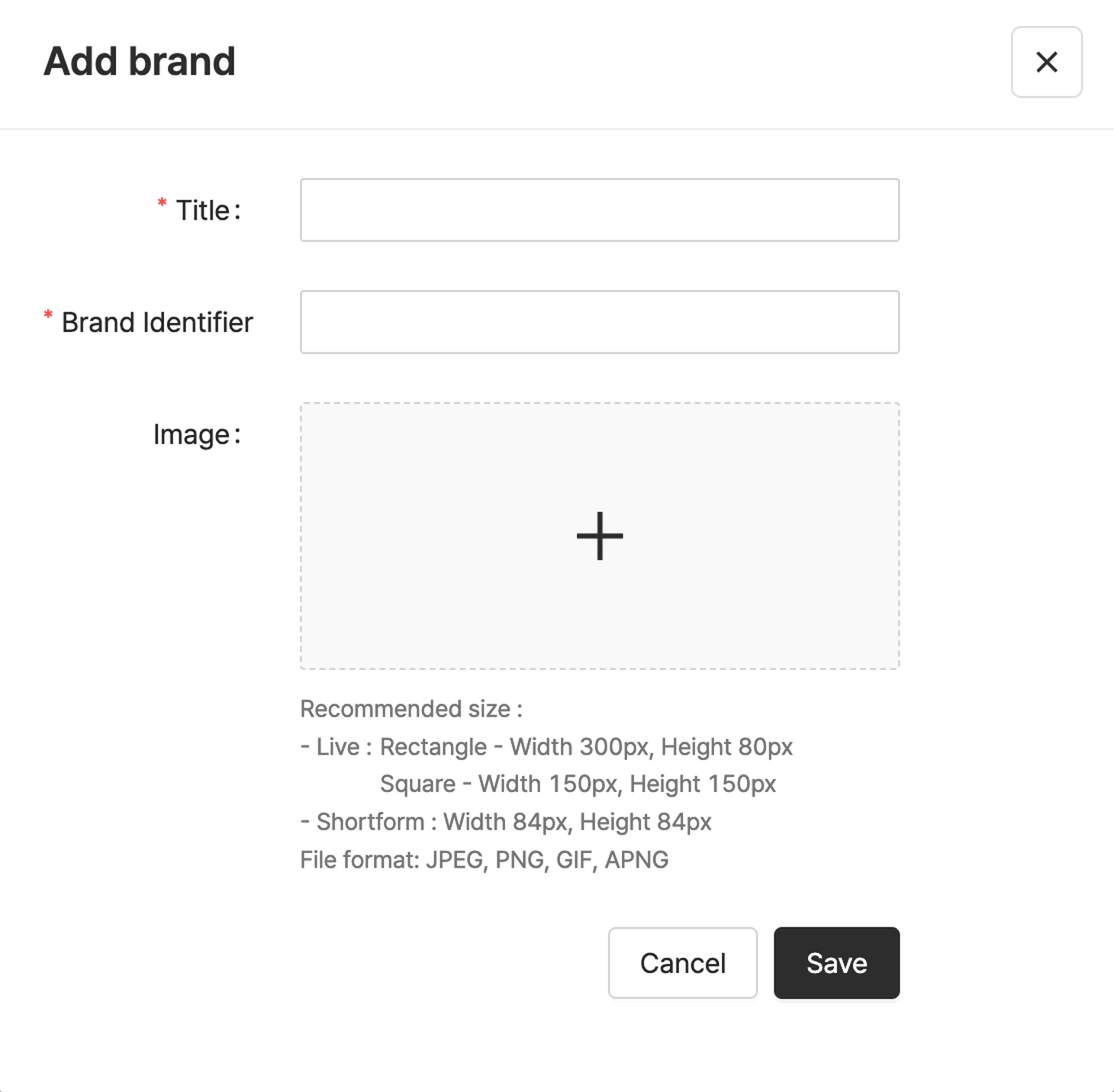
brands is not the brand name (Title) but the Brand Identifier. Put that exact string — set when the brand was created — into the array.Step 3 · Load-more policy — button vs. infinite scroll optional
You can skip this step too. With nothing specified, a load-more button is appended below the feed (hasMoreButton defaults to true). Setting it to false removes the button and switches to infinite scroll instead, so set it only if that is what you want.
| Setting | GRID1 · GRID2 | HORIZONTAL |
|---|---|---|
hasMoreButton: true (default) | A load-more button at the bottom. Clicking it appends the next batch and moves focus to the new cards | Loads the next batch automatically as you approach the end of the scroll |
hasMoreButton: false | Loads automatically when the end of the feed comes into view (infinite scroll) | Loads automatically — but if you also set limit, it stops at that count |
| Option | Description |
|---|---|
rows | How many rows to show initially. Defaults to 2 |
limit | Maximum number of shortforms in the feed. With HORIZONTAL + hasMoreButton: false, use it to show "exactly N" |
Step 4 · Display options optional
This step is entirely optional as well. Left unset, the defaults below apply.
| Option | Default | Description |
|---|---|---|
productLayout | 'CIRCLE' | Shape of the product thumbnail on a card ('CIRCLE' round · 'CARD' card). An account-level setting takes precedence over 'CIRCLE', and setting it in code takes precedence over that |
disablePreviewVideoPlay | false | Set to true to turn off the preview video that plays when a viewer hovers a card |
previewVideoAutoPlayType | unset | Set to 'intersection' to play the preview video when the card scrolls into view (templates other than HORIZONTAL) |
horizontalOption.hasDirectionWhenHorizontal | false | Set to true to show arrow buttons on both sides of the horizontal scroll (HORIZONTAL only) |
horizontalOption.lineItemCount | unset | How many cards to show in a row. When set, card width is the container width divided by this number. Unset, the template's default width applies (HORIZONTAL only) |
horizontalOption.autoFlow | false | Set to true to make the cards flow automatically from right to left (HORIZONTAL only) |
horizontalOption.insideDescription | false | Set to true to show the brand, title and description inside the card, at the bottom over a gradient in white text, instead of below it. The info area below the card is not rendered (HORIZONTAL only) |
horizontalOption.scrollIndicator | false | Set to true to show a horizontal scroll progress bar under the feed. Viewers can click or drag it to move. It is not drawn when every card fits on screen and there is nothing to scroll (HORIZONTAL only) |
showProduct | false | Set to true to list up to 2 linked products (thumbnail, name, price) below each card. With 2 or more products a View more products link appears; tapping it opens the player (on the mobile layout, with the product list already open). The product button inside the card is hidden to avoid duplication — that inner button is controlled separately by the collection setting in Admin |
enableGestureSlide | true | Set to false to disable drag/swipe and move only with the arrow buttons |
disableQueryParamHistory | false | Set to true to stop writing the shortform ID into the URL on card click — see deep links |
Here is a horizontal strip with the product list and in-card descriptions combined. The three options are independent, so pick only what you need.
// Horizontal strip + product list below cards + in-card description + scroll bar
cloud.shoplive.setShortformCollection('shoplive-shortform-area', {
  template: 'HORIZONTAL',
  showProduct: true,
  horizontalOption: {
    insideDescription: true,
    scrollIndicator: true,
    hasDirectionWhenHorizontal: true,
    lineItemCount: 5
  }
});
The showProduct list is drawn first from the products in the feed response; if a shortform has more linked products, the rest are fetched once when the card scrolls into view. That adds one request per visible card, so on feeds where each shortform links many products, use limit and rows to keep the first screen small.
Step 5 · Cleaning up optional
When you need to remove the feed — on a tab switch, for example — call destroyShortformCollection('containerId'). Omit the argument to remove every collection on the page. Calling setShortformCollection again on the same container clears the existing feed and draws a new one, so to redraw with different filters you can simply call it again without destroy.
Verify completion
- Shortform cards render inside the
divyou specified, in the template you chose - Clicking a card opens the full-screen player and starts playback from that shortform
- At the end of the feed, the load-more button (or infinite scroll) brings in the next batch
- If you applied filters, only matching shortforms appear — if nothing appears, check in Admin that published shortforms exist for that tag or SKU
Previous ← Screen glossaryNext → Mission 2 · Story — group them by brand or tag
Mission 2 · Story — group them by brand or tag
One condition is one circle. Pass three brands and you get three circles, each standing for that condition's set of shortform. Tapping a circle opens that set.
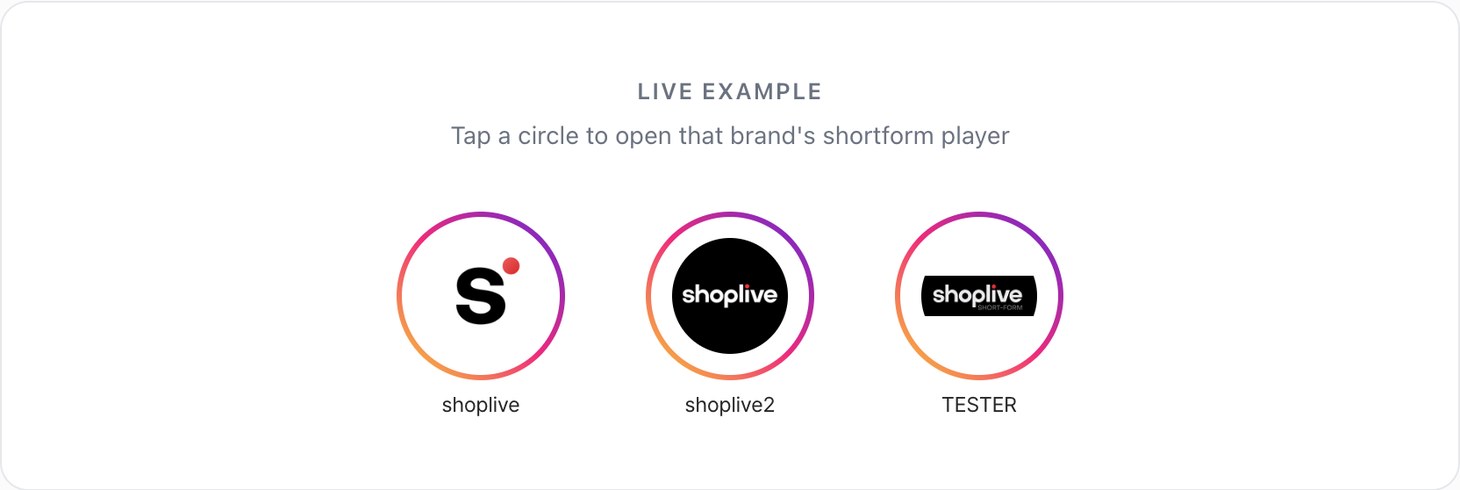
To draw circles from brands only, as in the capture above, pass just brands. Circles are placed left to right in the order you pass them. Put each brand's Identifier from Admin in the array — not the brand name (Title) shown under the circle. Copy it exactly, including case (see ② in Step 1).
// The story in the capture — three brands = three circles
cloud.shoplive.setShortformStory('story-tray', {
  brands: ['shoplive', 'shoplive2', 'TESTER']
});<div id="story-tray"></div>
<script>
cloud.shoplive.setShortformStory('story-tray', {
brands: ['mybrand'],
tags: ['new'],
shortformCollectionIds: ['1272599072386056193']
});
</script>That draws a story of three circles — one brand, one tag and one group.
Step 1 · Deciding the circles
You can mix all three condition types, and circles are laid out in the order you list them. Labels and images are pulled automatically by the SDK from the query results — you do not supply them.
| Condition | Circle label | Circle image |
|---|---|---|
brands | The brand name; the identifier you passed if there is none | Brand logo → first shortform thumbnail as a fallback |
tags | The tag string as-is | First shortform thumbnail |
shortformCollectionIds | The group title; the ID if there is none | First shortform thumbnail |
shortformCollectionIds are the IDs of shortform groups curated by operators in Admin. The name in code (collection) differs from the label in Admin (group), so keep that in mind when talking to your Shoplive contact. The same value is called shortformCollectionId (singular) in Collection and Preview.All three values come from the shortform edit screen in Admin. Here is where to find each one, in order.
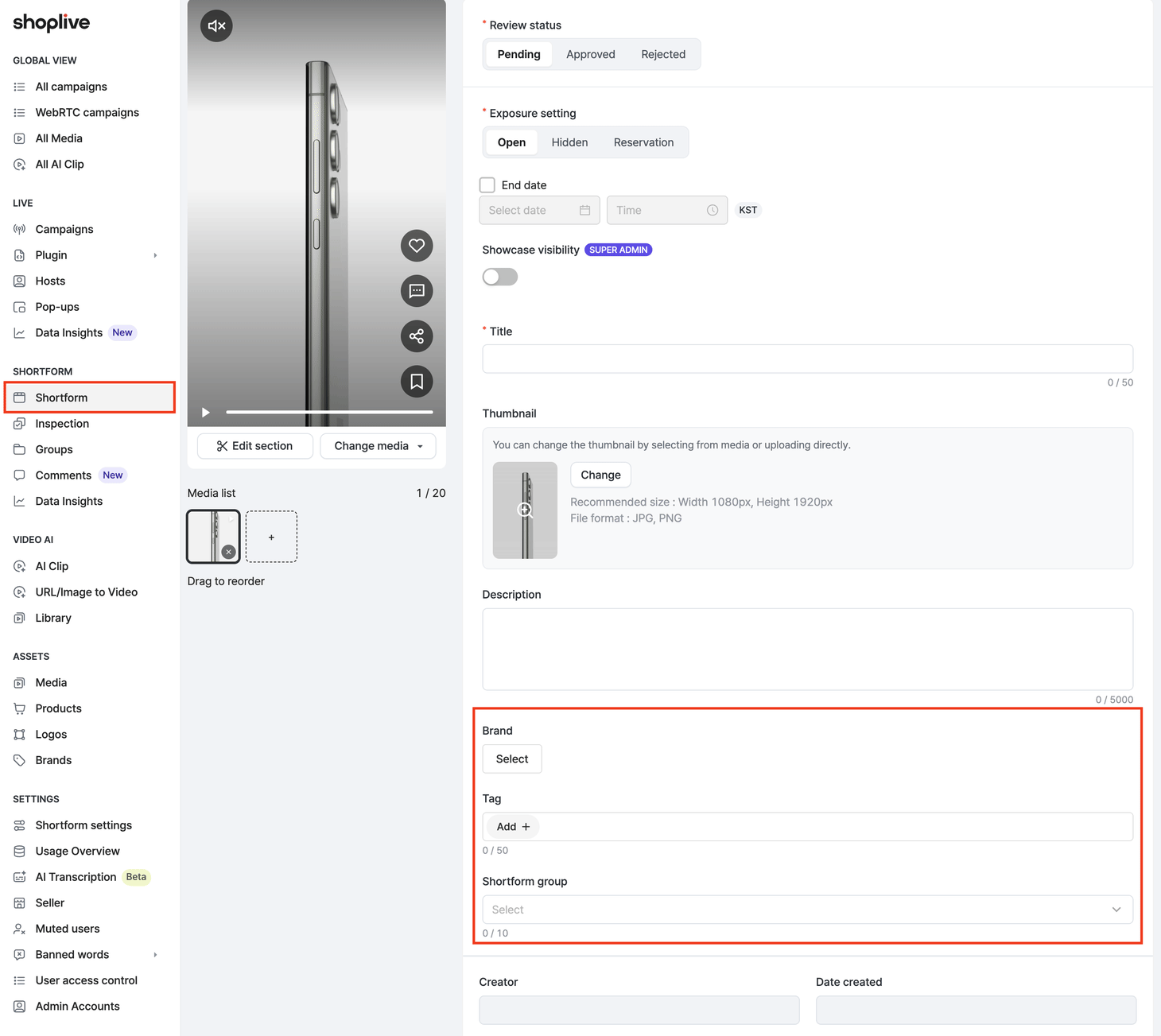
brands, tags and shortformCollectionIds. A circle only collects a shortform when the value set here matches the one you pass in code.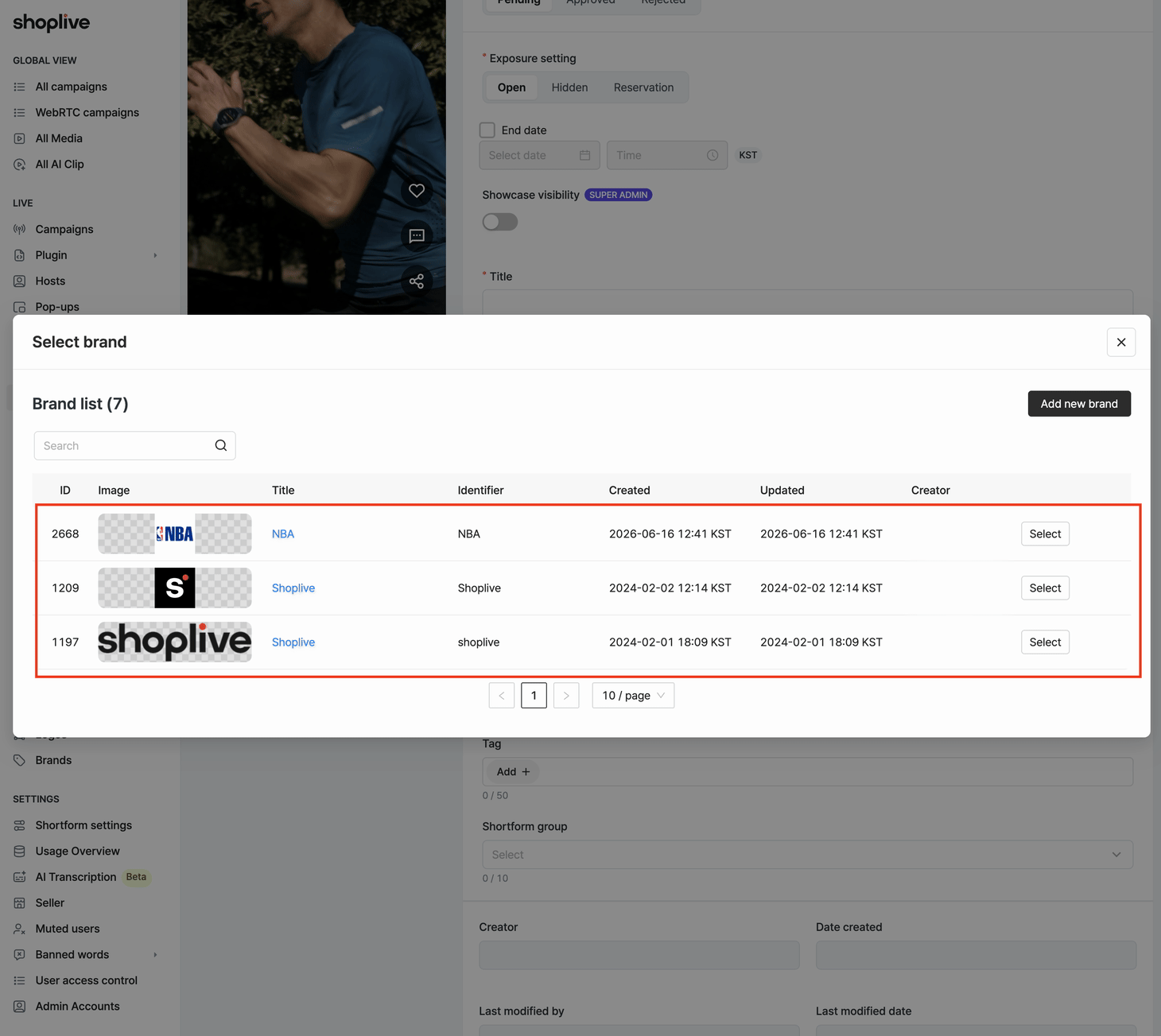
brands is the Identifier column — not the numeric ID and not the Title. Two brands can share the Title Shoplive, as above, and are told apart only by their identifiers (Shoplive vs shoplive), so copy the identifier exactly, including case.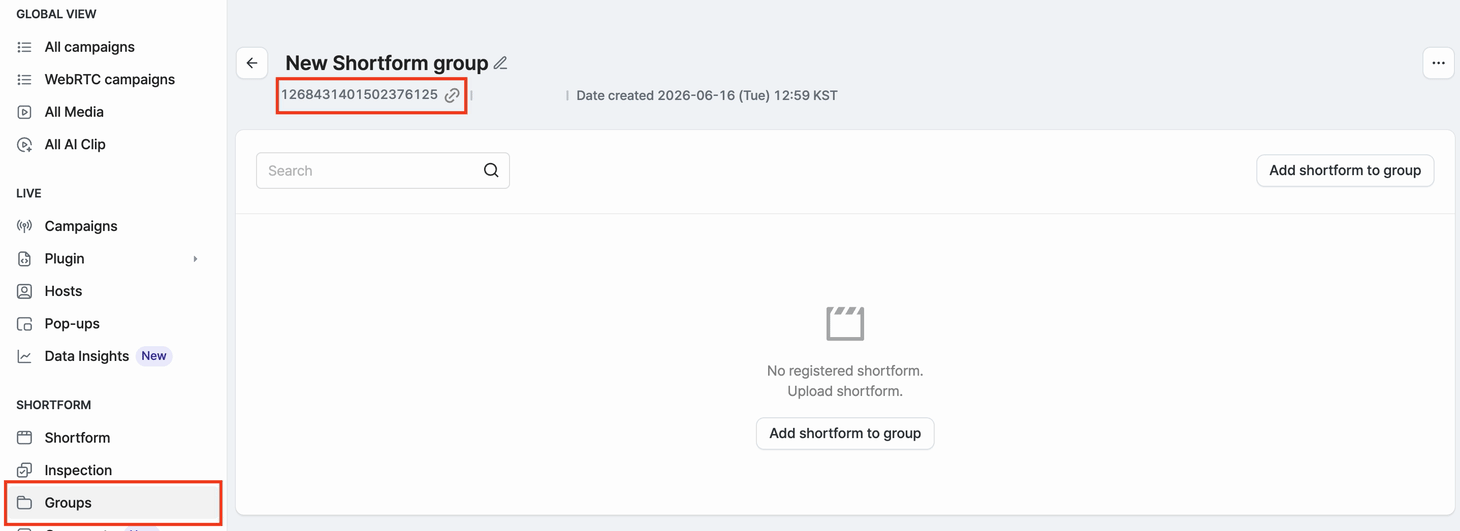
shortformCollectionIds. The link icon next to it copies it.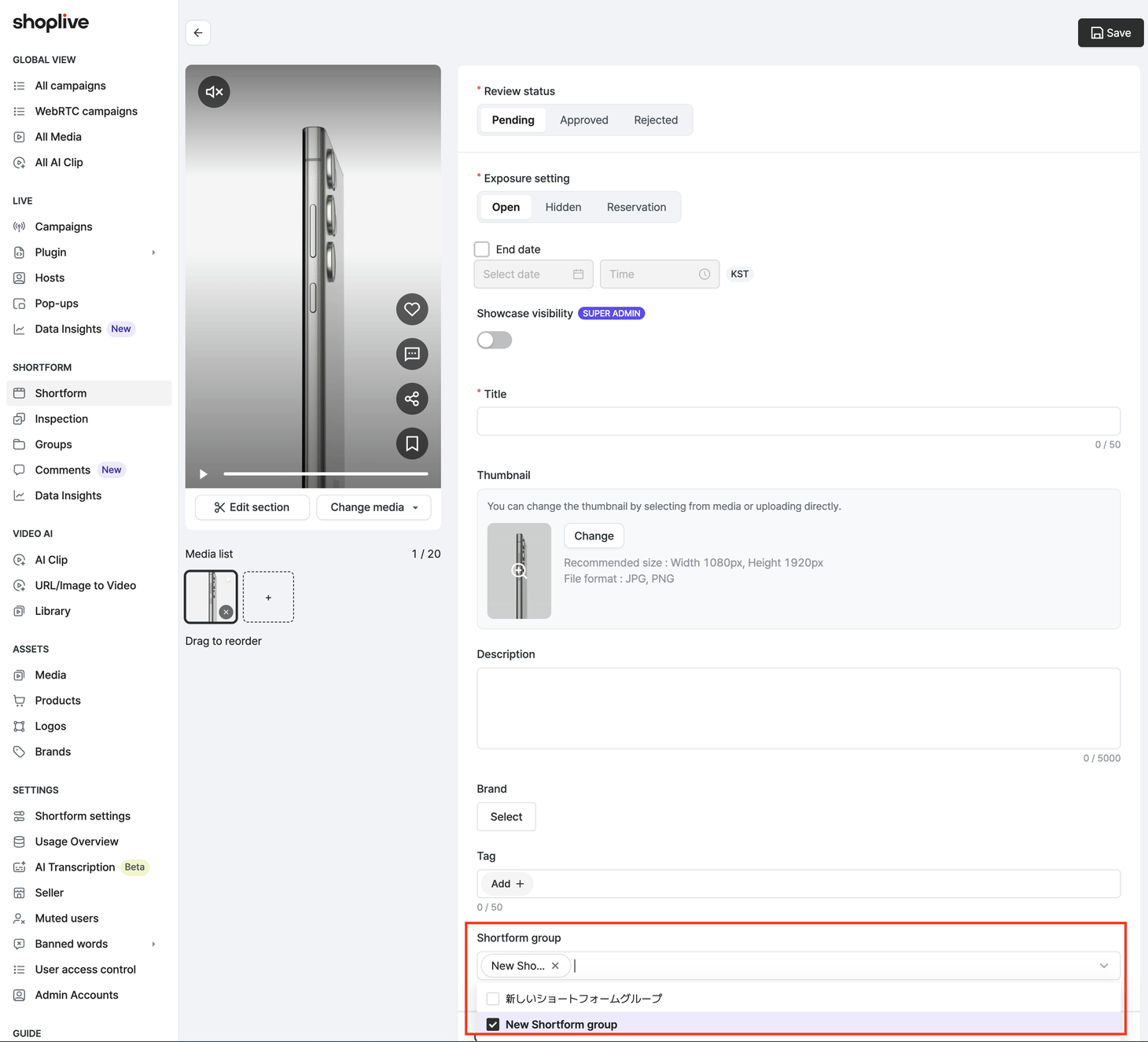
A circle whose condition matches zero shortform, or whose query fails, is not drawn. If you passed three conditions and only see two circles, the remaining one has no published shortform — use the render result event to find out which circle went where.
Step 2 · What a tap does optional
By default a tap opens the full-screen player modal. Pass grid: true and instead a collection for that condition is laid out under the story.
Default (no grid) | grid: true | |
|---|---|---|
| On arrival | Only the story is visible | The first circle activates on its own and its collection appears with it |
| Tapping a circle | Opens the player modal | No modal — the collection below is swapped to that condition |
| When the player opens | On tapping a circle | On tapping a collection card below |
// lay a collection under the story and let the circles pick it
cloud.shoplive.setShortformStory('story-tray', {
  brands: ['brand-a', 'brand-b'],
  grid: true
});

// put that collection somewhere else on the page instead of right under the story
cloud.shoplive.setShortformStory('story-tray', {
  brands: ['brand-a', 'brand-b'],
  grid: true,
  gridContainerId: 'my-collection-area'
});
If the element named by gridContainerId does not exist, or points at the story itself or one of its ancestors (which would make the story erase itself), a warning is logged and it falls back to directly under the story. The collection layout is fixed to GRID2; Collection options such as template and rows cannot be set in this mode.
Step 3 · Marking new shortform — rainbow and grey rings
The rule is the same as Instagram's. A rainbow ring means there is something unwatched; a grey ring means everything has been seen. There is nothing for you to do — the SDK handles it.

- The record is made on tap — a circle merely being drawn does not count as seen
- It is stored in the browser's
localStorage, so it is per device and per browser, independent of login - On a later visit, if even one shortform is missing from the stored list, the ring turns rainbow again. If shortform were only removed, it stays grey
Checking the render result optional
Empty circles disappear silently, so if you want to know which condition came back empty, listen for ON_SHORTS_STORY_RENDERED. It delivers the result for every circle as an array.
cloud.shoplive.addShortformEventListener(function (event) {
  if (event.name !== 'ON_SHORTS_STORY_RENDERED') return;
  event.payload.items.forEach(function (item) {
    // { type: 'brand' | 'tag' | 'collection', identifier, success, label, shortsCount }
    if (!item.success || item.shortsCount === 0) {
      console.warn('circle not drawn:', item.type, item.identifier);
    }
  });
});
Cleaning up
Call it when leaving the page in an SPA. Omit the argument to remove every story on the page. A collection laid out by grid mode is cleaned up with it.
cloud.shoplive.destroyShortformStory('story-tray');Worth knowing — two circles for the same condition on one page do not sync their ring colors immediately (they converge on the next load). And if two stories point at the same gridContainerId, the one drawn last wins. Calling destroyShortformCollection() with no argument also removes a collection laid out by grid mode.
Verify completion
- As many circles as conditions are drawn inside the
divyou specified (minus conditions with zero shortform) - The label under each circle is the brand name, tag or group title
- Tapping a circle opens the player (or swaps the collection below with
grid: true) - A circle you tapped shows a grey ring on your next visit
Previous ← Mission 1 · Collection — show a feedNext → Mission 3 · Preview — float in a corner
Mission 3 · Preview — a small floating player in a corner
initShortform() done · access to Shoplive Admin (needed in step 1)A preview is a small muted player floating in one of the four corners of the screen. You do not create a container — the SDK attaches it to the page itself — and you can keep it from reappearing for a while after a viewer closes it.
Step 1 · Link the product URL in Admin
With previews, the real work is in Admin, not in code. The call is a single showShortformPreview() line, but what that line shows is decided by the product URL registered in Admin.
When showing a preview, the SDK sends the current page address to the server and asks for "the shortform linked to this address". So two things must be in place in Admin.
- Register a URL on the product. Use the exact product detail page address your viewers will see. This value is what the preview lookup matches on.
- Attach that product to a shortform and publish it. If no product is attached, or the shortform is unpublished, the lookup returns zero results and no preview appears.
?utm_source=…) or the presence of www — makes the lookup miss. If the same product opens under several addresses on your store, use the sku approach in step 2.Step 2 · Decide what appears
Once Admin is ready, the call is a single line. Choose whichever of the three below matches the page.
| Call | What it shows | When to use it |
|---|---|---|
showShortformPreview() | Shortforms related to the current page URL (default) | When the URL registered on the shortform's product in Admin matches the current page |
showShortformPreview({ sku }) | Looks up related shortforms using the current URL plus the SKU as a hint | Stores where the same product opens under several URLs |
showShortformPreview({ tags | brands | skus | shortformCollectionId }) | Looks up by the filters you specify (the URL is ignored) | Page-independent placements such as "one of the shortforms tagged sale" |
<!-- 1. Load the SDK -->
<script src="https://static.shoplive.cloud/shoplive-shortform.js"></script>
<script>
  // 2. Initialize
  cloud.shoplive.initShortform({ accessKey: 'YOUR_ACCESS_KEY' });

  // 3. Show the preview — shortforms linked to this page address
  cloud.shoplive.showShortformPreview();

  // If the same product opens under several addresses, pass the SKU too
  // cloud.shoplive.showShortformPreview({ sku: 'PRODUCT_SKU' });
</script>
Step 3 · Position and size optional
You can skip this step. With nothing specified, both position and size follow your account defaults. Use the options below only when the preview collides with your layout or needs resizing.
The position keys and where they land. Try pressing a key — the preview moves to that spot both here and in the panel on the right. Left unset, your account default applies.
position and size are passed as nested objects. Use the shape below as is.
cloud.shoplive.showShortformPreview({
  // Which corner — set exactly one of the four keys to true
  position: { 'bo-ri': true },

  // Different sizes by viewport width — list only the ones you need
  size: {
    desktop: { width: '160px' },                    // wide screens
    tablet:  { width: '18vw', maxWidth: '150px' },  // tablets
    mobile:  { width: '28vw', maxWidth: '140px' }   // phones
  },

  resizable: true   // let viewers drag a corner to resize it
});| Field | Value | Description |
|---|---|---|
position | { 'bo-ri': true } | Exactly one of the four corners set to true. See the diagram above for the keys (to=top · bo=bottom · le=left · ri=right) |
size.desktop | { width, maxWidth, | Size on wide screens |
size.tablet | Size at tablet widths | |
size.mobile | Size at phone widths | |
resizable | true | Lets viewers drag a corner to resize (kept for that session) |
Breakpoints — which width gets which size
The three keys are chosen by browser window width (viewport width). The SDK does not detect device type, only width — narrowing the window on a desktop applies the tablet and mobile values.
| Key | Applies at window width | Size when unset |
|---|---|---|
size.desktop | 1025px and up | width 17vw (max 200px) · height 17vw × 15/9 (max 332px) |
size.tablet | 481 – 1024px | width 26vw (max 200px) · height 26vw × 15/9 (max 332px) |
size.mobile | 480px and below | width 35vw (max 200px) · height 35vw × 3/2 (max 332px) |
In every range the minimum size is fixed at 100px wide by 150px tall — smaller values will not shrink it below that.
'160px' or '20vw', not numbers. List only the breakpoints you need; the ones you omit use the defaults in the table above.width throws off the height
If you do not also pass height, the height keeps using the default formula. For example, passing only width: '160px' on desktop gives you a 160px width, but the height is still computed as 17vw × 15/9 — so the wider the window, the more elongated it becomes. When you adjust the size, set width and height as a pair.
// Recommended — width and height together (shortform video is 9:16)
size: {
  desktop: { width: '160px', height: '284px' },
  mobile:  { width: '28vw',  height: 'calc(28vw * 16 / 9)' }
}
Step 4 · Close policy
closePolicyExpiry | After the viewer closes it with ✕ |
|---|---|
| unset | Not shown again for the rest of this browser session |
0 | Same as unset (not shown again this session) |
N (minutes) | Not shown again for N minutes. Persists across sessions (stored in browser storage) |
iframe ④ the viewer arrived from a page that was playing in browser PiP ⑤ zero shortforms match the criteria — in these cases the SDK creates no preview and raises no error. If nothing appears while you are developing, clear the browser's localStorage and sessionStorage and check again first.While a viewer drags the preview, the SDK fires ON_DRAG_START_PREVIEW / ON_DRAG_END_PREVIEW (see event handling). You can use them to hide the preview briefly when it covers something like a sticky buy bar.
Full code
The minimal form from step 2 plus position and close policy — a realistic setup. With no options at all, position and size follow your account defaults.
<script src="https://static.shoplive.cloud/shoplive-shortform.js"></script>
<script>
  cloud.shoplive.initShortform({ accessKey: 'YOUR_ACCESS_KEY' });

  // Call this on the product detail page — shortforms linked to this address appear
  cloud.shoplive.showShortformPreview({
    position: { 'bo-ri': true },   // bottom right
    closePolicyExpiry: 60          // once closed, stays away for 60 minutes
  });
</script>
When SPA routing takes the viewer away from the product page, clean up with cloud.shoplive.hideShortformPreview().
Verify completion
- The preview appears on a page whose address matches the product URL registered in Admin
- On entering the product page, a small muted player autoplays in the corner you chose
- Tapping the preview opens the full-screen player, and pressing ✕ dismisses it
- After closing it, reloading does not bring it back — as your close policy specifies
Previous ← Mission 2 · Story — group them by brand or tagNext → Mission 4 · Showcase — in the product gallery
Mission 4 · Showcase — shortform in the product gallery
Unlike a preview, which floats above the page, a showcase lives inside the page layout. It takes over the existing gallery slot, turning the first impression of a product page into video.
Step 1 · On the product detail page
<!-- The product image gallery already on your page -->
<div id="product-gallery">
  <img src="product-1.jpg" alt="">
  <img src="product-2.jpg" alt="">
</div>
<script>
  // Look up the shortform linked to this page URL and render it in the gallery slot
  cloud.shoplive.setShortformShowcase('product-gallery');
</script>
With no arguments, the lookup is based on the current page URL. It has to match the URL of the product attached to the shortform in Admin, so on pages that often carry query parameters, pass a normalized URL yourself using the url mode below.
The container must have a size. Most product pages already give the gallery area a width and aspect ratio, so you can use it as is; for an empty div with no size, set width and height or aspect-ratio in your page CSS.
Step 2 · On product lists — url and shortformId modes
| Mode | Call | Tapping a card | Where to use it |
|---|---|---|---|
| Current URL (default) | setShortformShowcase(id) | Opens the player (modal) | Product detail |
| Explicit URL | setShortformShowcase(id, { url }) | Navigates to that URL | Showing shortform on per-product tiles in a product list |
| Explicit shortform ID | setShortformShowcase(id, { shortformId }) | Opens the player (modal) | Several different showcases on one page. If passed together with url, shortformId wins |
Step 3 · What happens to the original gallery
With the default (removeOriginalDOM: true), the SDK removes the container's existing children only after rendering succeeds. Until then the original gallery stays visible, and if nothing is rendered — a failed lookup, the setting off — the original is untouched. So you do not need to build a skeleton or a loading state. To draw over the original while keeping it, pass removeOriginalDOM: false.
The result is reported through the ON_SHORTS_SHOWCASE_RENDERED event — when payload.success is true it carries shortsId and shorts, and when false it carries reason. Use it for follow-up work such as hiding your gallery indicator on success.
div:empty { display: none } rule hid the SDK's transparent click layer, so the video played but taps did nothing. If it renders but does not respond, use developer tools to check whether your page CSS is overriding the elements inside the container whose class names start with .csl-.Verify completion
- Entering the product page renders shortform cards in the gallery slot and the original images disappear (on products where the setting is off, the original stays visible)
- Tapping a card opens the player (or navigates to the product page in
urlmode) - With two or more cards, a thumbnail strip appears below and left/right swiping works
Previous ← Mission 3 · Preview — float in a cornerNext → Mission 5 · Player — open it from your code
Mission 5 · Player — open it from your code
initShortform() done · the shortform IDs or filter criteria to playStep 1 · Choose how to open it
| Aspect | Option A · by shortform ID | Option B · by filter criteria |
|---|---|---|
| Call | showShortformPlayerModal({ ids: [...] }) | showShortformPlayerModal({ tags: [...] }) and so on |
| Playlist | Exactly the IDs you passed, in order. Set the starting position with startIndex. To open just one shortform, pass a single ID such as ids: ['SHORTFORM_ID'] — there is no separate option for it | Looked up on the server by your criteria. Choose the starting shortform with shortsId |
| Typical use | Banners and campaign landings that jump straight to one video | Buttons such as "watch every sale video" |
<!-- 1. Load the SDK -->
<script src="https://static.shoplive.cloud/shoplive-shortform.js"></script>
<script>
  // 2. Initialize
  cloud.shoplive.initShortform({ accessKey: 'YOUR_ACCESS_KEY' });
</script>

<!-- 3. Pressing this button opens the player -->
<button id="open-shortform">Watch featured videos</button>
<script>
  document.getElementById('open-shortform').addEventListener('click', function () {
    // Option A — name the shortforms directly (find IDs on the Admin shortform detail page)
    cloud.shoplive.showShortformPlayerModal({
      ids: ['SHORTFORM_ID_1', 'SHORTFORM_ID_2'],   // just one? ['SHORTFORM_ID']
      startIndex: 0,     // use 1 to start from the second one
      muted: true        // start muted (handy for browser autoplay policies)
    });

    // Option B — build the playlist from filter criteria
    // cloud.shoplive.showShortformPlayerModal({
    //   tags: ['sale'],
    //   shortsId: 'SHORTFORM_ID_TO_START'   // optional — start from this one in the list
    // });
  });
</script>
Step 2 · (Optional) Append more to the playlist
When you opened the player with option A and the viewer approaches the end of the list, the SDK sends a NEEDS_SHORTFORM_LIST_MORE event. Receive it (see event handling) and pass the next page of IDs to shortformPlayerAppendList for seamless continuation.
<!-- 1. Load the SDK -->
<script src="https://static.shoplive.cloud/shoplive-shortform.js"></script>
<script>
  // 2. Initialize
  cloud.shoplive.initShortform({ accessKey: 'YOUR_ACCESS_KEY' });

  // 3. The SDK sends this event as the end of the list approaches
  cloud.shoplive.addShortformEventListener(function (name, payload) {
    if (name === 'NEEDS_SHORTFORM_LIST_MORE') {
      fetchNextPageIds().then(function (ids) {        // fetch the next IDs from your server
        cloud.shoplive.shortformPlayerAppendList({ ids: ids });
      });
    }
  });
</script>
Step 3 · Closing and muting optional
Viewers can close the player and control the sound themselves, so use the functions below only when your own code needs to drive them — for example, closing the player when SPA routing leaves the page, or keeping the sound from clashing with another video on the page.
<!-- 1. Load the SDK -->
<script src="https://static.shoplive.cloud/shoplive-shortform.js"></script>
<script>
  // 2. Initialize
  cloud.shoplive.initShortform({ accessKey: 'YOUR_ACCESS_KEY' });
</script>

<!-- 3. Drive it from your own buttons -->
<button id="close-shortform">Close</button>
<button id="toggle-mute">Sound on / off</button>
<script>
  // Close the open player
  document.getElementById('close-shortform').addEventListener('click', function () {
    cloud.shoplive.dismissShortformPlayerModal();
  });

  // Toggle mute — read the current state and flip it (applies to every player on the page)
  document.getElementById('toggle-mute').addEventListener('click', function () {
    var isMuted = cloud.shoplive.getShortformGlobalMuteState();   // true = currently muted
    cloud.shoplive.setShortformGlobalMuteState(!isMuted);
  });
</script>setShortformGlobalMuteState again on every change of shortform.Verify completion
- Calling from your own code — a button click, say — opens the full-screen player and starts from the shortform you named (or the first one in the list)
- At the end of the list
NEEDS_SHORTFORM_LIST_MOREarrives, and the IDs you append play on dismissShortformPlayerModal()closes it
Previous ← Mission 4 · Showcase — in the product galleryNext → Mission 6 · Deep link — open from a shared URL
Mission 6 · Deep link — open a specific shortform from a shared URL
Step 1 · The URL rule
If the page URL where the SDK is loaded carries the parameter below, the player for that shortform opens automatically as soon as the page loads. You can use it directly in ad landing pages, push notifications and social shares.
https://my-shop.com/shorts?__sl_shorts_id=SHORTFORM_ID| Parameter | Required | Description |
|---|---|---|
__sl_shorts_id | Required | The ID of the shortform to open |
__sl_cq | Optional | Filter criteria for building the playlist (JSON, URL-encoded). Example: {"tags":["sale"]}. Without it, the playlist is built around that shortform |
Step 2 · How the SDK touches the URL
However the player is opened, the SDK appends ?__sl_shorts_id=… to the current URL (via pushState) and reverts it on close. As a result —
- Copying the address-bar URL during playback and sending it opens the page for the recipient with the same shortform playing.
- Pressing back on mobile closes only the player instead of leaving the page.
- The URL produced by the player's share button (
payload.urlofON_CLICK_SHARE_BUTTON, see event handling) follows the same rule.
Step 3 · If you have your own SPA router
disableQueryParamHistory: true to every display call
On pages where React Router, Vue Router and the like watch URL changes, the SDK's pushState can trigger the router, switching the view or closing the player. In that case, turn URL history off by adding disableQueryParamHistory: true to every call that can open the player — setShortformCollection · showShortformPreview · showShortformPlayerModal. Doing so also disables the automatic deep-link opening from step 1, so if you need deep links, read the query from your router on page entry and call showShortformPlayerModal({ ids: [id] }) yourself.Verify completion
- Pasting a URL with
?__sl_shorts_id=…into a new tab opens that shortform automatically - While the player is open the address-bar URL changes, and back closes only the player
- (SPA) With
disableQueryParamHistoryon, the URL does not change and the router does not react
Previous ← Mission 5 · Player — open it from your codeNext → Mission 7 · Connect user information
Mission 7 · Connect user information
initShortform() done · (for JWT auth) signing logic on your backend (step 5)Without user information, viewers are treated as guests. Guests can still watch and click products, but pressing something that needs an account — a comment, for example — fires the LOGIN_REQUIRED event (handled in event handling). The user-info functions are shared with the live SDK (Step 2).
setUserObject() and setUserJWT() pass user information — they do not authenticate the user Sign-in (ID · password, social login and so on) stays entirely on your site. These functions only tell Shoplive who the current viewer is so that comments, likes, bookmarks and viewing statistics are attributed to that member. Shoplive does not check the user's credentials. With JWT auth, Shoplive can verify that the information was issued by your server and not altered (signature check); with simple auth (userObject), the information is passed as is, without that check.Step 1 · Choose by sign-in state — recommended setup
| User | Recommended | Why |
|---|---|---|
| Signed out | Call nothing (guest) | The SDK issues an anonymous identifier and keeps it in the browser, so viewing statistics are still collected. Pressing something that needs an account — a comment, for example — fires the LOGIN_REQUIRED event |
| Signed in (recommended) | setUserJWT() — a JWT signed by your server (JWT auth) | Your server signs the token, so it cannot be forged on the client |
| Signed in (when backend work is hard) | setUserObject() — pass userId, name, and so on (simple auth) | The client's values are passed as is, unsigned. It's enough for identification and stats, but don't use it for authorization |
| Signed in (Cafe24 · WISA · Godomall · Shopify store) | Platform auto-connect | The SDK reads the sign-in state the store already knows. This is an alternative to the two options above — if you pass user information yourself, that value wins |
| Log out · reset user info | cloud.shoplive.logout() · or setUserObject(null) / setUserJWT(null) | Clears the user info you set and returns to guest |
setUserJWT() call), get a newly issued JWT from your backend and pass it with initShortform({ userJWT }) or setUserJWT() → on sign-out, reset the user info with logout() (or pass null).
You can also show shortform signed out and prompt sign-in through LOGIN_REQUIRED when a guest presses comment and the like (Mission 8).Step 2 · Call the method you chose
If you already know the sign-in state at initialization, include it in initShortform(); if sign-in is confirmed later (in an SPA, say), call setUserObject() / setUserJWT() separately. To reset the user info on sign-out, call logout() or setUserObject(null) · setUserJWT(null). The functions and values here are exactly the same as in the live SDK — if you have already integrated live, you can move that code over as is.
<!-- 1. Load the SDK -->
<script src="https://static.shoplive.cloud/shoplive-shortform.js"></script>
<script>
  // 2. The signed-in user — for simple auth, only userId is required
  var userObject = {
    userId: 'MEMBER_ID',      // Required — the user's unique ID (hashing recommended, step 4). Empty means guest
    userName: 'NICKNAME'      // Optional — the name shown on comments and profiles
  };

  // 3. Option 1 — if you already know the sign-in state at init time, pass it to initShortform()
  cloud.shoplive.initShortform({
    accessKey: 'YOUR_ACCESS_KEY',
    userObject: userObject
    // For JWT auth, use this instead of userObject: userJWT: 'USER_JWT'   (issued in step 5)
  });
</script>

<script>
  // 3. Option 2 — if sign-in is confirmed later (SPA), call it after initialization
  //    In that case pass only accessKey above, and call this when sign-in completes
  // cloud.shoplive.setUserObject(userObject);
  // cloud.shoplive.setUserJWT('USER_JWT');      // JWT auth

  // 4. Log out · reset user info — clears the user info you set and returns to guest
  // cloud.shoplive.logout();
  // Or set what you passed back to null: cloud.shoplive.setUserObject(null) / cloud.shoplive.setUserJWT(null)
</script>
These functions are shared with the live SDK. If you also load the live plugin (shoplive.js) on the page, setUserObject · setUserJWT · logout point at the same value for both SDKs. Calling from either side applies to both, and the last call wins. There is no need to call twice — call once, when the user signs in or out.
initShortform({ guestUid }).Step 3 · If you are on a store platform — auto-connect optional
For stores built on Cafe24 · WISA · Godomall · Shopify, instead of calling setUserObject() yourself you can pass just platform to initShortform() and let the SDK read the store's sign-in state. This is an alternative to step 2, not something you add on top of it.
userObject and userJWT are absent. If you pass user information to initShortform(), that value is used and platform is ignored. Use one or the other.platform value | How it reads the state | What you prepare on the page |
|---|---|---|
'CAFE24' | Reads the member information rendered by the Cafe24 skin's login-state module. On skins where the value fills in late, it waits until it is filled before connecting | If your skin has no login-state module, add A below |
'WISA' · 'GODOMALL' | Reads member information from elements with agreed ids on the page | You must output the two elements in B below yourself |
'SHOPIFY' | Reads it the same way, and additionally enables the in-player cart | B plus the shopify config (Appendix C) |
In every case it is best to put this in your shared layout (the header area every page includes), so the sign-in state is picked up no matter which page the viewer lands on.
<!-- 1. Load the SDK -->
<script src="https://static.shoplive.cloud/shoplive-shortform.js"></script>

<!-- A. Cafe24 — add this only if your skin has no login-state module.
       Cafe24 replaces {$id} {$name} with the signed-in member's ID and name -->
<div module="Layout_stateLogon" style="display:none;">{$id} {$name}</div>

<!-- B. WISA · Godomall · Shopify — output member information under these ids.
       Replace what is in braces with your store solution's member variables
         · Godomall : {=gSess.memId} / {=gSess.memNm}
         · WISA     : {{$회원아이디}} / {{$회원명}}
       When signed out the values are empty, so the viewer is treated as a guest -->
<div style="display:none;">
  <span id="cloud-shoplive-user-id">MEMBER_ID</span>
  <span id="cloud-shoplive-user-name">NICKNAME</span>
</div>

<script>
  // 2. Pass only platform — do not call setUserObject
  cloud.shoplive.initShortform({
    accessKey: 'YOUR_ACCESS_KEY',
    platform: 'CAFE24'      // 'CAFE24' | 'WISA' | 'GODOMALL' | 'SHOPIFY'
  });
</script>
visibility: hidden empties the value
When hiding the member-information elements, display: none and moving them off-screen both still read fine, but visibility: hidden reads as an empty string and you end up with a guest. Also, every platform except Cafe24 reads the values once, at initialization, so if you fill them in later with script, call initShortform() after that.How to confirm it worked. Open the player while signed in and look at the name shown on a comment. If Cafe24 cannot find the member information area, the console logs Failed - Get Cafe24 account; the other platforms simply stay a guest when the elements are missing. If auto-connect is impractical, just call setUserObject() yourself as in step 2.
Step 4 · Hashing the ID — keeping the raw member ID private
To avoid sending your internal member ID in the clear, hash it on your server and use the result as userId. Shoplive cannot recover the original ID, while you can recompute it with the same algorithm and salt to map it back to the user. Just be consistent, so the same user always produces the same value (for return-visit identification and statistics). If you also use the live SDK, pass the same hash to both SDKs so they count as one user.
// Node.js — hash on your server (always the same salt and algorithm)
const crypto = require('crypto');

function hashUserId(raw) {
  return crypto.createHash('sha256')
    .update(raw + 'YOUR_SALT')
    .digest('hex');
}

const userId = hashUserId('MEMBER_ID'); // use it as userObject.userId or as the JWT's userIdsetUserJWT()). We recommend agreeing on the salt policy with the Shoplive team.Step 5 · Create the JWT for JWT auth (your backend)
The JWT for JWT auth is signed by your backend with the Secret Key that Shoplive issues. The page only receives the JWT from your backend and passes it to initShortform({ userJWT }) or setUserJWT().
- Get the Secret Key from your Shoplive contact. It's a base64-encoded string
- Build the payload below from the signed-in user and sign it with HS256
- Issue a new JWT every time the page asks (right before each
setUserJWT()call). Don't store a JWT in the browser and reuse it
exp. Have the page get a new JWT from your backend on every page load, or whenever it calls setUserJWT().exp is required
Simple auth's userObject has no such field. Set it through your JWT library's expiry API (setExpiration / expiresIn in the examples below) — the library fills in exp for you. The display name can be either name or userName; if both are present, userName wins.| claim | Required | Description | Example |
|---|---|---|---|
exp | Required | Expiration time (Unix seconds). Your library's expiry option fills it in | 1516239022 |
userId | Required | The signed-in user's unique ID. A hashed value works too (Step 4). Without it the console logs Invalid JWT - Empty userId and the token is ignored | MEMBER_ID |
iat | Optional | Issued-at time (Unix seconds) | 1516195822 |
name or userName | Optional | The name shown on comments and the profile. If both are present, userName wins. Banned words are shown replaced with * | NICKNAME |
gender | Optional | Gender — m · f · empty (unspecified) | f |
age | Optional | Age. Grouped into 5-year buckets in the statistics | 27 |
userScore | Optional | User grade (-100 to 100). A criterion for things like prize-draw eligibility | 10 |
userType | Optional | Referenced when an Entry Type restriction is configured | VIP |
profile | Optional | Profile image URL in the chat list, 64x64px recommended | https://…/profile.png |
custom | Optional | Free-form data, up to 1KB | {"grade":"vip"} |
The shortform SDK itself reads userId, the display name and exp from the token. The other claims follow the same JWT scheme as the live SDK. If the page also runs the live player, both SDKs share the one token you pass to setUserJWT(), so put the claims live uses (userScore, userType and so on) in that same token.
Signing
Signing examples. Both produce the same token — just note that the Secret Key is a base64 string, and whether you pass it as-is or decode it first depends on the library.
// Java — jjwt. signWith decodes the base64 string for you
import io.jsonwebtoken.Jwts;
import io.jsonwebtoken.SignatureAlgorithm;
import java.util.Date;

String base64EncodedSecretKey = "YOUR_BASE64_SECRET_KEY";   // from your Shoplive representative
long expiration = System.currentTimeMillis() + 12 * 60 * 60 * 1000L;   // 12 hours

String jwt = Jwts.builder()
    .signWith(SignatureAlgorithm.HS256, base64EncodedSecretKey)
    .setExpiration(new Date(expiration))
    .setIssuedAt(new Date())
    .claim("userId", "MEMBER_ID")     // required
    .claim("name", "NICKNAME")        // optional — display name
    .claim("userScore", 10)           // optional
    .claim("userType", "VIP")         // optional
    .compact();
// Node.js — jsonwebtoken. You must decode the secretKey yourself
const jwt = require('jsonwebtoken');
const base64EncodedSecretKey = 'YOUR_BASE64_SECRET_KEY'; // from your Shoplive representative
const secret = Buffer.from(base64EncodedSecretKey, 'base64'); // ← decoding required
const token = jwt.sign(
{
userId: 'MEMBER_ID', // required
name: 'NICKNAME', // optional — display name
userScore: 10, // optional
userType: 'VIP' // optional
},
secret,
{ algorithm: 'HS256', expiresIn: '12h' }
);userId they like. Keep it out of browser bundles and public repositories — sign only on your server and send the finished token to the front end. Simple auth (setUserObject()) is unsigned, so you can't use it for authorization.Verify completion
- After signing in, writing a comment in the player shows the name you passed
- Trying to comment as a guest fires the
LOGIN_REQUIREDevent (the default behavior is an informationalalert) - After you reset the user info with
logout()(or by passingnull), the viewer is back to guest behavior
Previous ← Mission 6 · Deep link — open from a shared URLNext → Mission 8 · Events · product clicks · analytics
Mission 8 · Events · product clicks · analytics
initShortform() done · if you handle product clicks, products attached to the shortform in AdminEvent handling in the shortform SDK is split into two channels with different purposes. Use one or both, depending on what you are trying to do.
Step 1 · Choose a channel
| Aspect | messageCallback — change behavior | addShortformEventListener — observe |
|---|---|---|
| Where you register | initShortform({ messageCallback: { EVENT_NAME: fn } }) | cloud.shoplive.addShortformEventListener(fn) (you can register several) |
| Function shape | (payload) => void — one function per event | (eventName, payload) => void — every event through one function |
| Default behavior | Your function replaces the default. For example, run your own code on a product click instead of the SDK's navigation | The default still runs; you only get notified |
| Typical use | Sending users to your login page · handling product clicks with your SPA router · a custom share UI | Sending events to GA, Amplitude and the like · measuring watch time |
Step 2 · Change the default behavior — messageCallback
The seven events below have default behavior in the SDK. Register only the ones you want to change — any event you do not register keeps its default.
| Event | When | Default behavior | Key payload fields |
|---|---|---|---|
PLAY_SHORTFORM_DETAIL | The moment a shortform is tapped and playback begins | Opens the full-screen player modal | shorts · shortsId · muted · shortsCollection |
PLAY_SHORTFORM_DETAIL — use it to change the entry itself, for example sending viewers to your own page instead of the modal. The shortform ID is in shortsId for deep-link entry and in shorts.shortsId otherwise, so read it as payload.shorts?.shortsId || payload.shortsId. This event alone is not delivered to listeners (step 3), so to only observe playback start, use DETAIL_ON_PLAYER_SHOW. | |||
CLOSE_SHORTFORM_DETAIL | When the player closes — the ✕ button, a swipe down, or the browser back button | Closes the player and reverts the URL query it added when opening | triggeredBrowserBack |
CLOSE_SHORTFORM_DETAIL — use it to restore your own view when leaving the player (SPA routing) or to count closes. payload.triggeredBrowserBack is true only when the browser back button closed it; in that case history has already moved, so the SDK does not call history.back() itself. To only observe closes, use DETAIL_ON_PLAYER_DISMISS. | |||
LOGIN_REQUIRED | A guest presses something that needs an account, such as commenting | An informational alert | type (e.g. 'comment') |
ON_CLICK_PRODUCT_ITEM | A product card or product list item in the player is clicked | location.href = payload.product.url | product (product) · shorts (shortform) |
ON_CLICK_PRODUCT_BANNER | A product banner is clicked | location.href = payload.scheme | scheme |
ON_CLICK_LINK_BUTTON | A link button is clicked | location.href = payload.scheme | scheme |
ON_CLICK_SHARE_BUTTON | The share button is clicked | The OS share sheet (navigator.share), falling back to copying the URL to the clipboard | url · shorts |
csl_bp=1 is appended automatically to payload.product.url on ON_CLICK_PRODUCT_ITEM, and to payload.scheme on ON_CLICK_PRODUCT_BANNER and ON_CLICK_LINK_BUTTON. It is the marker that keeps PIP alive on the next page.
If your code manipulates these URLs, be prepared for a parameter you do not recognize — stripping it breaks PIP on the page you navigate to. It is only appended when the current page's address already carries
csl_bp, so normally the URL is untouched.cloud.shoplive.initShortform({
accessKey: 'YOUR_ACCESS_KEY',
messageCallback: {
// A guest pressed something that needs an account → send them to your login page
LOGIN_REQUIRED: function (payload) {
location.href = '/login?returnTo=' + encodeURIComponent(location.href);
},
// Product click → go through your SPA router (replacing the default location.href)
ON_CLICK_PRODUCT_ITEM: function (payload) {
var product = payload.product; // productId, name, url, sku, discountPrice …
myRouter.push('/products/' + product.sku);
cloud.shoplive.dismissShortformPlayerModal();
},
// Share → use your own share UI
ON_CLICK_SHARE_BUTTON: function (payload) {
openMyShareSheet({ title: payload.shorts.shortsDetail.title, url: payload.url });
}
}
});If you want to handle events other than these seven. The table above lists the events that have a default behavior you can replace; shortform sends far more events than that. Events with no default behavior — likes, bookmarks, comments, tag clicks — have nothing to replace, so observe them with the listener in step 3. For the full list of what arrives, see Reference · Event dictionary.
Step 3 · Observe — addShortformEventListener
The function you register receives every tracking and notification event in the event dictionary. Branch on the event name and forward only what you need to analytics. Event names follow an area-then-action convention, so they group neatly by prefix.
cloud.shoplive.addShortformEventListener(function (eventName, payload) {
  switch (eventName) {
    case 'COLLECTION_CLICK_ITEM':          // a card clicked in the feed
    case 'DETAIL_CLICK_PRODUCT_CARD':      // a product card clicked in the player
    case 'DETAIL_CLICK_LIKE':
    case 'DETAIL_CLICK_SHARE':
      analytics.track('shoplive_' + eventName.toLowerCase(), payload);
      break;
    case 'VIDEO_TOTAL_VIEWING_TIME':       // cumulative watch time when leaving a shortform
      analytics.track('shortform_watch', {
        shortsId: payload.shortsId,
        seconds: payload.totalViewingTime,
        duration: payload.videoDuration
      });
      break;
  }
});
Step 4 · Watch time and sessions
| Mechanism | Description |
|---|---|
VIDEO_TOTAL_VIEWING_TIME event | Delivers cumulative watch time when the viewer leaves a shortform (swiping on or closing) — shortsId · totalViewingTime (seconds) · videoDuration · videoDurationText |
getShortformTotalViewingTime() | Reads the cumulative watch time of the currently playing shortform immediately (same fields) |
setShortformSessionId(id) | Records your own session ID alongside the viewing log so you can match it to your analytics data |
sendConversionEvent in the live SDK (shoplive.js). How to wire it up continues in purchase conversion tracking.Verify completion
- For the
messageCallbackevents you registered, your function runs instead of the default (for example, a product click routes without a full page load) - Events you did not register — sharing, say — keep their default behavior
- The listener receives
COLLECTION_CLICK_ITEM→DETAIL_ON_PLAYER_SHOW→VIDEO_TOTAL_VIEWING_TIMEin that order
Previous ← Mission 7 · Connect user informationNext → Mission 9 · Purchase conversion tracking
Mission 9 · Purchase conversion tracking — did watching lead to a purchase?
userId used while watchingThe shortform SDK's tracking ends the moment the viewer taps a product and moves to the product page. Whether checkout then completed is only known on your own pages, so you have to report it once at the moment of purchase for "how much revenue this shortform produced" to be measured.
sendConversionEvent() lives in the live plugin shoplive.js, not in the shortform bundle. Your order-complete page never shows shortform, so it does not need shoplive-shortform.js — just this one line. The Access Key is the same key as for shortform.Step 1 · Where to put it
On the page that opens exactly once after an order is confirmed — usually the order-complete or payment-complete page. Putting it on the cart or checkout screen counts abandoned orders as purchases, and putting it on a page that reloads counts the same order several times.
Step 2 · Report the completed purchase
The order is: load the SDK → initialize → user information → report. Calling sendConversionEvent() before initialization finishes is safe — the SDK queues it and runs it afterwards.
<!-- 1. Load the live plugin — not the shortform bundle (shoplive-shortform.js) -->
<script src="https://static.shoplive.cloud/shoplive.js"></script>
<script>
  // 2. Initialize — the same Access Key as shortform
  cloud.shoplive.initPlugin({ accessKey: 'YOUR_ACCESS_KEY' });

  // 3. For signed-in users, pass the "same" userId used while watching (see step 3)
  cloud.shoplive.setUserObject({ userId: 'MEMBER_ID' });

  // 4. Report the completed purchase
  cloud.shoplive.sendConversionEvent({
    accessKey: 'YOUR_ACCESS_KEY',   // required
    eventType: 'purchase',          // required
    orderId: 'UNIQUE_ORDER_ID',     // order number — used to weed out duplicate reports
    products: [
      { sku: 'PRODUCT_SKU_1', purchaseUnitPrice: 10000, purchaseQuantity: 1 },
      { sku: 'PRODUCT_SKU_2', purchaseUnitPrice: 15000, purchaseQuantity: 2 }
    ]
  });
</script>| Field | Required | Description |
|---|---|---|
accessKey | Required | The same key as shortform. Even if you passed it at initialization, you must include it again in this object — without it the console logs only Invalid request and nothing is sent |
eventType | Required | 'purchase' for a completed purchase. A 'cartIn' value also exists for reporting add-to-cart separately, but check with your Shoplive contact how it is reflected in reporting |
orderId | Optional | Your order number |
products | Optional | The purchased products. The official guide's example uses sku · purchaseUnitPrice · purchaseQuantity. You can also send productId · customerProductId · currency |
timestamp | Optional | Purchase time. Left out, the time of the call is used |
custom | Optional | Any extra values you want recorded alongside |
If you have seen init() in older material. Some examples still initialize with cloud.shoplive.init(). That is the old (deprecated) name for initPlugin() and behaves identically, so use initPlugin() in new code.
Step 3 · How a purchase is matched to a view
A reported purchase counts as a conversion only when it is recognized as the same person as the view record. There are two matching rules, depending on whether the viewer was signed in.
| Viewer | Matched by | What you must line up |
|---|---|---|
| Signed-in user | userId | Pass exactly the same value on the order-complete page as you passed in Mission 7 · Connect user information while watching. If you hashed it, it must be the same hash |
| Guest (not signed in) | The anonymous identifier stored in the browser | Nothing to call, but it must be the same browser and the same domain (see the warning below) |
localStorage, and localStorage is separated per domain. If the page that showed the shortform and the order-complete page are on different domains (watching on www.shop.com and paying on order.shop.com), they will not be joined as the same person. If aligning the domains is hard, measuring by signed-in user (userId) is the reliable path.Verify completion
- On the order-complete page, the network tab records one
/conversion/eventrequest - Reloading or going back does not report the same order repeatedly
- (Signed in) The
userIdin the request matches the value you passed while watching - Check the results in the conversion report in Shoplive Admin — it can take time to appear, so contact your Shoplive representative if the numbers do not show up right away
Previous ← Mission 8 · Events · product clicks · analyticsNext → Full example
Full example — collection · opening the player · user information · events on one page
A single shortform tab page with the feed, a button that opens the player, user authentication and event handling all applied. Copy it as is and change only the YOUR_* values. On a product detail page, add one preview or showcase call to this.
<!doctype html>
<html>
<head>
  <meta charset="utf-8">
  <meta name="viewport" content="width=device-width, initial-scale=1.0, maximum-scale=1.0, viewport-fit=cover">

  <!-- 1. Load the SDK — before any code that uses cloud.shoplive -->
  <script src="https://static.shoplive.cloud/shoplive-shortform.js"></script>
  <script>
    // 2. Initialize + override default behaviors (event handling)
    cloud.shoplive.initShortform({
      accessKey: 'YOUR_ACCESS_KEY',
      messageCallback: {
        LOGIN_REQUIRED: function () {
          location.href = '/login?returnTo=' + encodeURIComponent(location.href);
        },
        ON_CLICK_PRODUCT_ITEM: function (payload) {
          location.href = payload.product.url;   // same as the default, but you can add UTM here
        }
      }
    });

    // 3. Connect the signed-in user (user information) — skip this for guests
    var loginUserId = 'YOUR_HASHED_USER_ID';
    if (loginUserId) {
      cloud.shoplive.setUserObject({ userId: loginUserId, userName: 'YOUR_USER_NAME' });
    }

    // 4. Send to analytics (event handling)
    cloud.shoplive.addShortformEventListener(function (eventName, payload) {
      if (eventName === 'COLLECTION_CLICK_ITEM' || eventName === 'VIDEO_TOTAL_VIEWING_TIME') {
        console.log('[shoplive]', eventName, payload);   // → analytics.track(...)
      }
    });
  </script>
</head>
<body>
  <header>Your site header</header>

  <!-- 5. Show the feed (collection) -->
  <div id="shoplive-shortform-area"></div>
  <script>
    cloud.shoplive.setShortformCollection('shoplive-shortform-area', {
      template: 'GRID2',
      hasMoreButton: false      // infinite scroll
    });
  </script>

  <!-- 6. Open a specific shortform directly (opening the player) -->
  <button onclick="cloud.shoplive.showShortformPlayerModal({ ids: ['YOUR_SHORTFORM_ID'] })">
    Watch this week's picks
  </button>
</body>
</html>
Previous ← Mission 9 · Purchase conversion trackingNext → Appendix
Appendix · Only in specific situations
Features that fall outside the missions above and are needed only in particular situations.
A. Inline player view — in your own element instead of a modal
Use this when you want the player drawn inside a specific div rather than as a full-screen modal — a desktop layout with a list on the left and the player on the right, for example. Once you call it, later collection clicks also play in this area instead of a modal.
// The container needs a width and height (without them the SDK fills 100%)
cloud.shoplive.setShortformPlayerView('my-player-area', { tags: ['sale'], muted: true });

// Replace only the content of the same area
cloud.shoplive.replaceShortformPlayerView({ ids: ['SHORTFORM_ID'] });

// Remove it — returns the container id that was in use
var containerId = cloud.shoplive.destroyShortformPlayerViewAndGetContainerId();setShortformPlayerView checks that the container exists first. Called from <head> it cannot find the container and exits silently, so place it after the container div or call it after DOMContentLoaded.B. Custom shortform — build the player from your own data
Play Shoplive shortform IDs overlaid with metadata you own — title, creator, like count, external products. This is an advanced feature that merchants with their own community or creator system use together with the inline player view (A), so talk to your Shoplive contact before adopting it.
| Function | Description |
|---|---|
appendCustomShortforms({ customShortforms: [...] }) | Creates the list if it is empty, appends to it otherwise |
setCustomShortform(customShortform) | Updates the data for one shortsId (toggling a like, for example) |
removeShortform({ shortsIds: [...] }) | Removes entries from the list |
For the object fields, see Field dictionary · custom shortform object. Whatever you put in extra comes back unchanged in the event payload, so you can carry your own identifiers through it.
C. Shopify — add to cart inside the player
On a Shopify store, passing platform: 'SHOPIFY' and the shopify options means a product card click no longer navigates away — variant selection → quantity → add to cart all happen inside the player.
cloud.shoplive.initShortform({
  accessKey: 'YOUR_ACCESS_KEY',
  platform: 'SHOPIFY',
  shopify: {
    cartLink: '/cart',                              // link to the cart
    customUISections: ['shopify-section-cart-drawer'] // theme section ids to refresh after adding (optional)
  }
});
shopify field | Description |
|---|---|
cartLink | The link to the cart. Left unset, the theme's default cart behavior applies |
customUISections | An array of theme section ids to re-render after a successful add. Left unset, the SDK refreshes cart-drawer · cart-icon-bubble · cart-notification · cart-drawer-items · cart-drawer-footer. If your theme uses different names, put those ids here — for <section id="shopify-section-custom-bubble"> the value is 'custom-bubble', with the shopify-section- prefix removed |
tax | Shows prices in the variant-selection UI with tax added — { displayTaxIncluded: true, taxRate: 0.1 } (10%). Both values must be present for it to apply, and it is ignored when taxRate is 0 |
// For stores that must display tax-inclusive prices
cloud.shoplive.initShortform({
  accessKey: 'YOUR_ACCESS_KEY',
  platform: 'SHOPIFY',
  shopify: {
    tax: {
      displayTaxIncluded: true,   // add tax to the displayed price
      taxRate: 0.1                // 10% tax rate
    }
  }
});
Rounding after tax is added. Currencies without decimals (KRW · JPY · THB · IDR · INR · CLP · MMK · VND · PKR) are truncated to an integer; all others keep two decimal places and truncate the rest. This value is for display only — the amount actually charged is calculated by Shopify.
On Shopify the code goes into theme files, so the flow differs slightly. Follow the steps below.
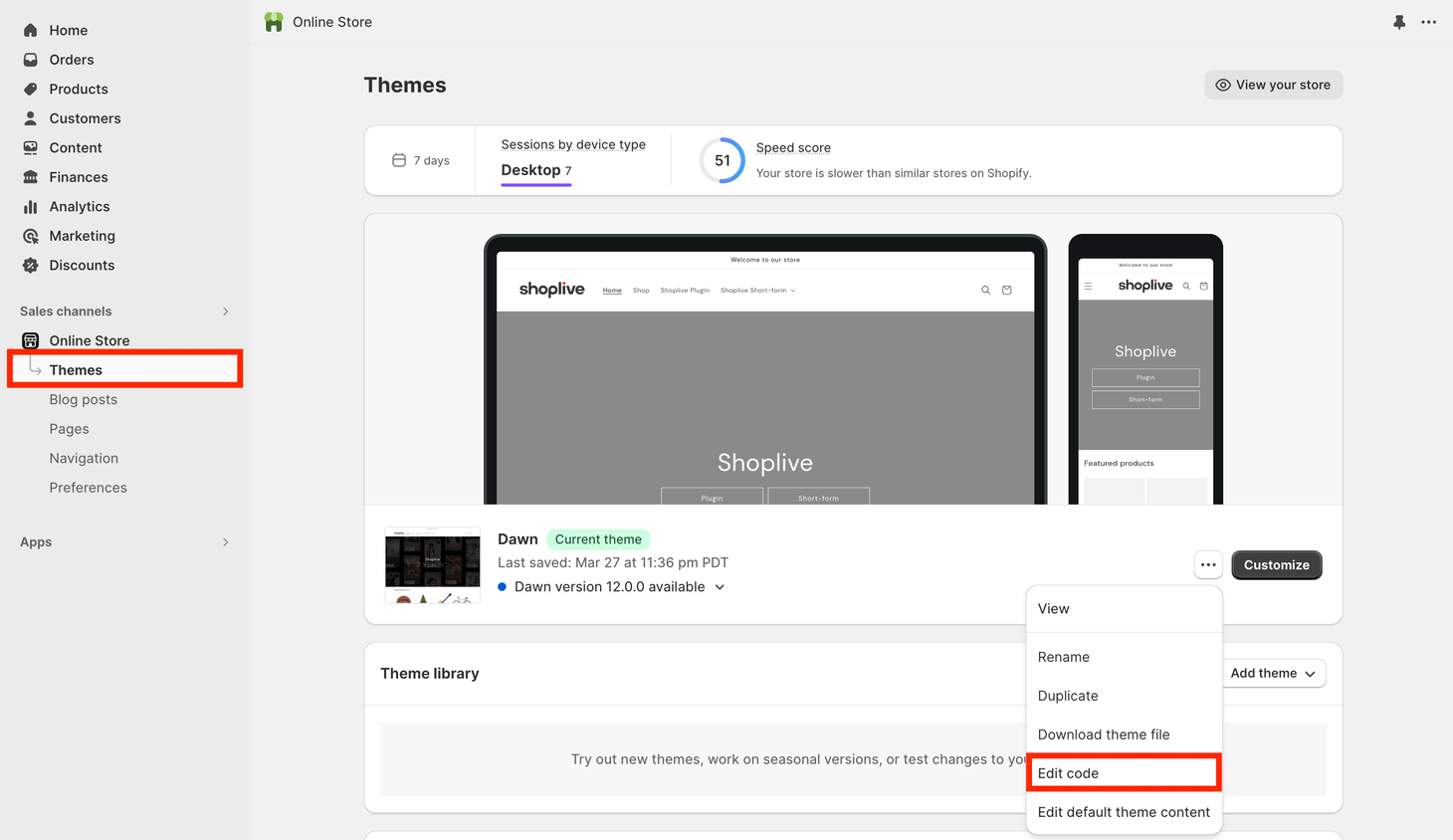
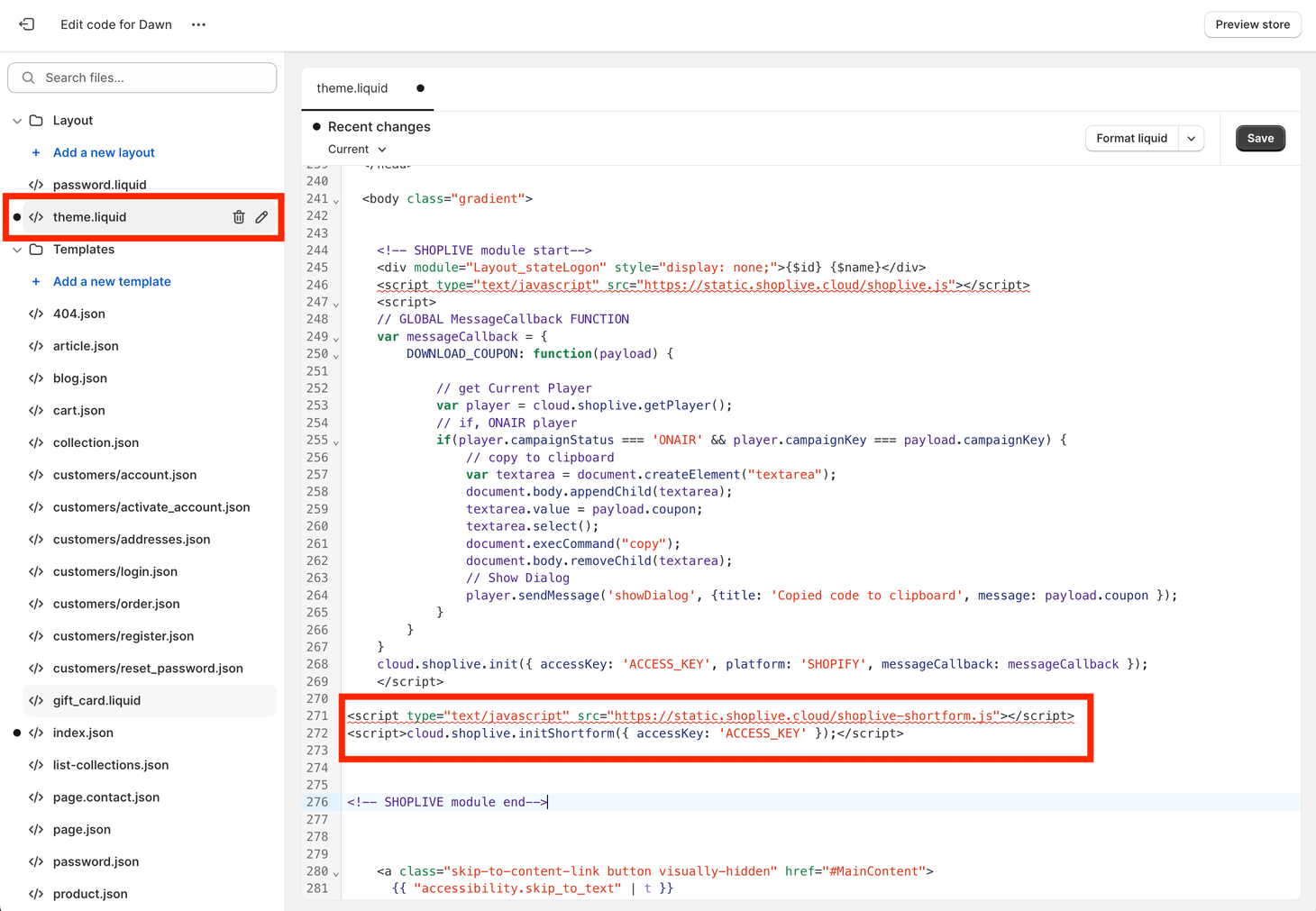
initShortform() to Layout → theme.liquid. The point is to put it in the theme layout so it runs once on every page.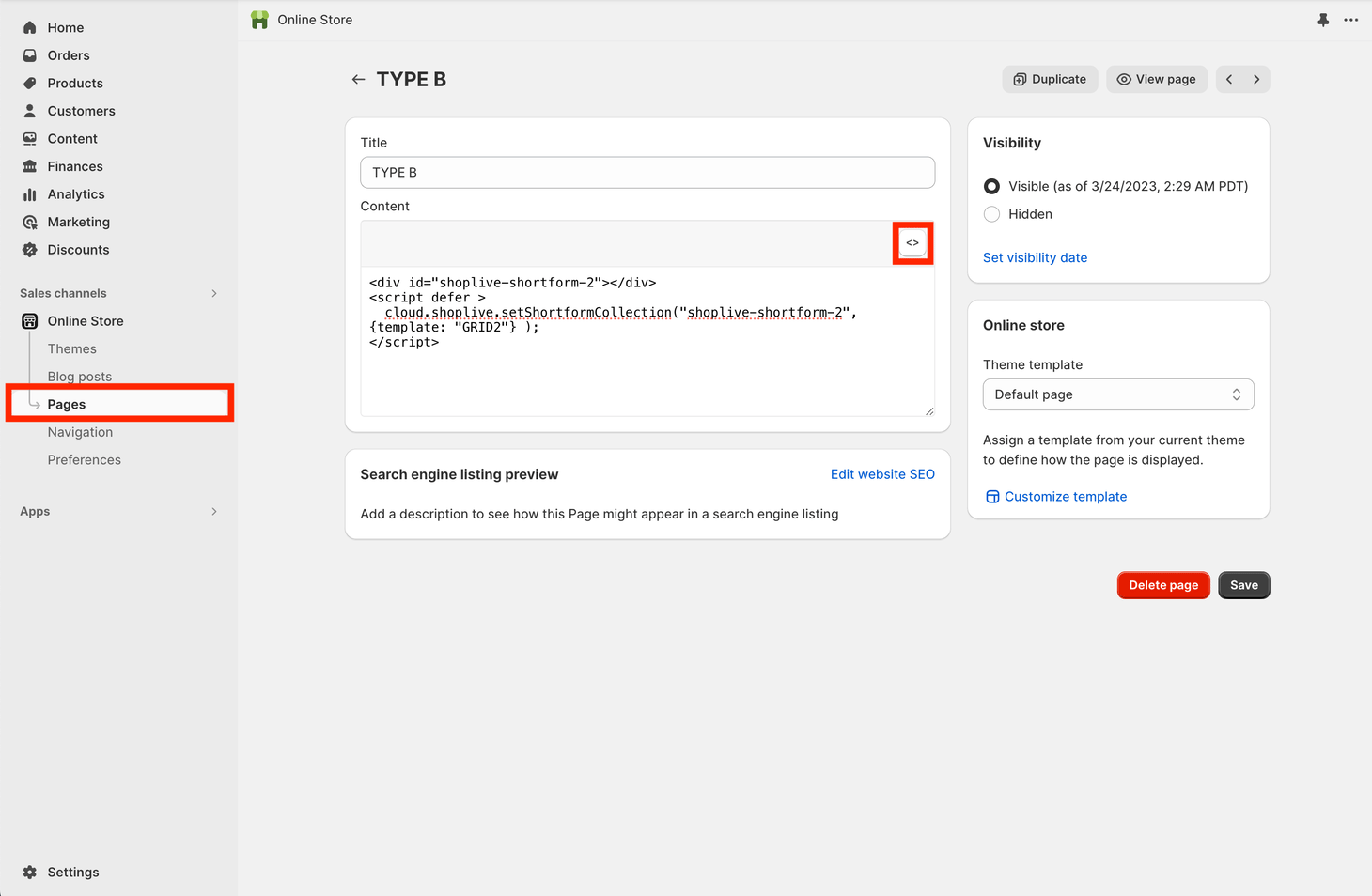
</>) and add the container <div> and the collection call. Initialization already happened in the theme, so here you only call the display function.D. Using it in an SPA
initShortform({ isSPA: true })— keeps the SDK alive as client-side routing changes pages.initShortformtakes effect once per page lifetime; a second call is ignored.- Clean up with
destroyShortformCollection(id)/hideShortformPreview()when a component unmounts. Removing only the container DOM leaves the instance alive inside the SDK. - If your router watches URL changes, pass
disableQueryParamHistory: trueto every display function (see deep links).
E. On the same page as the live SDK
Load both scripts and call initPlugin and initShortform separately. Load order does not matter — whichever loads second adds its functions to the existing cloud.shoplive object. setUserObject · setUserJWT · logout are shared, so calling them once applies to both SDKs. The SDK adjusts positions so the live mini preview and the shortform preview do not overlap in the same corner.
F. RequireJS / AMD environments
If your page manages modules with RequireJS, pass the loader — initShortform({ useAMD: true, AMDLoader: require }) — so the SDK loads its internal modules through it. This is unnecessary with plain <script> loading.
G. Inside your own app's WebView — what it takes to play
When the page with shortform on it is opened in your app's WebView (a hybrid app), video will not play, or will break out into full screen, unless you change the WebView settings. The SDK attempts inline autoplay with <video playsinline muted>, and WebView defaults block that. The settings below are set once, in your app code.
| Platform | Setting | Without it |
|---|---|---|
iOS (WKWebView) | configuration.allowsInlineMediaPlayback = true | The moment playback starts it switches to the native full-screen player and the shortform UI disappears |
Android (WebView) | settings.mediaPlaybackRequiresUserGesture = false | Autoplay never starts until the viewer taps — collection cards and previews appear frozen |
// iOS — when creating the WKWebView
let configuration = WKWebViewConfiguration()
configuration.allowsInlineMediaPlayback = true
let webView = WKWebView(frame: rect, configuration: configuration)
// Android — after creating the WebView
webView.settings.mediaPlaybackRequiresUserGesture = falsePrevious ← Full exampleNext → Function index
Function index
Every cloud.shoplive.* function used in web integration, grouped by entry point. Use it to find the right page when you already know the name.
| Group | Function | Guide |
|---|---|---|
| Initialization | initShortform(config) | Quick start · fields |
| Feed | setShortformCollection(containerId, config?) · destroyShortformCollection(containerId?) | Collection |
| Preview | showShortformPreview(config?) · hideShortformPreview() | Preview |
| Showcase | setShortformShowcase(containerId, config?) | Showcase |
| Story | setShortformStory(containerId, config?) · destroyShortformStory(containerId?) | Story |
| Opening and controlling the player | showShortformPlayerModal(config?) · dismissShortformPlayerModal() · shortformPlayerAppendList({ ids | shortforms }) · setShortformGlobalMuteState(bool) · getShortformGlobalMuteState() | Opening the player |
| User | setUserObject(user | null) · setUserJWT(jwt | null) · logout() | Mission 7 · Connect user information |
| Events | addShortformEventListener(fn) · removeShortformEventListener(fn) · (init option) messageCallback | Event handling |
| Viewing data | getShortformTotalViewingTime() · setShortformSessionId(id?) | Event handling · watch time and sessions |
| Inline player | setShortformPlayerView(containerId, config?) · replaceShortformPlayerView(config?) · destroyShortformPlayerViewAndGetContainerId() | Appendix A |
| Custom shortform | appendCustomShortforms({ customShortforms }) · setCustomShortform(obj) · removeShortform({ shortsIds }) | Appendix B |
If you see a name on cloud.shoplive that is not in this table, it belongs to mobile app SDK integration or is an old name. It is not used in web integration.
Previous ← AppendixNext → Config object field dictionary
Config object field dictionary
A collected list of what you can put in the config object passed to each function. Apart from accessKey, almost everything is optional — set only what you need and leave the rest out to get the defaults or your account settings.
containerId is not a shortform ID — it is the id of a DOM element on your page
The three functions below — collection · showcase · inline player view — draw inside an empty element you prepared on the page. So the first argument is the id attribute of the <div> that marks the spot — not the shortform ID you see in Admin. It is looked up with document.getElementById(), not as a CSS selector, so do not include the #.<!-- 1. Create an empty element for the shortform and give it an id -->
<div id="shortform-area"></div>
<script>
// 2. Pass that id string as the first argument (not '#shortform-area')
cloud.shoplive.setShortformCollection('shortform-area');
</script>If no element with that id is found, the SDK logs Invalid containerId and draws nothing. Preview and the player modal, by contrast, are placed on the screen by the SDK itself and take no such argument.
Initialization — initShortform(config)
| Field | Required | Description |
|---|---|---|
accessKey | Required | The merchant key issued by Shoplive |
userObject / userJWT | Optional | Signed-in user information. Can be changed later with setUserObject / setUserJWT (Mission 7 · Connect user information) |
guestUid | Optional | Identifier for signed-out users. Left unset, the SDK issues one and keeps it in the browser |
messageCallback | Optional | A map of functions that replace default behavior per event (Event handling) |
platform | Optional | Lets the SDK read the store's sign-in state — 'CAFE24' · 'WISA' · 'GODOMALL' · 'SHOPIFY'. What you must prepare on the page differs by value, so read Connect user information · platform auto-connect alongside this |
shopify | Optional | Shopify only — cartLink · customUISections[] |
isSPA | Optional | When true, the SDK is kept alive across page transitions instead of re-initialized (Appendix D) |
useAMD / AMDLoader | Optional | RequireJS environments (Appendix F) |
customerDeviceId | Optional | Your own device identifier. When set, the same value rides along on every request the SDK sends, so you can line up your logs with Shoplive's records per device |
anonId | Optional | An anonymous identifier you manage. Also used in purchase conversion measurement. Passing it in the page URL as ?anonId= is recognized the same way |
gaId | Optional | Google Analytics client ID. Setting it lets you line up Shoplive records with GA data as the same user. The ?gaId= query works identically |
ceId | Optional | The anonymous identifier used for conversion measurement. The default is to leave it out — the SDK generates and keeps one in the browser. Set it only when you need to override it with your own identifier (Conversion · matching rules) |
useWebVideoPlayer | Optional | When true, uses the browser's native video playback instead of HLS. This is a workaround for environments where playback fails, so do not set it normally |
If you have seen a value that is not listed here. It is either something an app passes when it opens the SDK in a mobile WebView (an ad identifier, for example), a value agreed individually with a particular merchant, or a Shoplive development value. None of them are used when integrating directly into a web page.
Shared filter fields — which shortforms to fetch
These fields are common to the collection, player modal, preview and inline player view. Each function's table below lists these plus whatever is unique to that function.
| Field | Type | Description |
|---|---|---|
tags | string[] | Tag filter |
tagSearchOperator | 'OR' | 'AND' | How tags are matched |
brands | string[] | Brand identifier filter |
skus | string[] | Linked product SKU filter |
shortformCollectionId | string | An Admin group ID |
shuffle | boolean | Random order |
sortProperty / sortDirection | string | Sort key / direction ('asc' | 'desc'). For the values, see Collection · filters. Unset, the Admin sort order applies |
Collection — setShortformCollection(containerId, config)
In addition to the shared filter fields, you can set:
| Field | Default | Description |
|---|---|---|
template | 'GRID1' | 'GRID1' · 'GRID2' · 'HORIZONTAL' |
hasMoreButton | true | Load-more button. false means infinite scroll (Collection · load-more policy) |
rows | 2 | Rows shown initially |
limit | — | Maximum number of shortforms |
displayTags | — | Tags for the filter tabs above the feed |
productLayout | 'CIRCLE' | 'CIRCLE' · 'CARD'. An account setting, if any, takes precedence |
disablePreviewVideoPlay | false | Turns off preview playback on card hover |
previewVideoAutoPlayType | — | 'intersection' — play when the card enters the viewport |
horizontalOption | — | hasDirectionWhenHorizontal · lineItemCount · autoFlow · insideDescription (title and description inside the card) · scrollIndicator (scroll progress bar under the feed) — Collection · display options |
showProduct | false | Up to 2 linked products below each card + View more products (Collection · display options) |
enableGestureSlide | true | Allows drag/swipe |
disableQueryParamHistory | false | Turns off URL query history |
Player modal — showShortformPlayerModal(config)
In addition to the shared filter fields, you can set the following. When ids or shortforms is present, the filter fields are ignored.
| Field | Description |
|---|---|
ids | The shortform IDs to play (order preserved) |
startIndex | Starting position within ids (zero-based). Out of range falls back to 0 |
shortsId | The shortform to start from in filter mode |
muted | Start muted |
disableQueryParamHistory | Turns off URL query history |
Preview — showShortformPreview(config)
In addition to the shared filter fields, you can set the following. With no filter fields at all, related shortforms are looked up by the current page URL.
| Field | Description |
|---|---|
sku · name | Product SKU and product name hints added to the current-URL lookup |
position | { 'to-ri' | 'to-le' | 'bo-ri' | 'bo-le': true } |
size | Size per breakpoint, as a nested object such as { desktop: { width: '160px' }, mobile: { width: '28vw' } }. Each breakpoint takes width · maxWidth · height · maxHeight as CSS strings, all optional (Preview · position and size) |
closePolicyExpiry | How long (minutes) to stay hidden after being closed. Unset or 0 means no reappearance during the session |
resizable | Lets viewers resize it |
disableQueryParamHistory | Turns off URL query history |
Showcase — setShortformShowcase(containerId, config)
| Field | Default | Description |
|---|---|---|
shortformId | — | An explicit shortform ID. Takes precedence over url |
url | Current page URL | The URL the related-shortform lookup is based on. When set, tapping a card navigates to this URL |
thumbnail | true | The thumbnail strip below the cards (shown only with two or more cards) |
removeOriginalDOM | true | Removes the container's existing children after a successful render |
Story — setShortformStory(containerId, config)
At least one of the three condition arrays must be supplied or no circles appear. The shared filter fields are not used here.
| Field | Default | Description |
|---|---|---|
brands | — | string[] brand identifiers. One circle each |
tags | — | string[] tags. One circle each |
shortformCollectionIds | — | string[] IDs of shortform groups in Admin. One circle each (Story · step 1) |
size | 72 | Circle diameter in px |
grid | false | true also renders the active condition's collection as GRID2 under the story (Story · step 2) |
gridContainerId | — | The id of another container to draw that collection in, in grid mode. Missing, or pointing at the story or an ancestor, falls back under the story with a warning |
Inline player view — setShortformPlayerView(containerId, config)
Takes the shared filter fields and the player modal's ids · shortforms · startIndex · shortsId · muted as they are, plus customShortforms (an array of custom shortform objects).
Custom shortform object — appendCustomShortforms · setCustomShortform
| Field | Description |
|---|---|
shortsId | Required. The Shoplive shortform ID |
customShortformId | Your own shortform identifier |
title · description · backButtonTitle | Title · description · the title next to the back button |
creatorName · creatorImage · creatorLevel · levelImageUrl · creatorIsFollow | Creator display information and follow state |
likeCount · likeCountText · isLike · commentsCount · commentCountText | Like and comment counts and their display text |
linkButton { url, title } | An external link button |
externalProducts[] | External products — productId · sku · name · brand · url · imageUrl · currency · originalPrice and more |
extra | Free-form data of your own. Returned unchanged in the event payload |
Event payloads — product · shortform
| Object | Key fields |
|---|---|
payload.product | productId · name · brand · url · sku · imageUrl · currency · originalPrice · discountPrice · discountRate |
payload.shorts | shortsId · shortsDetail.{title, description, tags, brand} · cards[] · shortsIndex · custom (for custom shortform) |
Previous ← Function indexNext → Event dictionary
Event dictionary
Every event you can receive through addShortformEventListener. Only the seven with default behavior can be changed with messageCallback (Event handling · change the default behavior); the rest are for observation.
Events with default behavior (7)
PLAY_SHORTFORM_DETAIL · CLOSE_SHORTFORM_DETAIL · LOGIN_REQUIRED · ON_CLICK_PRODUCT_ITEM · ON_CLICK_PRODUCT_BANNER · ON_CLICK_LINK_BUTTON · ON_CLICK_SHARE_BUTTON — see the table in Event handling for details.
Notification events (6)
| Event | When | payload |
|---|---|---|
ON_SHORTFORM_DETAIL_READY | The player is ready | shorts |
VIDEO_TOTAL_VIEWING_TIME | Leaving one shortform | shortsId · totalViewingTime · videoDuration · videoDurationText |
NEEDS_SHORTFORM_LIST_MORE | Approaching the end of an ID-specified playlist | — |
ON_SHORTS_SHOWCASE_RENDERED | The result of a showcase render | success · shortsId · shorts | reason |
ON_SHORTS_STORY_RENDERED | Per-circle render result for the Story | items[] — type (brand|tag|collection) · identifier · success · label · shortsCount |
ON_DRAG_START_PREVIEW / ON_DRAG_END_PREVIEW | Start and end of dragging the preview | — |
Tracking events
| Area | Events |
|---|---|
| Feed (collection) | COLLECTION_SHOW · COLLECTION_SHOW_WHEN_VIDEO_PLAY · COLLECTION_CLICK_ITEM · COLLECTION_CLICK_VIEW_MORE |
| Preview | PREVIEW_SHOWN · PREVIEW_HIDDEN · PREVIEW_CLICK_SHOW · PREVIEW_CLICK_CLOSE |
| Player — display and playback | DETAIL_ON_PLAYER_SHOW · DETAIL_ON_PLAYER_DISMISS · DETAIL_ACTIVE (moving between shortforms) · DETAIL_EMPTY · DETAIL_VIEWING_SECONDS · DETAIL_VIDEO_LOOP · DETAIL_SEEK_VIDEO · DETAIL_PAUSE_VIDEO · DETAIL_RESUME_VIDEO · DETAIL_CLICK_MUTE · DETAIL_CLICK_UNMUTE · DETAIL_CLICK_BACK_BUTTON · DETAIL_EXTERNAL_VIDEO_ON_ERROR · DETAIL_EXTERNAL_VIDEO_RECOVERED_FROM_ERROR |
| Player — products and links | DETAIL_CLICK_PRODUCT_CARD · DETAIL_SWIPE_PRODUCT_CARD · DETAIL_EXPAND_PRODUCT_LIST · DETAIL_DISMISS_PRODUCT_LIST · DETAIL_CLICK_PRODUCT_LIST_ITEM · DETAIL_CLICK_PRODUCT_BANNER · DETAIL_CLICK_LINK_BUTTON · DETAIL_CLICK_BRAND · DETAIL_CLICK_LIVE_CAMPAIGN_LINK |
| Player — social | DETAIL_CLICK_LIKE · DETAIL_CLICK_SHARE · DETAIL_CLICK_BOOKMARK · DETAIL_CLICK_CREATOR_PROFILE · DETAIL_CLICK_FOLLOW_BUTTON · DETAIL_CLICK_COMMENT · DETAIL_CLOSE_COMMENT · DETAIL_CREATE_COMMENT · DETAIL_UPDATE_COMMENT · DETAIL_DELETE_COMMENT · DETAIL_CLICK_REPLY · DETAIL_CLICK_COMMENT_LIKE · DETAIL_CLICK_MORE_OPTION_BUTTON |
| Player — navigation and tags | DETAIL_EXPAND_DESCRIPTION · DETAIL_COLLAPSE_DESCRIPTION · DETAIL_CLICK_TAG · DETAIL_CLICK_FILTER_TAG · DETAIL_CLICK_TAG_COLLECTION_ITEM · DETAIL_CLOSE_TAG_COLLECTION · DETAIL_CLICK_CREATOR_SHORTFORM_COLLECTION_ITEM · DETAIL_CLOSE_CREATOR_SHORTFORM_COLLECTION |
Previous ← Field dictionaryNext → Troubleshooting & FAQ
Troubleshooting & FAQ
Nothing appears (and there are no console errors)
Check the browser console first. On a successful initialization you see the log [shoplive shortform initShortform start]. After that, which of the messages below appears tells you the cause.
| Console message | Cause · fix |
|---|---|
Invalid Shorts settings | The Access Key is wrong, or the settings lookup failed. Any display functions called before this are lost as well, so fix the key and reload |
Invalid containerId | The container div's id differs from the value you passed, or it was not in the DOM at call time |
"tags" property must be array | tags or brands was passed as a string → change it to an array (Collection) |
| (a warning, then nothing happens) | It may be an account issue such as contract status — contact your Shoplive representative |
If there is no message at all, check that <script src="…shoplive-shortform.js"> comes before your cloud.shoplive.* calls, and that Admin has a published shortform matching your filter criteria (tags, SKU).
Only the preview or the showcase fails to appear
For both, drawing nothing when the conditions are not met is correct behavior. For previews, work through the five cases where it does not appear; for showcases, the prerequisites (two settings plus a sized container), in order. While developing, clearing browser storage is the first step.
On iOS the video does not autoplay — I just see a frozen frame
The SDK starts playback muted and inline, in line with the iOS autoplay policy. If a frozen frame persists on one particular device, check whether Settings → Accessibility → Motion → "Auto-Play Video Previews" is off on it. Low Power Mode and Low Data Mode produce the same result. These are settings the user deliberately turned off, so code cannot work around them — tapping plays the video normally.
However, if the page is opened in your own app's WebView, the cause is different — inline autoplay is blocked by the WebView settings, which you can fix in your app code. See Appendix G · Inside your own app's WebView.
Our SPA router reacts when the player opens / the back button behaves oddly
This is because the SDK pushStates __sl_shorts_id into the URL. Pass disableQueryParamHistory: true to your display calls (see deep links).
Clicking a product reloads the whole page
The default behavior of ON_CLICK_PRODUCT_ITEM is location.href = product.url. Register that event in messageCallback and route instead (Event handling). To open in a new tab, call window.open(payload.product.url) inside it.
The showcase renders but tapping it does nothing
Your page's global CSS is hiding the SDK's transparent click layer (for example div:empty { display: none }). Use developer tools to see whether page CSS applies to the .csl- elements inside the container, and scope that rule to exclude the container (Showcase).
The player looks broken only on our site
The SDK draws inside your DOM, so it can collide with your global styles. SDK elements use the sl- and csl- prefixes, but tag-level global styles on the page — video, img, e.g. img { width: 100% !important } — still reach them. Use developer tools to see which rules apply to the broken element and narrow their scope. If you cannot resolve it, contact your Shoplive representative.
Which functions can be called before initialization, and which cannot
The display functions (setShortformCollection · showShortformPreview · setShortformShowcase · showShortformPlayerModal) queue when called before initialization and run automatically afterwards. destroy* · hideShortformPreview · shortformPlayerAppendList · get/setShortformGlobalMuteState · getShortformTotalViewingTime, by contrast, run immediately, so call them after initialization has finished (or after a display function has taken effect). For setShortformPlayerView, see the caveat in Appendix A.
We use a Content-Security-Policy. Which domains must we allow?
| Directive | Allowed source | Purpose |
|---|---|---|
script-src | https://static.shoplive.cloudhttps://cdnjs.cloudflare.com | The SDK itself and its lazily loaded chunks come from static; the HLS playback library (hls.js) comes from cdnjs |
style-src | https://static.shoplive.cloud · 'unsafe-inline' | SDK stylesheets · account-level custom styles (inline) |
connect-src | https://config.shoplive.cloud · https://api.shoplive.cloud · https://*.shoplive.cloud | Merchant settings · the shortform API · viewing logs · video segments |
media-src · img-src | https://*.shoplive.cloud · blob: | Video (HLS needs blob:) · thumbnails |
The exact API host can differ by account configuration, so confirm in the network tab before you deploy.