Shoplive Web Player SDK Integration Guide
Embedding live commerce broadcasts in your web pages, broken into missions. Mission 1 alone puts a broadcast on screen — pick only what you need from the rest.
Overview & Requirements
The Shoplive Web Player SDK connects a live broadcast player to your web page with a single script tag. There is no package to install and no build tooling to configure.
Embed the player wherever you want it, open a broadcast with a single link, or show a preview on another page — pick only the approaches you need.
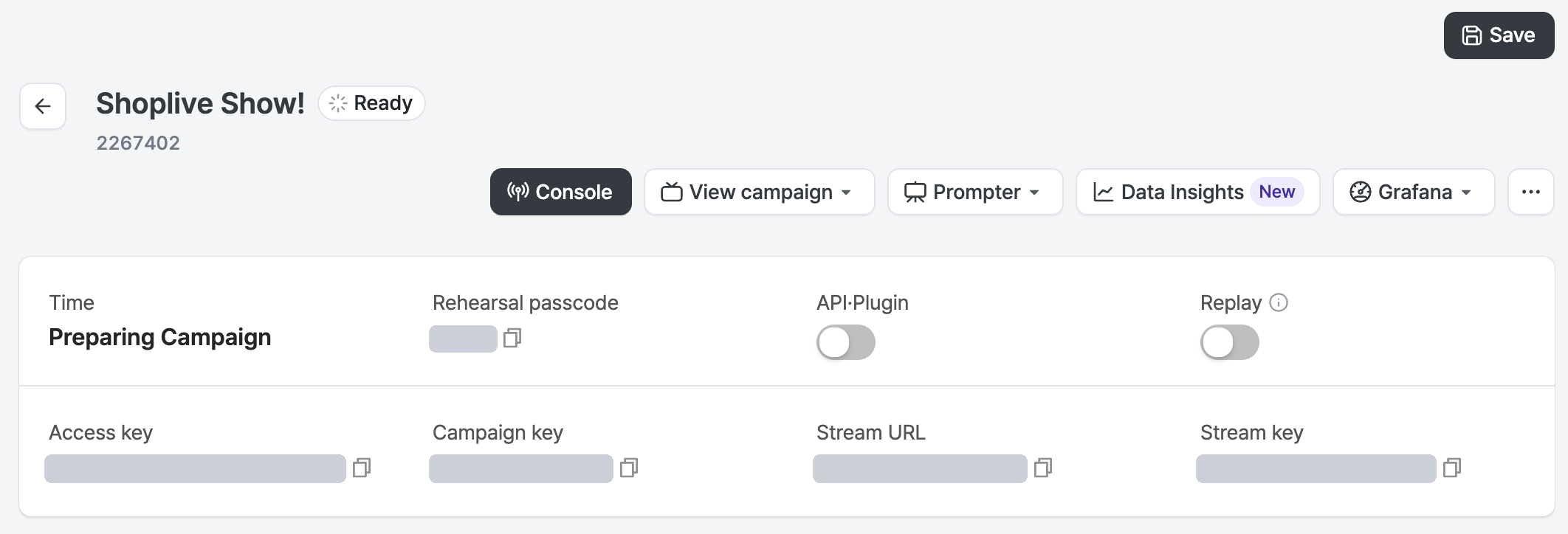
What you need
| Item | Where to find it |
|---|---|
| Access Key | Shoplive Admin — the summary card at the top of the broadcast details page |
| Campaign Key | Shoplive Admin — the summary card at the top of the broadcast details page |
What do you want to build?
Finish Mission 1 and a broadcast is on screen. Missions 2–6 are independent of each other, so pick only what you need, in any order — this is not a list you have to complete.
| What you want to do | Where to go | |
|---|---|---|
| Place the player somewhere on a page · show a whole broadcast list at once · open a broadcast with a single link | Start here | Mission 1 · Display the broadcast |
| Connect user info — chat display names, entry restrictions, and so on | Optional | Mission 2 · Connect user info |
| Run your own code on user interactions — coupon and product taps, login required, and so on | Optional | Mission 3 · Handle user interactions |
| Announce a live broadcast on pages other than the broadcast page, and bring viewers in through share links | Optional | Mission 4 · Promote the broadcast on other pages |
| Drive an open player from your own code (dismiss a coupon, mute, show a dialog) | Optional | Mission 5 · Control the player |
| Measure which channel viewers came from and whether they actually bought | Optional | Mission 6 · Measurement — traffic and purchases |
| Add features that must be enabled first — brand favorites, cart, notification sign-up, auctions | Optional | Appendix A · features to enable |
| Keep the video playing when a viewer leaves for a product page | Optional | Appendix B · PIP |
| Fit a special environment — SPA · app WebView · RequireJS · sharing a page with Shortform | Optional | Appendix C–F |
What each element on the player screen is called is collected in the screen glossary — come back to it when you are reading a mission and cannot remember what removeBanner removes.
shoplive.js) and Shortform (shoplive-shortform.js) are separate scripts, but they share the same window.cloud.shoplive object, so you can load both on one page. User info passed once applies to both; the only thing to watch is that the two products' previews can overlap in the same screen corner — see Appendix F for the details, and the Shortform guide for Shortform integration itself.Quickstart
The shortest path to a player on screen. For the details and options, start from Mission 1 below.
<script src="https://static.shoplive.cloud/shoplive.js"></script>
<script>
  cloud.shoplive.initPlugin({ accessKey: 'YOUR_ACCESS_KEY' });
</script>

<div id="shoplive-player"></div>
<script>
  cloud.shoplive.setPlayer("shoplive-player", { campaignKey: "YOUR_CAMPAIGN_KEY" });
</script>
cloud.shoplive is a global object the SDK sets up for you. Once the script above loads, functions such as initPlugin and setPlayer are attached to window.cloud.shoplive. That means you can call cloud.shoplive.… from any script with no import and no bundler configuration — as long as the call comes after the SDK script tag. The full set of functions is in the function index.
Next stepScreen glossary · Start with Mission 1 →
Screen glossary
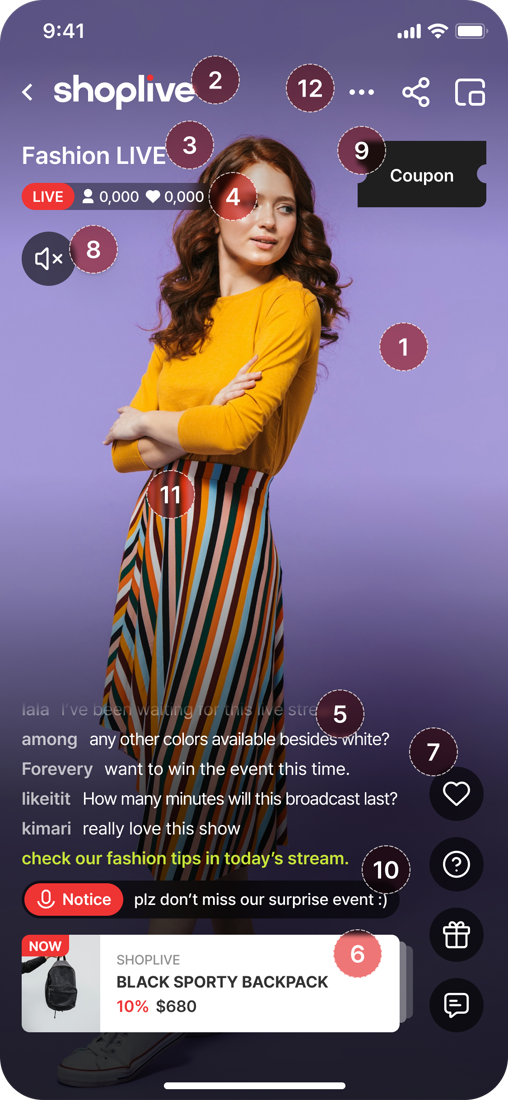
The names for each element on the player screen. The missions, the event dictionary and the command dictionary all use these same terms and the same numbers. When you cannot remember what removeBanner actually removes, come back to this table.
The player screen
| No. | Element | When it shows | Related on the web |
|---|---|---|---|
| ① | Video area | Always | playVideo · pauseVideo · videoRefresh (command dictionary) |
| ② | Brand logo | Always | Campaign settings in Shoplive Admin — not changed from code |
| ③ | Campaign title | Always | Campaign settings in Shoplive Admin |
| ④ | LIVE badge · viewer count · like count | LIVE only | Viewer and like counts arrive through ON_CHANGED_VIEWER_STAT; broadcast status (start and end) through ON_CAMPAIGN_STATUS_CHANGED (Mission 3 · notify-only events). The display itself can only be switched on and off with ui.viewerCount · ui.likeCount |
| ⑤ | Chat overlay | LIVE only | Chat flowing over the video. There is no web API to control it |
| ⑥ | Product card (bottom left · NOW) | Always | Tapping it fires CLICK_PRODUCT (Mission 3) · close the list with dismissGoodsList |
| ⑦ | Right-hand icon column (♡ · ? · 💬) | Always | Like · inquiry · open chat. Hide and show the whole column with hideControls · showControls |
| ⑧ | Mute button | Always | mute · unmute. Because of autoplay rules the player starts muted |
| ⑨ | Coupon bubble | When an operator issues one | Tapping it delivers the click action chosen in Admin as an event (Mission 3 · popups) · remove it with removeCoupon |
| ⑩ | Notice pill | When an operator issues one | Notices are tappable too — they follow the same click action setting as ⑨ and ⑪ (Mission 3 · popups) · remove it with removeNotice |
| ⑪ | Event banner · popup | When an operator issues one | The click action chosen in Admin is the event name — LINK · LINK_NEW_WINDOW · DOWNLOAD_COUPON · CUSTOM_ACTION (Mission 3 · popups). ⑨ coupons and ⑩ notices work the same way · remove it with removeBanner |
| ⑫ | Top-right buttons | Always | The web has a different set — see below |
Where the web differs from mobile
| In the picture | Web plugin |
|---|---|
| ⑫ Minimize (in-app PIP) button | Not present. Showing a small player in a corner is a separate feature — the mini preview (setLiveMiniPreview) — and you call it yourself rather than tapping a button inside the player |
| ‹ Back | Present. Tapping it fires CLICK_BACK_BUTTON; the default behavior is history.back(), so the page navigates back. If you opened the player in a modal, see closing the modal as well |
| Share icon | Present. Fires CLICK_SHARE_BTN · set the URL to share with shareUrl. Hide it with hideShareButton |
| iPhone status bar · home indicator | Part of the app shell, so they do not exist on the web. The web player is drawn to fit the div you sized (or the modal) |
Most of the UI inside the player is switched on and off through campaign settings in Shoplive Admin. What you can change from code is collected in Mission 1 · what to show on screen.
Previous ← QuickstartNext → Mission 1 · Display the broadcast
Mission 1 · Display the broadcast
There are three approaches. Pick just one — all three run on the same initPlugin().
| Approach A · Player only | Approach B · Open via link | Approach C · Live page template | |
|---|---|---|---|
| What appears on screen | One player | One player (full screen) | A featured broadcast plus a broadcast list |
| Custom position and size | Entirely up to you | No (fixed shoplive.show layout) | Per area (player only / list only) |
| Do you build the layout? | Yes — you build the container and the surrounding UI | No | No — the Shoplive template does it |
| User authentication | Set in code (initPlugin) | Set with the tk URL parameter | Set in code (initPlugin) |
Custom logic for coupon and product taps (messageCallback) | Supported | Not supported | Supported |
| PIP (keep watching while moving to a product page) | Supported | Not supported — the SDK is not present on your page | Supported |
| Typical use | A dedicated event page, a campaign-specific landing page | Ad creative landing | A permanent live corner — a page where the broadcast keeps changing |
Approach AEmbed the player directly
Use this when you can build the page yourself. Put a container where you want the player and call setPlayer.
<script src="https://static.shoplive.cloud/shoplive.js"></script>
<script>
  cloud.shoplive.initPlugin({ accessKey: 'YOUR_ACCESS_KEY' });
</script>

<div id="shoplive-player"></div>
<script>
  cloud.shoplive.setPlayer("shoplive-player", {
    campaignKey: "YOUR_CAMPAIGN_KEY"
  });
</script>
The player fills the container div, so you set the container size and position with your own page CSS. When a broadcast ends and turns CLOSED you can leave campaignKey exactly as it is — the same key plays the replay.
div on the left. The player following the scroll is just position:sticky on that div — which is the point: your page CSS decides.What to show on screen optional
| Option | Default | Description |
|---|---|---|
ui.viewerCount | true | Show the viewer count |
ui.likeCount | true | Show the like count |
ui.backButton | false | Show the back button. Tapping it fires CLICK_BACK_BUTTON; the default behavior is history.back() (Mission 3) |
ui.shareButton | false | Show the share button (share URL) |
cloud.shoplive.setPlayer("shoplive-player", {
  campaignKey: "YOUR_CAMPAIGN_KEY",
  ui: { viewerCount: true, likeCount: true, backButton: true, shareButton: true }
});
The inside of the player — chat, the product list and so on — is decided by your account settings and theme. If you need to change anything beyond these four, contact your Shoplive representative.
The URL the share button sends optional
If you turned the share button on, you can set the address that gets shared with shareUrl on initPlugin(). Leave it out and the current page address is used. To change the share behavior itself, and for how the URL is assembled, see Mission 3.
cloud.shoplive.initPlugin({
  accessKey: 'YOUR_ACCESS_KEY',
  shareUrl: 'https://my-shop.com/live'   // optional — defaults to the current page
});
Always full screen optional
cloud.shoplive.setPlayer("shoplive-player", {
  campaignKey: "YOUR_CAMPAIGN_KEY",
  isFullScreen: true
});isFullScreen: true the SDK looks for your page's <meta name="viewport"> tag and adjusts it to block pinch zoom on mobile. If the tag is not on the page it is silently ignored — no error — so add it up front.
<meta name="viewport" content="width=device-width, initial-scale=1.0, maximum-scale=1.0, viewport-fit=cover, shrink-to-fit=no">Other options optional
Values you only need in particular situations. Normally you can leave them unset.
| Option | Type | Description |
|---|---|---|
hideControls | boolean | true starts the player with its control UI hidden. After startup you can also toggle it with the showControls / hideControls commands (controlling the player) |
playerAlias | string | A nickname for this player. Use it to pick out one player with getPlayer('alias') when a page has several (Mission 5). Without it, players are looked up by campaignKey |
closePlayerAfterCampaignEnd | number (ms) | Sends a CLOSE_PLAYER event this long after the broadcast ends. Treat it as a signal to clean up the page or move the viewer elsewhere — the SDK does not close the player for you, so to actually remove it you must call destroyPlayer() yourself.If you leave it unset, the player reloads itself 30 seconds after the broadcast ends and settles on the ended screen |
chatFilterPatterns | string[] | An array of regular-expression strings. If a chat message a viewer is about to send matches any of them, it is not sent and an ON_FILTERED_CHAT event fires instead. Use it to layer your own profanity policy on in code |
passcode | string | The entry code for previewing a rehearsal broadcast. A broadcast marked as a rehearsal requires this value to enter until it goes ONAIR |
brand | object | Passes the initial state when you use brand favorites — { identifier, favorite } (Appendix A · brand favorites) |
Re-rendering and cleaning up
Calling setPlayer again on the same container tears the existing player down and builds a new one. You do not need to call destroy first when swapping in a different broadcast.
The opposite case is different: when the container itself disappears from the page (a component unmounting in an SPA, for example) the SDK cannot detect it and the player stays alive internally. Call destroyPlayer before removing the container.
cloud.shoplive.destroyPlayer("shoplive-player");Approach BOpen directly via link
When building a new page is impractical, call the shoplive.show page that Shoplive provides using URL parameters alone — no page of your own required. Note that the SDK runs only inside the shoplive.show page and is not loaded on the page that opens the link, so you cannot call initPlugin(). If you need user interaction handling (Mission 3), use Approach A or C.
https://www.shoplive.show/v1/player.html?ak={access_key}&ck={campaign_key}&tk={user_info}| Parameter | Required | Description |
|---|---|---|
ak | Required | Access Key |
ck | Required | Campaign Key |
tk | Optional | User info — a URL-encoded userObject JSON or a JWT (Mission 2). Omit it for guest viewing |
userId · userNamegender · age · userScore | Optional | A lightweight alternative to tk. Only these five are supported, and if you also pass tk, tk wins (Mission 2) |
backButton | Optional | 1 (show) / 0 (hide) |
shareButton | Optional | 1 (show) / 0 (hide) |
The shareUrl option that sets the page URL sent when the share button is tapped (see Approach A) only takes effect through a direct initPlugin() call, so it is unavailable in Approach B. There, your only option is shareButton=0 to hide the share button entirely.
messageCallback.Approach CLive page template — player and broadcast list in one go
Use this when you need a whole live corner page rather than a single player. Call setOverall on one empty div and the Shoplive template draws a featured broadcast (live now, or the most recent one) plus a broadcast list inside it. You do not have to decide in code which broadcast to show, which makes it a good fit for a permanent corner where the broadcast keeps changing.
<div id="shoplive-overall-area"></div>
<script>
  cloud.shoplive.setOverall('shoplive-overall-area');
</script>setOverall drew. This screen splits the two areas apart by using two divs and calling featuredOnly and campaignListsOnly separately (showing only one area).Tapping a broadcast in the list opens a modal player automatically. To handle that yourself, register ON_CLICK_CAMPAIGN_LIST_ITEM (Mission 3).
Showing only one area optional
| What you want | Option |
|---|---|
| Default — featured broadcast plus list | No options |
| Featured broadcast (player) area only | { featuredOnly: true } |
| Broadcast list area only | { campaignListsOnly: true } |
| Pin the featured slot to a specific broadcast | { featuredOnly: true, featured: { fixedCampaignKey: 'YOUR_CAMPAIGN_KEY' } } |
To place the two areas far apart on the page, create two divs and call one with featuredOnly and the other with campaignListsOnly.
Shaping the list optional
cloud.shoplive.setOverall('shoplive-overall-area', {
  campaignListsOnly: true,
  campaignStatus: ['ONAIR', 'CLOSED'],   // sorted in this order
  tags: ['sale', 'new'],
  tagSearchOperator: 'OR',               // 'OR' any match · 'AND' all must match
  displayTags: ['sale', 'new', 'best'],  // shown as filter tabs above the list
  campaignList: { layout: 'HORIZONTAL' } // 'GRID' (default) | 'HORIZONTAL'
});| Option | Default | Description |
|---|---|---|
campaignStatus | All | 'READY' (upcoming) · 'ONAIR' (live) · 'CLOSED' (ended / replay). A single string or an array. Passing an array sorts by the order you list, and within one status by scheduled time, newest first. This only applies when campaignListsOnly: true — in the default mode, where the featured broadcast and the list share one div, all three sections (live, upcoming, replay) always appear |
tags / tagSearchOperator | — | Filter by the tags attached to broadcasts. With several tags, choose 'OR' or 'AND' |
displayTags | — | Tags to expose as filter tabs above the list, so viewers can narrow it down |
skus / goodsIds | — | Only broadcasts containing specific products — skus takes your own product codes, goodsIds takes Shoplive internal product IDs |
campaignList.layout | 'GRID' | 'GRID' for a grid · 'HORIZONTAL' for a single horizontally scrolling row |
campaignList.type | — | Pass 'SECTION' to split the list into sections by status |
hasMoreButton | true | The "more" button under the list. Setting it to false turns 'GRID' into infinite scroll |
ascending | Depends on status | Sort direction. Left unset, it is ascending (soonest first) only when campaignStatus is the single string 'READY', and descending otherwise |
sectionTitles | Built-in text | Rewrites the list section titles in your own product vocabulary — { onair, ready, closed, all } |
cloud.shoplive.setOverall('shoplive-overall-area', {
  sectionTitles: {
    onair:  'Live now',
    ready:  'Coming up',
    closed: 'Past broadcasts',
    all:    'All broadcasts'
  }
});
Cleaning up
Call destroyOverall when leaving the page in an SPA. Passing true as the second argument also tears down any player still inside it.
cloud.shoplive.destroyOverall('shoplive-overall-area', true);Opening in a modal optional
Instead of reserving an area on the page, open the broadcast in a modal over the screen when a button is tapped. Use it to launch a broadcast straight from a banner or button.
<button id="open-live">Watch live</button>
<script>
  document.getElementById('open-live').addEventListener('click', function () {
    cloud.shoplive.showFeaturedPlayerModal({ campaignKey: 'YOUR_CAMPAIGN_KEY' });
  });

  // close it from code
  // cloud.shoplive.dismissLayerModalPlayer();
</script>showFeaturedPlayerModal({ campaignKey, disableHistoryHook: true }) — back will then navigate to the previous page.Verify completion
- (Approach A) The player renders in the
divyou specified, and when the broadcast is ONAIR it attempts autoplay (browser autoplay policies may block it) - (Approach B) The player opens from the URL alone, with no page of your own
- (Approach C) The featured broadcast and the broadcast list are drawn inside the
divyou specified, and tapping a broadcast in the list opens a modal - If you turned the share button on, tapping it shares
shareUrlwhen you set one, and the current page when you did not
Previous ← Screen glossaryNext → Mission 2 · Connect user info
Mission 2 · Connect user info
setUserObject() and setUserJWT() pass user information — they do not authenticate the user Login (ID · password, social login and so on) stays entirely on your site. These functions only tell Shoplive who the current viewer is so that chat, viewing and statistics are attributed to that member. Shoplive does not check the user's credentials. With JWT auth, Shoplive can verify that the information was issued by your server and not altered (signature check); with simple auth (userObject), the information is passed as is, without that check.Step 1 · Choose by login state — recommended setup
| User | Recommended | Why |
|---|---|---|
| Logged out | Call nothing (guest) | No user info to pass. Whether guests may chat is an Admin setting; when it is off the chat input is disabled and a "Join the chat" prompt is shown. If you need an identifier to tell guests apart, see receiving the guest uid |
| Logged in (recommended) | setUserJWT() — a JWT signed by your server (JWT auth) | It can't be forged, so you can rely on it for permission checks such as entry restrictions based on userScore or userType |
| Logged in (when backend work is hard) | setUserObject() — pass id, name, and so on (simple auth) | The client's values are passed as is, unsigned. It's enough for identification and stats, but don't use it for authorization |
| Logged in (Cafe24, WISA, Godomall or Shopify store) | Platform auto-link | The SDK reads the login state the store already knows. This is an alternative to the two options above — if you pass user info yourself, your values win |
| Log out · reset user info | cloud.shoplive.logout() · or setUserObject(null) / setUserJWT(null) | Clears the user info you set and returns to guest |
setUserJWT() call), get a newly issued JWT from your backend and pass it with initPlugin({ userJWT }) or setUserJWT() → on logout, reset the user info with logout() (or pass null).
Approach B (open via link) passes the same JWT in the tk parameter (Step 2).Step 2 · Call using your chosen method
If you already know the user at initPlugin() time, include it in that call. If login status is settled later (an SPA, for example), call setUserObject() / setUserJWT() afterwards instead. With simple auth every field but userId is optional; JWT has its own required fields (see Step 5). For guests, call neither.
// Simple auth — only userId is required, the rest are optional
const userObject = {
  userId: "",     // required — the logged-in user's unique ID. Empty means guest
  userName: "",   // optional — the name shown in chat. If omitted, the campaign settings decide whether to prompt or generate one. Banned words are shown replaced with *
  gender: "",     // optional — "m" | "f" | empty if unset
  age: "",        // optional — grouped into 5-year buckets in the statistics
  userScore: "",  // optional — integer from -100 to 100. Usable as a criterion for things like prize-draw eligibility
  userType: "",   // optional — referenced when an Entry Type restriction is configured
  profile: "",    // optional — profile image URL in the chat list, 64x64px recommended
  custom: "",     // optional — free-form data, up to 1KB
  canBid: true    // optional — auction bidding eligibility (Appendix A · auctions)
};

// Option 1 — include it in the initPlugin() call
cloud.shoplive.initPlugin({ accessKey: "YOUR_ACCESS_KEY", userObject });

// Option 2 — call separately after initPlugin() (when login info arrives later)
cloud.shoplive.initPlugin({ accessKey: "YOUR_ACCESS_KEY" });
cloud.shoplive.setUserObject(userObject);


// JWT auth works the same way — pass the token you build in Step 5
cloud.shoplive.initPlugin({ accessKey: "YOUR_ACCESS_KEY", userJWT: "USER_JWT" });
// or
cloud.shoplive.setUserJWT("USER_JWT");


// Log out · reset user info — clears the user info you set and returns to guest
cloud.shoplive.logout();
// Or set what you passed back to null: cloud.shoplive.setUserObject(null) / cloud.shoplive.setUserJWT(null)initPlugin(), so turn the userObject above into a JSON string, URL-encode it, and put it in the tk parameter. For JWT, put the token string in as-is with no encoding.
// Simple auth
https://www.shoplive.show/v1/player.html?ak=YOUR_ACCESS_KEY&ck=YOUR_CAMPAIGN_KEY&tk=encodeURIComponent(JSON.stringify(userObject))

// JWT
https://www.shoplive.show/v1/player.html?ak=YOUR_ACCESS_KEY&ck=YOUR_CAMPAIGN_KEY&tk=USER_JWT
With only a few fields, individual parameters work too. userId · userName · gender · age · userScore can be passed directly as query parameters, so there is no JSON to build and encode. userType · profile · custom · canBid and JWT cannot travel this way — use tk for those. If you pass tk as well, tk wins.
https://www.shoplive.show/v1/player.html?ak=YOUR_ACCESS_KEY&ck=YOUR_CAMPAIGN_KEY&userId=MEMBER_ID&userName=NICKNAMEStep 3 · If you use a store platform — auto-link optional
For stores built on Cafe24, WISA, Godomall or Shopify, you can hand initPlugin() nothing but platform and let the SDK read the store's login state instead of calling setUserObject() yourself. This replaces Step 2; it is not something you add on top of it.
userObject and userJWT are both absent. If you passed user info to initPlugin(), that is what gets used and platform is ignored. Use one or the other.canBid
User info produced by platform auto-link always carries canBid: true. In other words, anyone logged into the store can bid in an auction. If bidding eligibility depends on tier, purchase history or anything else, skip auto-link and call setUserObject() yourself as in Step 2 with a computed canBid, or decide at bid time with CAN_BID_REQUIRED.platform value | How it reads the user | What you must put on the page |
|---|---|---|
'CAFE24' | Reads the member info rendered by the Cafe24 skin's login-state module. On skins that fill it in late, it waits until the value arrives before connecting | If your skin has no login-state module, add A below |
'WISA' · 'GODOMALL' | Reads member info from elements with agreed-upon ids on the page | You must output the two elements in B below yourself |
'SHOPIFY' | Reads it the same way, and additionally enables the in-player cart | B plus cart integration (Appendix A · add to cart) |
In every case it is best to put this in a shared layout (the header area every page includes) so login state is picked up no matter which page the viewer lands on.
<!-- 1. Load the SDK -->
<script src="https://static.shoplive.cloud/shoplive.js"></script>

<!-- A. Cafe24 — add this only if your skin has no login-state module.
       Cafe24 replaces {$id} {$name} with the logged-in member's id and name.
       Rendering this module creates .xans-member-var-id / .xans-member-var-name,
       and the SDK reads those two classes -->
<div module="Layout_stateLogon" style="display:none;">{$id} {$name}</div>

<!-- B. WISA · Godomall · Shopify — output member info under these ids.
       Replace the braces with the member variables your store solution provides
         · Godomall : {=gSess.memId} / {=gSess.memNm}
         · WISA     : {{$회원아이디}} / {{$회원명}}
       When logged out the values are empty, so the viewer is treated as a guest -->
<div style="display:none;">
  <span id="cloud-shoplive-user-id">MEMBER_ID</span>
  <span id="cloud-shoplive-user-name">NICKNAME</span>
</div>

<script>
  // 2. Pass only platform — do not call setUserObject
  cloud.shoplive.initPlugin({
    accessKey: 'YOUR_ACCESS_KEY',
    platform: 'CAFE24'      // 'CAFE24' | 'WISA' | 'GODOMALL' | 'SHOPIFY'
  });
</script>visibility: hidden empties the value
When hiding the member-info elements, display: none or pushing them off-screen is fine, but visibility: hidden reads back as an empty string and the viewer becomes a guest. Also, every platform except Cafe24 reads the values exactly once, at initialization — so if you fill member info in with a script later, call initPlugin() after that.To check that it worked. Enter a broadcast while logged in and look at the name shown in chat. On Cafe24, if the member-info area (.xans-member-var-id · .xans-member-var-name) cannot be found, the console logs Failed - Get Cafe24 account; the other platforms simply stay on guest when the elements are missing. If auto-link is awkward for you, just call setUserObject() directly as in Step 2.
For where to put the code in each shop admin, see Appendix G · Where to install on each shop platform.
Step 4 · Hash the ID — avoid exposing the raw member ID
If you would rather not pass your internal member ID in the clear, hash it on your server and use the result as userId. Unlike masking, Shoplive cannot recover the original ID, while you can recompute the same value with your own hashing (same algorithm and salt) and map it back to the original user. Just be consistent so the same user always produces the same value — statistics and return-visit identification depend on it.
// Node.js — hash on your server (always the same salt and algorithm)
const crypto = require('crypto');

function hashUserId(raw) {
  return crypto.createHash('sha256')
    .update(raw + 'YOUR_SALT')
    .digest('hex');
}

const userId = hashUserId('MEMBER_ID'); // use it as userObject.userId or as the JWT's userIdsetUserJWT()). We recommend agreeing on the salt policy with the Shoplive team.Step 5 · Create the JWT for JWT auth (your backend)
The JWT for JWT auth is signed by your backend with the Secret Key that Shoplive issues. The page only receives the JWT from your backend and passes it to initPlugin({ userJWT }) or setUserJWT() (Approach B: the tk parameter).
- Get the Secret Key from your Shoplive contact. It's a base64-encoded string
- Build the payload below from the logged-in user and sign it with HS256
- Issue a new JWT every time the page asks (right before each
setUserJWT()call). Don't store a JWT in the browser and reuse it
exp. Have the page get a new JWT from your backend on every page load, or whenever it calls setUserJWT().name, not userName, and the expiration time exp is required. Set exp through your JWT library's expiry API (setExpiration / expiresIn in the examples below) — the library fills it in for you.| claim | Required | Description | Example |
|---|---|---|---|
exp | Required | Expiration time (Unix seconds). Your library's expiry option fills it in | 1516239022 |
userId | Required | A value that uniquely identifies the logged-in user. A hashed value works too (Step 4). Empty means guest | MEMBER_ID |
iat | Optional | Issued-at time (Unix seconds) | 1516195822 |
name | Optional | The name shown in chat (corresponds to userName in simple auth). Banned words are shown replaced with * | NICKNAME |
gender | Optional | Gender — m · f · empty (unspecified) | f |
age | Optional | Age. Grouped into 5-year buckets in the statistics | 27 |
userScore | Optional | User grade (-100 to 100). A criterion for things like prize-draw eligibility | 10 |
userType | Optional | Referenced when an Entry Type restriction is configured | VIP |
profile | Optional | Profile image URL in the chat list, 64x64px recommended | https://…/profile.png |
custom | Optional | Free-form data, up to 1KB | {"grade":"vip"} |
canBid | Optional | true / false. Auction bidding eligibility (Appendix A · auctions) | true |
Signing
Signing examples. Both produce the same token — just note that the Secret Key is a base64 string, and whether you pass it as-is or decode it first depends on the library.
// Java — jjwt. signWith decodes the base64 string for you
import io.jsonwebtoken.Jwts;
import io.jsonwebtoken.SignatureAlgorithm;
import java.util.Date;

String base64EncodedSecretKey = "YOUR_BASE64_SECRET_KEY";   // from your Shoplive representative
long expiration = System.currentTimeMillis() + 12 * 60 * 60 * 1000L;   // 12 hours

String jwt = Jwts.builder()
    .signWith(SignatureAlgorithm.HS256, base64EncodedSecretKey)
    .setExpiration(new Date(expiration))
    .setIssuedAt(new Date())
    .claim("userId", "MEMBER_ID")     // required
    .claim("name", "NICKNAME")        // optional — chat display name
    .claim("userScore", 10)           // optional
    .claim("userType", "VIP")         // optional
    .compact();
// Node.js — jsonwebtoken. You must decode the secretKey yourself
const jwt = require('jsonwebtoken');
const base64EncodedSecretKey = 'YOUR_BASE64_SECRET_KEY'; // from your Shoplive representative
const secret = Buffer.from(base64EncodedSecretKey, 'base64'); // ← decoding required
const token = jwt.sign(
{
userId: 'MEMBER_ID', // required
name: 'NICKNAME', // optional — chat display name
userScore: 10, // optional
userType: 'VIP' // optional
},
secret,
{ algorithm: 'HS256', expiresIn: '12h' }
);userId or userScore they like. Keep it out of browser bundles and public repositories — sign only on your server and send the finished token to the front end. Simple auth (setUserObject()) is unsigned, so you can't use it for authorization.If you need to tell guests apart — receiving the guest uid optional
For guest viewers you pass no user info for, the player issues an arbitrary identifier, uid. If your side needs that value too — to group coupon issues by a logged-out viewer, or to reconcile your own logs with Shoplive statistics — register ON_UID_ISSUED in messageCallback. It fires every time the player connects to the server.
const messageCallback = {
  ON_UID_ISSUED: function (payload) {
    // payload.uid — the guest identifier the player issued · payload.campaignKey — which broadcast
    const stored = localStorage.getItem('shoplive_uid');
    if (stored !== payload.uid) {
      localStorage.setItem('shoplive_uid', payload.uid);
    }
  }
};
cloud.shoplive.initPlugin({ accessKey: 'YOUR_ACCESS_KEY', messageCallback });- Logged-in viewers are identified by
userId. The event fires whether or not the viewer is logged in, but for viewers you passed user info for, go by theuserIdyou passed and useuidonly for guests. - The value can change. The player keeps the guest
uidin the browser for 2 hours; a viewer who comes back after that gets a new one. Clearing browser storage or switching browsers changes it as well. Compare against the value you stored and update it each time it arrives.
Verify completion
- After logging in, the name you set (the member's name) appears when a chat message is sent
- (If you configured an entry restriction) only users matching the
userScore/userTypecriteria are admitted - After you reset the user info with
cloud.shoplive.logout(), viewing continues as a guest
Previous ← Mission 1 · Display the broadcastNext → Mission 3 · Handle user interactions
Mission 3 · Handle user interactions
initPlugin() from Mission 1 (Approach A) in place · if you handle coupon or product taps, the click action for those popups and products configured in AdminInteractions that need your own business logic — coupons, products, login — mostly arrive through messageCallback. This step is the heart of a real integration.
messageCallback is registered on the initPlugin() of an SDK loaded on your page. A shoplive.show link (Mission 1, Approach B) never loads the SDK on your page, so there is nothing to register a callback on. If you need logic that responds to coupon or product taps, use Approach A.- Register a function per action name on
messageCallbackwhen callinginitPlugin(). - Once registered, it is called automatically every time that action occurs.
- (Optional) Update the player UI from inside the callback with
getPlayer().
const messageCallback = {
  DOWNLOAD_COUPON: function (payload) {
    console.log('Coupon tapped. coupon code: ' + payload.coupon);
    fetch('YOUR_COUPON_API')
      .then(function (res) { return res.json(); })
      .then(function (res) {
        if (res.success) {
          alert('Coupon downloaded.');
          // The player may have closed while we waited, so look it up here (Mission 5)
          const player = cloud.shoplive.getPlayer(payload.campaignKey);
          if (player) player.sendMessage('removeCoupon');
        } else {
          alert('All coupons have been claimed.');
        }
      });
  },
  // CLICK_PRODUCT is optional — leave it out and the default (open in a new window) applies.
  // Add it only when you want something different, such as same-window navigation.
  // CLICK_PRODUCT: function (payload) {
  //   location.href = payload.url;
  // },
  LOGIN_REQUIRED: function (payload) {
    // A guest reached a feature that requires login
  },
};
cloud.shoplive.initPlugin({
  accessKey: "YOUR_ACCESS_KEY",
  messageCallback
});fetch('YOUR_COUPON_API') above — is something you write inside messageCallback yourself.Key actions
The bold numbers under When it fires refer to the picture in the screen glossary — so you can see at a glance what the viewer tapped to produce each action.
| Action | When it fires | payload | What it is for |
|---|---|---|---|
DOWNLOAD_COUPON | Tapping a popup whose click action is set to "download coupon" ⑨ ⑩ ⑪ | campaignKey, coupon, popupResourceId, type (BANNER/COUPON/NOTICE) | Nothing happens if you do not define it — required to wire coupon issuance into your own system |
CUSTOM_ACTION | Tapping a popup whose click action is set to "custom" ⑨ ⑩ ⑪ | campaignKey, id, type (BANNER/COUPON/NOTICE), payload.payload (the custom JSON set on the Admin coupon editor) | Carry any data you like, free-form, when the standard fields are not enough |
CLICK_PRODUCT | Tapping a product ⑥ | Goods | Without a definition, opens in a new window automatically. Override it for same-window navigation or to append URL parameters |
LOGIN_REQUIRED | A guest reaches a feature that requires login ⑦ | campaignKey | Implement the redirect to your login page. For the authentication itself, see Mission 2 |
CLICK_SHARE_BTN | Tapping the share button ⑫ | campaignKey, shareUrl, title | Left unregistered, the default runs automatically (the OS share sheet, or copy to clipboard). Registering it replaces the default, which then never runs — so even if you only want to log the tap, you must reimplement sharing yourself, as shown below |
LINK | Tapping a popup whose click action is set to "link" (or the link at the top of the product list) ⑨ ⑩ ⑪ | campaignKey, popupResourceId, type (BANNER/COUPON/NOTICE), url | Without an override, the default is same-window navigation. With web PIP on, the player stays up while the page changes |
CLICK_BACK_BUTTON | Tapping the player's back button (when ui.backButton is on) ⑫ | None | Without an override, history.back(). Override it to hand off to your own router |
ON_CLICK_CAMPAIGN_LIST_ITEM | Tapping one broadcast in the broadcast list (Approach C) — this is outside the player | ak, campaign (Campaign) | Without an override, a modal player opens. Override it to route to your own detail page |
ON_CLICK_CLOSE_PLAYER_MODAL | Tapping the close button on the modal player — this is outside the player | campaign (Campaign) | Without an override, the modal closes. Override it to intercept — for example to confirm before closing |
LINK_NEW_WINDOW | Tapping a popup whose click action is set to "link (new window)" (or the link at the top of the product list) ⑨ ⑩ ⑪ | campaignKey, popupResourceId, type (BANNER/COUPON/NOTICE), url | Without an override, the default is opening a new window |
ON_CLICK_SCHEME_BUTTON | Tapping a scheme button inside the player — view product, add, remove, or auction winner checkout ⑥ | scheme (the address to open), schemeType, campaignKey | Without an override, scheme opens in a new window. Override it to branch on schemeType and route into your own logic — 'GO_PRODUCT' · 'ADD_PRODUCT' · 'REMOVE_PRODUCT' · 'WINNER_CHECKOUT' (auction winner checkout) |
REQUEST_FULL_SCREENEXIT_FULL_SCREEN | The player requests entering or leaving full screen ① | campaignKey (none on exit) | Without an override, browser full screen is applied to and released from the player iframe. Override it to expand within your own layout instead |
payload.url
On a page the viewer navigated to while in browser PIP, csl_bp is automatically appended to payload.url for CLICK_PRODUCT · LINK · LINK_NEW_WINDOW. It is the marker that keeps PIP alive on the next page. If your code manipulates this URL, be prepared for a parameter you do not recognize — stripping it breaks PIP on the page you navigate to.navigator.share (the OS share sheet where supported) or a clipboard copy automatically. The address shared is a URL carrying the broadcast key — if you set shareUrl (the initPlugin() option in Mission 1), ?ck= is appended automatically to it; if you did not, ?_sl_ck= is appended to the current page address. What gets appended, and what happens when someone arrives on that address, is covered in Mission 4 · share URLs. Query parameters already present on shareUrl are preserved, so you can put marketing tracking parameters such as utm_source on it in advance. When the copy path is taken, the player automatically shows a "Copy to clipboard completed." notice.
The moment you register CLICK_SHARE_BTN, none of that runs any more. Even if you only want to log the tap, you have to reimplement sharing yourself, as below.
CLICK_SHARE_BTN: function (payload) {
  // your own handling, logging and so on
  console.log('share tapped', payload.campaignKey);

  // to keep the default behavior, rebuild it yourself
  // if payload.shareUrl is empty you must construct the address the SDK would have used
  if (navigator.share) {
    navigator.share({ title: payload.title || '', text: '', url: payload.shareUrl });
  } else if (navigator.clipboard) {
    navigator.clipboard.writeText(payload.shareUrl);
  }
}
For banner (⑪), coupon (⑨) and notice (⑩) popups, the click behavior is configured per popup in Admin. Here is the full set.
| Admin setting | Code needed | Description |
|---|---|---|
| Download coupon | Required (DOWNLOAD_COUPON) | Nothing happens without a registered callback |
| Link (same window) | Optional (LINK) | Without a callback, the default is same-window navigation |
| Link (new window) | Optional (LINK_NEW_WINDOW) | Without a callback, the default is opening a new window |
| Custom | Required (CUSTOM_ACTION) | Delivers the arbitrary payload defined in Admin |
| More popup (image) | Not needed | The player shows the image itself, with no messageCallback |
| Open bottom sheet | Not needed | The player opens the bottom sheet itself, with no messageCallback |
If you configured a click action but your registered callback is never called, check in Admin whether it is actually set to one of the "not needed" rows above.
Notify-only events — nothing to override
Events coming up from the player always carry payload.campaignKey so you can tell which broadcast they came from. That applies to events not listed separately in the table below as well.
The events below have no SDK default behavior. Registering one replaces nothing; it simply tells you "this happened". Use them to send analytics or to keep your own UI in sync.
The liveMiniPreview on ON_PLUGIN_INITIALIZED is the final result — your Admin settings with the SDK defaults filled in (position BOTTOM_RIGHT · margin 16 · duration 300). Read it when you need to move your own UI out of the mini preview's way.
| Event | When it fires | payload |
|---|---|---|
ON_PLUGIN_INITIALIZED | When initPlugin() has fully finished. It arrives after every function you called before initialization has run | liveMiniPreview — the settings actually in effect for the mini preview (position · marginTop · marginRight · marginBottom · marginLeft · dismissPreviewDuration) |
ON_PLAYER_STARTED | When a viewer enters the player and playback begins | accessKey · campaignKey · isPreview (only in preview) |
NOW_ONAIR_CHECKED | When the check for a live broadcast completes | campaignKey · campaignStatus · title · startedAt · tags |
ON_CAMPAIGN_STATUS_CHANGED | When the status changes for the broadcast the player is showing — this is where broadcast start and end arrive. It fires once with the current status when the player opens, then on every change | status ('READY' · 'ONAIR' · 'CLOSED' and so on) · campaignKey |
ON_CHANGED_VIEWER_STAT | When the viewer or like count updates (frequently during a broadcast) | viewerCount · likeCount · campaignKey |
ON_PLAYER_MODAL_SHOWNON_PLAYER_MODAL_HIDDEN | When the modal player appears and disappears | campaign (Campaign) |
ON_LIVE_MINI_PREVIEW_SHOWNON_LIVE_MINI_PREVIEW_HIDDEN | When the mini preview banner appears and disappears | None |
ON_CLICK_CLOSE_LIVE_MINI_PREVIEW | When a viewer taps the mini preview's close button | campaign (Campaign) |
ON_PRODUCT_LIST_SHOWN | When the product list popup opens | productList — an array of Goods |
ON_CHANGED_CAMPAIGN_PRODUCT_LIST | When the product list on the broadcast changes — fires when an operator adds or removes products mid-broadcast | productList · campaignKey |
ON_RECEIVED_CHAT | When new chat arrives. Several messages may come batched together | chatList (array) · campaignKey |
ON_ERASED_CHAT | When an operator deletes a chat message. If you maintain your own chat list, remove it here | lid (the deleted chat id) · campaignKey |
ON_CHAT_INPUT_FOCUS_INON_CHAT_INPUT_FOCUS_OUT | When the viewer focuses and blurs the chat input. On mobile this is when the keyboard comes up — see CHAT_READY below | campaignKey |
ON_FILTERED_CHAT | When a chat message was blocked by chatFilterPatterns and not sent | message · regExp (the pattern that matched) |
ON_UID_ISSUED | When the player connects to the server and the viewer's identifier is settled. For using it to identify guests, see Mission 2 · receiving the guest uid | uid · campaignKey |
const messageCallback = {
  ON_PLAYER_STARTED: function (payload) {
    analytics.track('live_player_started', { campaignKey: payload.campaignKey });
  },
  ON_PLAYER_MODAL_HIDDEN: function (payload) {
    // the modal closed, so restore your own page state
    document.body.classList.remove('live-open');
  }
};
cloud.shoplive.initPlugin({ accessKey: 'YOUR_ACCESS_KEY', messageCallback });CHAT_READY class is added to the container
When a viewer focuses the chat input, the SDK adds a CHAT_READY class to the player div you created, and removes it on blur. When the mobile keyboard covers the player, this lets you rearrange the layout with CSS alone, without registering a callback.
/* collapse this area while the viewer is typing */
#shoplive-player.CHAT_READY ~ .my-product-section {
  display: none;
}
Goods payload structure (CLICK_PRODUCT)
| Field | Description |
|---|---|
sku | Product code |
name | Product name |
brand | Brand |
url | Product detail page URL — without a definition, this is what opens in a new window |
goodsId | Product identifier |
campaignId | Broadcast identifier |
description | Product description |
showingNow | Whether the NOW mark is shown |
salesStatus | ON_SALE / SOLDOUT / ALMOST_SOLDOUT |
originalPrice | List price |
discountedPrice | Discounted price |
discountPercentage | Discount rate |
currency | Currency (e.g. KRW) |
isCartOn | Whether it is in the cart |
The add-to-cart action (CLICK_PRODUCT_CART) uses the same Goods structure as its payload.
CLICK_PRODUCT_CART action (payload: Goods).Campaign payload structure (broadcast info)
Events that happen at the broadcast level — a broadcast-list tap, a modal opening, the mini preview — carry broadcast information with them. These six fields are always present.
| Field | Description |
|---|---|
campaignKey | The broadcast key — pass it straight to setPlayer or showFeaturedPlayerModal |
campaignStatus | 'READY' (upcoming) · 'ONAIR' (live) · 'CLOSED' (ended) |
title | Broadcast title |
scheduledAt | Scheduled time (millisecond timestamp) |
startedAt | Actual start time. null before it starts |
endedAt | Actual end time. null before it ends |
Depending on the event, extra values such as tags · memo · backgroundUrl may ride along. Fields beyond these six vary per event, so check with console.log(payload) before relying on them.
User behavior logging (optional)
To track in-player UI taps — likes, shares, chat sends — in your own analytics, register the EVENT_LOG action. Unlike the actions above there is no business logic to handle; it is pure logging, so you can use it right away with no enabling request.
EVENT_LOG: function (payload) {
  console.log(payload.name, payload.feature, payload.parameter);
  // e.g. payload.name is 'like_button', 'share_button', 'chat_send_button', 'coupon', ...
}| Field | Description |
|---|---|
name | Event name (differs per button and action) |
feature | "click" / "action" / "show" |
parameter | Event-specific detail, where there is any |
campaignKey | Broadcast identifier |
Trackable event names
payload.feature tells you the kind — click is something the viewer tapped, show is something that appeared, action is everything else.
feature | Event names |
|---|---|
click | back_button · option_button · share_button · pip_button · like_button · chat_button · chat_send_button · mute_button · unmute_button · hide_controls · show_controls · video_expand_button · video_contract_button · landscape_button · portrait_button · coupon · notice · banner · product_list_button · product_list_item · product_list_banner · product_buy_button · product_add_to_watchlist · product_remove_from_watchlist · brand_favorite_button · benefit_button · benefit_contents · qna_list_button · qna_list_faq_tab · qna_list_all_answer_tab · qna_list_my_answer_tab · qna_chat_card · video_display_resolution_change · video_display_resolution_close · edit_nickname_close_button · edit_nickname_clear_button · edit_nickname_save_button · replay_play_button · replay_pause_button |
show | player_on_foreground · player_on_background · player_active_seconds · product_list_banner · show_qna_chat_card · quiz_question_show · quiz_answer_show |
action | product_list_show · product_list_hide · product_list_expand · quiz_select · replay_seek · redirect_campaign |
If a broadcast has no coupons, quizzes or Q&A, those events simply never fire. If a name arrives that is not on this list it is newly added — just record the payload as-is.
Measuring watch time
While the player is active, player_active_seconds arrives every 3 seconds. Cumulative watch time is already computed for you in parameter.activatedDuration, so there is nothing to add up yourself.
parameter field | Description |
|---|---|
activatedDuration | Cumulative watch time (milliseconds). Time while the tab was hidden is excluded |
interval | Time elapsed since the previous report (milliseconds) |
activatedAt | When watching began (millisecond timestamp) |
videoCurrentTime | Playback position in seconds — where the viewer is in a replay |
mode | 'LIVE' · 'REPLAY' · 'PREVIEW' — use it to report live and replay watch time separately |
EVENT_LOG: function (payload) {
  if (payload.name === 'player_active_seconds') {
    const p = payload.parameter;
    // the SDK computes cumulative watch time for you (milliseconds)
    analytics.track('live_watch', {
      campaignKey: payload.campaignKey,
      mode: p.mode,                       // LIVE / REPLAY / PREVIEW
      seconds: Math.floor(p.activatedDuration / 1000)
    });
  }
}
Accumulation starts while the broadcast is ONAIR and the tab is visible. Time with the tab hidden is not included in activatedDuration, so there is no need to filter it out yourself with player_on_foreground / player_on_background.
Verify completion
- Your registered callback is called when a coupon is tapped
- Product information arrives in the payload when a product is tapped
LOGIN_REQUIREDis called when a guest taps chat or another login-required feature
Previous ← Mission 2 · Connect user infoNext → Mission 4 · Promote the broadcast on other pages
Mission 4 · Promote the broadcast on other pages
Where Mission 1 was "where do I draw the broadcast", this mission is how do I get people there. There are three independent tools — use only the ones you need.
Mini preview — show a live broadcast in the corner of another page
While a broadcast is live, a small banner appears in the corner of pages other than the broadcast page and previews it. Tapping it takes the viewer straight into the modal player.
No separate call is needed. Just put initPlugin() on the pages where you want the preview and it appears automatically whenever a broadcast is live. In practice that usually means adding the initialization code to your shared layout once.
<!-- once, in the shared layout (the head area every page includes) -->
<script src="https://static.shoplive.cloud/shoplive.js"></script>
<script>
  cloud.shoplive.initPlugin({ accessKey: 'YOUR_ACCESS_KEY' });
</script>
When it appears, and when it does not
There is one principle — it never appears on a page where the viewer is already watching. The point is to bring people to the broadcast, and they are already there; showing it would only cover the screen. The remaining conditions exist to avoid showing it twice.
| It will not appear when… | Why |
|---|---|
A setPlayer player is on the same page | The viewer is already watching. It comes back once the player closes |
| A modal player is open | |
The featured area of setOverall is alive | |
The page is inside an iframe | Disabled mini preview in iframe is logged to the console |
| The page was reached through browser PIP | csl_bp in the address means the viewer is already watching in PIP, so it is skipped (Mission 3) |
| The viewer dismissed it and the grace period has not passed | See how long it stays away after dismissal, just below |
sl_p.close_clicked_timestamp) and it will not reappear for the grace period (in seconds) configured in Admin. If that value is not configured, this is not a grace period but a block — it never appears again for that session. If you want a grace period instead, ask your Shoplive representative to configure it.
The same timestamp is recorded when the modal player is closed, so if a viewer watches and then closes the broadcast, the mini preview goes quiet with it.
To see it again during development, delete that key from session storage in your browser's developer tools.
Showing and hiding it yourself optional
If you do not want it appearing on its own and would rather show it only at moments you choose, switch off the automatic display at initialization and call it yourself.
// turn off automatic display at initialization
cloud.shoplive.initPlugin({
  accessKey: 'YOUR_ACCESS_KEY',
  useAutoPreview: false
});

// then, whenever you like
cloud.shoplive.showLiveMiniPreview();     // show
cloud.shoplive.dismissLiveMiniPreview();  // hide
Turning off automatic display does not lift the blocking conditions above — calling showLiveMiniPreview() directly still does nothing inside an iframe or during the grace period.
Changing what a tap does optional
The default is to open the modal player. To send viewers to your own live page instead, intercept it like this.
cloud.shoplive.setOnClickLiveMiniPreview(function (campaign) {
  // campaign carries campaignKey · title · campaignStatus and more
  location.href = '/live?ck=' + campaign.campaignKey;
});
You can observe the banner appearing, disappearing and being dismissed through the notification events (ON_LIVE_MINI_PREVIEW_SHOWN · ON_LIVE_MINI_PREVIEW_HIDDEN · ON_CLICK_CLOSE_LIVE_MINI_PREVIEW).
Position and size
Neither is changed from your code — position and margins come from Shoplive Admin settings, and the size is decided by the viewport width. Use this when moving your own UI out of the way.
Position
| What | How it is decided |
|---|---|
| Default position | Admin's position — the default is bottom right (BOTTOM_RIGHT) |
| Margin from the screen edge | Admin's marginTop · marginRight · marginBottom · marginLeft — each defaults to 16 (px) |
| Viewers moving it | It can be dragged. The new spot is remembered in session storage (cslltposclnm) and survives page changes. Dragging can also be disabled in Admin settings |
You can read the values currently in effect from the ON_PLUGIN_INITIALIZED event — useful for placing your own UI (a floating button, say) clear of where the mini preview will land. Note that once a viewer drags it, the actual position differs.
Size
| Broadcast shape | Viewport width | Width | Height |
|---|---|---|---|
| Portrait (9:15) | 1025px and up | 17vw | 17vw × 15/9 (about 1.67× the width) |
| 481 – 1024px | 26vw | 26vw × 15/9 | |
| 480px and below | 35vw | 35vw × 6/4 (1.5× the width) | |
| Landscape (15:9) | All widths | 26vw | 26vw × 9/15 |
| Broadcast shape | Minimum | Maximum |
|---|---|---|
| Portrait | 100 × 150px | 200 × 332px |
| Landscape | 160 × 96px | 332 × 200px |
The ratios are 9:15 and 15:9, not 9:16 and 16:9. Keep that in mind when aligning to the pixel.
Share URLs — open that broadcast from a single link
This covers the address the player's share button (ui.shareButton) produces, and what happens when someone arrives on it. Both the parameter appended and the resulting behavior depend on whether you set shareUrl, so read the two cases separately.
initPlugin setting | The address shared | Arriving on that address |
|---|---|---|
shareUrl unset (default) | The current page address + ?_sl_ck={campaignKey} | If the same page has setOverall, the SDK reads this value and opens the modal player automatically |
shareUrl: 'https://my-shop.com/live' | The address you set + ?ck={campaignKey} | Nothing opens automatically. Your code must read ck and show the player itself |
// if you set shareUrl — open it yourself on the receiving side
const ck = new URLSearchParams(location.search).get('ck');
if (ck) {
  cloud.shoplive.showFeaturedPlayerModal({ campaignKey: ck });
  // or cloud.shoplive.setPlayer('shoplive-player', { campaignKey: ck });
}_sl_ck to the current address and removes it on close. That means copying the address bar mid-playback and sending it opens the same broadcast for the recipient, and pressing back on mobile closes the modal instead of leaving the page. If it clashes with your own router, switch it off with disableHistoryHook.To record marketing attribution, add utm_source · utm_medium · utm_campaign · utm_content to your share and ad addresses. The SDK reads them and stores them alongside watch and conversion records (Mission 6).
With no utm_source, an advertising ID parameter is used instead — the first of adid · adId · adld · adLd · ad-ld · ad-id · ad-Id that is found. If your ad platform emits adid, it is picked up without editing the address.
Broadcast cards and live covers optional
Use these when a whole list (Approach C) is more than you need and you only want one specific broadcast, or want to show something only while a broadcast is live.
| Function | What it draws |
|---|---|
setLivePreview(containerId, { campaignKey, onClick }) | A preview card for the given broadcast. Live shows video; ended shows the poster image. Provide onClick and that function runs on tap |
destroyLivePreview(containerId?) | Removes that card. Omit the argument to remove every card on the page |
setOnAirCover(containerId) | A cover appears in that area only while a broadcast is live. With no broadcast, nothing is drawn |
setLandscapeOnAirCover(containerId) | The same, for landscape broadcasts |
<div id="live-card"></div>
<script>
  cloud.shoplive.setLivePreview('live-card', {
    campaignKey: 'YOUR_CAMPAIGN_KEY',
    onClick: function (campaign) {
      cloud.shoplive.showFeaturedPlayerModal({ campaignKey: campaign.campaignKey });
    }
  });
</script>

<div id="on-air-cover"></div>
<script>
  cloud.shoplive.setOnAirCover('on-air-cover');
</script>
Whether the cover actually appeared is reported by the ON_ONAIR_COVER_SHOWN event in payload.show — handy for filling that space with a different banner when no broadcast is live.
Verify completion
- While a broadcast is live, the mini preview appears in the corner of other pages carrying the initialization code
- Tapping the mini preview opens the modal player (or runs the behavior you defined)
- Copying the address bar mid-playback and pasting it into a new tab opens the same broadcast
Previous ← Mission 3 · Handle user interactionsNext → Mission 5 · Control the player
Mission 5 · Control the player optional
Where Mission 3 was "receiving what the player tells you", this mission goes the other way. You grab the player object and send it commands.
Gathered onto one page, from loading the SDK to sending a command, it looks like this. Steps 1, 2 and 4 are exactly Mission 1, Approach A; what this mission adds is 3 and 5.
<!-- 1. Load the SDK -->
<script src="https://static.shoplive.cloud/shoplive.js"></script>

<!-- 2. Where the player goes -->
<div id="shoplive-player"></div>

<!-- 3. (optional) your own UI for driving the player — here, a mute button outside it -->
<button type="button" id="mute-btn">Mute</button>

<script>
  // 4. initialize and show the player (Mission 1)
  cloud.shoplive.initPlugin({ accessKey: 'YOUR_ACCESS_KEY' });
  cloud.shoplive.setPlayer('shoplive-player', { campaignKey: 'YOUR_CAMPAIGN_KEY' });

  // 5. (optional) send a command — here, when the outside button is pressed
  document.getElementById('mute-btn').addEventListener('click', function () {
    const player = cloud.shoplive.getPlayer('YOUR_CAMPAIGN_KEY');
    if (!player) return;              // not up yet — do nothing
    player.sendMessage('mute');
  });
</script>
Steps 3 and 5 are just one way of doing it, chosen for this example. It shows a button outside the player that mutes on tap, but you can send a command from anywhere — other UI on your page, your own logic on scroll or a timer, or inside any Mission 3 callback. Grab the player with getPlayer() and send. If all you plan to do is show the player, you do not need this mission at all.
getPlayer() on the line right after setPlayer() gives you undefined
initPlugin() fetches settings from the server, which is asynchronous, and in the meantime setPlayer() is queued and run later. So on the very next line the player does not exist yet.
Grabbing it when the viewer presses a button, as above, is the simplest approach. If you must send something as soon as the page opens, grab it after you are told playback has started.
cloud.shoplive.initPlugin({
  accessKey: 'YOUR_ACCESS_KEY',
  messageCallback: {
    // right after playback starts — the player definitely exists at this point
    ON_PLAYER_STARTED: function (payload) {
      const player = cloud.shoplive.getPlayer(payload.campaignKey);
      if (player) player.sendMessage('hideControls');
    }
  }
});

cloud.shoplive.setPlayer('shoplive-player', { campaignKey: 'YOUR_CAMPAIGN_KEY' });
Getting hold of the player
| Call | What it returns |
|---|---|
getPlayer() | One active player. A live (ONAIR) broadcast takes priority; otherwise you get the most recently created player |
getPlayer('CAMPAIGN_KEY') | The player for that broadcast. If you set a playerAlias, the alias works too |
getActivePlayers() | An array of all live players. Use it to iterate when a page has several |
undefined
Before setPlayer has run, or after everything has been torn down, getPlayer() returns nothing. The moment a messageCallback fires is safe because the player is up — but after awaiting a fetch inside it, that is no longer true: the viewer may have closed the modal while you waited. After any asynchronous wait, grab the player again and check with if (player).These values can be read straight off the player object.
| Property | Description |
|---|---|
campaignKey | The broadcast this player is showing |
campaignStatus | 'READY' · 'ONAIR' · 'CLOSED' — kept up to date in real time |
playerAlias | The alias, if you set one |
container | The div element you created that holds the player |
Commands you can send
The shape is player.sendMessage(command, payload). These are the ones used in customer integrations.
| Command | payload | What it does |
|---|---|---|
removeCoupon | None | Dismisses the coupon popup on screen. Usually called once you have finished issuing the coupon |
removeBanner · removeNotice | None | Dismisses the banner or notice popup |
mute · unmute | None | Mute and unmute |
playVideo · pauseVideo | None | Play and pause |
videoRefresh | None | Reloads the video. For recovering after the network drops and comes back |
hideControls · showControls | None | Hide and show the control UI |
dismissGoodsList | None | Closes the open product list popup |
GET_CURRENT_PLAYBACK_TIME | None | Asks for the current playback position. The answer does not come back immediately — it arrives as a CURRENT_PLAYBACK_TIME event. See below |
showDialog | { title, message }optional: cancelText · confirmText · confirmTextColor · confirmBackgroundColor | Opens a dialog over the player. Supplying confirmText gives you two buttons, confirm and cancel; without it there is a single close button. An empty title is omitted |
showToast | { message }optional: duration · position | Shows a short toast. duration is in milliseconds, and 0 means it stays until you remove it. position defaults to 'BOTTOM' |
GET_CURRENT_PLAYBACK_TIME is the only one that asks and receives. The answer arrives on messageCallback as CURRENT_PLAYBACK_TIME.
// 1) ask
cloud.shoplive.getPlayer(PAGE_CAMPAIGN_KEY).sendMessage('GET_CURRENT_PLAYBACK_TIME');

// 2) receive
const messageCallback = {
  CURRENT_PLAYBACK_TIME: function (payload) {
    payload.playbackTimeInSeconds;  // 132.4  (number, seconds)
    payload.playbackTime;           // '00:02:12'  (HH:mm:ss string)
  },
};
For a live broadcast this is the time elapsed since it started; for a replay it is the current position in the video. If the start time is not known yet, you get 0.
const messageCallback = {
  DOWNLOAD_COUPON: function (payload) {
    fetch('YOUR_COUPON_API', {
      method: 'POST',
      headers: { 'Content-Type': 'application/json' },
      body: JSON.stringify({ coupon: payload.coupon })
    })
      .then(function (res) { return res.json(); })
      .then(function (res) {
        // the player may have closed while we waited, so grab it again here
        const player = cloud.shoplive.getPlayer(payload.campaignKey);
        if (!player) return;

        if (res.success) {
          player.sendMessage('showDialog', {
            title: 'Coupon issued',
            message: 'Coupon ' + payload.coupon + ' has been issued.'
          });
          player.sendMessage('removeCoupon');   // clear the claimed coupon from the screen
        } else {
          player.sendMessage('showToast', { message: 'All coupons have been claimed.' });
        }
      })
      .catch(function () {
        const player = cloud.shoplive.getPlayer(payload.campaignKey);
        // doing nothing on failure makes the tap feel unresponsive to the viewer
        if (player) player.sendMessage('showToast', { message: 'Please try again in a moment.' });
      });
  }
};

cloud.shoplive.initPlugin({ accessKey: 'YOUR_ACCESS_KEY', messageCallback });
Two things in that example are worth calling out.
- It is
getPlayer(payload.campaignKey), notgetPlayer(). Called with no argument, a live (ONAIR) broadcast wins, so with several players on a page the dialog could land on a player other than the one whose coupon was tapped. The event payload carriescampaignKey, so just pass it through. - The player is grabbed again after
await/then. If the viewer closes the modal while you wait for the server, that player is gone. Sending a message through the object you captured on the first line of the callback delivers it nowhere.
If you have seen a command name that is not in the table above, it belongs to the mobile SDK WebView or a Shoplive operations tool. It is not used in web integrations.
Verify completion
getPlayer()returns a player object and itscampaignKeymatches the broadcast you opened- Sending
removeCouponafter a coupon tap makes the coupon popup disappear - A dialog sent with
showDialogappears over the player
Previous ← Mission 4 · Promote the broadcast on other pagesNext → Mission 6 · Measurement — traffic and purchases
Mission 6 · Measurement — traffic and purchases
userId used while watchingSDK tracking ends the moment a viewer taps a product and leaves for the product page. Whether the payment went through after that is something only your pages know, so you report it once at purchase time — that is what makes "how much revenue did this broadcast create" measurable.
Where they came from — marketing traffic tracking
Add parameters beginning with utm_ to your broadcast page address and the SDK reads them, recording which channel each viewer arrived from. You can then separate the watching and buying of people who came from an Instagram banner from those who came from a text message.
| Parameter | What it holds | Example |
|---|---|---|
utm_source | Traffic channel | instagram |
utm_medium | Medium type | banner |
utm_campaign | Marketing campaign | spring_sale |
utm_content | Creative | type2 |
You do not need all four — add only the ones you need.
https://my-shop.com/live?utm_source=instagram&utm_medium=banner&utm_campaign=spring_saleinitPlugin() runs
Which means the query must still be in the address bar at that point. If your SPA strips the query string while routing and then initializes, or if you take an ad link and redirect to a query-less address before showing the player, the traffic information is lost entirely — with no error, simply recorded as empty.The values read here ride along with purchase conversion reports automatically. There is nothing extra to pass, and traffic → watching → purchase connects into one line.
You can break the results down by traffic channel in the Shoplive Admin statistics.
Arriving from an ad platform
Ad platforms attach their own tracking parameters to links. The SDK passes the whole page address through to the player, so there is nothing for you to handle — as long as that address survives intact.
- Web — do not strip the query string on the landing page the ad link reaches. If you pass through a redirect, carry the query across as-is
- Hybrid app (WebView) — when the app takes the ad link and opens a WebView, it must copy the query into the WebView URL verbatim. For the WebView settings themselves, see Appendix D
- Native app — this is deep-link handling in the iOS and Android native SDKs, not the web SDK. Contact your Shoplive representative
Advertising identifiers are also accepted as adId — spellings such as adid and ad-id are recognized too.
Purchase conversion, step 1 · Where it goes
A page that opens exactly once after the order is confirmed — usually the order-complete or payment-complete page. Put it on a cart or checkout screen and abandoned orders get counted as purchases; put it on a page that reopens on refresh and the same order is reported more than once.
Purchase conversion, step 2 · Sending it
The order is: load the SDK → initialize → user info → report. Calling sendConversionEvent() before initialization finishes is fine — the SDK queues it and runs it later, so ordering alone will not make it fail.
<script src="https://static.shoplive.cloud/shoplive.js"></script>
<script>
  cloud.shoplive.initPlugin({ accessKey: 'YOUR_ACCESS_KEY' });

  // for logged-in users, pass the "same" userId used while watching (see step 3)
  cloud.shoplive.setUserObject({ userId: 'MEMBER_ID' });

  cloud.shoplive.sendConversionEvent({
    accessKey: 'YOUR_ACCESS_KEY',   // required
    eventType: 'purchase',          // required — 'purchase' (completed) / 'cartIn' (added to cart)
    orderId: 'UNIQUE_ORDER_ID',     // your order number
    products: [
      { productId: 'PRODUCT_ID_1', sku: 'PRODUCT_SKU_1', purchaseUnitPrice: 10000, purchaseQuantity: 1, currency: 'KRW' },
      { productId: 'PRODUCT_ID_2', sku: 'PRODUCT_SKU_2', purchaseUnitPrice: 15000, purchaseQuantity: 2, currency: 'KRW' }
    ]
  });
</script>| Field | Required | Description |
|---|---|---|
accessKey | Required | Even if you passed it at initialization, it must go in this object again — without it, the console only logs Invalid request and nothing is sent |
eventType | Required | Which conversion this is — 'purchase' for a completed purchase, 'cartIn' for adding to cart |
orderId | Optional | Your order number. It is sent along as-is — include it if you want to reconcile conversions against orders later |
products | Optional | An array of purchased products — see the table below for each item's fields |
timestamp | Optional | Purchase time. Left out, the call time is used |
custom | Optional | Any extra value you want recorded |
userObject · userJWT | Optional | User info for this call only. Left out, whatever you passed to setUserObject() / setUserJWT() is used |
If the address carries UTM parameters such as utm_source, they travel with this request — so add UTM to your traffic addresses if you want conversions split by ad and share source.
Each item in the products array:
| Field | Required | Description |
|---|---|---|
productId | Required | The product ID registered in Shoplive |
sku | Required | Product code |
purchaseUnitPrice | Required | Unit price paid |
purchaseQuantity | Required | Quantity purchased |
currency | Required | Currency (e.g. 'KRW') |
customerProductId | Optional | Your own product ID |
"Required" here follows the SDK type declarations. In practice only accessKey and eventType are checked before sending, so the request still goes out with fields missing — it may just be silently dropped from the aggregation, so fill them in.
Purchase conversion, step 3 · How it is matched to watch records
The watch record and the purchase report travel as two separate requests. The player sends the watch record once the video has been watched for 3 seconds or more; the purchase is sent by sendConversionEvent() above. The server stitches the two together by identifier, and that is what completes a conversion. So if the identifiers do not line up, neither record counts as a conversion even though both exist — one of these three must match.
| Case | Matched by | What you must line up |
|---|---|---|
| Logged-in user | userId | Pass exactly the same value on the order-complete page as the one you passed via Mission 2 while watching. If you hashed it, it must be the same hash |
| Guest | An anonymous identifier stored in the browser | Nothing to call, but it must be the same browser and the same domain |
| You have your own identifier | anonId | Pass it with initPlugin({ anonId }) to tie watching and buying together without a login. It is also recognized as ?anonId= in the page address |
www.shop.com, paying on order.shop.com), they are not connected to the same person. If aligning the domains is impractical, tying them together with userId or anonId is the reliable route.On store platforms optional
On platforms where you cannot build the order-complete page yourself, put the same call in the places below. The only difference is filling the order number and product details from what the platform gives you.
Cafe24
Add it just before </body> in the skin's order_result.html (the order-complete screen). The order number comes from {$order_id}, which Cafe24 fills in, and the ordered items are fetched through the Cafe24 API.
<script src="https://static.shoplive.cloud/shoplive.js"></script>
<script>
  cloud.shoplive.initPlugin({ accessKey: 'YOUR_ACCESS_KEY' });

  const orderId = '{$order_id}';   // Cafe24 replaces this with the real order number

  // for a member order, pass the same userId used while watching
  // cloud.shoplive.setUserObject({ userId: 'MEMBER_ID' });

  cloud.shoplive.sendConversionEvent({
    accessKey: 'YOUR_ACCESS_KEY',
    eventType: 'purchase',
    orderId: orderId,
    products: [
      // fill in the items fetched from the Cafe24 API as { productId, sku, purchaseUnitPrice, purchaseQuantity, currency }
    ]
  });
</script>
Fetching the ordered items through the Cafe24 API (CAFE24API.getOrderDetailInfo) requires an app key. Ask your Shoplive representative for it.
Shopify
You cannot place a script on the checkout-complete screen directly, so register it as a custom pixel and call it on checkout_completed.
const script = document.createElement('script');
script.src = 'https://static.shoplive.cloud/shoplive.js';
script.async = true;
document.head.appendChild(script);

script.onload = function () {
  cloud.shoplive.initPlugin({ accessKey: 'YOUR_ACCESS_KEY' });

  analytics.subscribe('checkout_completed', function (event) {
    const checkout = event.data.checkout;

    // for a member order, derive userId the same way you did while watching
    const customerId = checkout.order.customer && checkout.order.customer.id;
    if (customerId) {
      cloud.shoplive.setUserObject({ userId: String(customerId) });
    }

    cloud.shoplive.sendConversionEvent({
      accessKey: 'YOUR_ACCESS_KEY',
      eventType: 'purchase',
      orderId: checkout.order.id,
      products: checkout.lineItems.map(function (item) {
        return {
          productId: item.variant.product.id,
          sku: item.variant.sku,
          purchaseUnitPrice: parseFloat(item.variant.price.amount),
          purchaseQuantity: item.quantity,
          currency: item.variant.price.currencyCode
        };
      })
    });
  });
};
Verify completion
- The network tab on the order-complete page records exactly one
/conversion/eventrequest - Refreshing or going back does not report the same order again
- (Logged in) the
userIdon that request matches the one passed while watching - Results appear in the conversion report in Shoplive Admin — it may take some time to show up
Previous ← Mission 5 · Control the playerNext → Full example
Full example — every mission on one page
Gathering everything so far onto one page gives you the shape below. For a real service you only fill in YOUR_ACCESS_KEY, YOUR_CAMPAIGN_KEY and the logic inside the callbacks. Purchase conversion (Mission 6) belongs on the order-complete page rather than this one, so it is shown separately below.
The live page
<script src="https://static.shoplive.cloud/shoplive.js"></script>
<script>
  // ── Mission 3 · handling user interactions
  const messageCallback = {
    DOWNLOAD_COUPON: function (payload) {
      // call your coupon API, and clear the coupon from the screen only on success (Mission 5)
      fetch('YOUR_COUPON_API', {
        method: 'POST',
        headers: { 'Content-Type': 'application/json' },
        body: JSON.stringify({ coupon: payload.coupon })
      })
        .then(function (res) { return res.json(); })
        .then(function (res) {
          // the player may have closed while we waited, so grab it here
          const player = cloud.shoplive.getPlayer(payload.campaignKey);
          if (!player) return;
          if (res.success) {
            player.sendMessage('removeCoupon');
          } else {
            player.sendMessage('showToast', { message: 'All coupons have been claimed.' });
          }
        });
    },
    LOGIN_REQUIRED: function () {
      location.href = '/login?returnTo=' + encodeURIComponent(location.href);
    },
    ON_CLICK_CAMPAIGN_LIST_ITEM: function (payload) {
      // the default is to open a modal. Override it only to route to your own detail page
      // (if the modal default is fine, do not register this callback)
      location.href = '/live/' + payload.campaign.campaignKey;
    }
  };

  // ── Mission 1 · initialization (Mission 4 · setting the share URL)
  cloud.shoplive.initPlugin({
    accessKey: 'YOUR_ACCESS_KEY',
    messageCallback: messageCallback,
    shareUrl: 'https://my-shop.com/live'
  });

  // ── Mission 2 · connect the user if they are logged in (skip this whole block for guests)
  cloud.shoplive.setUserObject({ userId: 'YOUR_HASHED_USER_ID', userName: 'YOUR_USER_NAME' });

  // the broadcast pinned to this page
  const PAGE_CAMPAIGN_KEY = 'YOUR_CAMPAIGN_KEY';
</script>

<!-- ── Mission 1 · Approach A — one specific broadcast, right here -->
<div id="shoplive-player"></div>
<script>
  cloud.shoplive.setPlayer('shoplive-player', {
    campaignKey: PAGE_CAMPAIGN_KEY,
    ui: { shareButton: true }
  });
</script>

<!-- ── Mission 1 · Approach C — featured broadcast + list from the template (instead of Approach A) -->
<!--
<div id="shoplive-overall-area"></div>
<script>
  cloud.shoplive.setOverall('shoplive-overall-area');
</script>
-->

<!-- ── Mission 4 · if the visitor arrived through a share link, open that broadcast -->
<script>
  const ck = new URLSearchParams(location.search).get('ck');
  // do not stack a modal on top of the broadcast this page already shows
  if (ck && ck !== PAGE_CAMPAIGN_KEY) {
    cloud.shoplive.showFeaturedPlayerModal({ campaignKey: ck });
  }
</script>
The order-complete page
<script src="https://static.shoplive.cloud/shoplive.js"></script>
<script>
  cloud.shoplive.initPlugin({ accessKey: 'YOUR_ACCESS_KEY' });

  // it must be the "same" userId as when they watched for the conversion to connect
  cloud.shoplive.setUserObject({ userId: 'YOUR_HASHED_USER_ID' });

  cloud.shoplive.sendConversionEvent({
    accessKey: 'YOUR_ACCESS_KEY',
    eventType: 'purchase',
    orderId: 'UNIQUE_ORDER_ID',
    products: [{
      productId: 'PRODUCT_ID',
      sku: 'PRODUCT_SKU',
      purchaseUnitPrice: 10000,
      purchaseQuantity: 1,
      currency: 'KRW'
    }]
  });
</script>
Previous ← Mission 6 · Measurement — traffic and purchasesNext → Appendix
Appendix · Only in specific situations
Features that fall outside the missions and are only needed in particular situations.
A. Features that must be enabled
The four below only work once the feature is switched on for your account. If the button never appears even with the code in place, check that first — request it at ask@shoplive.cloud.
Brand favorites
The brand favorite button inside the player. When a viewer taps it, ON_CLICK_BRAND_FAVORITE_BUTTON arrives; you save it in your own system and report the result back to the player.
const messageCallback = {
  // when the player starts or the brand info changes — report the current user's favorite state
  ON_CHANGED_BRAND_FAVORITE: function (payload) {
    const player = cloud.shoplive.getPlayer(payload.campaignKey);
    if (!player) return;
    player.sendMessage('SEND_COMMAND_MESSAGE', {
      command: 'SET_BRAND_FAVORITE',
      payload: { identifier: payload.identifier, favorite: true }
    });
  },
  // when the viewer taps the button — save it on your server
  ON_CLICK_BRAND_FAVORITE_BUTTON: function (payload) {
    const { identifier, favorite } = payload;
    fetch('YOUR_FAVORITE_API', {
      method: 'POST',
      headers: { 'Content-Type': 'application/json' },
      body: JSON.stringify({ identifier, favorite })
    });
  }
};

cloud.shoplive.initPlugin({ accessKey: 'YOUR_ACCESS_KEY', messageCallback });
You can also pass the initial state when opening the player — setPlayer(id, { campaignKey, brand: { identifier, favorite } }).
Add to cart
A cart button appears in the product list, and tapping it delivers CLICK_PRODUCT_CART with a Goods payload. Add it to your own cart, then report the cart state back to the player and the button changes shape.
CLICK_PRODUCT_CART: function (payload) {
  addToMyCart(payload).then(function () {
    // the player may have closed while adding, so grab it here (Mission 5)
    const player = cloud.shoplive.getPlayer(payload.campaignKey);
    if (!player) return;
    player.sendMessage('SEND_COMMAND_MESSAGE', {
      command: 'SET_PRODUCT_CART_ON',
      payload: { products: [{ sku: payload.sku, isCartOn: true }] }
    });
  });
}
On a Shopify store using platform: 'SHOPIFY', the SDK handles adding to and reading the cart itself, so you do not need to implement the callback above.
Broadcast reminders
A "Subscribe" button appears under the card title of broadcasts in the upcoming (READY) state. You turn it on in initPlugin(), in one of two ways: for every upcoming broadcast, or for specific broadcasts only.
Option 1 · Show on every upcoming broadcast
Add a single line, useRemind: true, inside webClientSettings. Upcoming broadcasts registered later pick it up automatically.
cloud.shoplive.initPlugin({
  accessKey: 'YOUR_ACCESS_KEY',
  webClientSettings: {
    useRemind: true
  }
});
Option 2 · Show on specific broadcasts only
Pass the campaignId of each broadcast that should show the button as an array of strings. Broadcasts not in the list get no button. Note that the values are campaignId, not campaignKey — a different value from the broadcast key used everywhere else in this guide. You can find it on the broadcast detail page in Admin.
cloud.shoplive.initPlugin({
  accessKey: 'YOUR_ACCESS_KEY',
  listCampaignIdsForRemindButton: ['2262194', '2262195']
});
How the two settings combine
The two settings can be used together. When useRemind is on, the button shows on every upcoming broadcast regardless of the list.
useRemind | listCampaignIdsForRemindButton | Result |
|---|---|---|
true | Not set | Shown on every upcoming broadcast |
Not set or false | Set | Shown only on broadcasts in the list |
true | Set | Shown on every upcoming broadcast |
Not set or false | Not set | Not shown |
Receiving the button click
Tapping the button delivers ON_CLICK_REMIND_CAMPAIGN, and payload.isReminded tells you whether the viewer is signing up or cancelling. Hook your own reminder scheduling into this callback.
ON_CLICK_REMIND_CAMPAIGN: function (payload) {
  const campaignKey = payload.campaign.campaignKey;
  if (payload.isReminded) {
    subscribeToMyPush(campaignKey);     // sign up for the reminder
  } else {
    unsubscribeFromMyPush(campaignKey); // cancel the reminder
  }
}
The button only appears while the broadcast is upcoming. It disappears on its own once the broadcast starts or ends. Code settings take precedence over Admin — even if reminders are enabled in Admin, passing useRemind: false turns the button off. The sign-up state is stored in the browser — after signing up, the same browser shows the button as "Completed", and tapping it again cancels.
Auctions
Real-time auctions. The one thing you absolutely must handle is sending the winner to checkout; the rest of the events are only for building your own UI or logging.
Sending the winner to checkout
When the auction ends, a sheet appears for the winner. Tapping the checkout button on that sheet delivers ON_AUCTION_WINNER_CHECKOUT_CLICKED.
ON_AUCTION_WINNER_CHECKOUT_CLICKED: function (payload) {
  // payload.auction.winnerCheckoutScheme carries the checkout address configured in Admin
  const scheme = payload.auction && payload.auction.winnerCheckoutScheme;
  location.href = scheme || ('/checkout?sku=' + payload.product.sku);
}ON_CLICK_BUY_BUTTON
ON_CLICK_BUY_BUTTON is the buy button in the product list, and its payload is Goods. The checkout button on the winner sheet does not fire that event — if you handle auction checkout only through ON_CLICK_BUY_BUTTON, nothing happens when the winner taps the button.Payload structure
The auction events below all share the same payload shape — two blocks, product and auction.
| Location | Key fields |
|---|---|
payload.product | productId · sku · name · brand · originalPrice · discountPrice · currency · url · imageUrl · stockStatus · auctionStatus |
payload.auction | winnerCheckoutScheme (the winner's checkout address) · winner ({ name, uid, userId }) · leader (the current highest bidder) · currentPrice · winningPrice · startingPrice · bidRound · bidStatus · endingAt · endedAt · recommendedPrices |
payload.transactionId | Sent on ON_AUCTION_WINNER_DETERMINED, to the winner only, when a transaction ID exists |
Following the auction's progress
| Event | When |
|---|---|
ON_AUCTION_READY | The auction is ready |
ON_AUCTION_STARTED | The auction has started |
ON_BID_STATUS_CHANGED | The bidding state changed (highest price or bidder updated) |
ON_BID_RESULT_RECEIVED | The result of your own bid came back |
ON_AUCTION_BID_TIME_EXTENDED | A last-second bid extended the end time |
ON_AUCTION_ENDED | The auction has ended |
ON_AUCTION_WINNER_DETERMINED | A winner was determined (sent to all viewers) |
ON_AUCTION_SELF_WON | You won (sent to the winner only) |
Bidding eligibility
If a viewer tries to bid without eligibility, CAN_BID_REQUIRED arrives with { isLogin: true, canBid: false }. Guests get LOGIN_REQUIRED instead of this event — they have to log in first.
canBid
Specify whether a user may bid with canBid when passing user info (Mission 2). Note that platform auto-link always attaches canBid: true, so anyone logged into the store can bid. If eligibility depends on tier or purchase history, call setUserObject() yourself.B. PIP — keep the broadcast playing across pages
When a viewer taps a product mid-broadcast, they move to the product page and the broadcast stops. PIP lets the page change while keeping just the video, small, so they keep watching.
It is a feature Shoplive turns on by request (ask@shoplive.cloud). Once it is on, there is nothing to add to your code — the SDK switches to PIP on its own when a viewer taps a product.
Two mechanisms
| Web PIP | Browser PIP | |
|---|---|---|
| How it looks | A small player floats over your page. The viewer can drag it, and it visually continues the Shoplive player | The browser's own native PIP window. Its appearance cannot be changed |
| How far it follows | Persists within the same tab only | Follows across tabs and other sites |
| Conditions to use it | The destination must be on the same domain as your site (three things to check before using web PIP) | It must come from an action the viewer performed directly (browser PIP limitations) |
| On mobile | Drawn directly over your page, so desktop and mobile behave the same | Weak — limited in Android WebViews and non-functional in in-app browsers. Treat it as desktop-first |
| Best for | Moving to product details within your own store · a mostly mobile audience | Sending viewers to external domains and other sites · a mostly desktop audience |
Three things to check before using web PIP
Web PIP works by loading the destination page into an iframe covering the whole screen. So if any one of these applies, the screen will not render even with the feature on. Check before requesting it.
| What to check | Works | Does not work |
|---|---|---|
| Is it the same domain? | shop.com/live → shop.com/product/1 | shop.com/live → m.shop.com/product/1Even a different subdomain fails |
The X-Frame-Options header | SAMEORIGIN on your own pages | DENY means the iframe never renders at all. You cannot change external sites |
Content-Security-Policy | The destination allowed in frame-src | Not on the allow-list means nothing renders (FAQ · CSP) |
iframe — verify your existing features still work
Even on the same domain, some scripts are blocked inside an iframe. Actually test that what you already rely on — payment modules, third-party libraries, popups — still behaves correctly. This is the most common sticking point when adopting web PIP.Payment and login pages drop out automatically
Some pages, payment above all, must not run inside an iframe. So the moment web PIP navigates to one of these addresses, it releases PIP and switches to a real page navigation.
/orderform.html /login.html /basket.html /navercheckoutiframe. Send the addresses to your Shoplive representative and they can be added.Browser PIP limitations
- It only engages from an action the viewer performed directly. That is a browser security rule, so it cannot be invoked arbitrarily from code.
- You cannot switch to PIP and open a new window in the same action. If you need both, do the PIP switch first and open the window as a separate action.
- Mobile support is weak. Desktop browsers generally handle it well, but in Android WebViews (web screens inside your app, and in-app browsers such as KakaoTalk or Instagram) it is limited or entirely non-functional. If most of your viewers are on mobile or arrive through an app WebView, browser PIP alone is not enough — cover same-domain flows with web PIP and leave only the flows that exit to external domains to browser PIP.
Triggering it from your own code optional
The default is automatic — when a viewer taps a product or link inside the player, the SDK switches to PIP on its own (the default behavior of CLICK_PRODUCT and LINK in Mission 3). To trigger the same thing from another button in your own UI, use this.
// switches to web PIP and navigates to the given address
cloud.shoplive.navigateWithPIP('/product/1', 'YOUR_CAMPAIGN_KEY');
Nothing happens if web PIP is not enabled or there is no player for that broadcast. While in PIP, tapping the small player releases PIP and returns to the broadcast screen.
C. Using it in an SPA
initPlugin({ isSPA: true })— keeps the SDK alive across client-side route changes.initPluginruns once per page lifetime; a second call is ignored.- Clean up with
destroyPlayer(id)anddestroyOverall(id, true)when components unmount. Removing only the container DOM leaves the player alive inside the SDK. - If your own router watches for URL changes, turn on
disableHistoryHookso modals leave the address alone. You can apply it page-wide withinitPlugin({ disableHistoryHook: true }).
D. Inside your app's WebView
When the page carrying the broadcast is opened in your app's WebView (a hybrid app), the video will not play, or will jump to full screen, unless you change the WebView settings. The following are set once, in the app code.
| Platform | Setting | Without it |
|---|---|---|
iOS (WKWebView) | configuration.allowsInlineMediaPlayback = true | The moment playback begins it switches to the native full-screen player and the player UI disappears |
Android (WebView) | settings.mediaPlaybackRequiresUserGesture = false | Autoplay never starts until the viewer taps |
// iOS — when creating the WKWebView
let configuration = WKWebViewConfiguration()
configuration.allowsInlineMediaPlayback = true
let webView = WKWebView(frame: rect, configuration: configuration)
// Android — after creating the WebView
webView.settings.mediaPlaybackRequiresUserGesture = falseE. RequireJS / AMD environments
The SDK uses hls.js for video playback. Normally it loads it directly from https://cdnjs.cloudflare.com with a <script> tag (allow that origin too if you use a CSP), but if your page manages modules with RequireJS and that route is blocked, hand it a loader to fetch hls.js on its behalf.
cloud.shoplive.initPlugin({
  accessKey: 'YOUR_ACCESS_KEY',
  useAMD: true,
  AMDLoader: require   // omit it and window.require is used
});- If
window.Hlsalready exists on the page,useAMDdoes nothing — the SDK uses that object as-is. - Omitting
AMDLoaderfalls back towindow.require. With neither available, the console logsInvalid AMDLoader requirejsand it stops — and the video will not play. If playback fails with no other error, check for that log first. - In an ordinary
<script>-loading environment you will never need this.
F. Alongside the Shortform SDK
Live (shoplive.js) and Shortform (shoplive-shortform.js) are separate scripts, but both add functions to the same window.cloud.shoplive object, so they can be loaded on one page. Load order does not matter.
- Initialize each one separately —
initPlugin()/initShortform() - The user functions (
setUserObject·setUserJWT·logout) are shared by both SDKs, so calling once applies to both. The last call wins - The live mini preview and the Shortform preview do not know about each other. Both default to a screen corner, so they can overlap in the same spot — if you use both, move one to a different corner. For the live side see Mission 4 · position and size; for Shortform see the Shortform guide
For how to integrate Shortform, see the Shortform guide.
G. Where to install on each shop platform
For stores built on Cafe24, Godomall, WISA, MakeShop, imweb, or Shopify, this section shows where in each admin to put the code. The code itself is the same as in Mission 1 (live list and player) and Mission 2 · Step 3 (login auto-link). Here we cover only the locations and each platform's member variables.
- Copy the skin in use and work on the copy — so a save doesn't go live right away
- In the common layout (the top area every page shares), add the SDK script, the member info elements, and
initPlugin()— code ① below - Create a page for the live list and add
setOverall()— code ② below - Link that page's address from a menu (entry point)
- While a broadcast is live, check that the mini preview shows. If not, turn on API · Plugin visibility in the campaign details in Admin
① Common layout
<!-- Common layout — once on every page (where: see each platform below) -->
<script src="https://static.shoplive.cloud/shoplive.js"></script>
<!-- Member info elements — per platform (see each platform below) -->
<script>
  cloud.shoplive.initPlugin({
    accessKey: 'YOUR_ACCESS_KEY',   // copy it from the campaign details in Admin
    platform: 'CAFE24'              // the value for your platform (omit for imweb)
  });
</script>
② Live list page
<!-- Live list page — in this page's HTML area -->
<div id="shoplive-overall"></div>
<script defer>cloud.shoplive.setOverall('shoplive-overall');</script>
Cafe24
| Sign in | eclogin.cafe24.com/Shop |
|---|---|
| PC | Copy the main design (대표디자인) → select the copy and click Edit (수정) → in the editor, Main screens (주요화면) › Main (메인화면) → open the common layout from <!--@layout(/layout/basic/layout.html)--> in the HTML area at the bottom, and add ① right below <body> |
| Live list page | Add folder (폴더추가) at the bottom left for a live folder → Add screen (화면추가) for live.html (category: none/auto) → replace the existing HTML with ② |
| Entry point | Hover over a menu tab and click Edit (편집) → enter the path, such as <a href="/live/live.html"> |
| Mobile | Copy the mobile main design and repeat the same steps |
| Conversion | Right before </body> in the skin's order_result.html — for the code, see Mission 6 · On a platform |
Member info elements
<div module="Layout_stateLogon" style="display:none;">{$id} {$name}</div>Godomall
| Sign in | nhn-commerce.com → select the store |
|---|---|
| PC | In Admin › Design (디자인), copy the skin and set it as the working skin (shown as WORK) → double-click Full layout (전체 레이아웃) › Top layout (상단 레이아웃) → add ① right below <body> → Save design page (디자인 페이지 저장) |
| Live list page | Double-click the target folder › Add a new page (새로운 페이지 추가) → enter a file name → add ② to the new page → save |
| Entry point | Copy the page address with View screen (화면보기) → paste it into a tab in Full layout › Top design › Top default file (상단 기본파일) |
| Mobile | Repeat in the mobile shop's design skin list |
Member info elements
<div style="display:none;">
  <span id="cloud-shoplive-user-id">{=gSess.memId}</span>
  <span id="cloud-shoplive-user-name">{=gSess.memNm}</span>
</div>
WISA
| Sign in | wisa.co.kr → open the store |
|---|---|
| PC | Design › Design management › Skin management (디자인 › 디자인관리 › 스킨 관리) — changes apply to the editing skin, not the skin in use; check them in the editing skin preview → HTML editing › Edit common top page (상단공통페이지 편집), add ① at the very top |
| Live list page | HTML editing › Edit additional pages (추가 페이지 편집) → enter a page name → Edit content (내용편집) → switch the editor to HTML → ② → OK |
| Entry point | Click the page file name to copy its address → paste it into a tab in Edit common top page |
| Mobile | Repeat in Mobile › Skin management. For the added page, set Use mobile page = Yes (모바일페이지 사용 = 사용함) in Edit properties (속성수정), then switch to the mobile added page and enter the code |
Member info elements
<div style="display:none;">
  <span id="cloud-shoplive-user-id">{{$회원아이디}}</span>
  <span id="cloud-shoplive-user-name">{{$회원명}}</span>
</div>
MakeShop
platform: 'MAKESHOP' isn't in the list of supported values in Mission 2 · Step 3. In the Shortform SDK source, handling for this value is disabled (commented out), and support in the Live SDK is being confirmed. Below is the method from the previous docs (Document360). If the signed-in name doesn't show in chat, call setUserObject() directly as in Mission 2 · Step 2.| Sign in | makeshop.co.kr |
|---|---|
| PC | In Custom design (개별 디자인), click Edit design (디자인 편집하기) for the skin → add ① to Default top (기본 상단) (member info and platform: code below) |
| Live list page | Add ② to the page that shows the live list |
| Entry point | Set the address of the page with ② as the menu path |
| Mobile | Repeat in Mobile D4 (custom design) › Edit HTML design (HTML 디자인 편집하기) › Default top |
Member info elements
<div style="display:none;">
  <span id="cloud-shoplive-user-id"><!--/user_id/--></span>
  <span id="cloud-shoplive-user-name"><!--/user_name/--></span>
</div>
<script>cloud.shoplive.initPlugin({ accessKey: 'YOUR_ACCESS_KEY', platform: 'MAKESHOP' });</script>
imweb
platform value. You call setUserObject() with window.MEMBER_UID, which imweb sets for a signed-in member (Mission 2 · Step 2). This variable is imweb's behavior, so check that each store has it.| Where | imweb admin › Design editing › the <head> of the common layout — the code below must be on every page for the mini preview to work |
|---|---|
| Live list page | Add ② to an HTML widget (or the body area) of the page that shows the live list |
| Note | Don't add initPlugin() twice on one page. JWT secure auth (Mission 2) needs a server, so you can't use it on imweb |
<script src="https://static.shoplive.cloud/shoplive.js"></script>
<script>
  cloud.shoplive.initPlugin({ accessKey: 'YOUR_ACCESS_KEY' });
  if (window.MEMBER_UID) {            // member number imweb sets for a signed-in member
    cloud.shoplive.setUserObject({ userId: window.MEMBER_UID });
  }
</script>
Shopify
Connect with the Shopify app (ShopliveAssistant) — recommended
- On the ShopliveAssistant page in the Shopify App Store, use the account icon at the top right to check that it's the right store
- Install → review the permissions the app asks for (staff info, product data, and more) and finish the install
- In Shopify admin, go to Apps › Shoplive Assistant and sign in with your Shoplive account
- Check the Access Key linked to the store (you can edit it), and use Product sync to bring Shopify products into Shoplive — recent changes only, or each option as a separate product
- The app covers the account link and product sync only. Install the player with the theme code below
| PC and mobile | Online Store › Themes › current theme Actions › Edit code → in theme.liquid, add the code below right below <body> |
|---|---|
| Live list page | Online Store › Pages › Add page → switch the content to HTML and add code ② below |
| Entry point | Add the page to a menu in Online Store › Navigation |
| Conversion | Settings › Customer events › Custom pixel — for the code, see Mission 6 · On a platform |
| Cart | With platform: 'SHOPIFY', the SDK handles add-to-cart and cart lookup inside the player — see A. Features to enable |
theme.liquid — pass the signed-in customer with Liquid variables
<script src="https://static.shoplive.cloud/shoplive.js"></script>
<script>
  cloud.shoplive.initPlugin({ accessKey: 'YOUR_ACCESS_KEY', platform: 'SHOPIFY' });
  {% if customer %}
  cloud.shoplive.setUserObject({ userId: "{{ customer.id }}", userName: "{{ customer.first_name }}" });
  {% endif %}
</script>
<div id="shoplive-overall"></div>
<script defer>
document.addEventListener('DOMContentLoaded', function () {
cloud.shoplive.setOverall('shoplive-overall');
});
</script>Previous ← Full exampleNext → Function index
Function index
Every cloud.shoplive.* function used in web integrations. Use it to find the right section when you already know the name.
| Group | Function | Guide |
|---|---|---|
| Initialization | initPlugin(config) | Quickstart · fields |
| Player | setPlayer(containerId, config) · destroyPlayer(containerId) | Mission 1 · Approach A · fields |
| Live page template | setOverall(containerId, config?) · destroyOverall(containerId?, removeActivePlayer?) | Mission 1 · Approach C · fields |
| Modal | showFeaturedPlayerModal(config) · dismissLayerModalPlayer() | Mission 1 · opening in a modal |
| Mini preview | showLiveMiniPreview() · dismissLiveMiniPreview() · setOnClickLiveMiniPreview(fn) | Mission 4 · mini preview |
| Broadcast cards · covers | setLivePreview(containerId, config) · destroyLivePreview(containerId?) · setOnAirCover(containerId) · setLandscapeOnAirCover(containerId) · setFeaturedCampaign(containerId, config) | Mission 4 · broadcast cards |
| User | setUserObject(user) · setUserJWT(jwt) · logout() | Mission 2 |
| Events | (initPlugin option) messageCallback | Mission 3 · event dictionary |
| Player control | getPlayer(key?) · getActivePlayers() · player.sendMessage(action, payload) | Mission 5 · command dictionary |
| PIP | navigateWithPIP(url, campaignKey?) | Appendix B · PIP |
| Purchase conversion | sendConversionEvent(event) | Mission 6 |
If you see a name on cloud.shoplive that is not in this table, it belongs to the mobile app SDK integration or is internal to Shoplive. It is not used in web integrations.
Previous ← AppendixNext → Config object field dictionary
Config object field dictionary
A collected list of what you can put in the config object passed to each function. Apart from accessKey and campaignKey, almost everything is optional — set what you need and leave the rest out to run on defaults or your account settings.
containerId is not a broadcast key — it is the id of a DOM element on your page
setPlayer · setOverall · setLivePreview · setOnAirCover draw inside an empty element you placed on the page beforehand. So the first argument is the id attribute of the <div> that marks the spot. It is looked up with document.getElementById(), not as a CSS selector, so do not prefix it with #. If no element with that id is found, the console logs Invalid containerId and nothing is drawn.Initialization — initPlugin(config)
| Field | Required | Description |
|---|---|---|
accessKey | Required | The customer identification key issued by Shoplive |
messageCallback | Optional | A map of functions defining per-event behavior (Mission 3) |
userObject / userJWT | Optional | Logged-in user info. Changeable later with setUserObject / setUserJWT (Mission 2) |
platform | Optional | Lets the SDK read the store's login state — 'CAFE24' · 'WISA' · 'GODOMALL' · 'SHOPIFY' (Mission 2 · step 3) |
shareUrl | Optional | The address the share button sends. Unset, the current page address is used (Mission 4 · share URLs) |
useAutoPreview | Optional | false stops the mini preview from appearing automatically at initialization (Mission 4) |
isSPA | Optional | true keeps the SDK alive across page transitions (Appendix C) |
disableHistoryHook | Optional | true leaves the address untouched when a modal opens (Appendix C) |
listCampaignIdsForRemindButton | Optional | The campaignId list of broadcasts that should show the reminder button (Appendix A) |
webClientSettings.useRemind | Optional | true shows the reminder button on every upcoming broadcast. Takes precedence over the Admin setting (Appendix A) |
anonId | Optional | A logged-out identifier you manage. Used in conversion aggregation. Also recognized as the ?anonId= query parameter (Mission 6) |
gaId | Optional | Google Analytics client ID. For lining up Shoplive records with GA data as the same user |
customerDeviceId | Optional | Your own device identifier. Sent along with the SDK's requests |
useAMD / AMDLoader | Optional | RequireJS environments (Appendix E) |
If you have seen a value that is not listed here. It is either something the app passes when opening the SDK in a mobile WebView (advertising identifiers and the like), something agreed individually with a specific customer, or a Shoplive development value. None of it applies when integrating directly into a web page.
Player — setPlayer(containerId, config)
| Field | Default | Description |
|---|---|---|
campaignKey | Required | The broadcast to play. Without it the console logs Invalid AccessKey or CampaignKey |
ui.viewerCount | true | Show the viewer count |
ui.likeCount | true | Show the like count |
ui.backButton | false | Show the back button |
ui.shareButton | false | Show the share button |
isFullScreen | false | Always run full screen (needs a viewport meta tag) |
hideControls | false | Start with the control UI hidden |
playerAlias | — | An alias for picking this player out with getPlayer('alias') (Mission 5) |
closePlayerAfterCampaignEnd | — | A CLOSE_PLAYER event arrives this long (ms) after the broadcast ends. The SDK does nothing with that event, so to actually remove the player you must call destroyPlayer() or dismissLayerModalPlayer() yourself.If left unset, the player reloads itself 30 seconds after the broadcast ends (settling on the ended screen) |
chatFilterPatterns | — | An array of regular-expression strings. Matching chat is not sent and ON_FILTERED_CHAT fires instead |
passcode | — | Rehearsal broadcast entry code |
brand | — | Initial brand favorite state — { identifier, favorite } (Appendix A) |
Live page template — setOverall(containerId, config)
| Field | Default | Description |
|---|---|---|
featuredOnly | false | Show only the featured broadcast (player) area |
featured.fixedCampaignKey | — | Pin the featured slot to a specific broadcast |
campaignListsOnly | false | Show only the broadcast list area |
campaignStatus | All | 'READY' · 'ONAIR' · 'CLOSED'. A string or an array (sorted in the order given) |
tags / tagSearchOperator | — | Tag filter · 'OR' | 'AND' |
displayTags | — | Tags to expose as filter tabs above the list |
skus / goodsIds | — | Only broadcasts containing specific products — your product codes / Shoplive internal product IDs |
campaignList.layout | 'GRID' | 'GRID' · 'HORIZONTAL' |
campaignList.type | — | 'SECTION' — split into sections by status |
hasMoreButton | true | false turns 'GRID' into infinite scroll |
ascending | Depends on status | Sort direction. Unset, ascending only when campaignStatus is the single string 'READY' |
sectionTitles | Built-in text | { onair, ready, closed, all } |
disableHistoryHook | false | Leave the address untouched when opening a modal from the list |
Other functions
| Function | Config object |
|---|---|
showFeaturedPlayerModal(config) | campaignKey (required) · disableHistoryHook |
setLivePreview(containerId, config) | campaignKey (required) · onClick(campaign) |
setFeaturedCampaign(containerId, config) | campaignKey (required) · playerContainerId · playerAlias |
sendConversionEvent(event) | accessKey · eventType (both required) · orderId · products[] · timestamp · custom · userObject / userJWT (Mission 6) |
User info — setUserObject(user)
Everything except userId is optional. For JWT claim names see Mission 2 · step 5 (the chat display name is name, not userName).
| Field | Description |
|---|---|
userId | Required. The logged-in user's unique ID. Empty means guest |
userName | The name shown in chat. Banned words are displayed replaced with * |
gender · age | For statistics. 'm' / 'f'; age is grouped into 5-year buckets |
userScore | Integer from -100 to 100. Usable as a criterion for entry restrictions and prize-draw eligibility |
userType | Referenced by broadcasts with an Entry Type restriction (e.g. 'VIP') |
profile | Profile image URL shown in the chat list. 64×64px recommended |
custom | Free-form data, up to 1KB |
canBid | true / false. Auction bidding eligibility (Appendix A · auctions). Platform auto-link always sets this to true |
Previous ← Function indexNext → Event dictionary
Event dictionary
Every event you can register on initPlugin({ messageCallback }). How to use them, with examples, is in Mission 3; this page is for finding one quickly by name. The numbers in the Screen column match the picture in the screen glossary.
Events with a default behavior — registering one replaces it
The SDK handles these for you if you leave them alone. The moment you register one, the default stops running — so even if you only meant to log, you must reimplement the original behavior yourself.
| Event | Default behavior | Screen |
|---|---|---|
CLICK_PRODUCT | Opens payload.url in a new window | ⑥ |
LINK | Navigates to payload.url in the current window (the player survives with web PIP on) | ⑨ ⑩ ⑪ |
LINK_NEW_WINDOW | Opens payload.url in a new window | ⑨ ⑩ ⑪ |
CLICK_SHARE_BTN | OS share sheet (navigator.share) → clipboard copy as a fallback (share URLs) | ⑫ |
CLICK_BACK_BUTTON | history.back() | ⑫ |
ON_CLICK_CAMPAIGN_LIST_ITEM | Opens the modal player | — |
ON_CLICK_CLOSE_PLAYER_MODAL | Closes the modal player | — |
ON_CLICK_SCHEME_BUTTON | Opens payload.scheme in a new window. payload.schemeType is GO_PRODUCT · ADD_PRODUCT · REMOVE_PRODUCT · WINNER_CHECKOUT | ⑥ |
REQUEST_FULL_SCREEN · EXIT_FULL_SCREEN | Enters and exits browser full screen | ① |
Events with no default — nothing happens unless you register
| Event | When | Screen |
|---|---|---|
DOWNLOAD_COUPON | Tapping a popup whose click action is "download coupon". Without a registration, nothing happens at all | ⑨ ⑩ ⑪ |
CUSTOM_ACTION | Tapping a popup whose click action is "custom" | ⑨ ⑩ ⑪ |
LOGIN_REQUIRED | A guest reaches a feature that requires login | ⑦ |
For these three, the click action chosen in the Shoplive Admin popup settings becomes the event name delivered. If the configured action and the event name you registered do not match, your callback is never called — read the Admin settings table in Mission 3 alongside this.
Notify-only events
ON_PLUGIN_INITIALIZED · ON_PLAYER_STARTED · NOW_ONAIR_CHECKED · ON_CAMPAIGN_STATUS_CHANGED · ON_CHANGED_VIEWER_STAT · ON_PLAYER_MODAL_SHOWN · ON_PLAYER_MODAL_HIDDEN · ON_LIVE_MINI_PREVIEW_SHOWN · ON_LIVE_MINI_PREVIEW_HIDDEN · ON_CLICK_CLOSE_LIVE_MINI_PREVIEW · ON_PRODUCT_LIST_SHOWN · ON_CHANGED_CAMPAIGN_PRODUCT_LIST · ON_FILTERED_CHAT · ON_RECEIVED_CHAT · ON_ERASED_CHAT · ON_CHAT_INPUT_FOCUS_IN · ON_CHAT_INPUT_FOCUS_OUT · ON_UID_ISSUED — for when each fires and its payload, see Mission 3 · notify-only events.
An event that only arrives as a response — CURRENT_PLAYBACK_TIME comes only after you send GET_CURRENT_PLAYBACK_TIME. It never fires on its own.
Events for features that must be enabled
| Feature | Events |
|---|---|
| Brand favorites | ON_CHANGED_BRAND_FAVORITE · ON_CLICK_BRAND_FAVORITE_BUTTON |
| Cart | CLICK_PRODUCT_CART · (Shopify) CLICK_SHOPIFY_CART · ADD_TO_SHOPIFY_CART · REMOVE_TO_SHOPIFY_CART · REDIRECT_TO_SHOPIFY_CART_PAGE |
| Broadcast reminders | ON_CLICK_REMIND_CAMPAIGN |
| Auctions | ON_AUCTION_WINNER_CHECKOUT_CLICKED · ON_AUCTION_READY · ON_AUCTION_STARTED · ON_AUCTION_ENDED · ON_BID_STATUS_CHANGED · ON_BID_RESULT_RECEIVED · ON_AUCTION_BID_TIME_EXTENDED · ON_AUCTION_WINNER_DETERMINED · ON_AUCTION_SELF_WON · CAN_BID_REQUIREDON_CLICK_BUY_BUTTON is not auction-specific — it is the buy button in the product list |
Behavior log — EVENT_LOG
Collects in-player button taps and impressions into a single event. The full list of all 51 names is in Mission 3 · user behavior logging.
If an event name arrives that is not in this document, it belongs to the mobile SDK WebView, a Shoplive operations tool, or a feature agreed individually with a specific customer. An ordinary web integration does not need to handle it.
Previous ← Config object field dictionaryNext → Player command dictionary
Player command dictionary
Commands you can send with getPlayer().sendMessage(command, payload). How to use them is in Mission 5. The numbers in the Screen column match the picture in the screen glossary.
| Command | payload | What it does | Screen |
|---|---|---|---|
removeCoupon | None | Removes the coupon popup | ⑨ |
removeBanner | None | Removes the banner popup | ⑪ |
removeNotice | None | Removes the notice popup | ⑩ |
mute · unmute | None | Mute and unmute | ⑧ |
playVideo · pauseVideo | None | Play and pause | ① |
videoRefresh | None | Reload the video | ① |
hideControls · showControls | None | Hide and show the control UI | ⑦ |
dismissGoodsList | None | Close the product list popup | ⑥ |
showDialog | { title, message } + cancelText · confirmText · confirmTextColor · confirmBackgroundColor | Open a dialog (Mission 5) | — |
showToast | { message } + duration · position | Show a toast (Mission 5) | — |
GET_CURRENT_PLAYBACK_TIME | None | Ask for the current playback position → answered by the CURRENT_PLAYBACK_TIME event (Mission 5) | — |
SEND_COMMAND_MESSAGE | { command, payload } | The envelope that carries the sub-commands below | — |
SEND_COMMAND_MESSAGE sub-commands
Used to report state back for features that must be enabled first.
| command | payload | Where it is used |
|---|---|---|
SET_BRAND_FAVORITE | { identifier, favorite } | Brand favorites — tells the player the current user's favorite state |
SET_PRODUCT_CART_ON | { products: [{ sku, isCartOn }] } | Cart — reports what is in the cart so the buttons change shape |
const player = cloud.shoplive.getPlayer();

player.sendMessage('SEND_COMMAND_MESSAGE', {
  command: 'SET_PRODUCT_CART_ON',
  payload: { products: [{ sku: 'PRODUCT_SKU', isCartOn: true }] }
});
If you have seen a command name that is not in this table, it belongs to the mobile SDK WebView or a Shoplive operations tool. It is not used in web integrations.
Previous ← Event dictionaryNext → Troubleshooting & FAQ
Troubleshooting & FAQ
The player does not appear
Check the browser console first. If one of these warnings is there, it names the cause.
| Console message | Cause |
|---|---|
Invalid containerId | The container div's id does not match what you passed to setPlayer |
Invalid AccessKey or CampaignKey | The campaignKey passed to setPlayer is empty or missing |
Invalid AccessKey | setOverall · setLivePreview and friends could not find an accessKey — neither from initPlugin nor passed to the function directly |
Empty AccessKey | accessKey is empty on initPlugin |
Invalid WebClientSettings | The accessKey is wrong, or fetching the initial settings failed — see the warning below |
Invalid WebClientSettings, every call after it disappears
Initialization completes only after the settings come back from the server. Anything you called before that — setPlayer · setOverall · sendConversionEvent — is queued and run all at once the moment initialization finishes. If the settings fetch fails, initialization never finishes and the queue is never run. There is no automatic retry either.
The symptom therefore looks like "no error, and nothing happens". If there are no other warnings and neither the player nor conversion events work, check the console for this line first. A typo in
accessKey, or a network or firewall block, are the usual causes.If the console is clean, check that the broadcast is set to public in Admin — new broadcasts default to private, and without the plugin/API visibility setting turned on the player will not appear even with the right campaignKey.
For what it is worth, calling setPlayer() before initPlugin() is handled internally by queueing, so script ordering alone is rarely the cause.
I tapped a product and nothing happened
Unless you override CLICK_PRODUCT, the product URL opens in a new window by default. To navigate in the current window, override the callback (Mission 3).
Can I move things inside the player (chat, the product list, and so on)?
Beyond simple repositioning, fully custom designs reflecting your brand identity and style guide can be built. Contact your Shoplive representative if you need that.
What you cannot do is adjust it from your own code. As shown below, the player runs as a separate page inside an iframe, so CSS applied to your page does not reach inside it.
Your web page
  └─ Player SDK (script)
        └─ <iframe>
              └─ Shoplive Player (runs as a separate page)
You can position and size the container (div) holding the player with your page CSS, but the inside of the iframe — chat, the product list — follows the Shoplive Player's own layout within those bounds.
The mini preview banner shows up on pages where I do not want it
While a broadcast is live, the default is to appear automatically on every page that called initPlugin(). To choose the pages, turn off the automatic display at initialization and call it yourself only where you want it.
cloud.shoplive.initPlugin({
  accessKey: 'YOUR_ACCESS_KEY',
  useAutoPreview: false      // turn off automatic display
});

// only on the pages where you want it
cloud.shoplive.showLiveMiniPreview();
For the full conditions and where it appears, see Mission 4 · mini preview.
Can I call setPlayer again in the same place with a different broadcast?
Yes. Calling setPlayer again with the same container id tears down the existing player and replaces it with a new one. It is safe to re-call in situations like a React component re-rendering without a page change.
The case where the component disappears entirely (the container itself being removed) is different. The SDK cannot detect that moment, so the player stays active internally, which can stop the mini preview from appearing properly. Call cloud.shoplive.destroyPlayer("containerId") before removing the container.
How do I open the replay after a broadcast ends? Do I need a different campaignKey?
No — use the same campaignKey. It is the same campaign moving from ONAIR to CLOSED, and as long as "replay public" is turned on for that broadcast in Admin, the same campaignKey plays the replay after it ends.
The video does not autoplay — I just see a still frame
Browsers block autoplay of video with sound. The SDK attempts playback muted, but if even that is blocked by the device or its settings, the viewer has to tap once to start. This is not something code can work around.
If only certain iOS devices show a still frame, check whether Settings → Accessibility → Motion → "Auto-Play Video Previews" is off on that device. Low Power Mode and Low Data Mode produce the same result.
If the page was opened in your app's WebView the cause is different — it comes from the WebView settings and can be fixed in the app code. See Appendix D.
I use a Content-Security-Policy. Which domains do I need to allow?
The player runs as a separate page inside an iframe. So your page's CSP governs only loading the SDK script and bringing up the iframe; traffic that happens inside the iframe, such as video and chat, is not subject to your CSP.
| Directive | Origins to allow | What for |
|---|---|---|
script-src | https://static.shoplive.cloudhttps://cdnjs.cloudflare.com | The SDK itself · hls.js — the SDK attaches hls.js for video playback directly to your page, so this non-Shoplive origin is required too. Leave it out and the SDK loads but the video will not play |
style-src | https://static.shoplive.cloud · 'unsafe-inline' | SDK stylesheet · account custom styles (inline) |
frame-src | https://static.shoplive.cloud | The player iframe — leave it out and the player's space stays empty |
connect-src | https://config.shoplive.cloud · https://capi.shoplive.cloud · https://api.shoplive.cloud · https://*.shoplive.cloud | Account settings · broadcast list API · conversion events · event logs |
img-src | https://image.shoplive.cloud · https://*.shoplive.cloud | Posters · thumbnails · profile images |
The exact API hosts can differ by account, so confirm in the network tab before you ship.
If policy forbids pulling external scripts from a CDN, load hls.js on the page first so that window.Hls exists — the SDK will use that object as-is (Appendix E).
Can I change the player's UI language?
Text inside the player follows the viewer's browser language setting (navigator.language). 19 languages are supported, and there is no public option to force one from code.
If you must pin a specific language, contact your Shoplive representative — it can sometimes be handled through account or theme settings.
I called initPlugin twice and the second set of settings was ignored
Initialization happens once per page. A second initPlugin() call is silently ignored, with no warning, and the accessKey · messageCallback · useAutoPreview you sent with it are discarded along with it.
This bites most often in environments where components mount twice, such as React's StrictMode, or in SPAs that initialize on every route change. Initialize once at your app's entry point and handle whatever varies per page on the setPlayer side (Appendix C).
To change callbacks later, use setPlayer's messageCallback instead of re-initializing — that one can differ per broadcast and takes precedence over what you passed at initialization.
PIP is not working
There are two kinds of PIP with different causes. Appendix B lays out the conditions — work out which one you are dealing with first.
- Web PIP — if the destination page breaks even one of the three conditions (same origin ·
X-Frame-Options·frame-ancestors), you get a blank frame or PIP disappears. On payment and login pages it is designed to drop out deliberately. - Browser PIP — it cannot start without a direct action from the viewer, and is limited in Android WebViews.
Both must also be enabled for your account, so if you have met every condition and it still does not work, contact your Shoplive representative.
Purchase conversions are not being recorded
sendConversionEvent() is also queued if called before initialization finishes, and run once it completes. So if initialization fails, the conversion events vanish with it — check the console for Invalid WebClientSettings first (see The player does not appear above).
On pages with no player at all, such as the payment-complete page, you still have to call initPlugin() before conversions are sent. For where to send it and which fields to use see Mission 6, and for how it is matched to watch records see step 3.
This is a TypeScript project — are there type definitions?
There are no officially provided type definitions (.d.ts). Declare window.cloud.shoplive as any, or write just as much of your own typing as you need based on the fields in this document.