Shoplive SDK Integration Guide
This guide walks you through adding live commerce viewing (Player) and broadcasting (Streamer) to your app,
organized step by step around the case (mission) you want to build.
You can switch code samples with the iOS / Android tabs at the top.
Overview & Requirements
The Shoplive SDK is a broadcast SDK built for live commerce. It handles the complex streaming work for you and exposes only a small, stable interface for adding viewing (Player) and broadcasting (Streamer) to your app.
Open a full-screen live with a single button, embed a compact player in your home feed, keep watching in PIP, wire up products and coupons, or broadcast straight from your app — pick only the pieces you need and drop them in.
Module Structure
Mission Map — What Do You Want to Build?
| What you want to build | Mission |
|---|---|
| Tapping a button opens the live stream in full screen | Mission 1 · Launch the Player Directly |
| Tapping a push/SMS link opens the live stream immediately | Mission 2 · Launch via Deep Link |
| Let signed-in members watch and chat (token/hashing/Secret Key) | Mission 3 · Connect User Information |
| Put a broadcast preview in your home feed or list | Mission 4 · Embed in a Screen (Preview) |
| Keep the stream visible in a small window when the user navigates away | Mission 5 · Enable PIP |
| Route a product tap to our own detail page / issue a coupon | Mission 6 · Events · Products · Coupons |
| Change colors and fonts, or hide the default UI and render our own | Mission 7 · UI Customization & Placement |
| Broadcast from the app | Mission 8 · Broadcasting |
Delivery Forms (Platform Mapping)
| Form | iOS | Android |
|---|---|---|
| Player · Full screen | ShoplivePlayerViewController (present) | ShoplivePlayer(context).start(…) (Activity) |
| Player · Embedded | ShoplivePlayerView (UIView) | ShoplivePlayerView (FrameLayout) |
| Streamer · Studio | ShopliveStreamerViewController | ShopliveStreamer(context).start(…) |
Requirements
| Item | iOS | Android | Flutter |
|---|---|---|---|
| Minimum OS | iOS 15.0 | Android 6.0 (minSdk 23) | iOS 15.0 · Android 6.0 (minSdk 23) |
| Tooling | Xcode 15 or later recommended (Swift 5.9) | Android Gradle Plugin 8.x recommended | Flutter 3.22 or later · Dart 3.4 or later (Android: AGP 8.7 · JDK 17) |
| Distribution | Swift Package Manager | Maven repository (sdk.shoplive.cloud) | pub.dev (shoplive_player · shoplive_streamer) |
| Current version | 3.0.3 | 3.0.3 | 3.0.3 |
Installation
3.0.3 for iOS, Android, and the Flutter plugin. For supported environments, see Requirements.// Xcode ▸ File ▸ Add Package Dependencies…
// https://github.com/shoplive/shoplive-sdk-ios (Dependency Rule: Up to Next Major — 3.0.3)
// Add only the libraries your target needs, and import only what you use.
import ShoplivePlayerSDK // viewing — missions 1-7
import ShopliveStreamerSDK // broadcasting — mission 8 (only if you ship it)
// ShopliveCore (auth · config · user) comes along with the SDKs above.
// You call Shoplive.initialize and setUser without importing it.// settings.gradle.kts — add the Shoplive Maven repository
dependencyResolutionManagement {
repositories {
google()
mavenCentral()
maven { url = uri("https://sdk.shoplive.cloud/maven-repo") }
}
}
// app/build.gradle.kts
dependencies {
implementation("cloud.shoplive:shoplive-player-sdk:3.0.3") // viewing
implementation("cloud.shoplive:shoplive-streamer-sdk:3.0.3") // broadcasting
// core is pulled in automatically by the SDKs above
}# pubspec.yaml — Flutter 3.22 or later · Dart 3.4 or later
dependencies:
shoplive_player: 3.0.3 # viewing (includes shoplive_core)
shoplive_streamer: 3.0.3 # broadcasting — only if you need it
# ios/Podfile — the iOS SDK needs iOS 15 (the frameworks download during pod install)
platform :ios, "15.0"
# Android: the plugins add the Shoplive Maven repository for youshoplive_player (viewing), shoplive_streamer (broadcasting) and shoplive_core (initialize · user · conversion, included in both). All three must use the same version. Every call returns a Future, and events and requests arrive as streams instead of a delegate (Mission 6). There is no widget for embedding the player in a feed, so the View approach of Mission 4 isn't available — use the Hybrid integration or a PIP preview.Permissions (when using Streamer)
- iOS — add
NSCameraUsageDescription/NSMicrophoneUsageDescriptiontoInfo.plist. - Android — runtime permissions (CAMERA / RECORD_AUDIO) are requested by the SDK itself.
Quick Start
Once installation is complete, the code below is enough to play your first live stream.
What you need first — what each key does
| Value | What it is | Where it goes | When you need it |
|---|---|---|---|
accessKey | Identifies your company (service). Shoplive issues one per customer | Shoplive.initialize — once at app launch | Always — the only value initialization needs |
campaignKey | Points to one broadcast. Each broadcast (campaign) has its own | play(campaignKey:) · start(campaignKey =) | Every time you play or broadcast |
| User JWT | Tells Shoplive who the viewer is. Your backend signs it with the Secret Key | Shoplive.setUser(.token(jwt:)) | For signed-in users (Mission 3) — skip it for guests |
| Broadcasting token | Proves the broadcaster's permission | Shoplive.setStreamToken(_:) | Only when the app broadcasts (Mission 8) |
| Secret Key | The secret used to sign JWTs. You get it from your Shoplive contact. Never put it in the app | Your backend | When you use secure authentication (Mission 3 · Step 4) |
If you don't have an accessKey, ask your Shoplive contact or check the Shoplive Admin. The Secret Key is not issued in the Admin — you get it from your Shoplive contact.
Viewing (Player) — 3 lines
// 1) Once at app startup
Shoplive.initialize(.init(accessKey: "YOUR_ACCESS_KEY"))
// 2) Identify the user — signed-in users only (skip for guests, Mission 3)
Shoplive.setUser(.token(jwt: myJwt))
// 3) Play
let player = ShoplivePlayerViewController(campaignKey: "YOUR_CAMPAIGN_KEY")
present(player, animated: true)
// 1) Once at app startup
Shoplive.initialize(context, ShopliveConfiguration("YOUR_ACCESS_KEY"))
// 2) Identify the user — signed-in users only (skip for guests, Mission 3)
Shoplive.setUser(ShopliveUser.Token(myJwt))
// 3) Play (starts as soon as the instance is created)
ShoplivePlayer(context).start(campaignKey = "YOUR_CAMPAIGN_KEY")import "package:shoplive_player/shoplive_player.dart";
// 1) Once at app startup
await Shoplive.initialize(const ShopliveConfiguration(accessKey: "YOUR_ACCESS_KEY"));
// 2) Identify the user — signed-in users only (skip for guests, Mission 3)
await Shoplive.setUser(ShopliveUser.token(myJwt));
// 3) Play
await ShoplivePlayer.instance.start("YOUR_CAMPAIGN_KEY");These three lines cover loading the campaign and playback, all the way to the chat, coupon, and product overlay. Details for each line: ① initialization settings · ② connecting user information · ③ launching the player.
initialize must run before playback. We recommend performing initialization in AppDelegate / Application.onCreate.Broadcasting (Streamer)
Shoplive.initialize(.init(accessKey: "YOUR_ACCESS_KEY"))
Shoplive.setStreamToken(streamerJwt)          // broadcast-only token (required)

let studio = ShopliveStreamerViewController(campaignKey: "YOUR_CAMPAIGN_KEY")
present(studio, animated: true)
Shoplive.initialize(context, ShopliveConfiguration("YOUR_ACCESS_KEY"))
Shoplive.setStreamToken(streamerJwt) // broadcast-only token (required)
ShopliveStreamer(context).start(campaignKey = "YOUR_CAMPAIGN_KEY")import "package:shoplive_streamer/shoplive_streamer.dart";
await Shoplive.initialize(const ShopliveConfiguration(accessKey: "YOUR_ACCESS_KEY"));
await Shoplive.setStreamToken(streamerJwt); // broadcast-only token (required)
await ShopliveStreamer.instance.start("YOUR_CAMPAIGN_KEY");Next stepScreen Terminology Guide · Start with Mission 1 →
Screen Terminology Guide
This section defines what each element on screen is called. The missions, options, and event descriptions that follow use the same terms. The numbers below map 1:1 to the numbers in the screen image. Elements marked LIVE only are shown only while a broadcast is in progress.
Player Screen (Viewing)
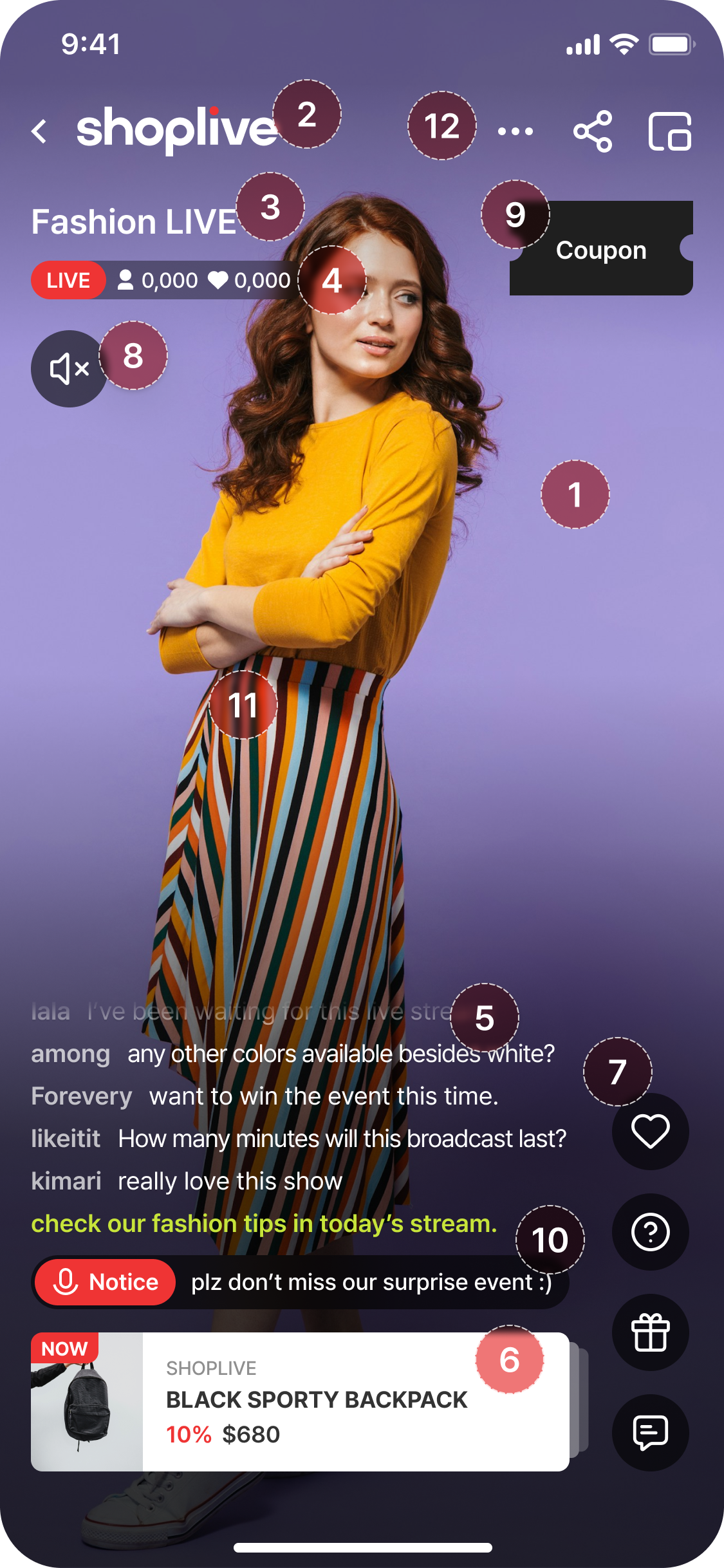
| No. | Element | Visibility | Description |
|---|---|---|---|
| ① | Video area | Always | Renders live/VOD. resizeMode (fill/fit) — Mission 1 |
| ② | Brand logo | Always | Set in the campaign settings (console) |
| ③ | Campaign title | Always | Also received via campaignInfoReceived — Mission 6 |
| ④ | LIVE badge · viewers · likes | LIVE only | Status via campaignStatusChanged — Mission 6 |
| ⑤ | Chat text overlay | LIVE only | Text scrolling over the video. Input font appearance.chatInputFont — Mission 7 |
| ⑥ | Product card (bottom-left · NOW) | Always | On tap, ShoplivePlayerRequest.navigation(url:) — Mission 6 |
| ⑦ | Right icon column (♡ · ? · 💬) | Always | Built-in UI — like · help · open chat |
| ⑧ | Mute button | Always | Bound to the isMuted property |
| ⑨ | Coupon bubble | When an operator publishes | On tap, ShoplivePlayerRequest.coupon(id:respond:) — Mission 6 |
| ⑩ | Notice pill | When an operator publishes | Scrolling notice published by the operator (console) |
| ⑪ | Event · notice popup | When an operator publishes | Published by the operator. Also received as a custom action — Mission 6 |
| ⑫ | Close · minimize | Always | Minimize = enter in-App PIP. enterPictureInPicture() — Mission 5 |
ready → live → ended (type dictionary), LIVE only elements are shown and withdrawn automatically by the SDK.
Your app never has to toggle them; only when building your own UI do you subscribe to campaignStatusChanged (Mission 6) and toggle them yourself.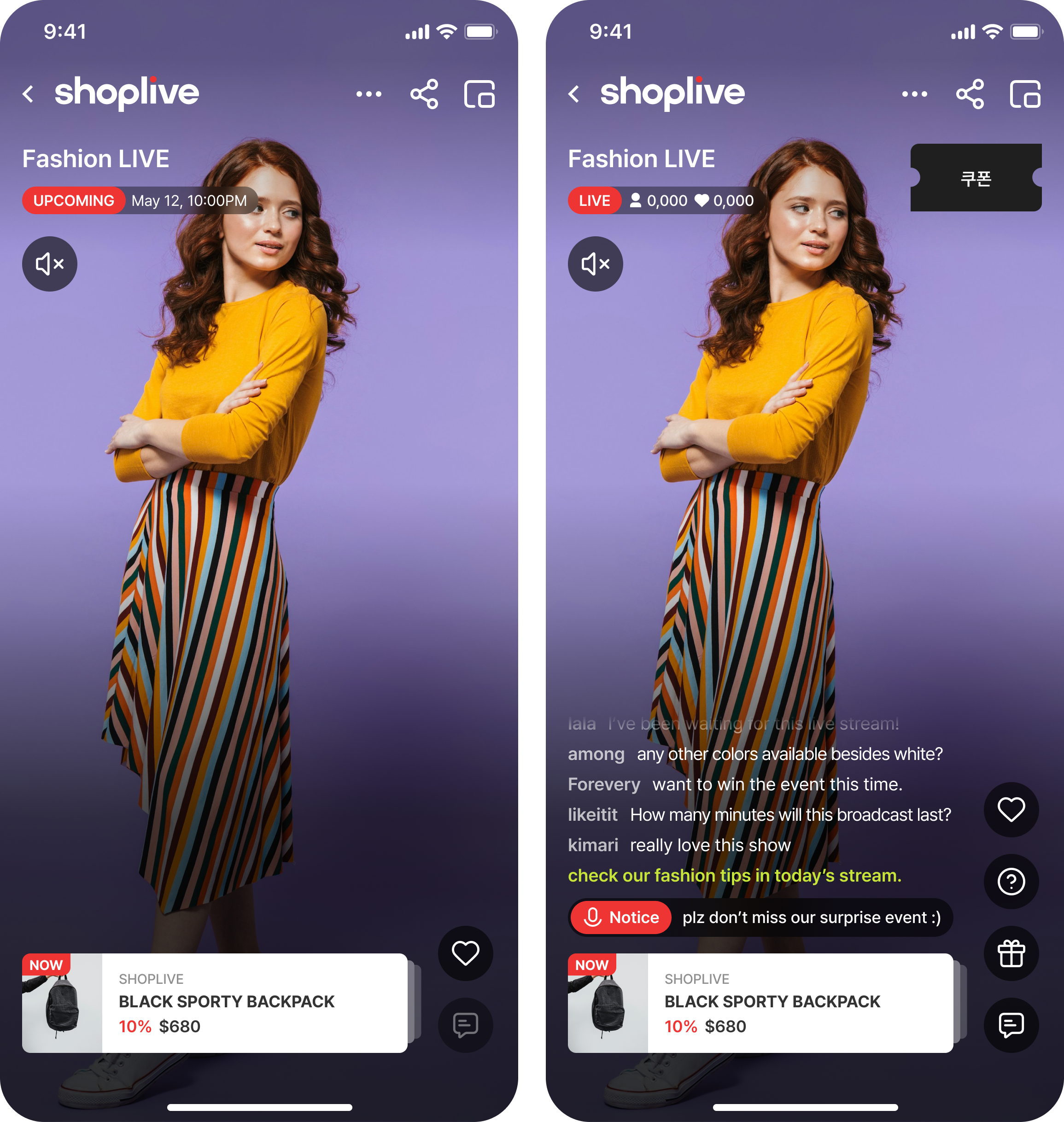
Studio Screen (Broadcasting)
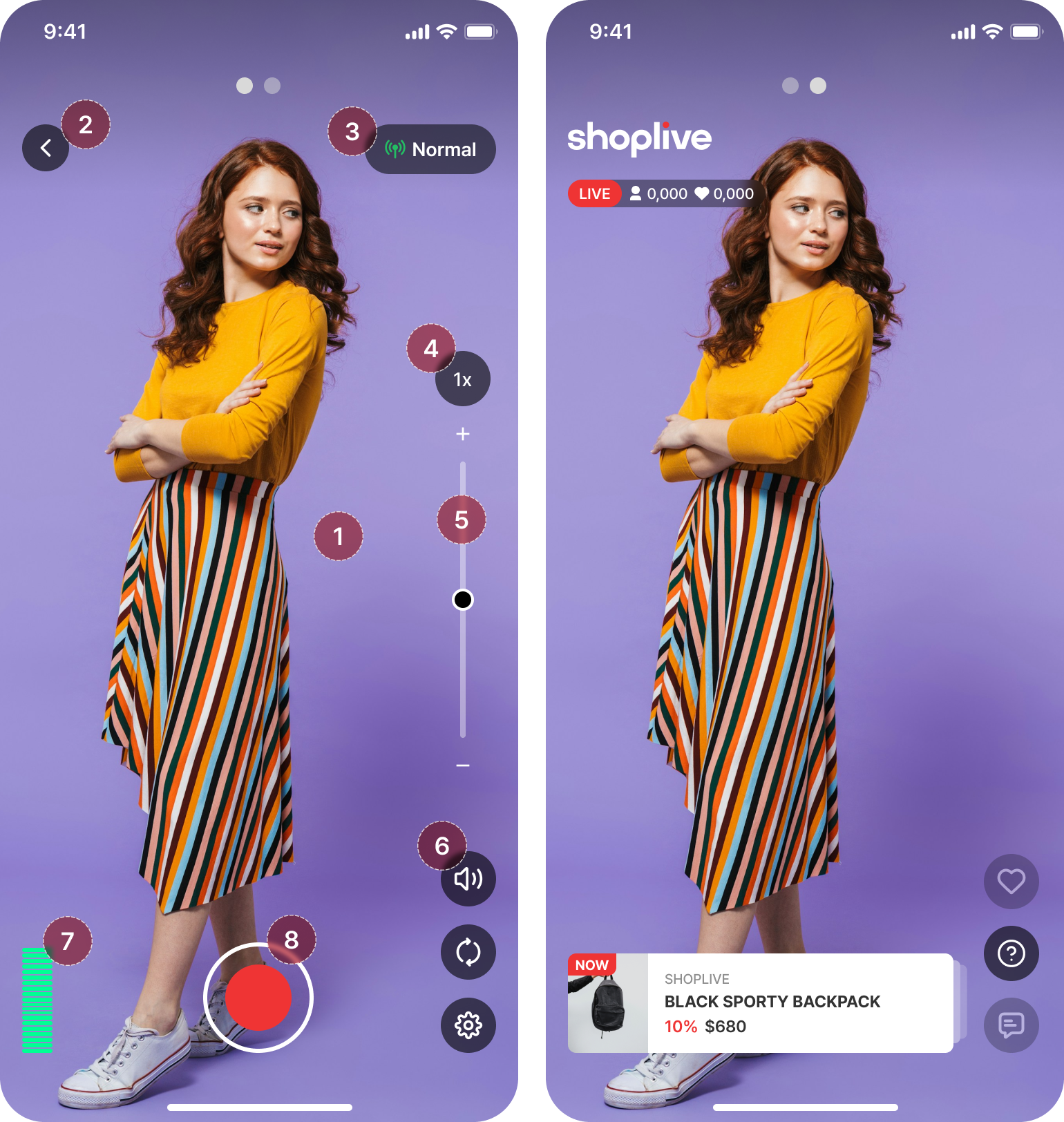
| No. | Element | Visibility | Description |
|---|---|---|---|
| ① | Camera preview | Always | Shown even before the broadcast starts (full background) |
| ② | Back · close | Always | Top-left. Exits the studio |
| ③ | Connection state (Normal) | Always | Top-right. Network quality (maps to ShopliveConnectionState) |
| ④ | Zoom factor (1x) | Always | Tap to switch the zoom factor |
| ⑤ | Zoom slider | Always | Drag for continuous zoom |
| ⑥ | Sound · camera flip · settings | Always | Three at the bottom-right — SDK-provided broadcast tools |
| ⑦ | Audio level meter | Always | Bottom-left. Check the mic input level |
| ⑧ | Start · stop broadcast | Always | Bottom-center. Tap → connecting → live. ShopliveStreamerEvent.stateChanged — Mission 8 |
Previous ← Quick StartNext → Try It in the Demo App
Try It in the Demo App
The demo app shipped with the SDK is organized around the same case menu as this guide's missions (mission map). Seeing the behavior in the demo app before you write code makes the implementation much easier to grasp.
- Default mode — Shoplive demo settings: right after installation, you can try every feature (all missions) against a demo campaign with no input required.
- My-info mode — enter client settings: enter your issued
accessKey·campaignKey· (optional) user JWT (how to issue one) on the settings screen to experience the same cases with your own campaign and your own users. - Each case screen shows the corresponding mission number from this guide, so what you saw in the demo leads straight to the code in the guide.
Previous ← Screen Terminology GuideNext → Mission 1 · Launch the Player Directly
Mission 1 · Launch the Player Directly
- Confirm that
Shoplive.initializeis called at app startup (Quick Start). - In the action of your entry button, create the player and present it.
- (Optional) Attach a delegate to receive events — Mission 6.
@IBAction func watchLive() {
    let player = ShoplivePlayerViewController(campaignKey: "YOUR_CAMPAIGN_KEY")
    player.delegate = self               // optional: receive events
    present(player, animated: true)
}
fun watchLive() {
ShoplivePlayer(context).apply {
delegate = myDelegate // optional: receive events
}.start(campaignKey = "YOUR_CAMPAIGN_KEY")
}Future<void> watchLive() async {
final player = ShoplivePlayer.instance;
player.events.listen(onPlayerEvent); // optional: receive events (Mission 6)
await player.start("YOUR_CAMPAIGN_KEY");
}ShoplivePlayer(context).intent(campaignKey = …) returns an Intent. Just launch it yourself with startActivity.Completion Checklist
- The video plays within 2–3 seconds of tapping the button
- For a live campaign, chat and the live badge are visible (screen terminology ②③)
- On playback failure, the
code/messageof theerrorevent is logged (error handling)
Related: PIP · eventsNext → Mission 2 · Launch via Deep Link
Mission 2 · Launch the Player via Deep Link
myapp://live?campaign=XXXX link from push/SMS/web → the app opens and playback starts immediatelyThe SDK has no dedicated deep link API — you parse the campaignKey out of the deep link and play exactly as in Mission 1.
- Receive the URL in your OS/framework deep link handler.
- Pull
campaignKey(andreferrerif needed — ShoplivePlayOptions) out of the query. - Confirm that initialization and user setup (Mission 3) are complete, then present the player.
// SceneDelegate
func scene(_ scene: UIScene, openURLContexts ctxs: Set<UIOpenURLContext>) {
    guard let url = ctxs.first?.url,
          let comps = URLComponents(url: url, resolvingAgainstBaseURL: false),
          let key = comps.queryItems?.first(where: { $0.name == "campaign" })?.value
    else { return }

    let referrer = comps.queryItems?.first(where: { $0.name == "ref" })?.value
    let player = ShoplivePlayerViewController(
        campaignKey: key,
        options: .init(referrer: referrer))
    topViewController?.present(player, animated: true)
}
// Activity that receives the deep link
override fun onCreate(savedInstanceState: Bundle?) {
super.onCreate(savedInstanceState)
val data: Uri? = intent?.data // myapp://live?campaign=XXXX
val key = data?.getQueryParameter("campaign") ?: return
val ref = data.getQueryParameter("ref")
ShoplivePlayer(this).start(
campaignKey = key,
options = ShoplivePlayOptions(referrer = ref))
}// Call with the deep link URI your app receives (for example from app_links or go_router)
Future<void> openLive(Uri uri) async {
final key = uri.queryParameters["campaign"]; // myapp://live?campaign=XXXX
if (key == null) return;
final ref = uri.queryParameters["ref"];
await ShoplivePlayer.instance.start(key,
playOptions: ShoplivePlayOptions(referrer: ref));
}Shoplive.initialize and setUser finish before playback.
Placing initialization in AppDelegate/Application keeps this safe (Quick Start).Completion Checklist
- Tapping the link with the app closed (cold start) leads all the way to playback
- It behaves identically with the app already running (warm start)
referreris reflected in campaign traffic statistics (ShoplivePlayOptions)
Previous ← Mission 1Next → Mission 3 · Connect User Information
Mission 3 · Connect User Information
setUser only tells Shoplive who the current viewer is so that chat, viewing and statistics are attributed to that member. Shoplive does not check the user's credentials. With token, Shoplive can verify that the information was issued by your server and not altered (signature check); with profile, the information is passed as is, without that check.Step 1 · Choose by sign-in state — recommended setup
| User | Recommended | Why |
|---|---|---|
| Signed out | Call nothing | The server issues the guest identifier. guest does nothing, so use logout() to turn a signed-in user back into a guest |
| Signed in (recommended) | token — a JWT signed by your server | It can't be forged, so you can use it for grade-based entry limits, purchase integration, and accurate viewer stats |
| Signed in (when backend work is hard) | profile — pass id, name, and so on | The SDK builds an unsigned JWT (simple auth). It's enough for identification and stats, but don't use it for authorization |
| Log out · reset user info | Shoplive.logout() | Clears the user info you set (JWT and profile) and also clears the broadcasting token. Your accessKey, guest identifier and UTM stay. There is no call that clears only the user info (guest does nothing) |
setUser(.token(jwt:)) → on sign-out, reset the user info with logout().
User changes apply from the next playback. You can mix modes per screen — for example, show the home preview (Mission 4) signed out and prompt sign-in when the viewer opens full playback.Step 2 · Call setUser
// ① Signed in · secure auth (recommended) — a JWT signed by your backend (Step 4)
Shoplive.setUser(.token(jwt: myJwt))

// ② Signed in · simple auth — pass the profile directly (the SDK builds an unsigned JWT)
Shoplive.setUser(.profile(
    id: hashedUserId,            // a hash is recommended over the raw ID (Step 3)
    name: "LiveFan", age: 27, gender: .female,
    rank: 10))                    // user grade (-100 to 100)

// ③ Signed out — no call needed

// Log out — clears the user info (JWT, profile) and also the broadcasting token (accessKey, guest identifier and UTM stay)
Shoplive.logout()
// ① Signed in · secure auth (recommended) — a JWT signed by your backend (Step 4)
Shoplive.setUser(ShopliveUser.Token(myJwt))
// ② Signed in · simple auth — pass the profile directly (the SDK builds an unsigned JWT)
Shoplive.setUser(ShopliveUser.Profile(
id = hashedUserId, // a hash is recommended over the raw ID (Step 3)
name = "LiveFan", age = 27, gender = ShopliveGender.FEMALE,
rank = 10)) // user grade (-100 to 100)
// ③ Signed out — no call needed
// Log out — clears the user info (JWT, profile) and also the broadcasting token (accessKey, guest identifier and UTM stay)
Shoplive.logout()// ① Signed in · secure auth (recommended) — a JWT signed by your backend (Step 4)
await Shoplive.setUser(ShopliveUser.token(myJwt));
// ② Signed in · simple auth — pass the profile directly (the SDK builds an unsigned JWT)
await Shoplive.setUser(ShopliveUser.profile(
id: hashedUserId, // a hash is recommended over the raw ID (Step 3)
name: "LiveFan", age: 27, gender: ShopliveGender.female,
rank: 10)); // user grade (-100 to 100)
// ③ Signed out — no call needed
// Sign-out — clears user info and tokens
await Shoplive.logout();Step 3 · ID hashing — don't expose raw member IDs
When you'd rather not pass your internal member ID as-is, use a value that your app and backend hash the same way as the id.
The key is using a consistent salt and algorithm so the same user always produces the same value (for statistics and return-visitor identification).
View hashing code samples (Swift · Kotlin · Dart)
import CryptoKit

func hashUserId(_ raw: String) -> String {
    let salted = raw + "APP_SALT"
    let digest = SHA256.hash(data: Data(salted.utf8))
    return digest.map { String(format: "%02x", $0) }.joined()
}
import java.security.MessageDigest
fun hashUserId(raw: String): String {
val salted = raw + "APP_SALT"
return MessageDigest.getInstance("SHA-256")
.digest(salted.toByteArray())
.joinToString("") { "%02x".format(it) }
}import "dart:convert";
import "package:crypto/crypto.dart"; // pub: crypto
String hashUserId(String raw) {
final salted = raw + "APP_SALT";
return sha256.convert(utf8.encode(salted)).toString();
}token). We recommend agreeing on the salt policy with the Shoplive team.Step 4 · Create the JWT for secure auth (your backend)
The JWT for token auth is signed by your backend with the Secret Key that Shoplive issues. The app only fetches the JWT from your backend after sign-in and passes it to setUser(.token(jwt:)).
- Get the Secret Key from your Shoplive contact. It's a base64-encoded string
- Build the payload below from the signed-in user and sign it with HS256
- Issue a new JWT every time the app asks (right before each playback). Don't store a JWT in the app and reuse it
exp. Have the app request a new JWT from your backend whenever it calls setUser.| claim | Required | Description | Example |
|---|---|---|---|
exp | Required | Expiration time (Unix seconds) | 1516239022 |
userId | Required | Unique value for the signed-in user (up to 255 bytes). A hashed value works too (Step 3) | sample_user_id |
iat | Issued-at time (Unix seconds) | 1516195822 | |
name | Name shown in chat. Banned words are masked with asterisks (*) | LiveFan | |
gender | Gender — m · f · empty (unspecified) | f | |
age | Age. Stats group it in 5-year bands | 27 | |
userScore | User grade (-100 to 100). The basis for grade-based entry and prize-draw limits | 10 | |
userType | User type. Lets only certain types into broadcasts with an entry restriction (Entry Type) | VIP | |
profile | Chat profile image URL (64×64px recommended) | https://…/profile.png | |
custom | Arbitrary data (up to 1 KB) | {"grade":"vip"} |
Signing examples. Both produce the same token — just note that the Secret Key is a base64 string.
// Node.js — npm i jsonwebtoken
const jwt = require("jsonwebtoken");

const secret = Buffer.from(process.env.SHOPLIVE_SECRET_KEY, "base64");  // base64-decode it into bytes
const token = jwt.sign(
  { userId: hashedUserId, name: "LiveFan", gender: "f", age: 27, userScore: 10 },
  secret,
  { algorithm: "HS256", expiresIn: "12h" }   // fills in exp and iat automatically
);
// Java — io.jsonwebtoken (jjwt)
String jwt = Jwts.builder()
.signWith(SignatureAlgorithm.HS256, base64EncodedSecretKey) // pass the base64 string as is
.setExpiration(new Date(System.currentTimeMillis() + 12 * 60 * 60 * 1000L))
.setIssuedAt(new Date())
.claim("userId", hashedUserId)
.claim("name", "LiveFan")
.claim("gender", "f")
.claim("age", 27)
.claim("userScore", 10)
.compact();profile) JWT is unsigned, so you can't use it for authorization.Completion Checklist
- After signing in, the chat nickname shows the member's name
- The user ID (hash) can be looked up in Shoplive Admin statistics
- After you reset the user info with
Shoplive.logout(), viewing continues as a guest
Previous ← Mission 2Next → Mission 4 · Embed in a Screen (Preview)
Mission 4 · Embed in a Screen (Preview)
Players inside a feed or list run as a preview. They receive the low-resolution stream the server provides, so you can show several on one screen with little traffic, and a tap moves the viewer into full playback (Mission 1). Pick one of two approaches depending on what your screen is built with.
| Approach | When | What draws the preview | On tap |
|---|---|---|---|
| View approach (native) | Your feed or list is a native screen | The SDK's ShoplivePlayerView + type = .preview | Open the native full-screen player |
| Hybrid integration (Web + Mobile SDK) | Your feed or list is a web page (WebView) | The web page draws it with the Web SDK | The web passes the campaignKey to the app, and the app opens the native player |
View approach — native preview
// Preview preset — low resolution (type = .preview), mute, hidden overlay and in-App PIP policy in one go
let playerView = ShoplivePlayerView(configuration: .preview)
container.addSubview(playerView)       // Auto Layout is up to the host app
playerView.delegate = self
playerView.play(campaignKey: "YOUR_CAMPAIGN_KEY")
val playerView = ShoplivePlayerView(context) // free to place in XML/Compose (AndroidView)
// Preview preset — low resolution (PREVIEW), mute, hidden overlay and in-App PIP policy in one go
playerView.configuration = ShoplivePlayerConfiguration.PREVIEW
container.addView(playerView)
playerView.delegate = myDelegate
playerView.bindLifecycle(viewLifecycleOwner) // automates pause/resume/release
playerView.play(campaignKey = "YOUR_CAMPAIGN_KEY")// Flutter 3.0.3 still has no widget to embed in a feed (no ShoplivePlayerView).
// Closest option: start the preview stream as a small in-app PIP window
await ShoplivePlayer.instance.start("YOUR_CAMPAIGN_KEY",
playOptions: const ShoplivePlayOptions(presentationStyle: ShoplivePresentationStyle.pip),
configuration: const ShoplivePlayerConfiguration(
type: ShoplivePlayerType.preview, // preview stream (low resolution)
sound: ShopliveSoundOptions(muteOnStart: true), // start muted
overlay: ShopliveOverlayOptions(ui: ShopliveOverlayUIMode.hidden), // hide overlays
pip: ShoplivePipOptions(isInAppPipEnabled: true))); // required for presentationStyle: pipPreview settings — what changes
| Setting | Effect |
|---|---|
type = .preview(Android ShoplivePlayerType.PREVIEW) | Receives the server's preview stream (low resolution). Campaigns without a preview stream play the main stream. The default is .live (full resolution). |
sound.muteOnStart = true | Starts muted. Turn sound on with isMuted = false |
overlay.ui = .hidden | Hides overlays such as chat and products. You can show them again during playback with overlayUI |
Android sound.isVolumeKeyEnabled | Whether the volume keys adjust the sound. If unset, PREVIEW turns it off and LIVE turns it on |
ShoplivePlayerConfiguration.preview and Android ShoplivePlayerConfiguration.PREVIEW set the values in the table above (type = .preview, mute, hidden overlays) plus an in-App PIP policy in one go. You can override just what you need — on iOS start from var config = ShoplivePlayerConfiguration.preview and set, for example, config.overlay.ui = .builtIn; on Android use ShoplivePlayerConfiguration.PREVIEW.copy(…). To start as a small floating window instead of inside a feed, pair it with ShoplivePlayOptions.preview (Android ShoplivePlayOptions.PREVIEW) (Mission 5).Tap → full playback
The preview is low resolution, so don't scale it up. Open a new full-resolution (.live) player and stop the preview view.
playerView.stop()                      // stop the preview
let player = ShoplivePlayerViewController(campaignKey: "YOUR_CAMPAIGN_KEY")   // opens at full resolution
present(player, animated: true)
playerView.stop() // stop the preview
ShoplivePlayer(context).start(campaignKey = "YOUR_CAMPAIGN_KEY") // default type = LIVE// Switch to full playback at full resolution — on iOS a running session switches in place
await ShoplivePlayer.instance.start("YOUR_CAMPAIGN_KEY",
configuration: const ShoplivePlayerConfiguration(type: ShoplivePlayerType.live));Hybrid integration (Web + Mobile SDK)
When integrating a hybrid app, we recommend keeping the broadcast list in the WebView and handing off to the native player only when a broadcast is tapped.
| Approach | What you manage |
|---|---|
| Build the list natively too | You implement the list UI natively and open a preview per item (View approach above). List layout, paging and state refresh are all yours to manage. |
| Reuse the WebView list (this section) | The plugin's setOverall keeps rendering the list inside the WebView. Only the tapped broadcast's key is passed to native, and native just plays it. |
campaignKey crosses the bridge The WebView and native are separate layers. Native already holds the accessKey (Shoplive.initialize), so the only value the WebView passes to native is campaignKey.- WebView — render the list, and pass
campaignKeyto native on tap - Native — receive the value
- Native — play it with the SDK
Step 1 · Render the list and pass the key to native on tap
setOverall renders the list. In the ON_CLICK_CAMPAIGN_LIST_ITEM callback, send the campaignKey to the native interface. When no native interface exists (a plain web browser), it falls back to the default web modal player, so the same page is safe to ship both on the web and inside the app.
<script src="https://static.shoplive.cloud/shoplive.js"></script>
<script>
  var APP_INTERFACE = "ShopLiveAppInterface";
  var messageCallback = {
    ON_CLICK_CAMPAIGN_LIST_ITEM: function (payload) {
      var campaignKey = payload.campaign.campaignKey;   // payload = { ak, campaign }
      // Android · iOS — send only campaignKey to the native interface
      if (window[APP_INTERFACE]) {
        window[APP_INTERFACE].postMessage(campaignKey);                        // Android
      } else if (window.webkit?.messageHandlers?.[APP_INTERFACE]) {
        window.webkit.messageHandlers[APP_INTERFACE].postMessage(campaignKey); // iOS
      } else {
        // No native interface (plain web) — fall back to the web modal player
        cloud.shoplive.showFeaturedPlayerModal({ campaignKey: campaignKey });
      }
    }
  };
  cloud.shoplive.initPlugin({ accessKey: "YOUR_ACCESS_KEY", messageCallback: messageCallback });
</script>
<div id="shoplive-overall"></div>
<script defer>
  cloud.shoplive.setOverall("shoplive-overall");
</script>allowsInlineMediaPlayback = true on WKWebViewConfiguration (a WebView setting, separate from the code above).Step 2 · Receive the value on native
Register the interface name the code above calls (ShopLiveAppInterface) on the native side. This registration is not a Shoplive SDK feature — it is the standard JS ↔ native bridge each WebView provides. Only the campaignKey string is exchanged, so native receives it as is, with no parsing.
let configuration = WKWebViewConfiguration()
configuration.allowsInlineMediaPlayback = true
configuration.userContentController.add(self, name: "ShopLiveAppInterface")   // register before creating the WKWebView (with this configuration)
let webView = WKWebView(frame: .zero, configuration: configuration)

// WKScriptMessageHandler
func userContentController(_ controller: WKUserContentController,
                           didReceive message: WKScriptMessage) {
    guard message.name == "ShopLiveAppInterface",
          let campaignKey = message.body as? String else { return }
    playLive(campaignKey)   // Step 3 · play natively
}
webView.addJavascriptInterface(ShopLiveAppInterface(activity), "ShopLiveAppInterface")
class ShopLiveAppInterface(private val activity: Activity) {
@JavascriptInterface // called on a background thread
fun postMessage(campaignKey: String) {
activity.runOnUiThread { playLive(activity, campaignKey) } // Step 3 · play natively
}
}// webview_flutter — exposes window.ShopLiveAppInterface.postMessage to the page
controller.addJavaScriptChannel(
"ShopLiveAppInterface",
onMessageReceived: (JavaScriptMessage message) {
playLive(message.message); // Step 3 · play natively
},
);ShopLiveAppInterface too. Open external destinations in a new window or the external browser so that only your page stays inside the WebView.Step 3 · Play on native
The single campaignKey received through the bridge is enough to open the full-screen player — the same as Mission 1. This is guest playback, assuming Shoplive.initialize already ran at app startup (Quick Start).
func playLive(_ campaignKey: String) {
    let player = ShoplivePlayerViewController(campaignKey: campaignKey)
    present(player, animated: true)
}
fun playLive(context: Context, campaignKey: String) {
ShoplivePlayer(context).start(campaignKey = campaignKey)
}Future<void> playLive(String campaignKey) =>
ShoplivePlayer.instance.start(campaignKey);Playing as a signed-in user (optional)
Skip this for guest playback. For a signed-in viewer, call setUser right before playback (Mission 3). Issue the JWT for the same user as the JWT used by the WebView plugin. Where the value comes from depends on your app's login structure.
| Login lives in | What to do |
|---|---|
| Native (the app manages login) | Native already holds the value. Keep the bridge payload as is (campaignKey only) and call setUser right before Step 3. |
| Only the WebView session | Native doesn't know the user. Send the auth value with the Step 1 payload as an object, and change Step 2 to parse JSON instead of a plain string. |
// Extend Step 1 — send an object (JWT example)
var bridgePayload = { campaignKey: campaignKey, authToken: currentUserJWT };
if (window[APP_INTERFACE]) {
  window[APP_INTERFACE].postMessage(JSON.stringify(bridgePayload));       // Android — String only
} else if (window.webkit?.messageHandlers?.[APP_INTERFACE]) {
  window.webkit.messageHandlers[APP_INTERFACE].postMessage(bridgePayload); // iOS — object as is
}
// Signed in — right before playback (Mission 3)
Shoplive.setUser(.token(jwt: jwt))
// then play as in Step 3// Signed in — right before playback (Mission 3)
Shoplive.setUser(ShopliveUser.Token(jwt))
// then play as in Step 3// Signed in — right before playback (Mission 3)
await Shoplive.setUser(ShopliveUser.token(jwt));
// then play as in Step 3Completion Checklist
- Several previews in a feed play without stuttering (preview stream)
- Playback continues while the feed scrolls (Android: connect
bindLifecycle) - A tap opens full playback at full resolution
- (Hybrid integration) A preview tap on the web leads to the app's native player
Previous ← Mission 3Next → Mission 5 · Enable PIP
Mission 5 · Enable PIP
PIP uses the same methods for full screen/View and iOS/Android alike. “Which view goes into PIP” is something the SDK already knows — the host never has to hand over a view.
| Type | Description | Control |
|---|---|---|
| in-App PIP | A small floating window inside the app. Persists across screen transitions | enterPictureInPicture() / exitPictureInPicture() |
| OS PIP | Keeps playing in the system PIP window even after leaving for the home screen | configuration.pip.isOSPipEnabled (automatic, field dictionary) |
player.enterPictureInPicture()      // shrink to a small window
player.exitPictureInPicture()       // back to normal
if player.isInPictureInPicture { /* … */ }

// Position, scale, and so on come from configuration
var cfg = ShoplivePlayerConfiguration()
cfg.pip.defaultPosition = .bottomRight
cfg.pip.scale = 0.4
cfg.pip.isOSPipEnabled = true
player.enterPictureInPicture() // shrink to a small window
player.exitPictureInPicture() // back to normal
if (player.isInPictureInPicture) { /* … */ }
// Position, scale, and so on come from configuration
val cfg = ShoplivePlayerConfiguration(
pip = ShoplivePlayerConfiguration.PipOptions(
defaultPosition = ShoplivePipPosition.BOTTOM_RIGHT,
scale = 0.4f,
isOSPipEnabled = true)) // OS PIP is available only with the Activity approachfinal player = ShoplivePlayer.instance;
await player.enterPictureInPicture(); // shrink to a small window
await player.exitPictureInPicture(); // back to normal
if (await player.isInPictureInPicture()) { /* … */ }
// Position, scale, and so on come from configuration (merged on top of the current settings)
await player.setConfiguration(const ShoplivePlayerConfiguration(
pip: ShoplivePipOptions(
defaultPosition: ShoplivePipPosition.bottomRight,
scale: 0.4,
isOSPipEnabled: true))); // Android: also add android:supportsPictureInPicture="true" to the host Activitynavigation.actionOnNavigation = PIP (Mission 6) ·
when the app goes to the background: pip.isOSPipEnabled — all switch automatically through configuration alone.Starting directly in PIP
The code above moves a playing stream into a small window. You can also skip full screen entirely and start in the small window — for a preview on a product page, for example.
var options = ShoplivePlayOptions()
options.presentationStyle = .pip            // default is .fullScreen

player.play(campaignKey: key, options: options)
ShoplivePlayer(this).start(
campaignKey = key,
options = ShoplivePlayOptions(
presentationStyle = ShoplivePlayerPresentationStyle.PIP)) // default FULLSCREENawait ShoplivePlayer.instance.start(key,
playOptions: const ShoplivePlayOptions(
presentationStyle: ShoplivePresentationStyle.pip)); // default is fullscreen — fails with INVALID_ARGUMENT if pip.isInAppPipEnabled is off| Field | Value | Meaning |
|---|---|---|
presentationStyle | FULLSCREEN (default) / PIP |
Which surface this playback starts on. The default is today's behaviour, so existing code is unaffected |
PIP plays in the floating window the SDK owns (in-App PIP). If pip.isInAppPipEnabled is off,
iOS silently plays full screen instead. On Android, an intent built with ShoplivePlayer.intent() always opens full screen
and ignores PIP — use start() to start in PIP.Preview presets
"Small window + muted + overlay hidden" is common enough that iOS ships it as constants. Configuration and start options are separate, so pass both. Android has no presets, so set the same values directly.
player.configuration = .preview                     // muted · overlay hidden · in-App PIP
player.play(campaignKey: key, options: .preview)    // presentationStyle = .pip

// Start from the preset and adjust (value type, so it copies)
var cfg = ShoplivePlayerConfiguration.preview
cfg.pip.defaultPosition = .bottomLeft
ShoplivePlayer(this).start(
campaignKey = key,
options = ShoplivePlayOptions(presentationStyle = ShoplivePlayerPresentationStyle.PIP),
configuration = ShoplivePlayerConfiguration(
sound = ShoplivePlayerConfiguration.SoundOptions(muteOnStart = true), // muted
overlay = ShoplivePlayerConfiguration.OverlayOptions(ui = ShopliveOverlayUIMode.HIDDEN))) // overlay hidden// Flutter has no presets — set the same values directly
await ShoplivePlayer.instance.start(key,
playOptions: const ShoplivePlayOptions(presentationStyle: ShoplivePresentationStyle.pip),
configuration: const ShoplivePlayerConfiguration(
sound: ShopliveSoundOptions(muteOnStart: true), // muted
overlay: ShopliveOverlayOptions(ui: ShopliveOverlayUIMode.hidden))); // overlay hiddenCompletion Checklist
- Tapping the minimize button or calling the API switches to a small window that can be dragged around
- Tapping the small window returns to full screen without interrupting playback
- Leaving for the home screen continues into OS PIP (when configured)
Previous ← Mission 4Next → Mission 6 · Events · Products · Coupons
Mission 6 · Integrating Events, Products, and Coupons
Delegate Structure — Exactly Two Methods
| Channel | Nature | Examples |
|---|---|---|
| event (notification) | Handle only the cases you need | State changes · campaign info/status · playback · connection state · analytics · errors · web commands |
| request (response required) | You must call respond | Product landing (navigation) · coupons · custom actions |
extension MyViewController: ShoplivePlayerDelegate {

  // Notifications — all cases. Feel free to keep only the cases you need
  func player(_ p: ShoplivePlayerControlling, didReceive event: ShoplivePlayerEvent) {
    switch event {
    case .stateChanged(let s):              // playback lifecycle (includes entering/leaving .inAppPIP)
        print("state:", s)
    case .campaignStatusChanged(let c):     // .ready / .live / .ended
        liveBadge.isHidden = (c != .live)
    case .campaignInfoReceived(let info):   // campaign metadata received (title, brand, etc.)
        titleLabel.text = info.title
    case .playback(let pb):                 // pb.event: .started / .rendering / .rebufferingStarted / .rebufferingEnded / .ended …
        if pb.event == .rebufferingStarted { spinner.isHidden = false }
        if pb.event == .rebufferingEnded { spinner.isHidden = true }
    case .connectionStateChanged(let cs):   // common connection state
        networkBanner.isHidden = (cs != .reconnecting)
    case .userNameUpdateRequested(let payload):  // nickname change requested → app profile screen
        openProfileEditor(payload)
    case .analytics(let info):              // viewing statistics → forward to your own analytics
        tracker.log(info.campaignKey, info.isPlaying, info.durationMs)
    case .error(let e):                     // only unrecoverable errors are delivered
        show(e.message)
    case .webCommand(let name, let payload):  // custom command sent by the overlay (web) — e.g. a login request
        handleWebCommand(name, payload)
    }
  }

  func player(_ p: ShoplivePlayerControlling, didRequest request: ShoplivePlayerRequest) {
    switch request {
    case .navigation(let url):  router.open(url)      // product/banner landing
    case .coupon(let id, let respond):            // report the result after issuing — status: popup handling (.show/.hide/.keep), alertType: .alert/.toast
        respond(ShopliveCouponResult(couponId: id, success: true, status: .hide, alertType: .toast))
    case .customWebAction(let id, _, _, let respond):  // report the result after performing the action
        respond(ShopliveCustomActionResult(id: id, success: true, status: .keep, alertType: .toast))
    }
  }
}
val myDelegate = object : ShoplivePlayerDelegate {
// Notifications — all cases. Feel free to keep only the cases you need (default implementations are empty)
override fun onEvent(p: ShoplivePlayerControlling, event: ShoplivePlayerEvent) {
when (event) {
is ShoplivePlayerEvent.StateChanged -> // playback lifecycle (includes entering/leaving IN_APP_PIP)
log(event.state)
is ShoplivePlayerEvent.CampaignStatusChanged -> // READY / LIVE / ENDED
liveBadge.isVisible = event.status == ShopliveCampaignStatus.LIVE
is ShoplivePlayerEvent.CampaignInfoReceived -> // campaign metadata received (title, brand, etc.)
titleView.text = event.info.title
is ShoplivePlayerEvent.Playback -> when (event.event) { // event.event: Started / Rendering / RebufferingStarted / RebufferingEnded / Ended …
is ShoplivePlaybackEvent.RebufferingStarted -> spinner.isVisible = true
is ShoplivePlaybackEvent.RebufferingEnded -> spinner.isVisible = false
else -> Unit
}
is ShoplivePlayerEvent.ConnectionStateChanged -> // common connection state
networkBanner.isVisible = event.state == ShopliveConnectionState.RECONNECTING
is ShoplivePlayerEvent.UserNameUpdateRequested -> // nickname change requested → app profile screen
openProfileEditor(event.payload)
is ShoplivePlayerEvent.Analytics -> // viewing statistics → forward to your own analytics
tracker.log(event.info.campaignKey, event.info.isPlaying, event.info.durationMs)
is ShoplivePlayerEvent.Error -> // only unrecoverable errors are delivered
show(event.error.message)
is ShoplivePlayerEvent.WebCommandReceived -> // custom command sent by the overlay (web) — e.g. a login request
handleWebCommand(event.name, event.payload)
}
}
override fun onRequest(p: ShoplivePlayerControlling, request: ShoplivePlayerRequest) {
when (request) {
is ShoplivePlayerRequest.Navigation -> router.open(request.url)
is ShoplivePlayerRequest.Coupon -> // report the result after issuing — status: popup handling (SHOW/HIDE/KEEP), alertType: ALERT/TOAST
request.respond(ShopliveCouponResult(couponId = request.id, success = true,
status = ShopliveResultStatus.HIDE, alertType = ShopliveResultAlertType.TOAST))
is ShoplivePlayerRequest.CustomWebAction -> // report the result after performing the action
request.respond(ShopliveCustomActionResult(id = request.id, success = true,
status = ShopliveResultStatus.KEEP, alertType = ShopliveResultAlertType.TOAST))
}
}
}final player = ShoplivePlayer.instance;
// Notifications — the events stream. Keep only the cases you need
player.events.listen((event) {
switch (event) {
case ShoplivePlayerStateChanged(:final state): // playback lifecycle (includes inAppPip)
log(state);
case ShopliveCampaignStatusChanged(:final status): // ready / live / ended
showLiveBadge(status == ShopliveCampaignStatus.live);
case ShopliveCampaignInfoReceived(:final info): // campaign metadata received (title, brand, etc.)
setTitle(info.title);
case ShoplivePlaybackEvent(:final kind): // playback kind: started / rendering / rebufferingStarted / rebufferingEnded / ended …
if (kind == ShoplivePlaybackEventKind.rebufferingStarted) showSpinner(true);
if (kind == ShoplivePlaybackEventKind.rebufferingEnded) showSpinner(false);
case ShopliveConnectionStateChanged(:final state): // common connection state
showNetworkBanner(state == ShopliveConnectionState.reconnecting);
case ShopliveUserNameUpdateRequested(:final payload): // nickname change requested → app profile screen
openProfileEditor(payload);
case ShopliveAnalyticsEvent e: // viewing statistics → forward to your own analytics
tracker.log(e.campaignKey, e.isPlaying, e.durationMs);
case ShoplivePlayerErrorEvent(:final error): // only unrecoverable errors are delivered
show(error.message);
case ShopliveWebCommandReceived(:final name, :final payload): // custom command sent by the overlay (web) — e.g. a login request
handleWebCommand(name, payload);
default:
break;
}
});
// Requests — one stream per kind. Keep the listeners for the whole session
player.navigationRequests.listen((request) => router.open(request.url));
player.couponRequests.listen((request) { // report the result after issuing (respond is valid once; times out after 10 s by default)
request.respond(const ShopliveCouponResult(success: true,
status: ShopliveResultStatus.hide, alertType: ShopliveResultAlertType.toast));
});
player.customWebActionRequests.listen((request) { // report the result after performing the action
request.respond(const ShopliveCustomActionResult(success: true,
status: ShopliveResultStatus.keep, alertType: ShopliveResultAlertType.toast));
});ShoplivePlayerEvent Types — Notifications Delivered via didReceive event
All of them are optional to handle — pick the cases you need and ignore the rest.
The notation follows iOS (camelCase); on Android these are sealed classes with the same names (ShoplivePlayerEvent.StateChanged, etc.), except that webCommand is named WebCommandReceived.
View the full ShoplivePlayerEvent declaration (Swift · Kotlin · Dart)
public enum ShoplivePlayerEvent {
    case stateChanged(ShoplivePlayerState)                  // entering/leaving .inAppPIP is also reported by this event
    case campaignStatusChanged(ShopliveCampaignStatus)      // .ready / .live / .ended
    case campaignInfoReceived(ShopliveCampaignInfo)
    case playback(PlaybackEvent)                    // started/rendering/rebuffering/ended…
    case connectionStateChanged(ShopliveConnectionState)    // common connection state
    case userNameUpdateRequested([String: Any])
    case analytics(info: ShopliveAnalyticsInfo)
    case error(ShopliveError)
    case webCommand(name: String, payload: [String: Any]?)  // overlay (web) → app custom command
}

// ShopliveCore — the kind is in event
public class PlaybackEvent: NSObject {
    public let event: PlaybackEventType
    public let datas: [String: Any]
}
public enum PlaybackEventType: Int {
    case request, started, audioLoaded, rendering, ended,
         rebufferingStarted, rebufferingEnded, error, buffering
}

public struct ShopliveAnalyticsInfo {
    public let campaignKey: String
    public let isPlaying: Bool
    public let isMuted: Bool
    public let durationMs: Int64
    public let campaign: ShopliveCampaign?
    public let brand: ShopliveBrand?
}
sealed class ShoplivePlayerEvent {
data class StateChanged(val state: ShoplivePlayerState) : ShoplivePlayerEvent() // entering/leaving IN_APP_PIP is also reported by this event
data class CampaignStatusChanged(val status: ShopliveCampaignStatus) : ShoplivePlayerEvent() // READY / LIVE / ENDED
data class CampaignInfoReceived(val info: ShopliveCampaignInfo) : ShoplivePlayerEvent()
data class Playback(val event: ShoplivePlaybackEvent) : ShoplivePlayerEvent() // the kind is the subtype
data class ConnectionStateChanged(val state: ShopliveConnectionState) : ShoplivePlayerEvent() // common connection state
data class UserNameUpdateRequested(val payload: Map<String, Any?>) : ShoplivePlayerEvent()
data class Analytics(val info: ShopliveAnalyticsInfo) : ShoplivePlayerEvent()
data class Error(val error: ShopliveError) : ShoplivePlayerEvent()
data class WebCommandReceived(val name: String, val payload: Map<String, Any?>) : ShoplivePlayerEvent() // overlay (web) → app custom command
}
sealed class ShoplivePlaybackEvent {
abstract val timestampMs: Long?
// Requested · Started · Rendering · Buffering · AudioLoaded · RebufferingStarted · RebufferingEnded · Ended
data class Failed(override val timestampMs: Long?, val code: Int? = null, val message: String? = null) : ShoplivePlaybackEvent()
}
data class ShopliveAnalyticsInfo(
val campaignKey: String, val isPlaying: Boolean, val isMuted: Boolean, val durationMs: Long,
val campaign: ShopliveCampaign? = null, val brand: ShopliveBrand? = null,
)// Events arrive on ShoplivePlayer.instance.events as these subclasses
sealed class ShoplivePlayerEvent {}
class ShoplivePlayerStateChanged { final ShoplivePlayerState state; } // entering/leaving inAppPip is also reported here
class ShopliveCampaignStatusChanged { final ShopliveCampaignStatus status; } // ready / live / ended
class ShopliveCampaignInfoReceived { final ShopliveCampaignInfo info; }
class ShoplivePlaybackEvent { final ShoplivePlaybackEventKind kind; final int? timestampMs, code; final String? message; }
// kind: requested · started · audioLoaded · rendering · buffering · rebufferingStarted · rebufferingEnded · ended · failed (code/message only for failed)
class ShopliveConnectionStateChanged { final ShopliveConnectionState state; }
class ShopliveUserNameUpdateRequested { final Map<String, Object?> payload; }
class ShopliveAnalyticsEvent { final String campaignKey; final bool isPlaying, isMuted; final int durationMs;
final ShopliveCampaign? campaign; final ShopliveBrand? brand; }
class ShoplivePlayerErrorEvent { final ShopliveError error; }
class ShopliveWebCommandReceived { final String name; final Map<String, Object?> payload; } // overlay (web) → app custom command
class ShoplivePlayerUnknownEvent { final String rawType; } // unknown or malformed payloads arrive here — the stream never breaks| case | payload | When it arrives | Main use |
|---|---|---|---|
stateChanged | ShoplivePlayerState | Player lifecycle changes (idle → loading → playing…). Entering/leaving in-App PIP (inAppPIP) is reported by this event too | Updating your app UI based on playback state — Mission 5 |
campaignStatusChanged | ShopliveCampaignStatus | Broadcast status changes: ready (waiting) → live (on air) → ended (finished) | Toggling your own LIVE only UI such as the live badge — screen terminology |
campaignInfoReceived | ShopliveCampaignInfo | Once, when campaign metadata (title, brand, etc.) has been fetched | Showing campaign information in your own UI |
playback | PlaybackEvent (Android ShoplivePlaybackEvent) | Playback pipeline events: started / rendering / rebufferingStarted / rebufferingEnded / ended, etc. Tell them apart with pb.event on iOS and by subtype on Android | Showing loading spinners and buffering notices |
connectionStateChanged | ShopliveConnectionState | Connection state changes (connecting / connected / reconnecting / disconnected) | Network connection state notices |
userNameUpdateRequested | [String: Any] | When a viewer requests a nickname change from the overlay | Opening your app's profile edit screen — Mission 3 |
analytics | ShopliveAnalyticsInfo | When a viewing statistics event occurs (campaignKey · isPlaying · isMuted · durationMs · campaign/brand) | Forwarding to your own analytics (GA/Amplitude, etc.) |
error | ShopliveError | Only when the session terminates due to an unrecoverable error. Issues being recovered automatically never arrive here | Error messaging + retry UI — error handling |
webCommand | name + payload | When the overlay (web) sends a custom command to the app (e.g. a login request). From Android 3.0.3, the web player's user-action logs also arrive with name = "EVENT_LOG" | Navigating in the app, prompting login, etc. The other direction is send(command:payload:) |
The Three Requests — What Your App Must Do
| Request | When | What the app does |
|---|---|---|
navigation(url:) | Product/banner tap (screen terminology ④) | Navigate to that URL (deep link/web view/native detail). The only mandatory handler |
coupon(id:respond:) | Coupon button (⑤ LIVE only) | After issuing the coupon, report the result with respond(ShopliveCouponResult(…)) → success/failure UI is reflected in the overlay. status (show / hide / keep) sets what happens to the coupon popup and alertType (alert / toast) sets the notice style. As of 3.0.3, an omitted status is hide and an omitted alertType is alert (both platforms; the Flutter 3.0.3 plugin sends toast when you omit alertType). On Android, pass alertType = null to follow the web default |
customWebAction(…) | Client-defined custom button | Perform the action, then call respond(ShopliveCustomActionResult(…)) |
Sending Commands from the App to the Overlay
player.send(command: "HIGHLIGHT_PRODUCT", payload: ["sku": "A-1024"])player.send(command = "HIGHLIGHT_PRODUCT", payload = mapOf("sku" to "A-1024"))await ShoplivePlayer.instance.send("HIGHLIGHT_PRODUCT", {"sku": "A-1024"});playback(rebufferingStarted…) and connectionStateChanged events (type dictionary).Completion Checklist
- Tapping a product opens your own detail page (the player follows the
actionOnNavigationpolicy — PIP/keep/close — Mission 5) - Tapping a coupon shows a success indicator in the overlay after issuance is handled
campaignStatusChanged(ended)is received when the broadcast ends
Previous ← Mission 5Next → Mission 7 · UI Customization
Mission 7 · UI Customization & Repositioning
Two ways to customize — no SDK update needed
| Kind | Who changes it | What it covers | How it ships |
|---|---|---|---|
| Native customization | You, in your app code | Standard appearance options (option ① below) · your own UI on top of the hidden overlay (option ②) | With your next app release — uses the APIs of the SDK you already have, so no SDK update |
| Web-based customization | Shoplive | The player overlay (chat, products, notices and so on) is a web layer that Shoplive serves, so its design and layout are changed on the Shoplive side | Applied on the Shoplive side — no SDK update and no app release. Talk to the Shoplive team about what you need |
Option ① Standard appearance options — appearance
Loading color, the status bar, the chat font, and similar are changed through configuration alone. If your change is at the level of visibility/styling, this approach is enough.
| Option | iOS | Android |
|---|---|---|
| Loading indicator color (screen terminology ⑧) | indicatorColor: UIColor | indicatorColor: @ColorInt Int |
| Loading animation | loadingAnimationImages: [UIImage]? | loadingAnimation: @DrawableRes Int |
| Status bar visibility | — | isStatusBarVisible |
| Chat input font (③) | chatInputFont: UIFont? | chatInputTypeface: Typeface |
| Allow screen capture | allowScreenCapture | allowScreenCapture |
Option ② Rearranging elements — hide the default UI and use your own
This is the approach if you want full freedom over where buttons and elements sit. Hide the default overlay UI (overlay.ui = hidden) and
let your app render its own UI from the event/request data in Mission 6 — position, shape, and animation are entirely up to the app.
var cfg = ShoplivePlayerConfiguration()
cfg.overlay.ui = .hidden        // hide the default overlay UI (the command channel stays alive)
let player = ShoplivePlayerViewController(campaignKey: key, configuration: cfg)
// Now your app draws the chat/product/coupon UI itself from the delegate data
val cfg = ShoplivePlayerConfiguration(
overlay = ShoplivePlayerConfiguration.OverlayOptions(ui = ShopliveOverlayUIMode.HIDDEN) // hides display only
)
ShoplivePlayer(context).start(campaignKey = key, configuration = cfg)
// Now your app draws the chat/product/coupon UI itself from the delegate dataawait ShoplivePlayer.instance.start(key,
configuration: const ShoplivePlayerConfiguration(
overlay: ShopliveOverlayOptions(ui: ShopliveOverlayUIMode.hidden))); // hides display only
// Now your app draws the chat/product/coupon UI itself from the events and requests streams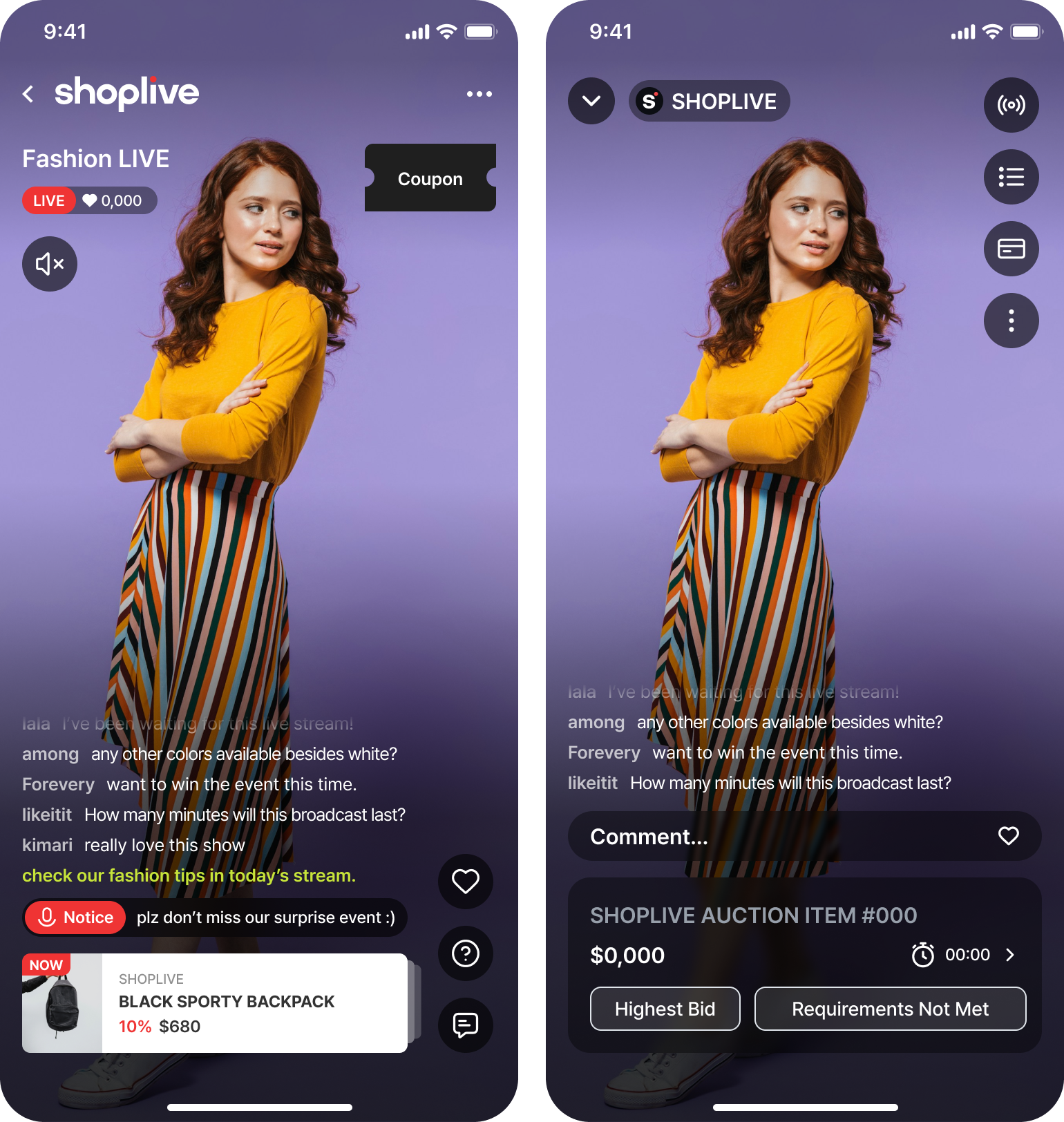
Completion Checklist
- Brand colors/fonts are reflected in loading and chat (option ①)
- Even in the
hiddenstate, product taps and coupon events keep arriving at the delegate (option ②) - Your own UI toggles correctly according to the broadcast status (
ready/live/ended) (screen terminology)
Previous ← Mission 6Next → Mission 8 · Broadcasting
Mission 8 · Broadcasting
Camera preview, start/stop broadcast, chat, settings, camera switching, mic, and zoom — the SDK provides the entire studio UI (screen terminology). Even implementing a delegate is optional.
Step 1 · Set the broadcasting token
This is a separate path from setUser for viewing (Mission 3). The broadcaster JWT is also signed by your backend using the Secret Key you got from your Shoplive contact.
Step 2 · Launch the studio & receive state
// 1) Broadcasting token (required)
Shoplive.setStreamToken(streamerJwt)

// 2) Launch the studio
let studio = ShopliveStreamerViewController(campaignKey: "YOUR_CAMPAIGN_KEY")
studio.streamerDelegate = self          // optional
present(studio, animated: true)

// 3) Receive state (optional)
extension MyViewController: ShopliveStreamerDelegate {
  func streamer(_ s: ShopliveStreamerViewController, didReceive event: ShopliveStreamerEvent) {
    switch event {
    case .stateChanged(let st): print("broadcast:", st)
    case .error(let e):         show(e.message)
    }
  }
}
// 1) Broadcasting token (required)
Shoplive.setStreamToken(streamerJwt)
// 2) Launch the studio — the SDK also requests runtime permissions
ShopliveStreamer(context).apply {
streamerDelegate = myStreamerDelegate // optional
}.start(campaignKey = "YOUR_CAMPAIGN_KEY")
// 3) Receive state (optional)
val myStreamerDelegate = object : ShopliveStreamerDelegate {
override fun onEvent(s: ShopliveStreamer, event: ShopliveStreamerEvent) {
when (event) {
is ShopliveStreamerEvent.StateChanged -> log(event.state)
is ShopliveStreamerEvent.Error -> show(event.error.message)
}
}
}// 1) Broadcasting token (required)
await Shoplive.setStreamToken(streamerJwt);
final streamer = ShopliveStreamer.instance;
// 3) Receive state (optional) — subscribe before start
streamer.events.listen((event) {
switch (event) {
case ShopliveStreamerStateChanged(:final state):
log(state);
case ShopliveStreamerErrorEvent(:final error):
show(error.message);
default:
break;
}
});
// 2) Launch the studio — the SDK also requests runtime permissions
await streamer.start("YOUR_CAMPAIGN_KEY");Put a web page next to the broadcast screen (optional · 3.0.3+) — pass your web page URL and it sits to the right of the broadcast screen; swipe left to open it. Without it, nothing changes. iOS ShopliveStreamerViewController(campaignKey:webPageURL:) · Android ShopliveStreamer(context).start(campaignKey, webPageUrl = "https://…") · Flutter streamer.start(campaignKey, webPageUrl: "https://…"). The URL must start with http:// or https:// and have a host (in Flutter, an invalid URL fails with INVALID_ARGUMENT before the broadcast screen opens). This page does not get the SDK's native bridge.
ShopliveStreamerEvent Types — Notifications Delivered via didReceive event
The mental model is the same as Player, but because the SDK provides the entire studio UI, there are only two event types. All of them are optional to handle.
View the full ShopliveStreamerEvent declaration (Swift · Kotlin · Dart)
public enum ShopliveStreamerEvent {
    case stateChanged(ShopliveBroadcastState)   // .idle/.preview/.connecting/.live/.reconnecting/.ended
    case error(ShopliveError)           // unrecoverable errors only
}
sealed class ShopliveStreamerEvent {
data class StateChanged(val state: ShopliveBroadcastState, val isRehearsal: Boolean) : ShopliveStreamerEvent() // IDLE/PREVIEW/CONNECTING/LIVE/RECONNECTING/ENDED
data class Error(val error: ShopliveError) : ShopliveStreamerEvent() // unrecoverable errors only
}sealed class ShopliveStreamerEvent {}
class ShopliveStreamerStateChanged { final ShopliveBroadcastState state; final bool? isRehearsal; }
// state: idle / preview / connecting / live / reconnecting / ended · isRehearsal: null on iOS (no rehearsal flag)
class ShopliveStreamerErrorEvent { final ShopliveError error; } // unrecoverable errors only
class ShopliveStreamerUnknownEvent { final String rawType; }| case | payload | When it arrives | Main use |
|---|---|---|---|
stateChanged | ShopliveBroadcastState | Broadcast lifecycle changes: idle → preview (camera preview) → connecting → live (on air) → ended. Automatic recovery from a brief network drop (reconnecting → live) is also observed through this event | Syncing app state, such as screen transitions and on-air indicators |
error | ShopliveError | Only when the broadcast terminates due to an unrecoverable error (e.g. an invalid token — step 1). Never during automatic recovery such as reconnection | Error messaging + retry UI — error handling |
ShopliveBroadcastState (type dictionary): idle → preview → connecting → live → (reconnecting) → ended.
Broadcast end policies (remaining time, allowing entry while ending, and so on) are still handled by CampaignEndOption.
Completion Checklist
- The camera preview appears when you enter the studio (
previewstate) - Starting the broadcast → the campaign plays as LIVE in the viewing app (Mission 1)
- A brief network drop recovers automatically via
reconnecting → live
Previous ← Mission 7Next → Data Field Dictionary
Data Field Dictionary
The configuration objects of the public API, organized field by field. Every field has a default value, so you only need to specify the ones you need.
ShopliveConfiguration — initialization (once per app)
Used in: Quick Start · Mission 2 (cold start)
| Field | Type | Default | Description |
|---|---|---|---|
accessKey | String | Required | Identifies your company — issued by Shoplive (what each key does) |
allowedWebViewDomains | [String] | Empty array (all allowed) | Domains allowed in the overlay web view. Required domains are included automatically by the SDK (client settings) |
attribution | ShopliveAttribution? | None | Traffic tracking bundle (below) |
appVersion (Android) | String? | None | Removed in 3.0.3 — the SDK reads the app version itself, so don't pass it (the Flutter 3.0.3 plugin still has it, but ignores the value and only logs a warning) |
ShopliveAttribution — traffic tracking
| Field | Type | Description |
|---|---|---|
utmSource / utmCampaign / utmMedium / utmContent | String? | The four UTM parameters |
advertisingId (iOS) | String? | Advertising identifier (IDFA) — collecting and passing it is the app's responsibility. iOS only as of 3.0.3 |
ShopliveUser — user information (3 forms)
Used in: Mission 3 · Connect User Information (including decision criteria, hashing, and the Secret Key)
| Form | Fields | Description |
|---|---|---|
token | jwt: String | Server-signed JWT (recommended) — how to issue one |
profile | id (required) · name / age / gender / rank (optional) · Android custom (optional, extra key-value) | Simple auth — the SDK generates an unsigned JWT (no permission checks). rank is the user grade (-100 to 100). A hash is recommended for id |
guest | — | Signed out — does nothing. The server issues the guest identifier |
Shoplive.logout() | — | Log out · reset user info — clears the user info (JWT and profile) and also the broadcasting token. Your accessKey, guest identifier and UTM stay |
ShoplivePlayerConfiguration — playback policy
Used in: Mission 1 · Mission 4 (preview) · Mission 5 (PIP) · Mission 7 (UI)
| Group | Field | Default | Description |
|---|---|---|---|
| — | type | live | Playback form — preview receives the server's preview stream (low resolution) (Mission 4) |
pipMission 5 | isInAppPipEnabled | true | Allow in-App floating PIP (common to VC/Activity and View) |
isOSPipEnabled | true | OS PIP — automatic when the app goes to the background (Android: Activity approach only) | |
defaultPosition | bottomRight | Default corner position for in-App PIP (ShoplivePipPosition) | |
scale | 0.4 | Size scale for in-App PIP | |
padding | 0 | Margin from the screen edges | |
fixedWidth (iOS) | None | Fixed in-App PIP width (pt) — used instead of scale when set | |
floatingOffset (iOS) | 0 | Extra offset added to the in-App PIP position | |
windowProvider (iOS) | None | The UIWindow that hosts the in-App PIP (found automatically if unset) | |
enterOSPipOnBackPressed (Android) | false | Switch to OS PIP on Back (Activity approach only) | |
aspectRatio (Android) | RATIO_9X16 | In-App PIP aspect ratio (ShoplivePipRatio) | |
isDragOutToCloseEnabled | true | Dragging the in-App PIP window off screen closes it. With false it snaps back, and only the close button or close() closes it (3.0.3+) | |
sound | muteOnStart | false | Start muted |
mixWithOthers | false | Play alongside audio from other apps | |
autoResumeOnCallEnded (iOS) / autoResumeOnFocusGained (Android) | true | Resume automatically when a call ends / focus is regained | |
isVolumeKeyEnabled (Android) | by type | Allow volume-key control — if unset, PREVIEW turns it off and LIVE turns it on | |
appearanceMission 7 | indicatorColor | white | Loading indicator color |
resizeMode (iOS) | fill | Initial video fit (fill / fit). Change it during playback with the player's resizeMode (Android offers the player property only) | |
loadingAnimationImages (iOS) / loadingAnimation (Android) | None | Custom loading animation | |
isStatusBarVisible (Android) | true | Status bar visibility | |
chatInputFont (iOS) / chatInputTypeface (Android) | System | Chat input font (screen terminology ③) | |
chatSendButtonFont (iOS) | System | Chat send button font | |
allowScreenCapture | true | Allow screen capture/recording | |
navigationMission 6 | actionOnNavigation | pip | Player behavior on screen transitions such as a product landing: pip / keep / close |
shareScheme | None | The app URL scheme used by the share button (screen terminology ⑥) | |
closeWhenAppDestroyed (Android) | true | Close the player when the app is destroyed | |
overlayMission 7 | ui | builtIn | Show the default overlay UI (builtIn) / hide it (hidden, command channel stays alive) |
| — | customParameters | Empty map | Pass client-defined key-values to the campaign (client settings) |
ShoplivePlayOptions — per-playback options
Used in: Mission 1 · Mission 2 (deep link referrer)
| Field | Type | Default | Description |
|---|---|---|---|
referrer | String? | None | Traffic source identifier (such as ref from a deep link) — reflected in statistics |
keepWindowStateOnPlayExecuted | Bool | false | Keep the existing window state (PIP, etc.) when playback starts |
presentationStyle | ShoplivePlayerPresentationStyle | fullScreen | How playback starts — pip starts directly in in-App PIP without going full screen (requires pip.isInAppPipEnabled = true). The ShoplivePlayOptions.preview preset (Android PREVIEW) uses it |
Types & States
These are isomorphic across both platforms (iOS uses lowercase cases, Android uppercase enums).
| Type | Values | Meaning · where used |
|---|---|---|
ShoplivePlayerType | live · preview | Playback form — preview is the preview stream (low resolution) — Mission 4 |
ShoplivePlayerPresentationStyle | fullScreen · pip (Android FULLSCREEN · PIP) | How playback starts — ShoplivePlayOptions · Mission 5 |
ShoplivePlayerState | idle · loading · playing · paused · inAppPIP(IN_APP_PIP) · closed | Player lifecycle — Mission 1 · 5 |
ShopliveBroadcastState | idle · preview · connecting · live · reconnecting · ended | Broadcasting lifecycle — Mission 8 |
ShopliveCampaignStatus | ready · live · ended | Campaign (broadcast) status — the basis for LIVE only elements (screen terminology) |
ShopliveConnectionState | connecting · connected · reconnecting · disconnected | Connection state — Mission 6 |
ShopliveResizeMode | fill · fit | Screen fitting — Mission 1 |
ShoplivePipPosition | top · middle · bottom × Left · Center · Right (9 positions, e.g. bottomRight) | Default in-App PIP position — Mission 5 |
ShopliveOverlayUIMode | builtIn · hidden | Show/hide the default overlay UI (the command channel stays alive) — Mission 7 |
ShopliveNavigationAction | pip · keep · close | Player behavior on screen transitions — Mission 6 |
Error Handling
The core rule: anything that can be recovered automatically is handled by the SDK and only reported through event (for example, a failed connection → automatic fallback and reconnection). Only unrecoverable problems are reported as a terminating error.
Clients never have to implement recovery logic themselves based on error codes. See Mission 6 for how to receive them.
struct ShopliveError: Error {
    let code: ShopliveErrorCode        // a typed enum
    let message: String
    let rawCode: Int           // original numeric code (3.0.3+, kept even when code is unknown)
    let underlying: Error?
    let isRecoverable: Bool    // fixed per code — true means a kind the SDK recovers from by itself (retry/reconnect)
}
// Shared by viewing and broadcasting from 3.0.3 — import cloud.shoplive.core.publicsurface.ShopliveError (· ShopliveErrorCode)
class ShopliveError(
val code: ShopliveErrorCode, // a typed enum
val rawCode: Int, // raw numeric code from the server/engine
override val message: String?,
override val cause: Throwable? = null,
val isRecoverable: Boolean = code.isRecoverable, // fixed per code — true means a kind the SDK recovers from by itself (retry/reconnect)
) : Exception(message, cause)// Error events carry a ShopliveError
class ShopliveError {
final String code; // SDK 3.0.3 error constant name — new values can appear, so treat it as an opaque string
final int? rawCode; // raw numeric code (3.0.3+, set on both platforms)
final String? message;
final bool recoverable; // true means the SDK recovers by itself (retry/reconnect)
}
// Every API call returns a Future and fails with PlatformException
// code: INVALID_ARGUMENT · NO_HOST_SCREEN · NOT_RUNNING · SDK_ERROR
try {
await ShoplivePlayer.instance.start(campaignKey);
} on PlatformException catch (e) {
if (e.code == ShoplivePlatformErrorCode.noHostScreen) { /* … */ }
}| Situation | Behavior | What the app does |
|---|---|---|
| Temporary network degradation | The SDK recovers automatically and reports playback(rebufferingStarted) | Nothing (show loading UI if you like) |
Recoverable (isRecoverable = true) | Transient states such as connection, network, or waiting for the broadcast — the SDK recovers by itself (retry/reconnect) | Wait — a user-facing notice at most |
Unrecoverable (isRecoverable = false) | The session terminates | Show code/message and provide retry UI |
Client-Configured Items
These are values you set directly in code to match your own environment.
| Item | Where | Purpose |
|---|---|---|
| Product/landing URL handling | ShoplivePlayerRequest.navigation (Mission 6) | The app decides which screen to open when a product or banner is tapped (deep link/web view/native) |
| Share scheme | navigation.shareScheme (field dictionary) | The app URL scheme used by the share button |
| Allowed web view domains | allowedWebViewDomains (field dictionary) | Whitelist of domains the overlay may open |
| Traffic parameters | attribution · ShoplivePlayOptions.referrer (field dictionary) | UTM / advertising identifier / referrer |
| Custom parameters | customParameters (field dictionary) | Passing client-defined key-values |
Troubleshooting & FAQ
Playback doesn't start
Check that ① initialize was called before playback (Quick Start), ② the accessKey and campaignKey are valid, and
③ for a secured campaign, setUser(token) (Mission 3) is set. For unrecoverable errors, you can find the cause in the code/message of the error event (error handling).
I tapped a product and nothing happened
ShoplivePlayerRequest.navigation(url:) is a request the app must handle. Make sure you implemented URL routing in the delegate's request method (Mission 6).
Can I hide the default chat UI and use my own?
Yes. Just turn off the display of the default UI with overlay.ui = hidden. Event/request data keeps being delivered even then, so your app can render its own UI (Mission 7).
Chat and coupons aren't showing
Those elements are LIVE only. They are not displayed when the campaign is ready (before the broadcast) or ended (finished) (Screen Terminology Guide).
OS PIP doesn't work in the Android embedded View
That is intended. OS PIP minimizes the entire host Activity, so it is available only with the Activity approach. With the View approach, use in-App floating PIP (enterPictureInPicture() — Mission 5).